Feature Summary
The Eye Care mode adjusts the editing area background to a light green color, reducing blue light stimulation to the eyes, making it suitable for extended spreadsheet editing.
Feature Description
| Feature Dimension | Description |
|---|---|
| Membership Restriction | No membership restriction |
| Version Restriction | No version restriction |
Operation Steps
Enabling Eye Care Mode
Feature Entry
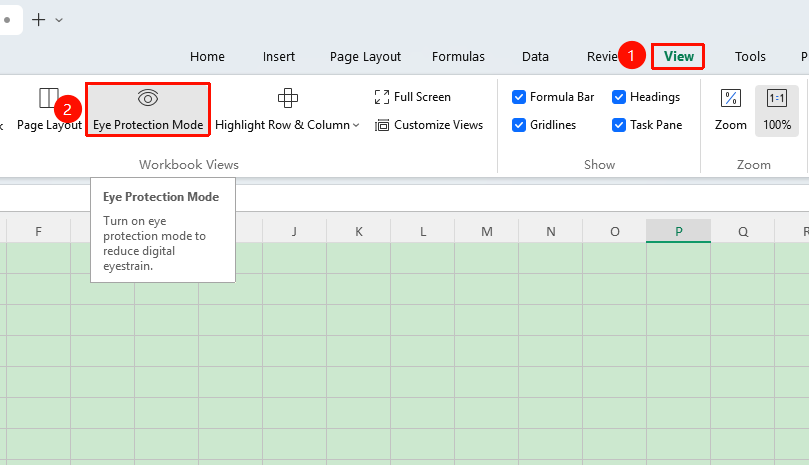
"View" tab → "Eye Care Mode"
- Click the View tab
- Click the Eye Care Mode button
- The editing area background turns light green
- Click again to disable
Enabling via Status Bar
Feature Entry
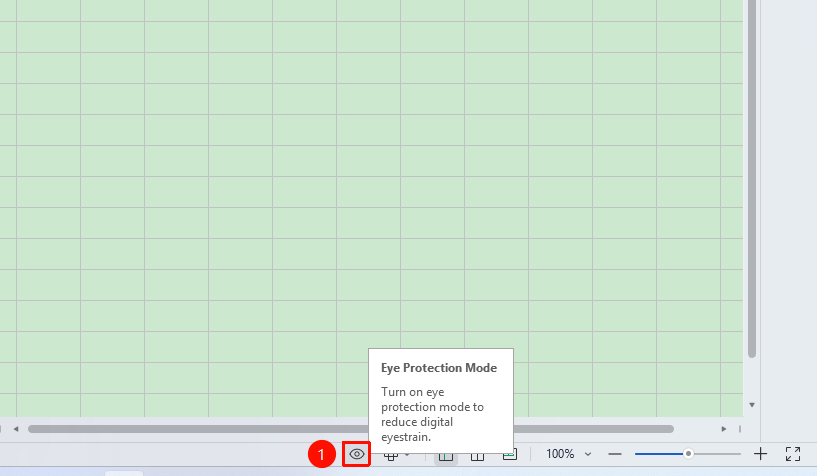
Bottom status bar
- Locate the Eye Care Mode icon on the status bar
- Click the icon to enable Eye Care mode
- Click again to disable Eye Care mode
FAQ
Q1: Does Eye Care mode affect printing results?
- Solution: Eye Care mode only changes the screen display and does not affect printing results. The background remains white when printed.
Q2: Can the Eye Care mode color be customized?
- Solution: The system defaults to light green, and custom colors are not currently supported.
Q3: Why is the background still green after disabling Eye Care mode?
- Solution: Check if a green background was applied in this spreadsheet. After confirming Eye Care mode is disabled, create a new spreadsheet to verify.
Notes
- Eye Care mode is a display setting and does not affect document content
- It is recommended to enable Eye Care mode in dimly lit environments
- Eye Care mode settings are global and will affect all documents