Feature Summary
The Split Sheet feature is used to split one worksheet into multiple worksheets based on specified criteria, such as splitting by the values in a certain column, making it easier to manage data by category.
Feature Description
| Feature Dimension | Description |
|---|---|
| Membership Restriction | Membership required |
| Version Restriction | No version restriction |
Steps
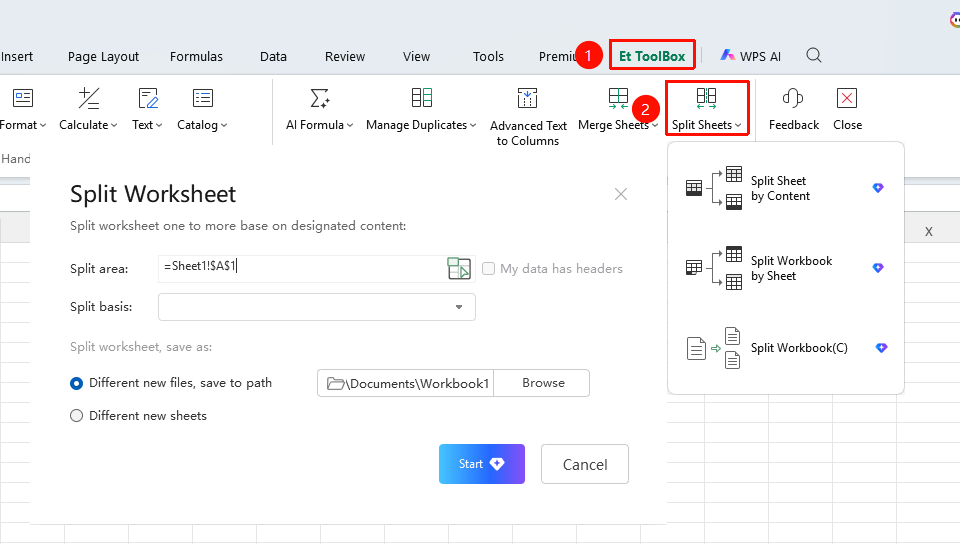
Using Smart Toolbox to Split Sheets
Feature Entry
"Member Exclusive" tab → "Smart Toolbox" option → "Smart Toolbox" tab → "Split Sheet" dropdown menu
- Click the Member Exclusive tab
- Select the Smart Toolbox button to open the Smart Toolbox tab
- In the Smart Toolbox tab, click the "Split Sheet" dropdown menu
- Select a split method
- Split worksheet by content (Membership required)
- Split workbook by worksheet (Membership required)
- Split workbook (Membership required)
- Set split parameters
- Click OK to start splitting
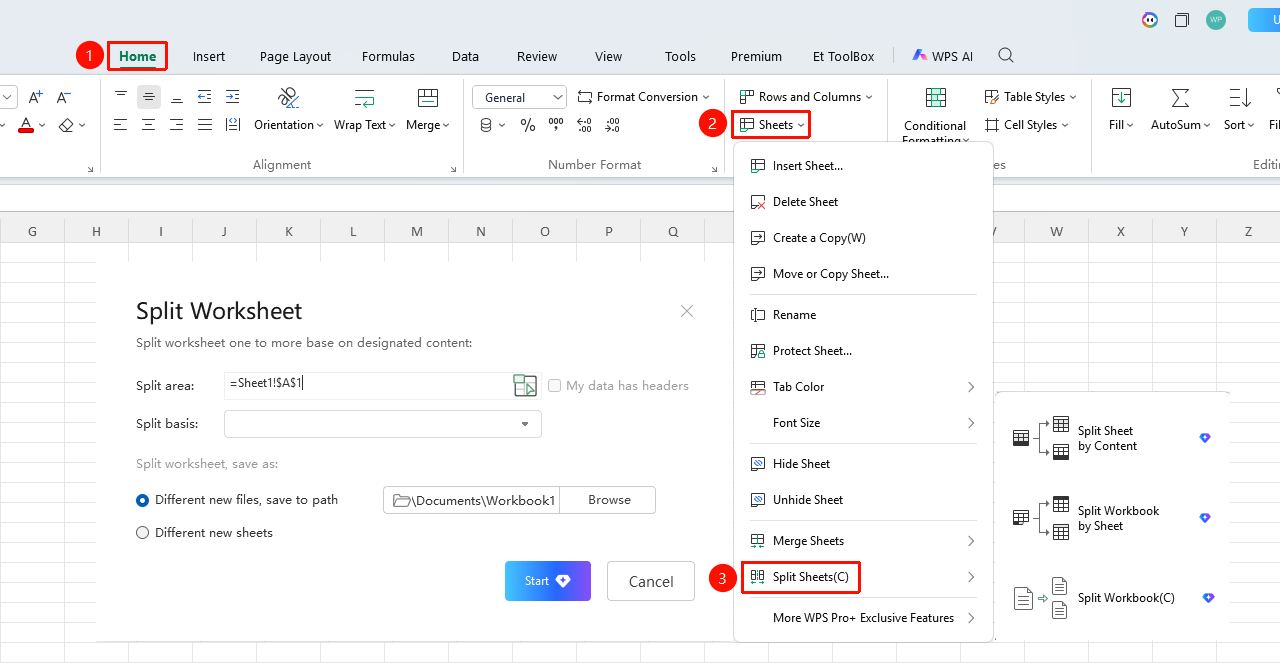
Splitting Sheets from the Home Tab on the Ribbon
Feature Entry
"Home" tab → "Worksheet" dropdown menu → "Split Sheet" dropdown menu
- Click the Home tab
- Select the Worksheet dropdown menu
- Click the "Split Sheet" dropdown menu
- Select a split method
- Split worksheet by content (Membership required)
- Split workbook by worksheet (Membership required)
- Split workbook (Membership required)
- Set split parameters
- Click OK to start splitting
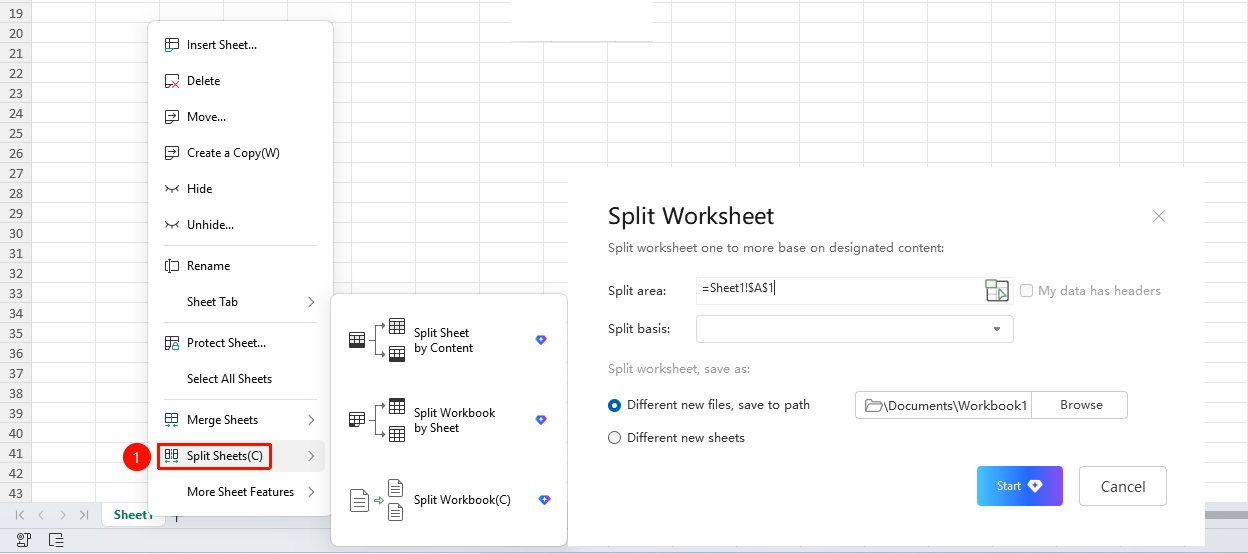
Splitting Sheets from the Right-Click Menu
Feature Entry
Sheet tab bar → Right-click an existing sheet tab → "Split Sheet" dropdown menu
- Right-click an existing sheet tab
- Click the "Split Sheet" dropdown menu
- Select a split method
- Split worksheet by content (Membership required)
- Split workbook by worksheet (Membership required)
- Split workbook (Membership required)
- Set split parameters
- Click OK to start splitting
FAQ
Q1: How are the split worksheets named?
- Solution: The Smart Toolbox automatically names the worksheets based on the values in the split column.
Q2: Is the original sheet retained after splitting?
- Solution: The original sheet is retained, and the split results are generated as new worksheets.
Notes
- Ensure the split column has clear categorical values before splitting
- Splitting may generate a large number of worksheets
- You can also quickly find the Split Sheets feature under the Tools tab at the top.