Feature Summary
The spell check feature is used to check for English word spelling errors in spreadsheets. It supports both manual and automatic checking modes, allowing you to quickly identify and correct spelling errors to help improve document quality.
Feature Description
| Feature Dimension | Description |
|---|---|
| Membership Restriction | No membership restriction |
| Version Restriction | No version restriction |
Operation Steps
Direct Access from the Menu Bar (Manual Check)
Feature Entry
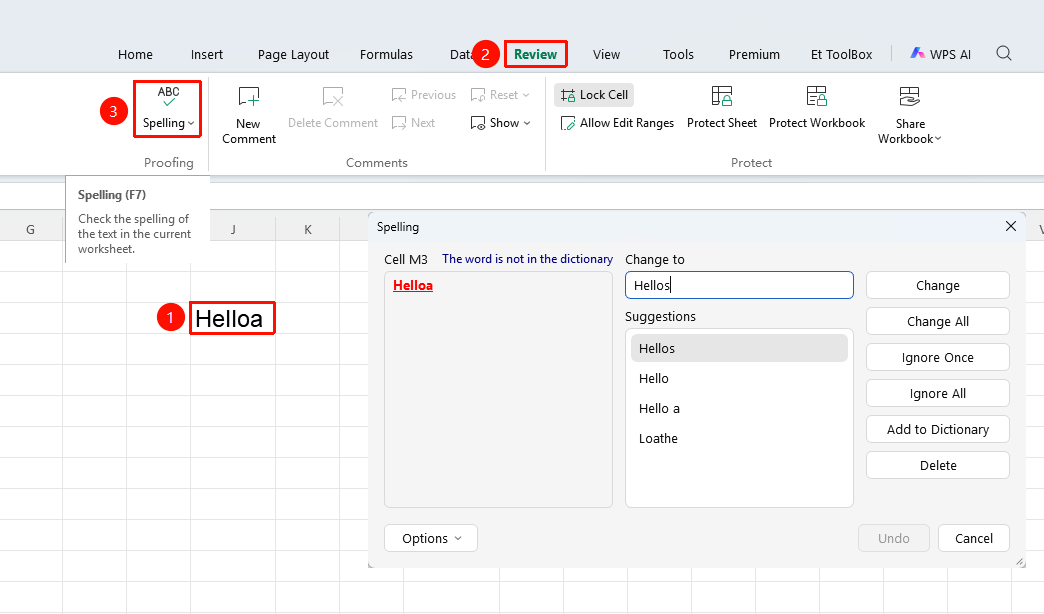
"Review" tab → "Spell Check" button
- Select the cell range you want to spell check (you can skip this step if you want to check the entire spreadsheet)
- Click the Spell Check button in the Review tab
- The program will automatically scan the text content of the selected range or the entire spreadsheet
- A prompt window will pop up when a potential spelling error is found
- You can choose actions such as Change, Ignore, and Add to Dictionary
Custom Dictionary and Check Language
Feature Entry
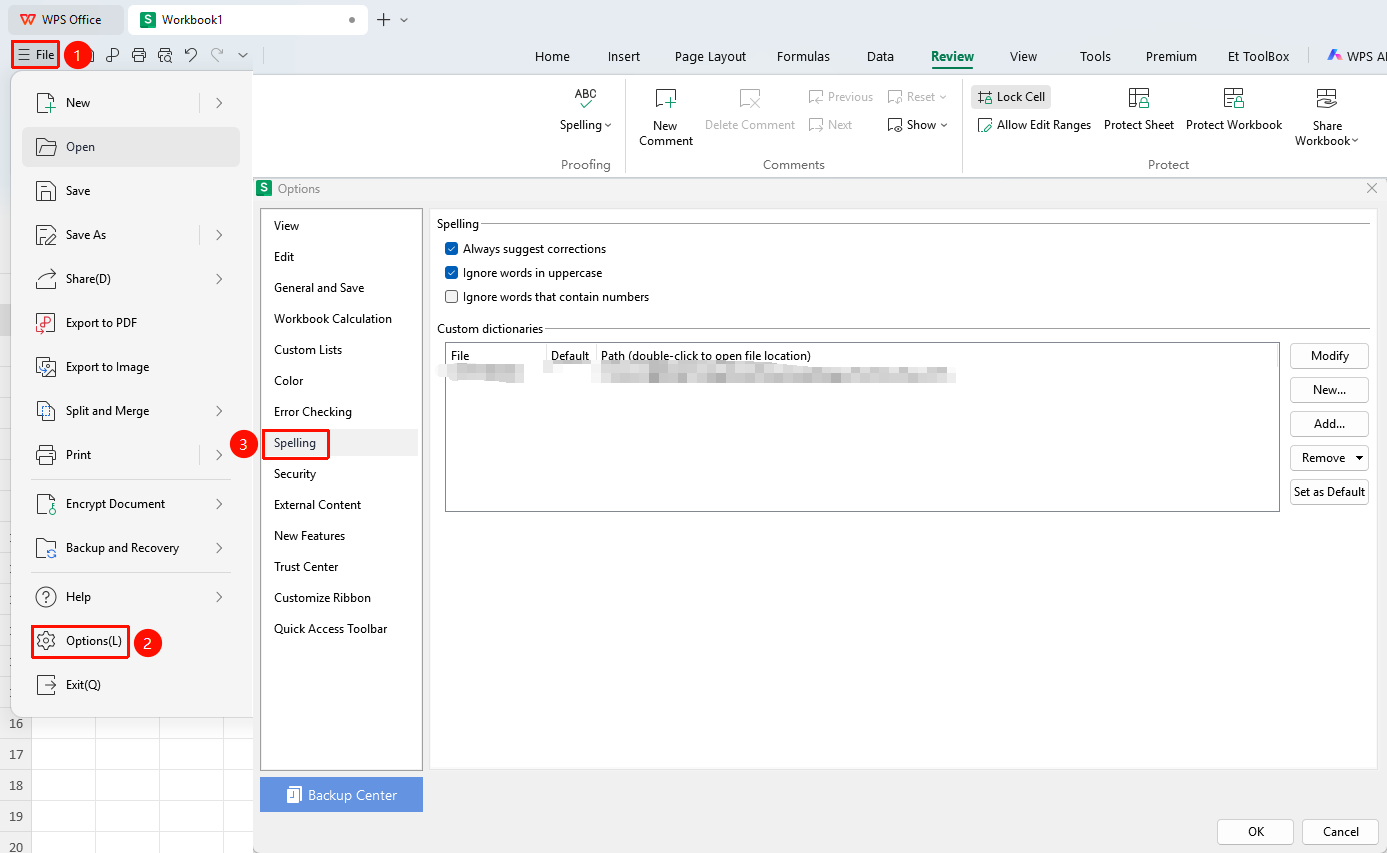
"File" menu → "Options" button → "Spell Check" option → "Custom Dictionary"
- Click the File menu in the upper left corner
- Find and click the Options button in the drop-down menu
- Select the Spell Check option in the left menu bar
- Click options such as Modify, New, Add, etc. to adjust the content of the custom dictionary
Frequently Asked Questions
Question 1: How do I add a custom dictionary?
- Solution: In the Spell Check section of File Options, you can click Custom Dictionary to create or add dictionary files, and add commonly used professional terms to the dictionary.