Feature Summary
The sort function is used to arrange data in ascending or descending order based on the values in a specified column, supporting both single-condition sorting and multi-condition custom sorting.
Feature Description
| Feature Dimension | Description |
|---|---|
| Membership Restriction | No membership restriction |
| Version Restriction | No version restriction |
Operation Steps
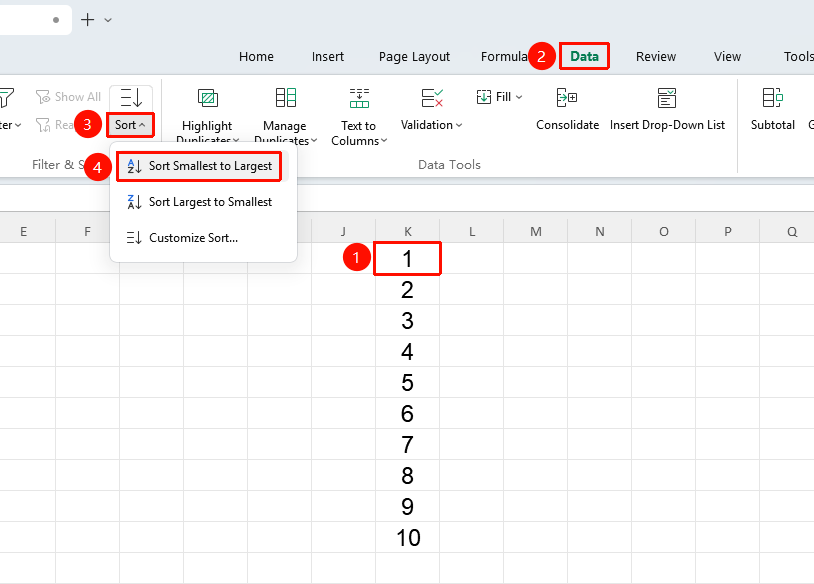
Ribbon Ascending
Function Entry
"Data" tab → "Sort" drop-down menu → "Ascending" button
- Select any cell in the column you want to sort in ascending order
- Click the Sort drop-down menu in the Data tab
- Click the "Ascending" button
Ribbon Descending
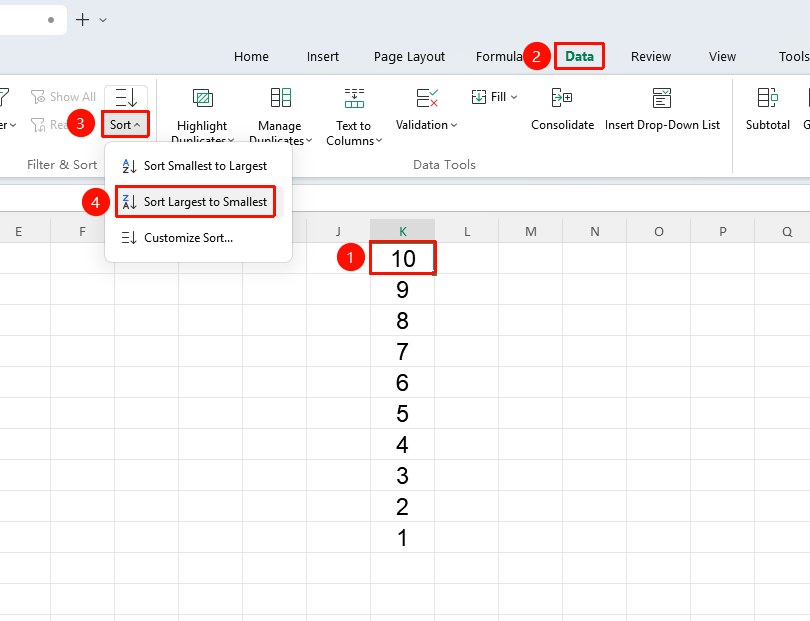
Function Entry
"Data" tab → "Sort" drop-down menu → "Descending" button
- Select any cell in the column you want to sort in descending order
- Click the Descending drop-down menu in the Data tab
- Click the "Descending" button
Ribbon Custom Sort
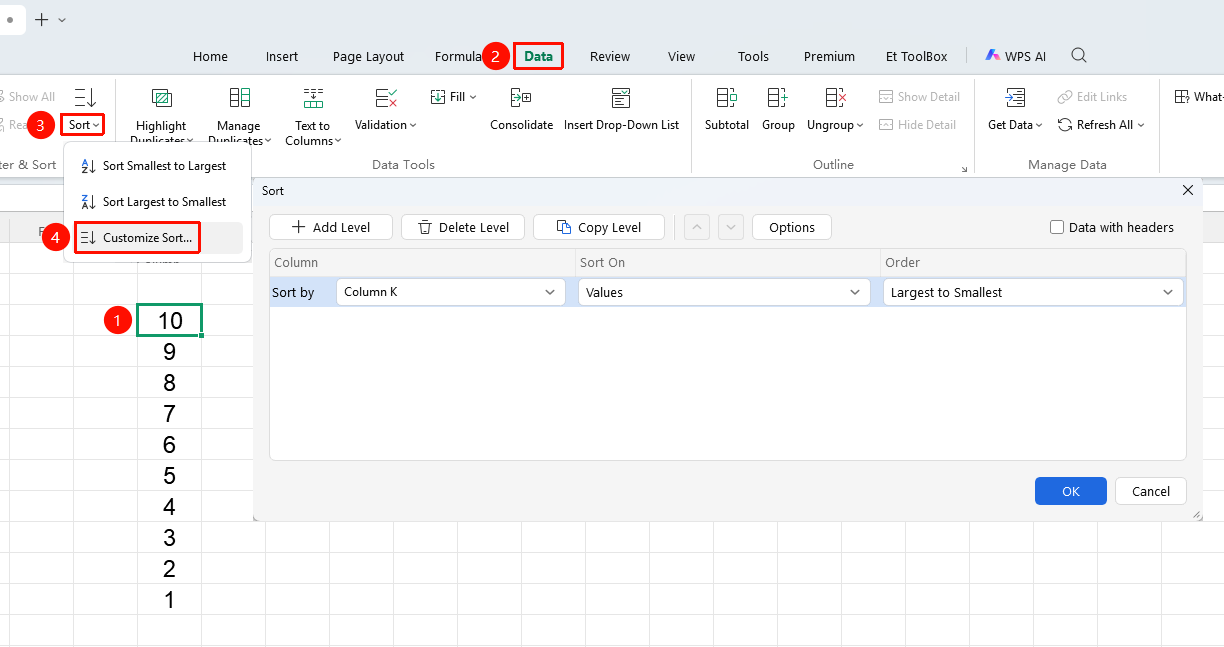
Function Entry
"Data" tab → "Sort" drop-down menu → "Custom Sort" button
- Select any cell in the range you want to sort
- Click the Sort drop-down menu in the Data tab
- Click the "Custom Sort" button
- Set the sort conditions in the pop-up dialog box:
- Primary Key: Select the first column to sort by
- Sort By: Values, cell color, font color, etc.
- Order: Ascending or descending
- Click Add Level to set a secondary key
- Click OK
Right-Click Menu Ascending
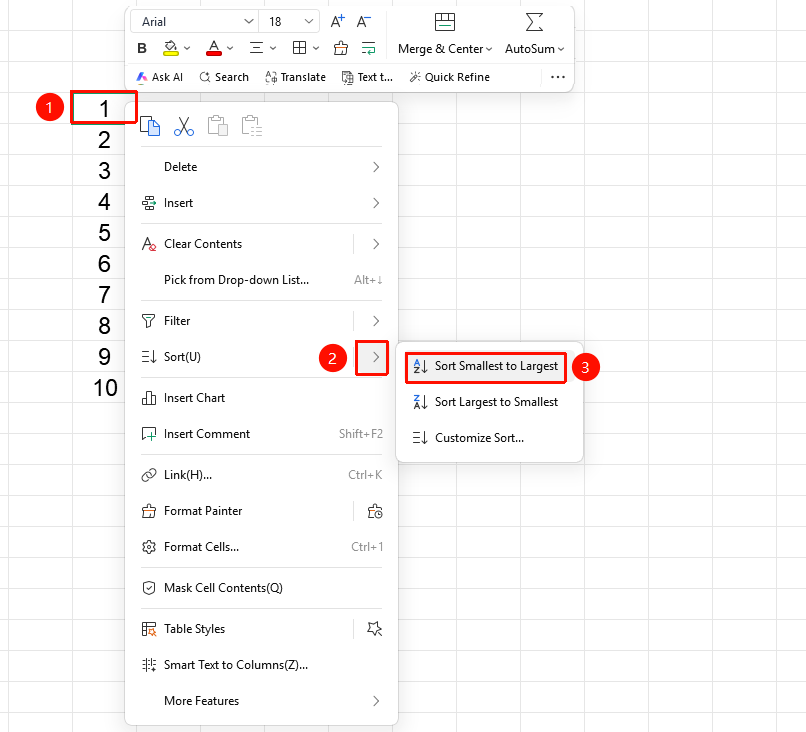
Function Entry
Right-click any cell → "Sort" drop-down menu → "Ascending" button
- Select any cell in the column you want to sort in ascending order
- Right-click the selected cell and choose the Sort drop-down menu
- Click the "Ascending" button
Right-Click Menu Descending
Function Entry
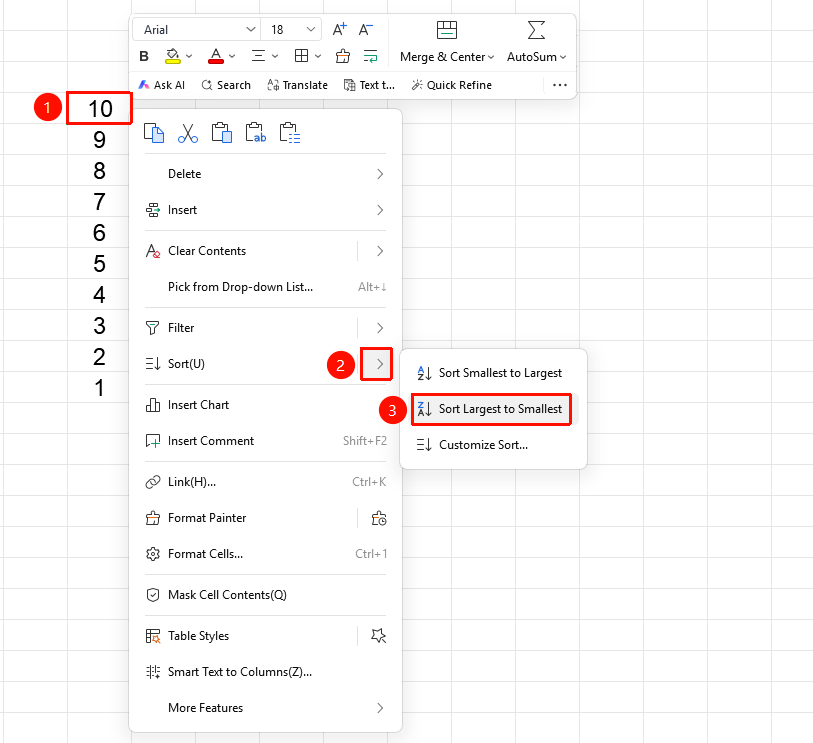
Right-click any cell → "Sort" drop-down menu → "Descending" button
- Select any cell in the column you want to sort in descending order
- Right-click the selected cell and choose the Sort drop-down menu
- Click the "Descending" button
Right-Click Menu Custom Sort
Function Entry
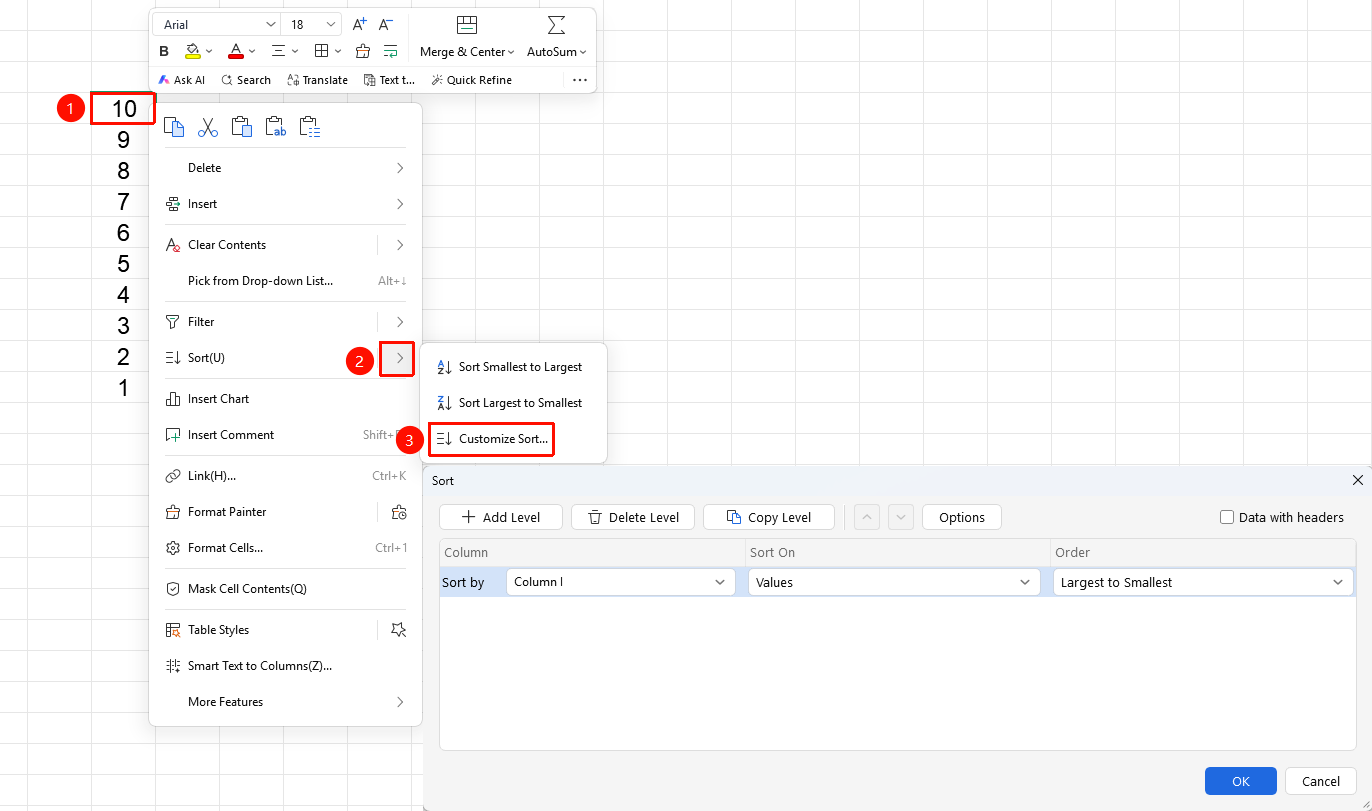
Right-click any cell → "Sort" drop-down menu → "Custom Sort" button
- Select any cell in the range you want to sort
- Right-click the selected cell and choose the Sort drop-down menu
- Click the "Custom Sort" button
- Set the sort conditions in the pop-up dialog box:
- Primary Key: Select the first column to sort by
- Sort By: Values, cell color, font color, and so on.
- Order: Ascending or descending
- Click Add Level to set a secondary key
- Click OK
Frequently Asked Questions
Q1: What should I do if the data becomes disordered after sorting?
- Solution: Use Ctrl + Z to undo the sorting. When sorting, make sure to select "Expand the selection" to avoid sorting only a single column.
Notes
- It is recommended to back up data before sorting
- Custom sort allows you to set multiple sort conditions