Feature Summary
The insert and delete cell features are used to add or remove cells in a spreadsheet, supporting operations on entire rows, entire columns, or specified ranges, and automatically adjusting the table structure.
Feature Description
| Feature Dimension | Description |
|---|---|
| Membership Restriction | Some features require a membership subscription |
| Version Restriction | No version restrictions |
Operation Steps
Right-Click Insert Cells
Feature Entry
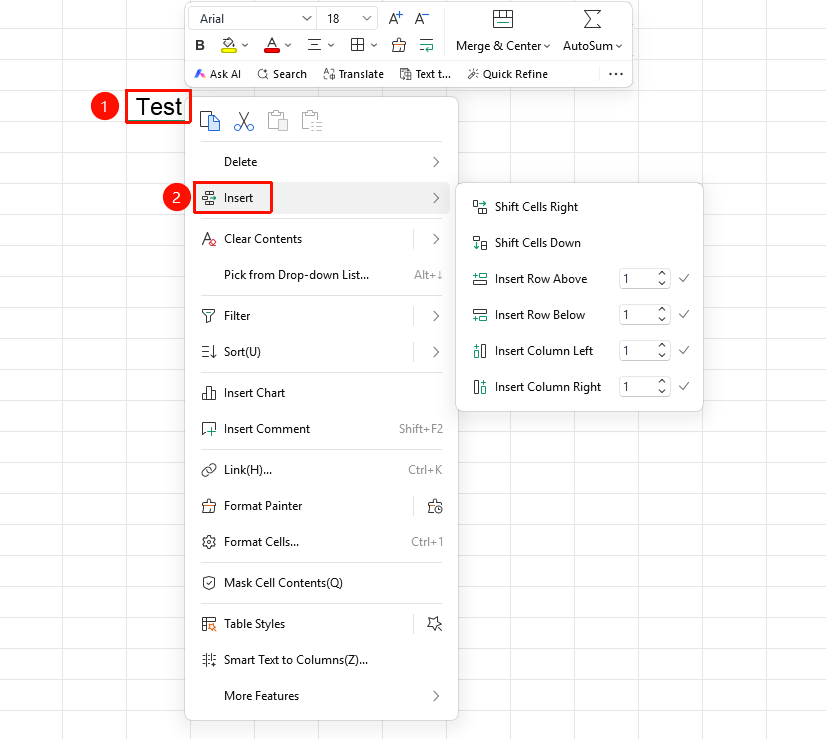
Right-click a cell → "Insert" dropdown menu
- Select the cell where you want to insert
- Right-click the cell and select the "Insert" dropdown menu
- Choose an insertion method:
- Insert cells, shift active cells right: The current cell and cells to its right shift right
- Insert cells, shift active cells down: The current cell and cells below it shift down
- Insert row above: Insert an entire row above
- Insert row below: Insert an entire row below
- Insert column to the left: Insert an entire column to the left
- Insert column to the right: Insert an entire column to the right
Right-Click Delete Cells
Feature Entry
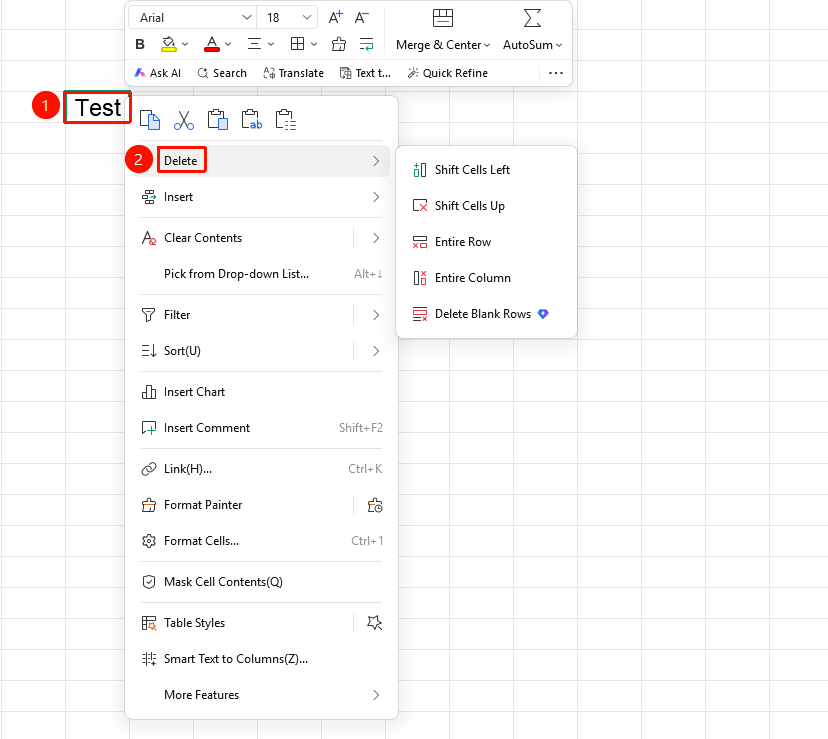
Right-click a cell → "Delete" dropdown menu
- Select the cell(s) to delete
- Right-click the cell and select the "Delete" dropdown menu
- Choose a deletion method:
- Shift cells left: Cells to the right fill the empty space
- Shift cells up: Cells below fill the empty space
- Entire row: Delete the entire row
- Entire column: Delete the entire column
- Delete empty rows (membership required): When multiple rows are selected, delete the blank rows among them
Insert Cells from the Ribbon
Feature Entry
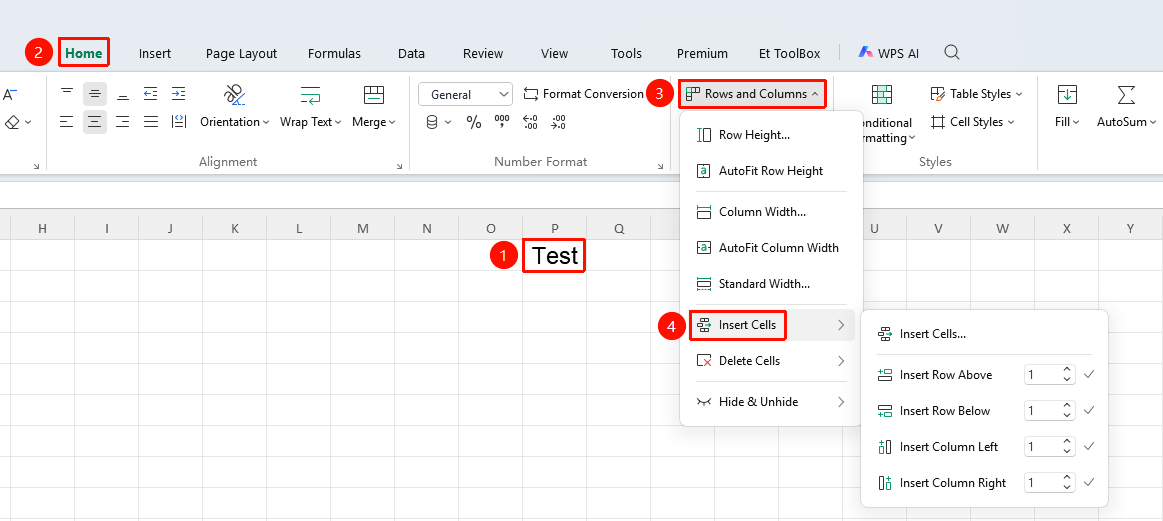
"Home" tab → "Rows & Columns" dropdown menu → "Insert Cells" dropdown menu
- Select the cell where you want to insert
- Click the Home tab
- Select the Rows & Columns dropdown menu
- Click the "Insert Cells" dropdown menu
- Choose an insertion method:
- Insert row above: Insert an entire row above
- Insert row below: Insert an entire row below
- Insert column to the left: Insert an entire column to the left
- Insert column to the right: Insert an entire column to the right
Delete Cells from the Ribbon
Feature Entry
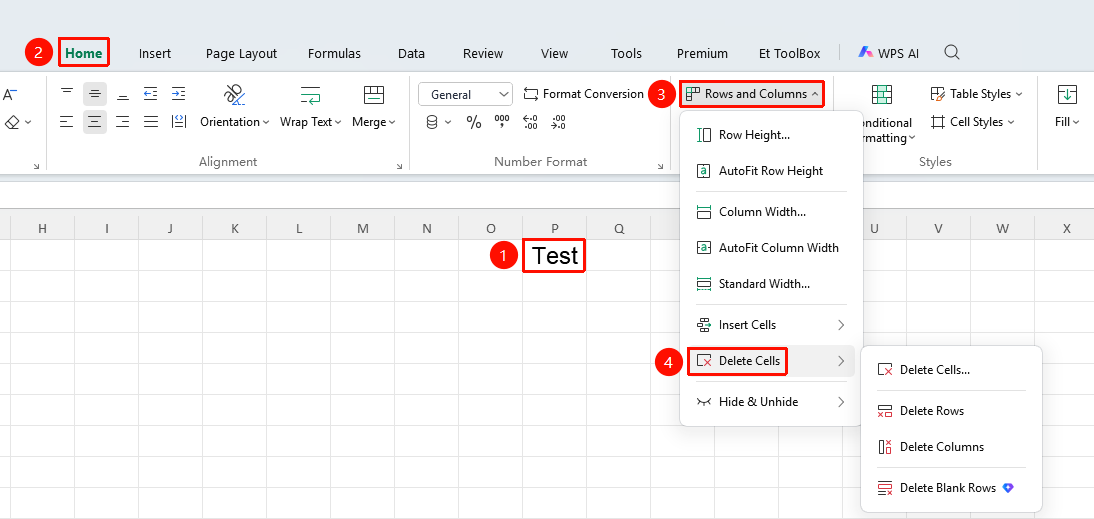
"Home" tab → "Rows & Columns" dropdown menu → "Delete Cells" dropdown menu
- Select the cell(s) to delete
- Click the Home tab
- Select the Rows & Columns dropdown menu
- Click the "Delete Cells" dropdown menu
- Choose a deletion method:
- Delete cells: Delete the selected cells
- Delete rows: Delete the entire row
- Delete columns: Delete the entire column
- Delete empty rows (membership required): When multiple rows are selected, delete the blank rows among them
Frequently Asked Questions
Q1: Will inserting cells affect formula references?
- Solution: Yes. After inserting or deleting cells, related formula references will adjust automatically.
Notes
- Inserting entire rows/columns is more commonly used
- Before deleting cells, confirm that other data will not be affected
- You can use Ctrl + Z to undo the operation