Feature Summary
The insert and delete sheet features are used to manage the number of sheets in a workbook, supporting adding new sheets or deleting unwanted sheets.
Feature Description
| Feature Dimension | Description |
|---|---|
| Membership Restriction | No membership restriction |
| Version Restriction | No version restriction |
Operation Steps
Insert New Sheet via Ribbon
Feature Entry
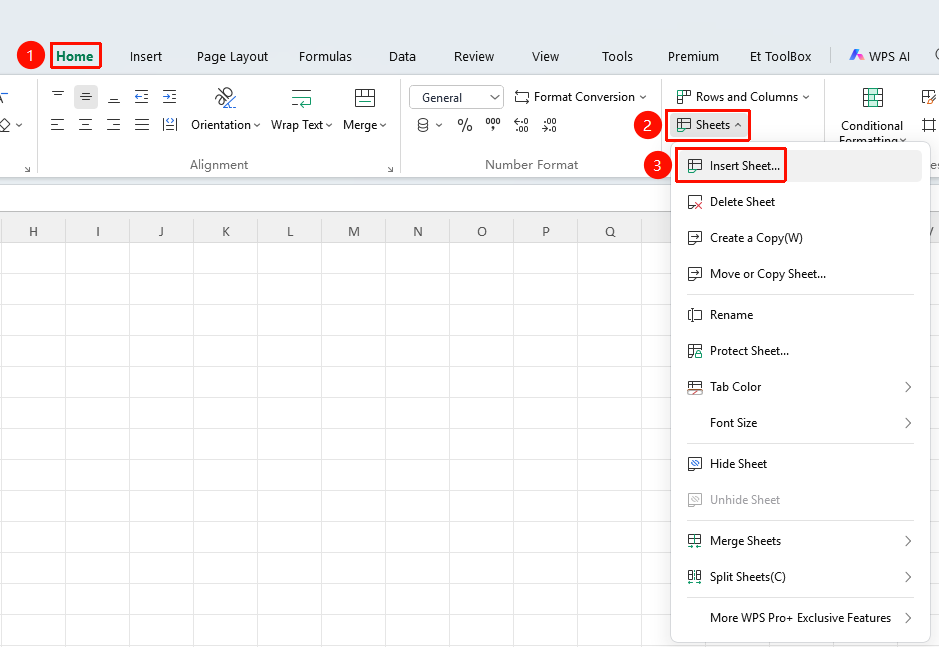
"Home" tab → "Sheet" dropdown menu → "Insert Sheet" button
- Click the Home tab
- Select the Sheet dropdown menu
- Click the "Insert Sheet" button
Insert New Sheet via Sheet Tab Bar
Feature Entry
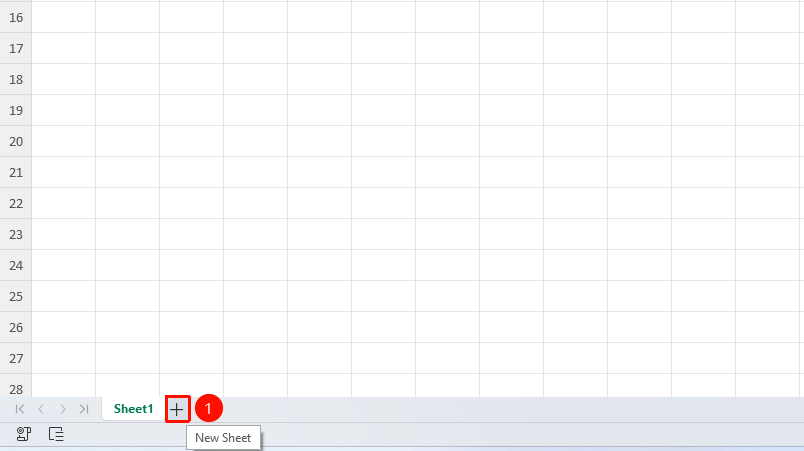
"Sheet" tab bar → "Insert Sheet" button
- Click the "New Sheet" button ("+" icon) to the right of the sheet tabs to insert a new sheet
Insert New Sheet by Right-Clicking Sheet Tab
Feature Entry
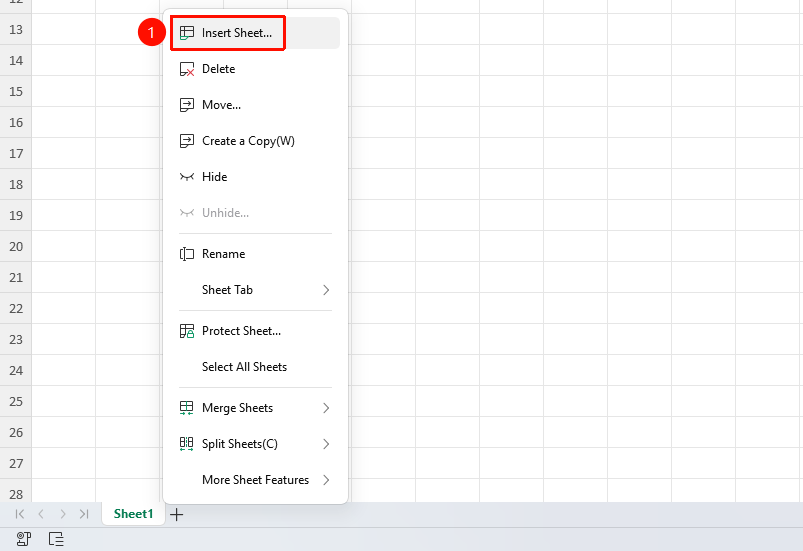
"Sheet" tab bar → Right-click an existing sheet tab → "Insert Sheet" button
- Right-click an existing sheet tab
- Click the "Insert Sheet" button to complete insertion
Delete Sheet via Ribbon
Feature Entry
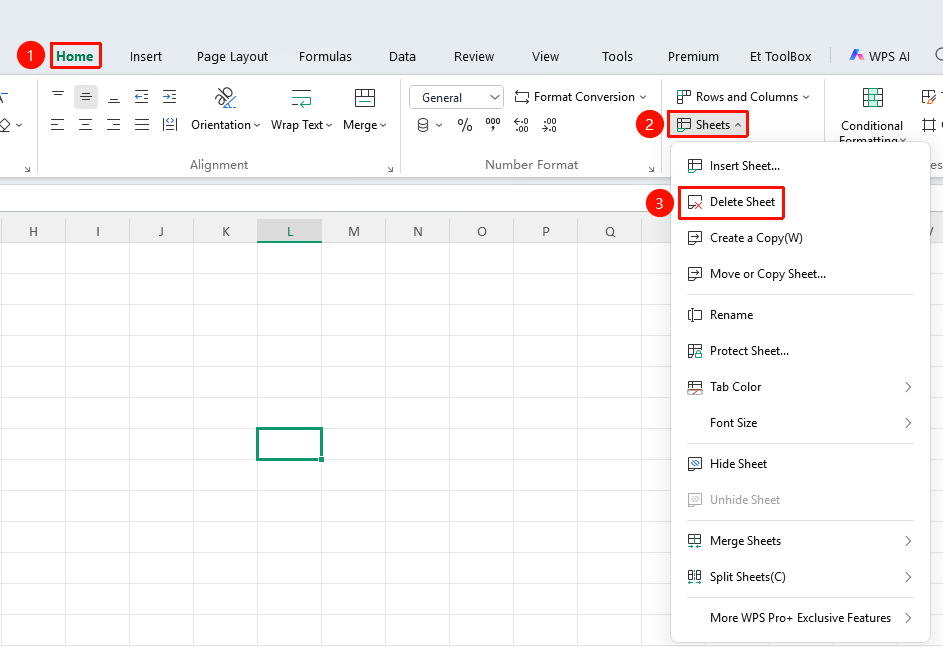
"Home" tab → "Sheet" dropdown menu → "Delete Sheet" button
- Click the Home tab
- Select the Sheet dropdown menu
- Click the "Delete Sheet" button
Delete Sheet by Right-Clicking Sheet Tab
Feature Entry
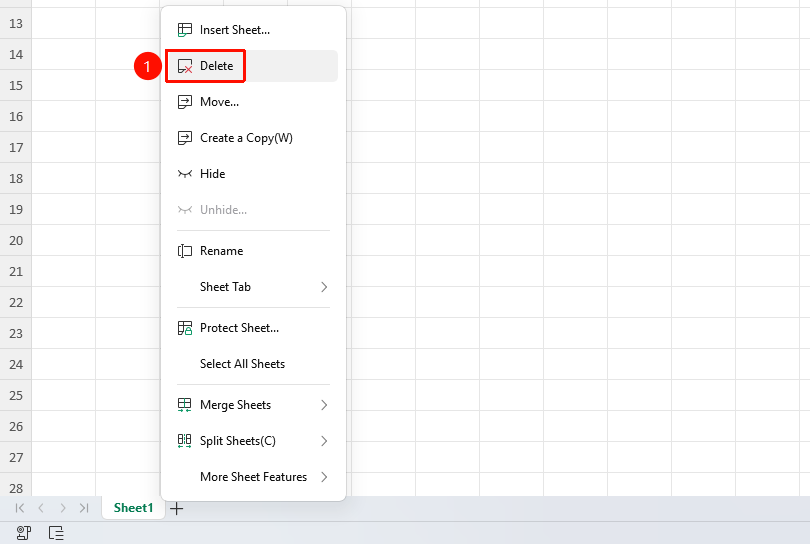
Right-click sheet tab → "Delete" button
- Right-click the sheet tab you want to delete
- Select the "Delete" button
- Confirm the deletion
Insert Sheet Shortcut:
Shift + F11
FAQ
Q1: Can a deleted sheet be recovered?
- Solution: Deletion cannot be undone. It is recommended to confirm before deleting.
Notes
- Before deleting a sheet, confirm that it contains no important data
- A workbook must retain at least one sheet
- You can adjust the sheet order by dragging the sheet tabs