Feature Summary
The data comparison feature is used to compare data differences between two ranges or two worksheets, quickly identifying discrepancies to facilitate data verification and validation.
Feature Description
| Feature Dimension | Description |
|---|---|
| Membership Restriction | Membership required |
| Version Restriction | No version restriction |
Operation Steps
Smart Toolbox - Mark Duplicate Data (Membership required)
Feature Entry
"Member Exclusive" tab → "Smart Toolbox" option → "Smart Toolbox" tab → "Data Comparison" dropdown menu → "Mark Duplicate Data" option
- Select the data range to be compared
- Select the Member Exclusive tab
- Click the Smart Toolbox button
- The Smart Toolbox tab pops up
- Click the Data Comparison dropdown menu
- Select the "Mark Duplicate Data" option
- Set comparison parameters and comparison range
- Click Confirm Marking
- Duplicate data will be highlighted
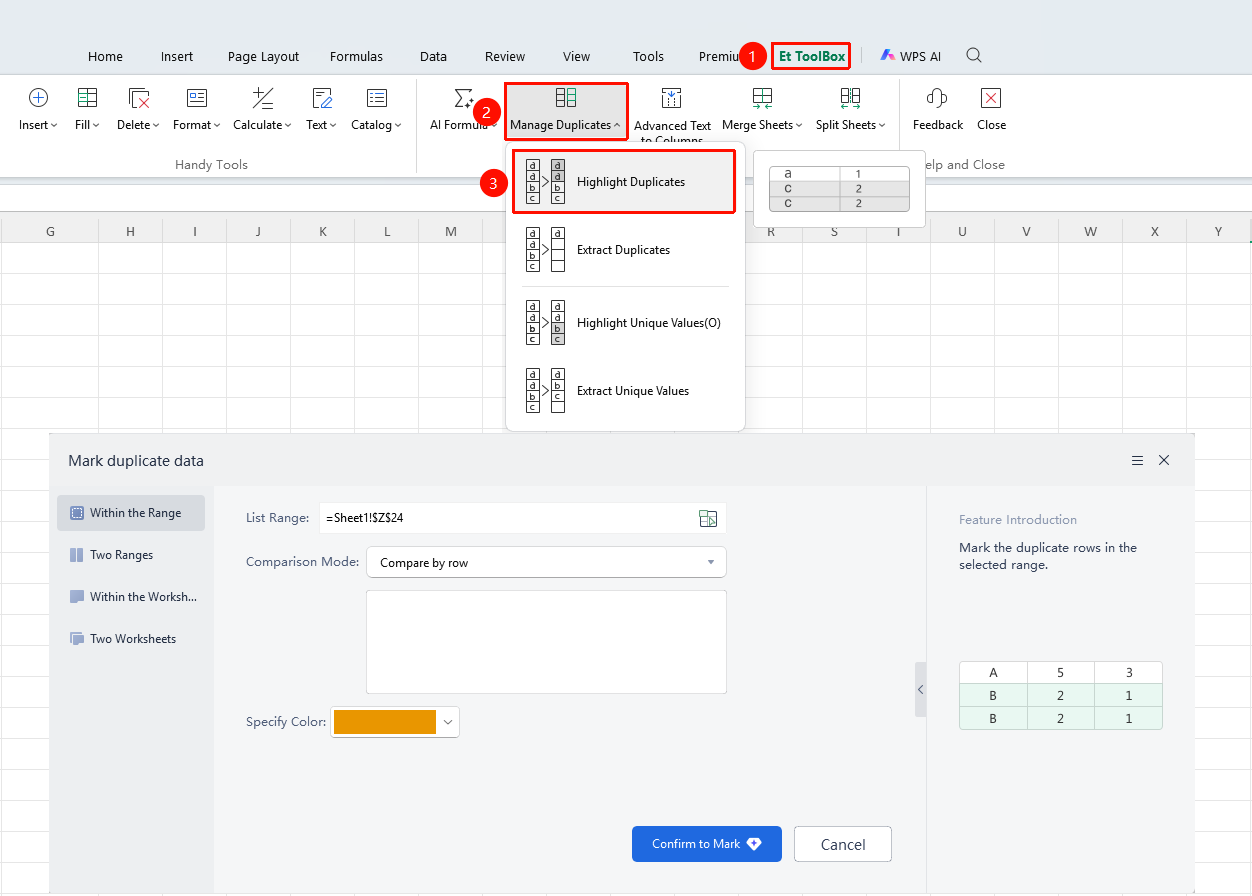
Smart Toolbox - Extract Duplicate Data (Membership required)
Feature Entry
"Member Exclusive" tab → "Smart Toolbox" option → "Smart Toolbox" tab → "Data Comparison" dropdown menu → "Extract Duplicate Data" option
- Select the data range to be compared
- Select the Member Exclusive tab
- Click the Smart Toolbox button
- The Smart Toolbox tab pops up
- Click the Data Comparison dropdown menu
- Select the "Extract Duplicate Data" option
- Set comparison parameters and comparison range
- Click Extract to New Worksheet
- Duplicate data will be extracted to a new worksheet
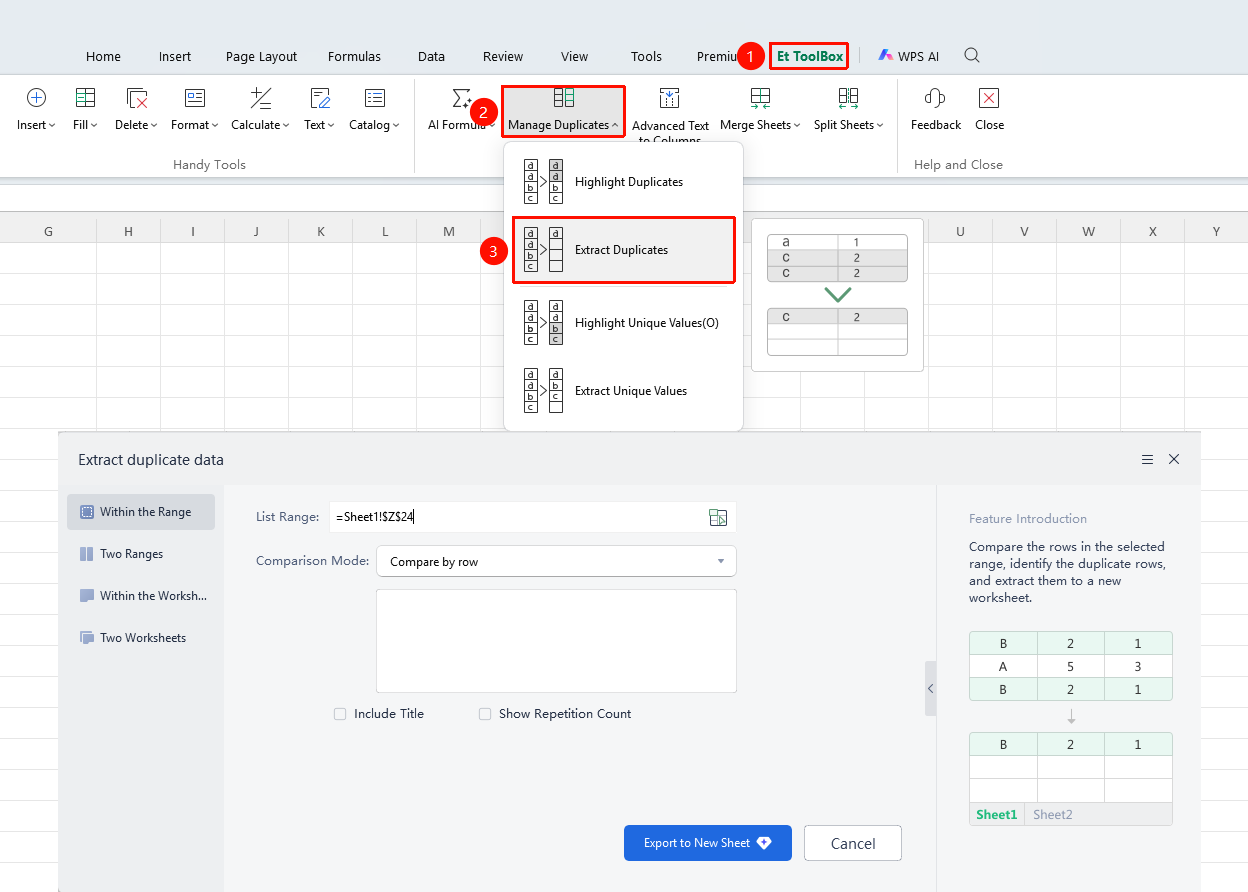
Smart Toolbox - Mark Unique Data (Membership required)
Feature Entry
"Member Exclusive" tab → "Smart Toolbox" option → "Smart Toolbox" tab → "Data Comparison" dropdown menu → "Mark Unique Data" option
- Select the data range to be compared
- Select the Member Exclusive tab
- Click the Smart Toolbox button
- The Smart Toolbox tab pops up
- Click the Data Comparison dropdown menu
- Select the "Mark Unique Data" option
- Set comparison parameters and comparison range
- Click Confirm Marking
- Differing data will be highlighted
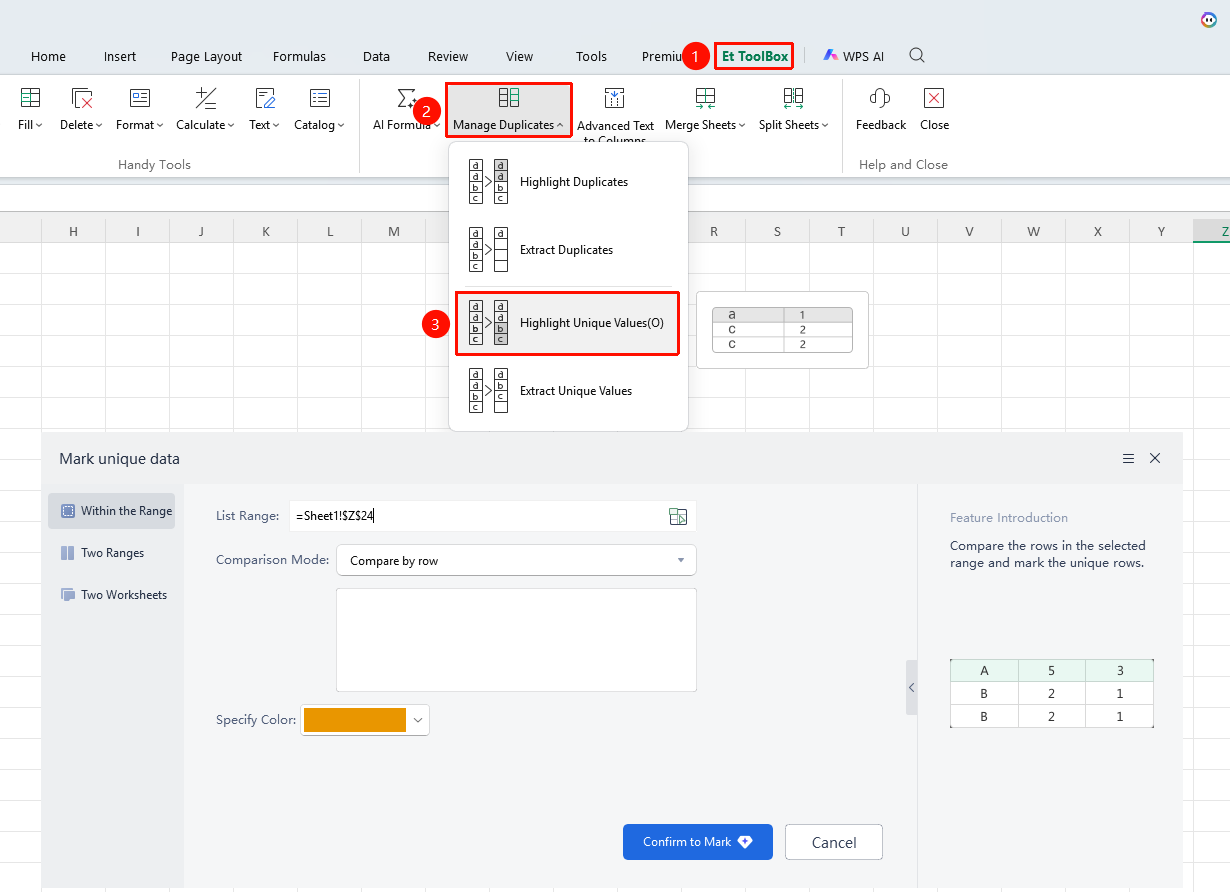
Smart Toolbox - Extract Unique Data (Membership required)
Feature Entry
"Member Exclusive" tab → "Smart Toolbox" option → "Smart Toolbox" tab → "Data Comparison" dropdown menu → "Extract Unique Data" option
- Select the data range to be compared
- Select the Member Exclusive tab
- Click the Smart Toolbox button
- The Smart Toolbox tab pops up
- Click the Data Comparison dropdown menu
- Select the "Extract Unique Data" option
- Set comparison parameters and comparison range
- Click Extract to New Worksheet
- Unique data will be extracted to a new worksheet
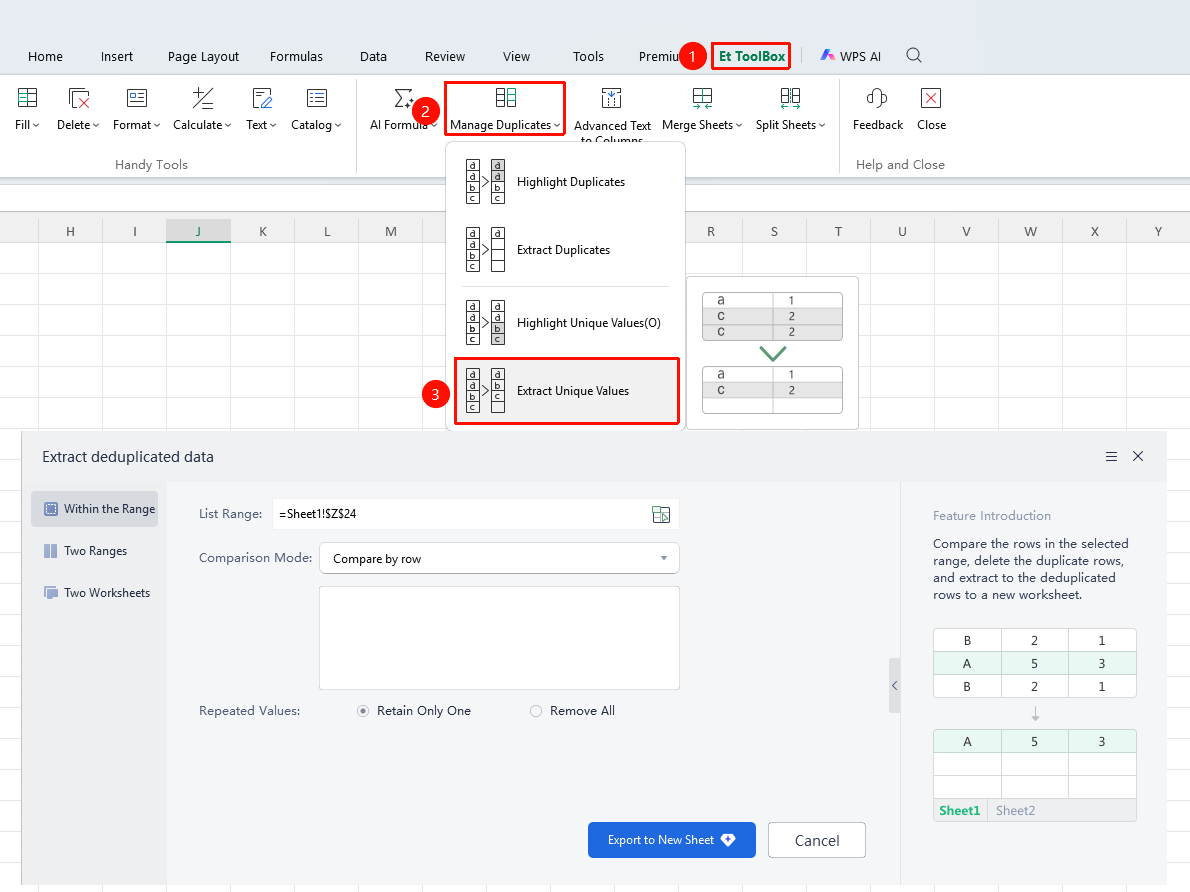
Data Tab - Mark Duplicate Data (Membership required)
Feature Entry
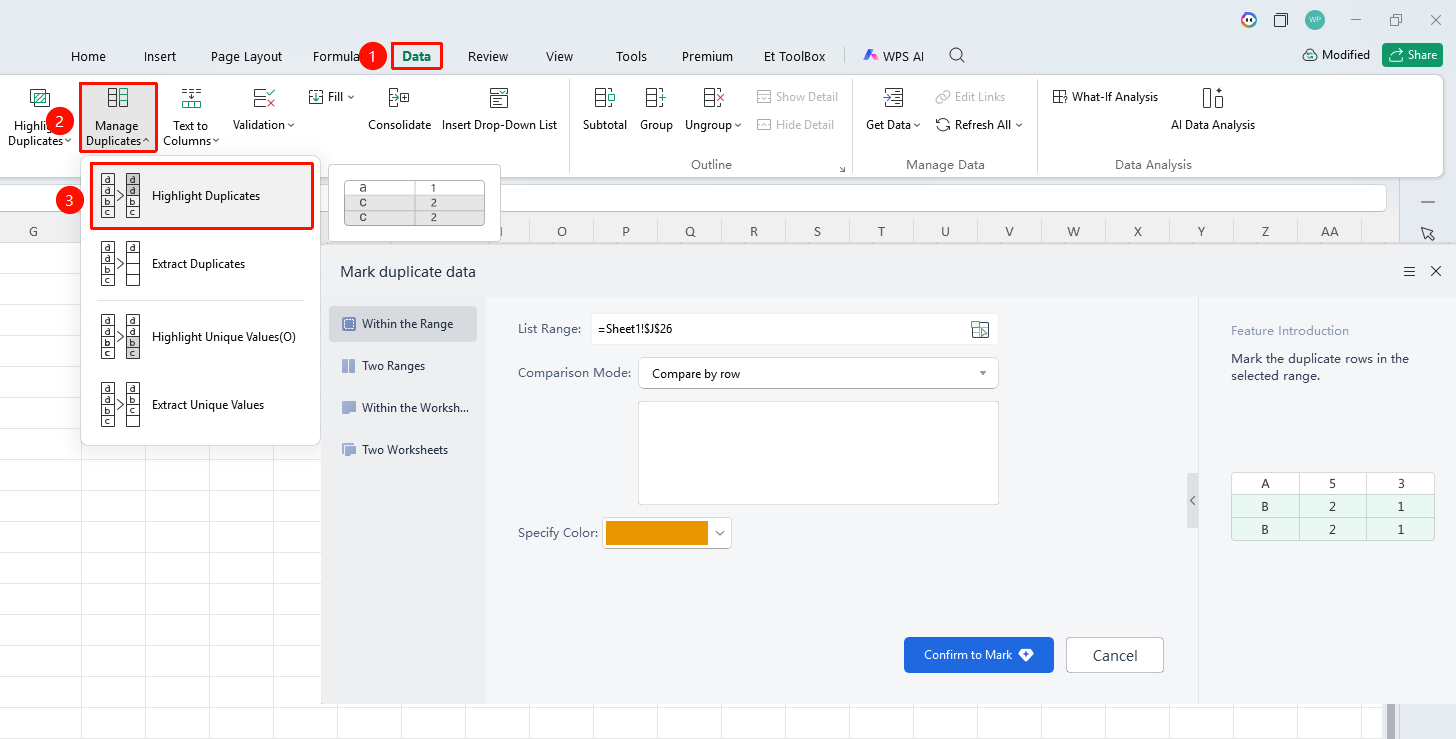
"Data" tab → "Data Comparison" dropdown menu → "Mark Duplicate Data" option
- Select the data range to be compared
- Select the Data tab
- Click the Data Comparison dropdown menu
- Select the "Mark Duplicate Data" option
- Set comparison parameters and comparison range
- Click Confirm Marking
- Duplicate data will be highlighted
Data Tab - Extract Duplicate Data (Membership required)
Feature Entry
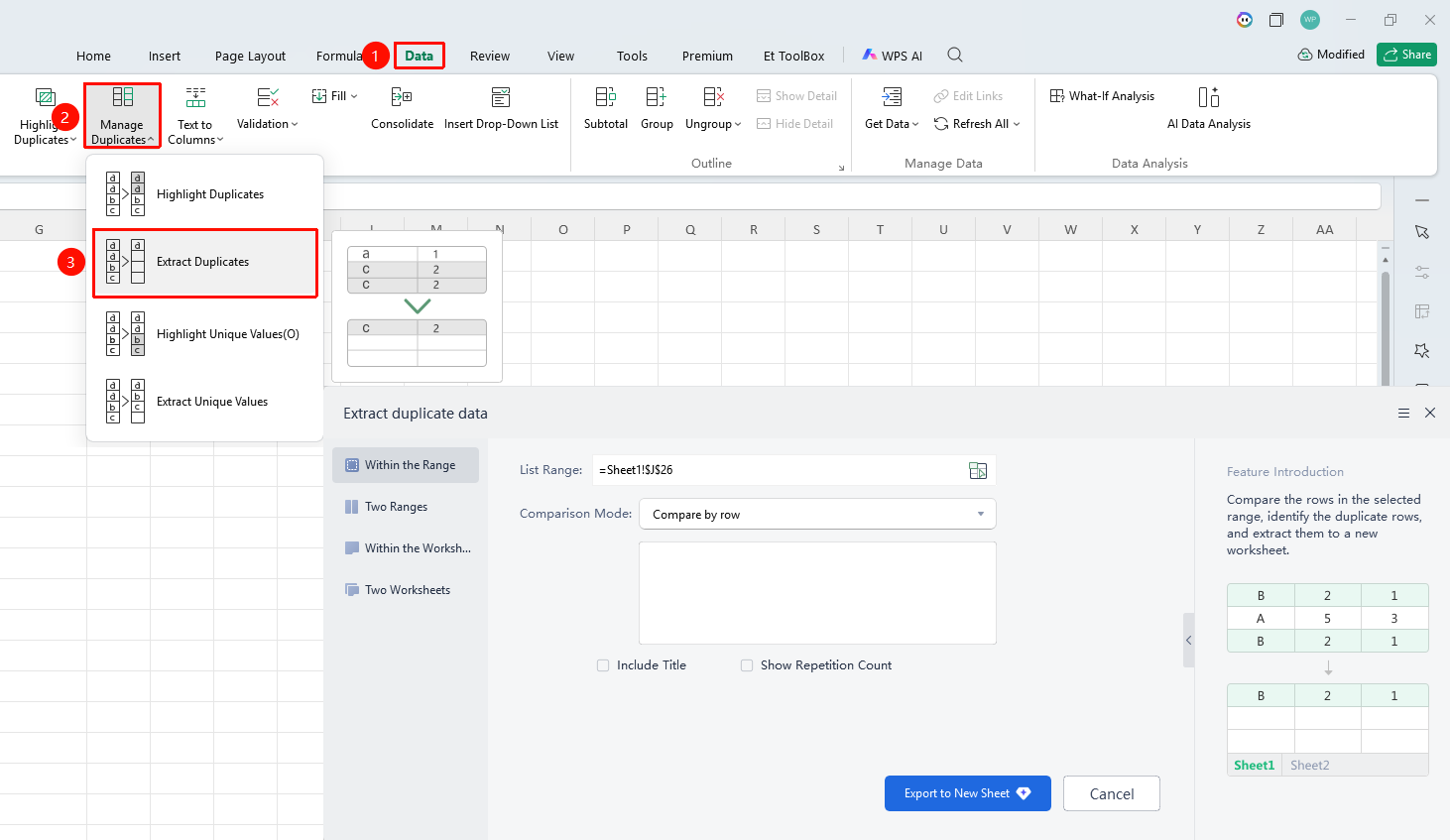
"Data" tab → "Data Comparison" dropdown menu → "Extract Duplicate Data" option
- Select the data range to be compared
- Select the Data tab3. Click the Data Compare drop-down menu
- Select the "Extract Duplicate Data" option
- Set comparison parameters and comparison range
- Click Extract to New Sheet
- Duplicate data will be extracted to a new sheet
Data Tab - Mark Unique Data (Membership required)
Feature Entry
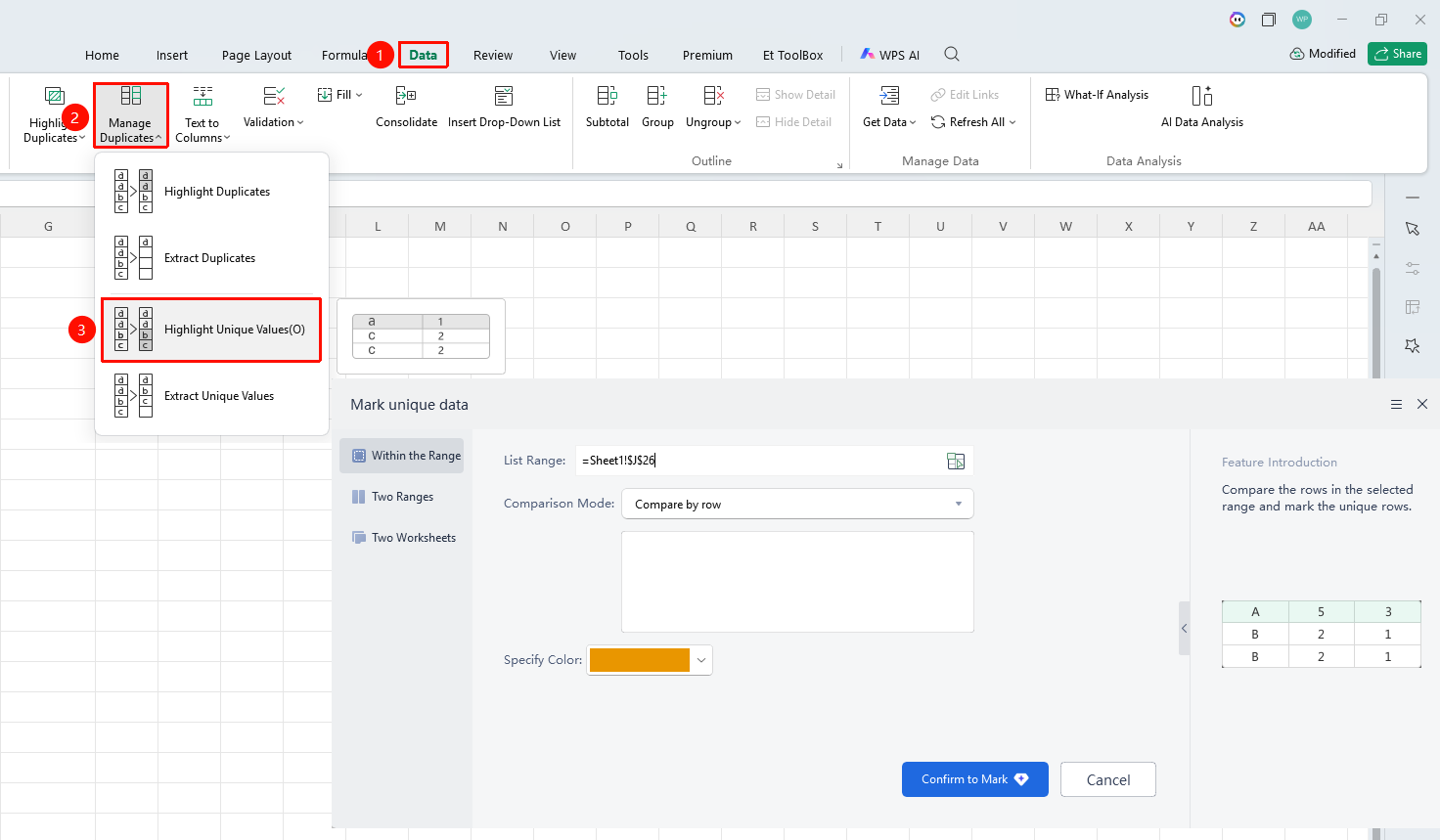
"Data" tab → "Data Compare" drop-down menu → "Mark Unique Data" option
- Select the data range to compare
- Select the Data tab
- Click the Data Compare drop-down menu
- Select the "Mark Unique Data" option
- Set comparison parameters and comparison range
- Click Confirm Mark
- Differing data will be highlighted
Data Tab - Extract Unique Data (Membership required)
Feature Entry
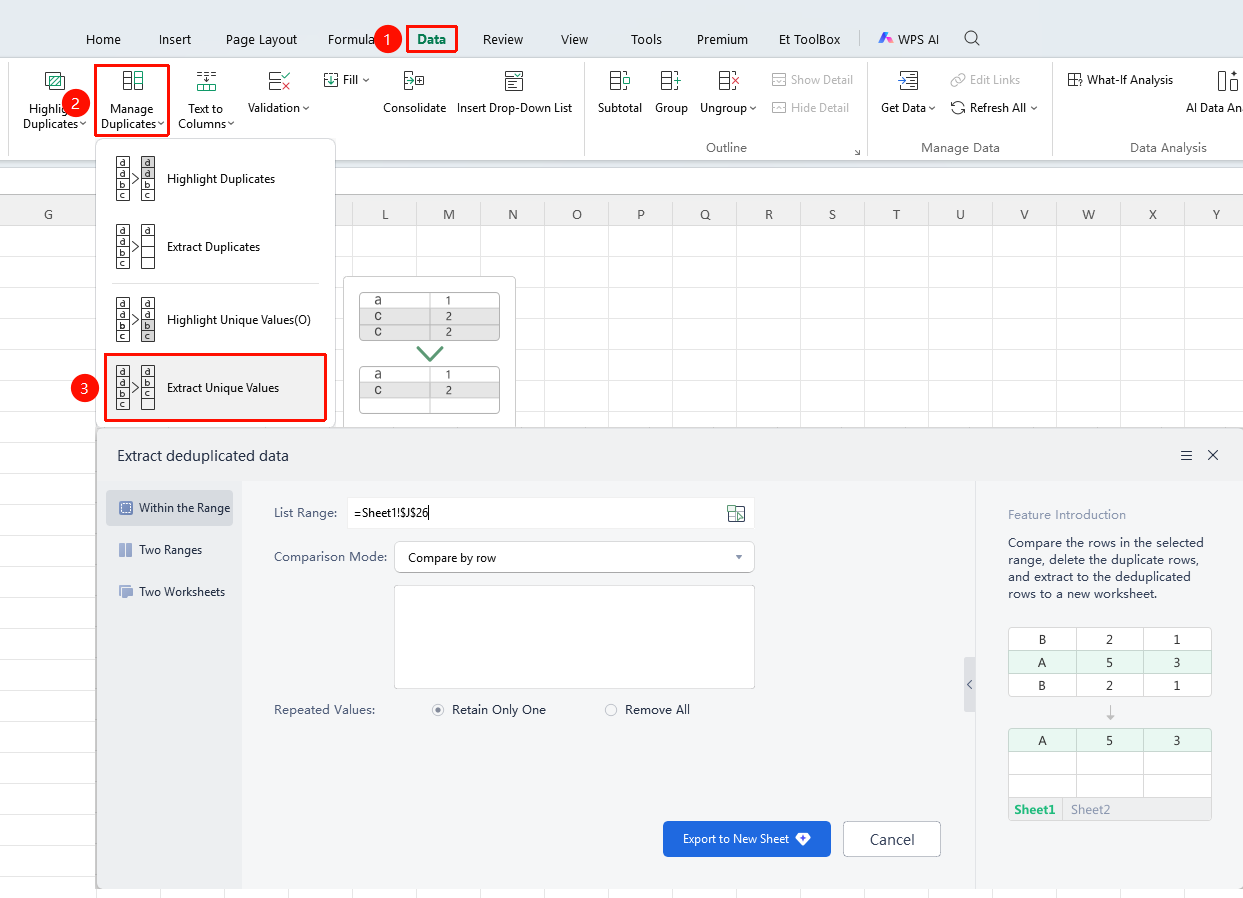
"Data" tab → "Data Compare" drop-down menu → "Extract Unique Data" option
- Select the data range to compare
- Select the Data tab
- Click the Data Compare drop-down menu
- Select the "Extract Unique Data" option
- Set comparison parameters and comparison range
- Click Extract to New Sheet
- Unique data will be extracted to a new sheet
Notes
- Ensure data structure consistency before comparing
- Comparison results can be exported or marked