Feature Summary
The Data Validation feature is used to control and standardize cell input. It allows you to restrict input ranges, create drop-down lists, and set input prompts and error alerts, preventing invalid data at the source and improving entry efficiency and accuracy.
Feature Description
| Feature Dimension | Description |
|---|---|
| Membership Restriction | No membership restriction |
| Version Restriction | No version restriction |
Operation Steps
Setting Data Validation
Feature Entry
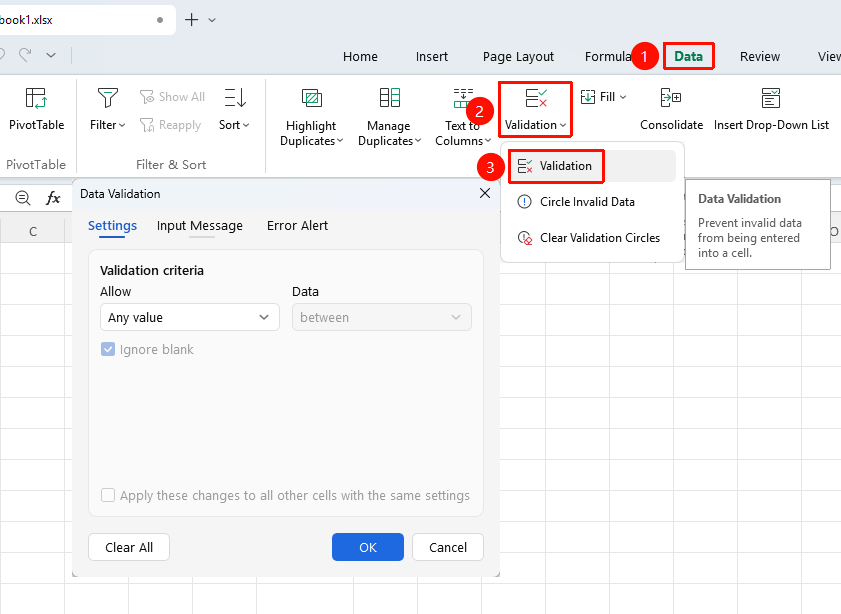
"Data" tab → "Validation" button
- Select the cells for which you want to set rules
- Click the Validation button in the Data tab
- In the pop-up settings window, select the allowed input type and set conditions as needed
- You can customize input prompts and error alerts
- Click OK to apply
Circle Invalid Data
Feature Entry
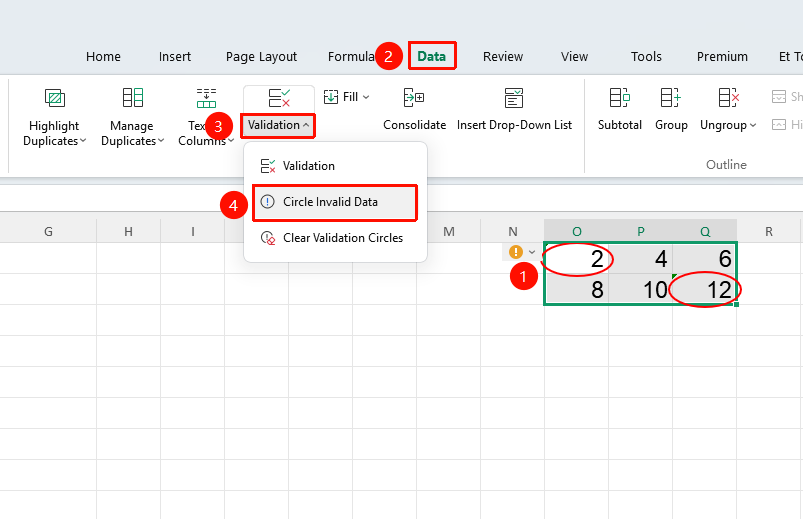
"Data" tab → Drop-down menu under the "Validation" button → "Circle Invalid Data" button
- Select the cells you want to check for compliance with data validation rules
- Click the Data tab
- Click the Validation drop-down menu
- Click the Circle Invalid Data button
- Automatically detects and marks cells that do not comply with data validation rules, making it easy to quickly locate erroneous data
Clear Validation Circles
Feature Entry
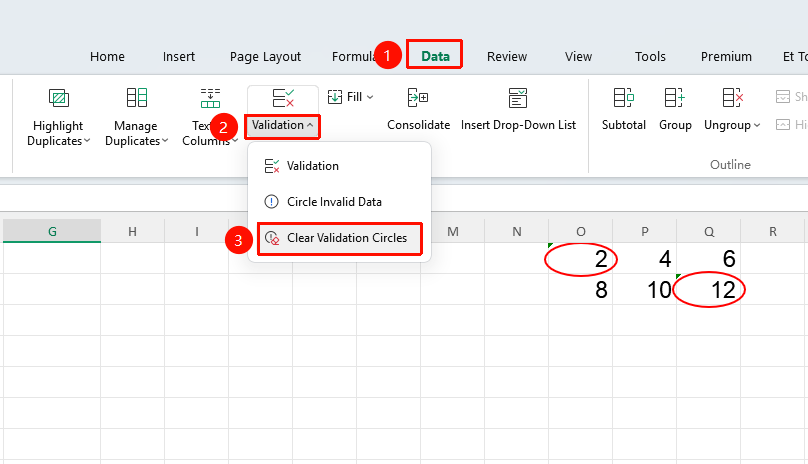
"Data" tab → Drop-down menu under the "Validation" button → "Clear Validation Circles" button
- Select the marked cells that do not comply with the rules
- Click the Data tab
- Click the Validation drop-down menu
- Click the Clear Validation Circles button
- Removes all invalid data marks without affecting the data itself
Frequently Asked Questions
Q1: How can I only prompt without blocking invalid input?
- Solution: In the error alert style, select "Warning" or "Information" to only prompt without blocking the input.
Q2: What should I do if I set data validation but don't want the drop-down arrow to appear?
- Solution: In the data validation settings, uncheck the "Show drop-down arrow" option.
Q3: What should I do if the input content prompts "does not meet the restriction conditions"?
- Solution: Delete the entered content, click to select the cell to view the drop-down arrow or open the data validation window, check the set restriction conditions, and modify the input content accordingly.
Notes
- Data validation can set input prompt messages to help users understand input requirements
- Clearing data validation: Select the area where it has been set, open the data validation window, and click "Clear All" to remove the rules