Feature Summary
The text orientation feature is used to adjust the arrangement direction of text within cells, supporting horizontal, vertical, rotated, and other effects to meet special layout requirements.
Feature Description
| Feature Dimension | Description |
|---|---|
| Membership Restriction | No membership restriction |
| Version Restriction | No version restriction |
Operation Steps
Setting Text Orientation
Feature Entry
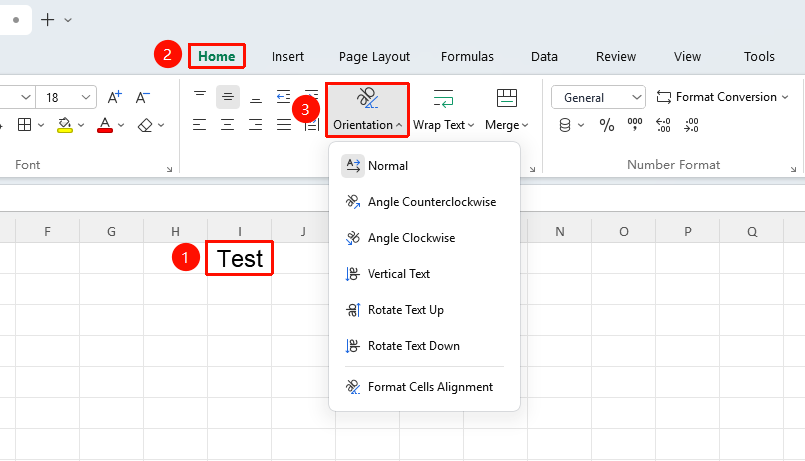
"Home" tab → "Text Orientation" dropdown menu
- Select the cells for which you want to adjust the text orientation
- Click the "Text Orientation" dropdown menu in the Home tab
- Select the desired orientation (Counterclockwise Angle, Clockwise Angle, Vertical Text, Rotate Text Up, Rotate Text Down, and so on.)
Setting Text Orientation via Format Cells Dialog
Feature Entry
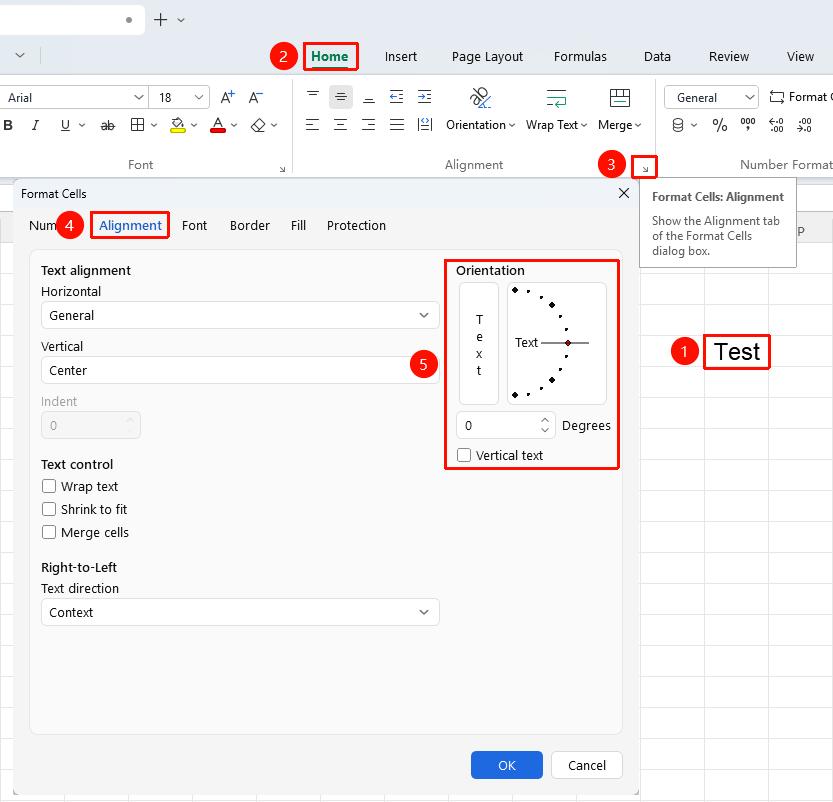
"Home" tab → "Format Cells: Alignment" arrow icon → "Alignment" tab → "Orientation"
- Select the target cells
- Click the Format Cells: Alignment arrow icon in the Home tab
- In the "Orientation" area of the pop-up dialog, drag the pointer or enter an angle value
- Click OK
Customizing Rotation Angle
Feature Entry
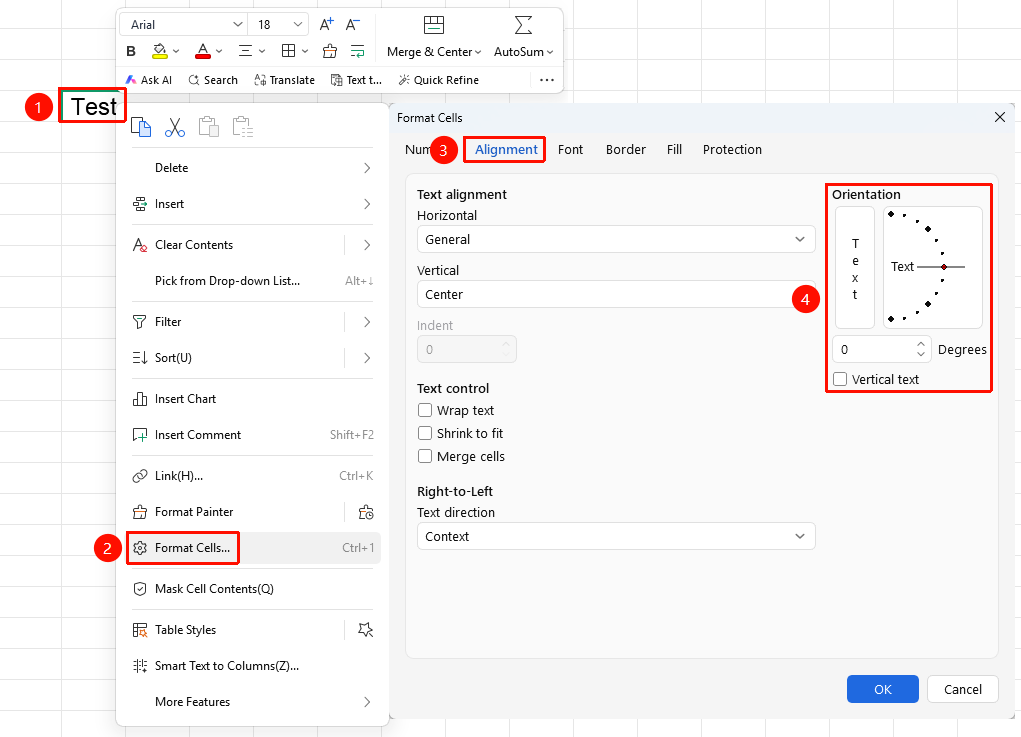
Right-click menu → "Format Cells" button → "Alignment" tab
- Select the target cells, right-click and select the Format Cells button
- Switch to the "Alignment" tab
- In the "Orientation" area, drag the pointer or enter an angle value
- Click OK
Notes
- After changing text orientation, you may need to adjust row height and column width
- Rotated text will display normally when printing
- Vertical text is suitable for Chinese typography