Feature Summary
The Text Outline feature is used to add an outline effect to text within a text box, making the text more prominent. It is commonly used for beautifying titles or key content.
Feature Description
| Feature Dimension | Description |
|---|---|
| Membership Restriction | No membership restriction |
| Version Restriction | No version restriction |
Operation Steps
Setting Text Outline via the Ribbon
Feature Entry
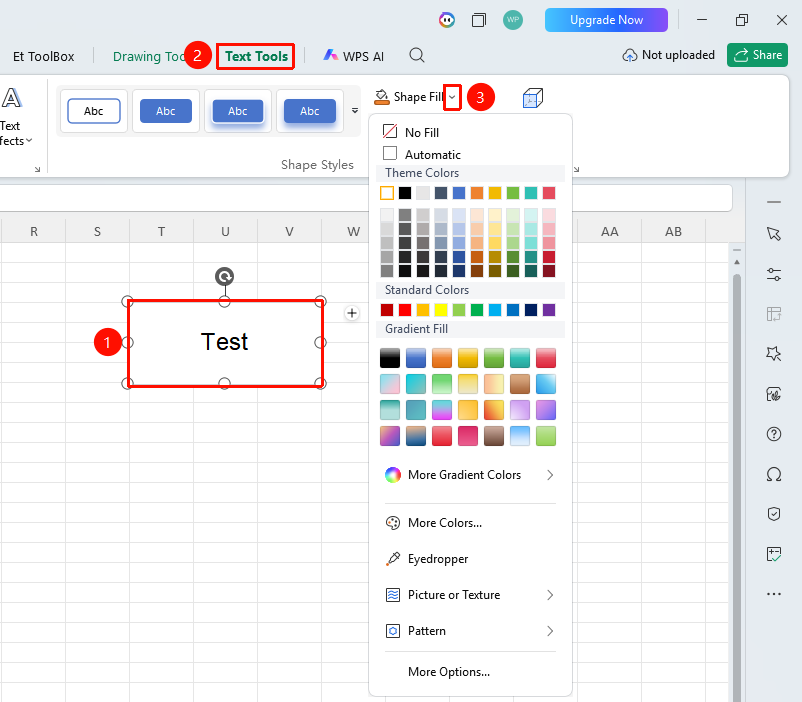
Select an inserted text box → "Text Tools" tab → Drop-down menu next to the "Text Outline" button
- Select the text box for which you want to set a text outline
- Click the drop-down menu next to the "Text Outline" button in the Text Tools tab
- Select an outline color
- You can further set the outline weight and style
Setting Text Outline via the Properties Pane
Feature Entry
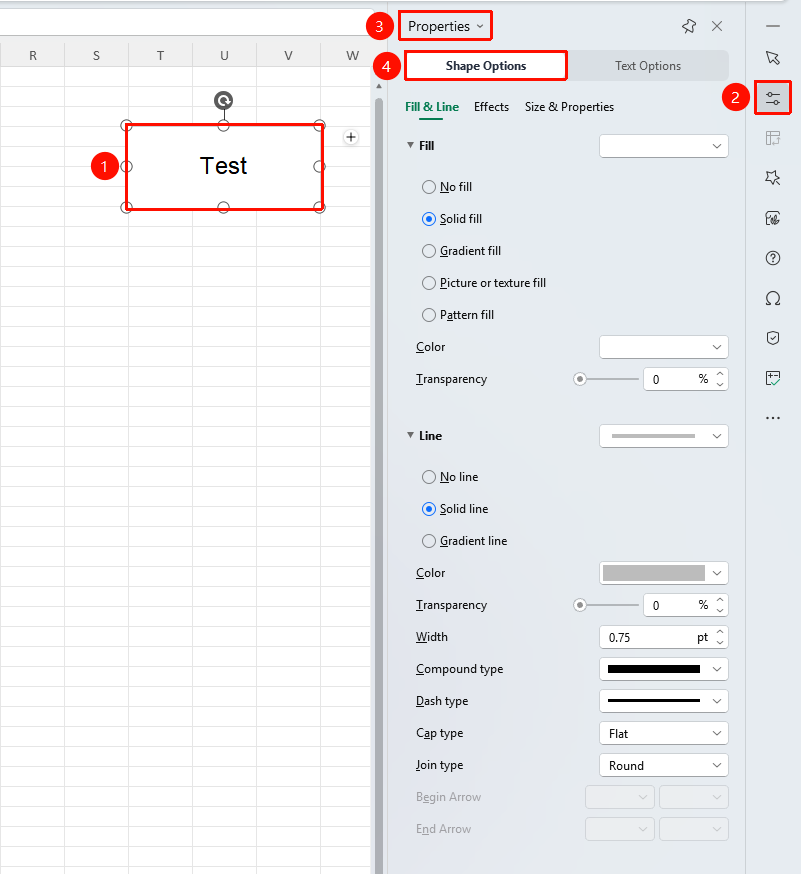
Select an inserted text box → Right-side task pane → "Properties" button → "Text Options" button → "Fill & Outline" tab → "Text Outline" drop-down menu
- Select the text box for which you want to set a text outline
- Click the Properties button in the right-side task pane
- Click the Text Options button
- Select the Fill & Outline tab
- Click the "Text Outline" drop-down menu
- Select an outline color
- You can further set the outline weight and style
FAQ
Q1: How do I remove a text outline?
- Solution: Select the text box with the outline applied, click "Text Outline," and select "No Line."
Notes
- The outline color should contrast with the text color
- The outline weight can be adjusted as needed