Feature Summary
The comment feature is used to add descriptive text in cells, supporting creation, editing, show/hide, and deletion of comments, helping users explain data during collaboration and improving communication efficiency.
Feature Description
| Feature Dimension | Description |
|---|---|
| Membership Restriction | No membership restriction |
| Version Restriction | No version restriction |
| Insert Comment Shortcut | Shift+F2 |
Operation Steps
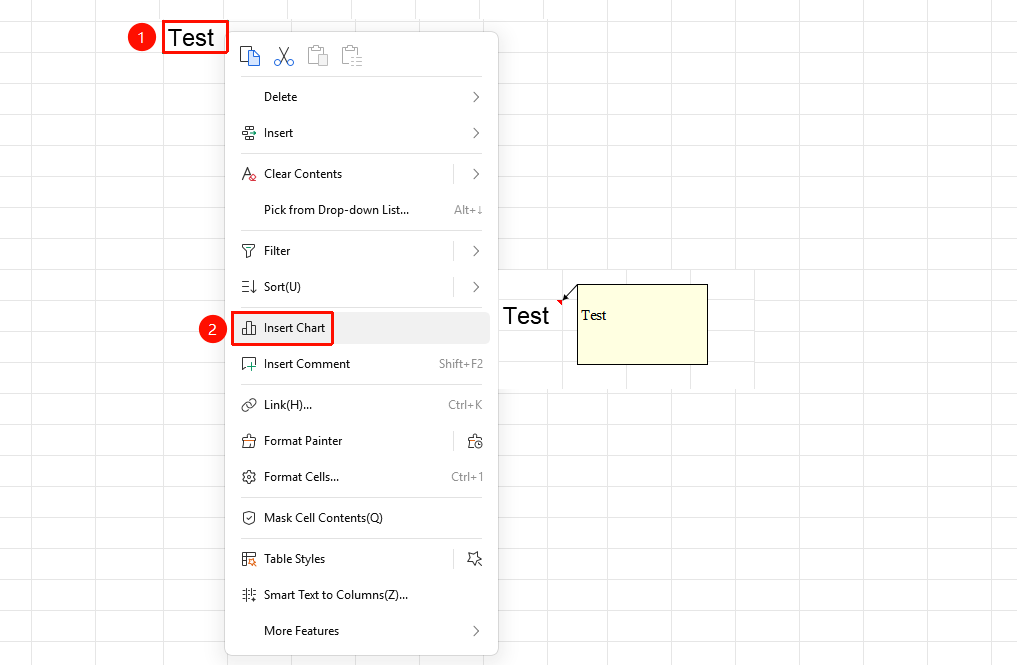
Create Comment (Right-click Quick Insert)
Feature Entry
Right-click menu → "Insert Comment" button
- Select the cell where you want to add a comment
- Click the right mouse button
- Select the "Insert Comment" button in the menu
- Enter the description content in the pop-up comment box
- Click anywhere on the spreadsheet to finish
- After insertion, a small red triangle indicator will appear in the upper right corner of the cell
- Hover the mouse to display the comment content
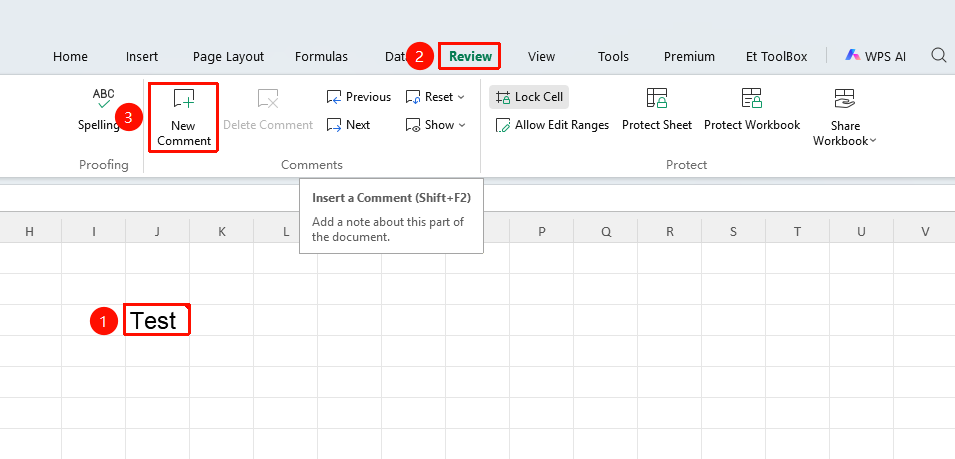
Create Comment (Review Tab)
Feature Entry
"Review" tab → "New Comment" button
- Select the target cell
- Click the Review tab
- Select the "New Comment" button
- Enter content and confirm
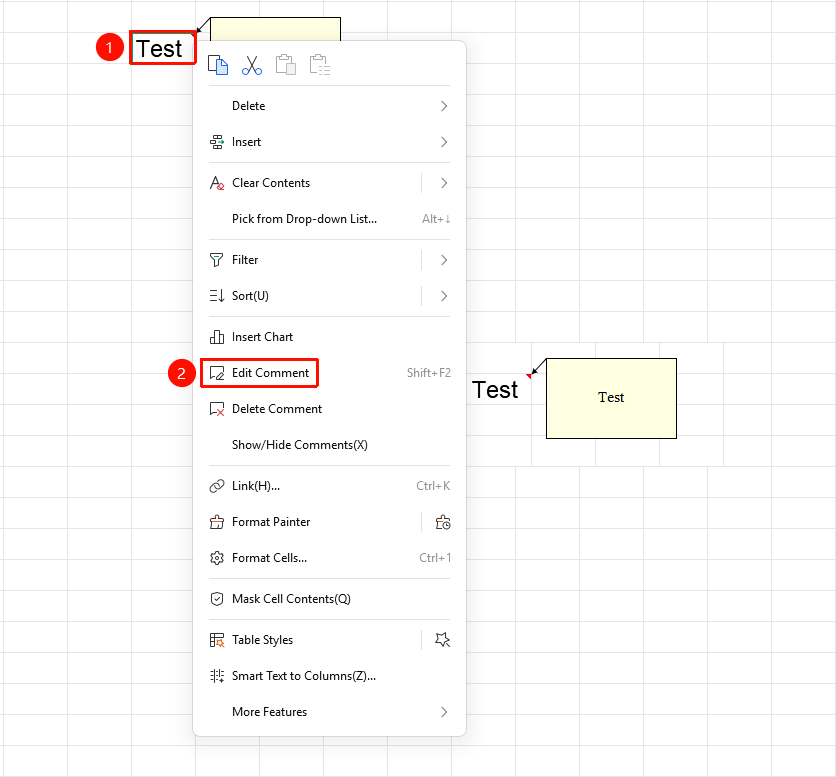
Edit Comment
Feature Entry
Right-click menu → "Edit Comment" button
- Right-click the cell with a comment
- Select the "Edit Comment" button in the menu
- After the comment box is activated, modify the content directly
- Click on a blank area of the spreadsheet to confirm when done
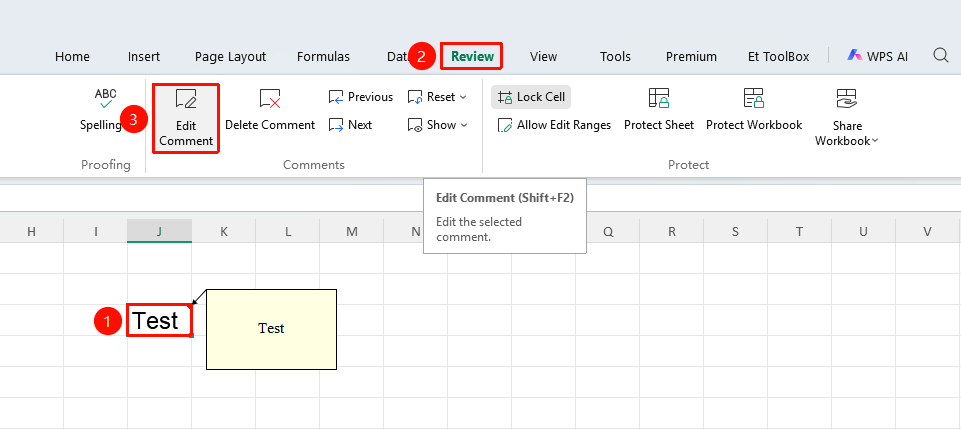
Edit Comment (Review Tab)
Feature Entry
"Review" tab → "Edit Comment" button
- Select the cell with a comment
- Click the Review tab
- Select the "Edit Comment" button
- Enter content and confirm
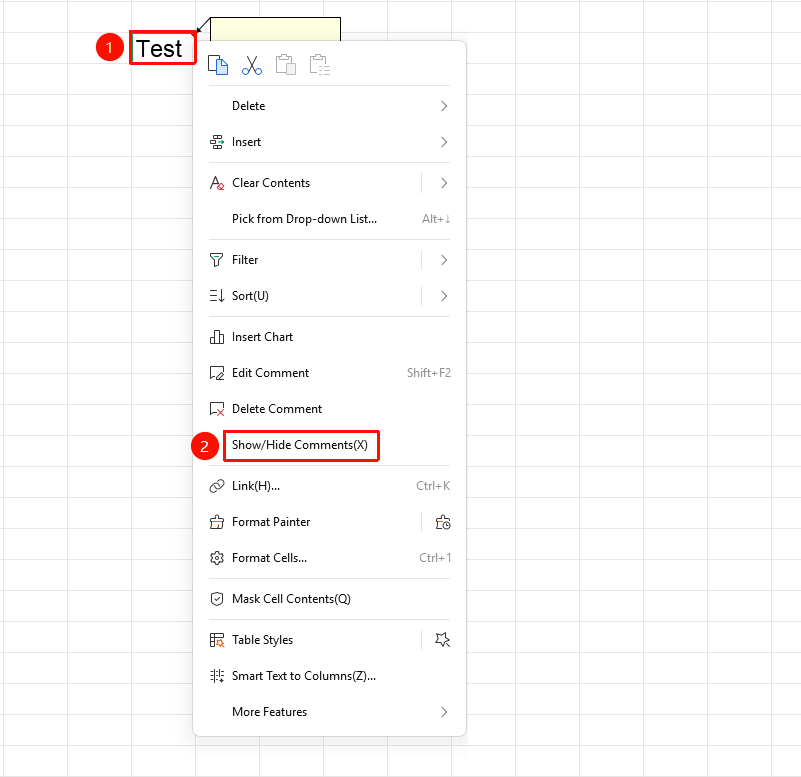
Right-click Show/Hide Comment (Single Comment)
Feature Entry
Right-click menu → "Show/Hide Comment" button
- Right-click the cell with a comment
- Select the "Show/Hide Comment" button
- Toggle the show/hide state
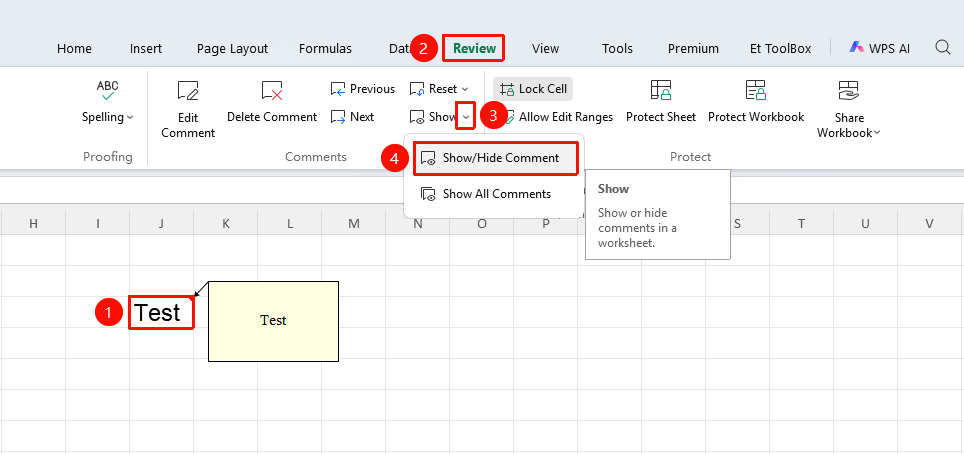
Review Tab Show/Hide Comment (Single Comment)
Feature Entry
"Review" tab → "Show" dropdown menu → "Show/Hide Comment" button
- Select the cell with a comment
- Click the Review tab
- Click the Show dropdown menu
- Select the "Show/Hide Comment" button
- Toggle the show/hide state
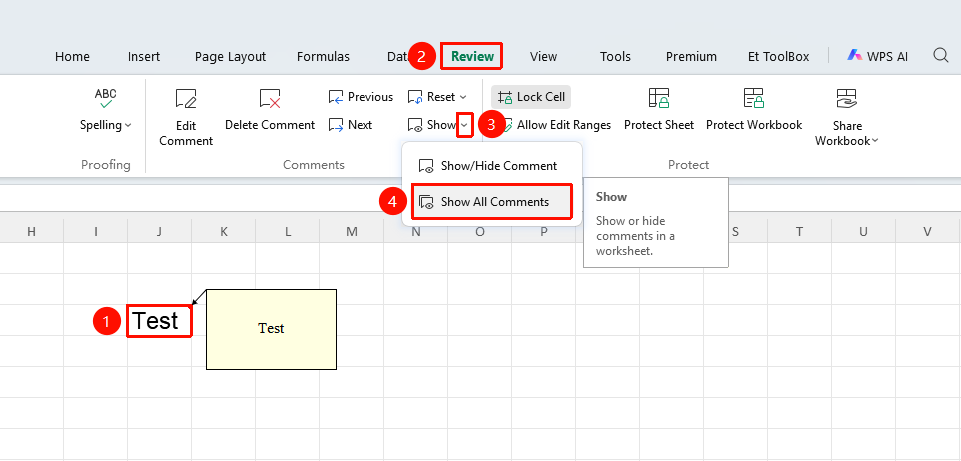
Show/Hide Comments (All Comments)
Feature Entry
"Review" tab → "Show" dropdown menu → "Show All Comments" button
- Click the Review tab
- Click the Show dropdown menu
- Select the "Show All Comments" button
- Display all comments in the spreadsheet at once
- Click again to hide all
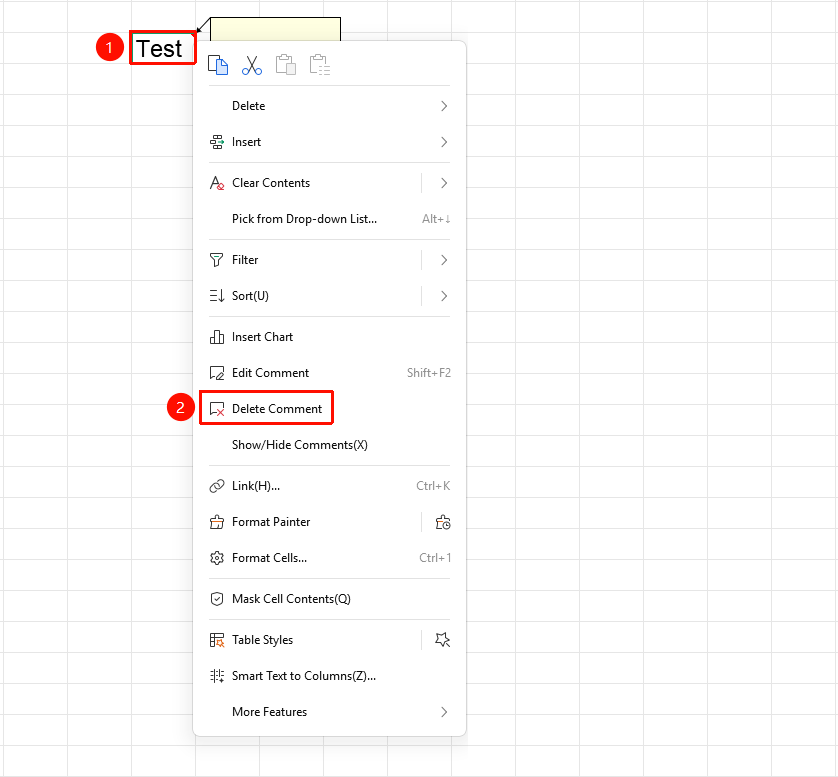
Delete Comment (Right-click Delete)
Feature Entry
Right-click menu → "Delete Comment" button
- Right-click the cell with a comment
- Select the "Delete Comment" button in the menu
Delete Comment (Review Tab Delete)
Feature Entry
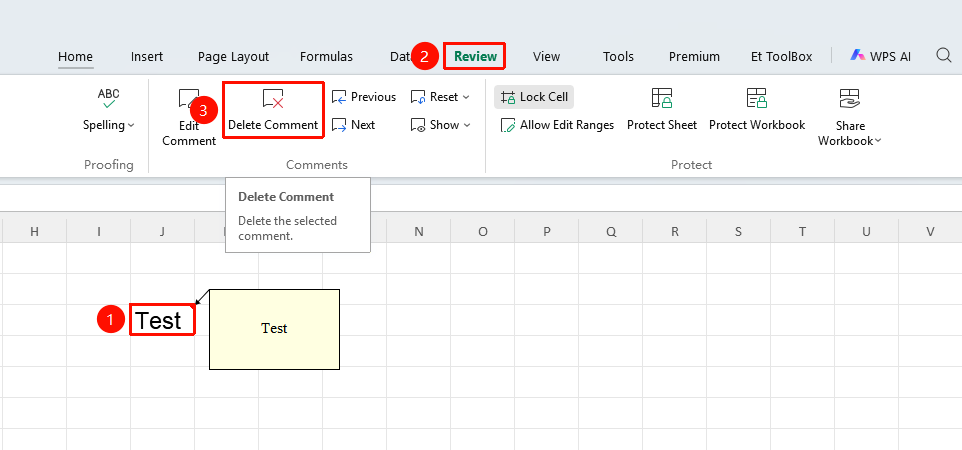
"Review" tab → "Delete Comment" button
- Select the cell with a comment
- Click the Review tab in the top menu bar
- Select the "Delete Comment" button to complete
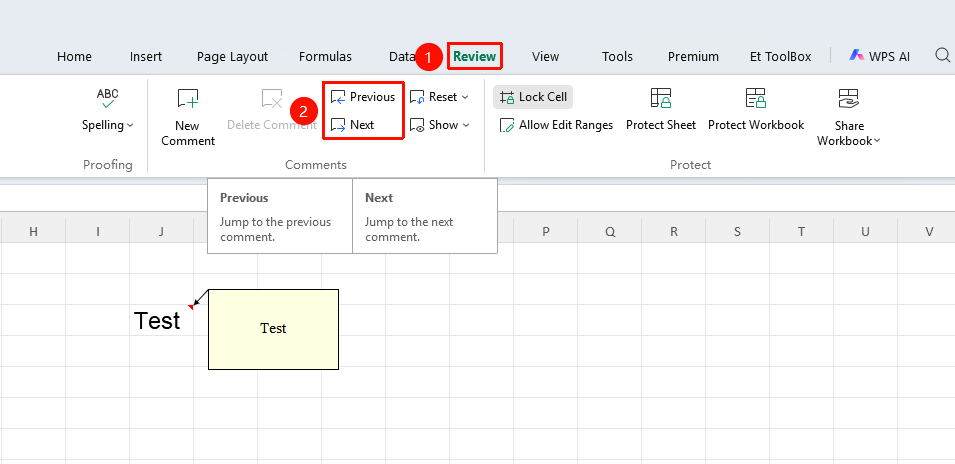
Previous/Next Comment
Feature Entry
"Review" tab → "Delete Comment" button
- Click the Review tab
- Click the "Previous" or "Next" button3. Automatic Navigation to Previous or Next Annotation
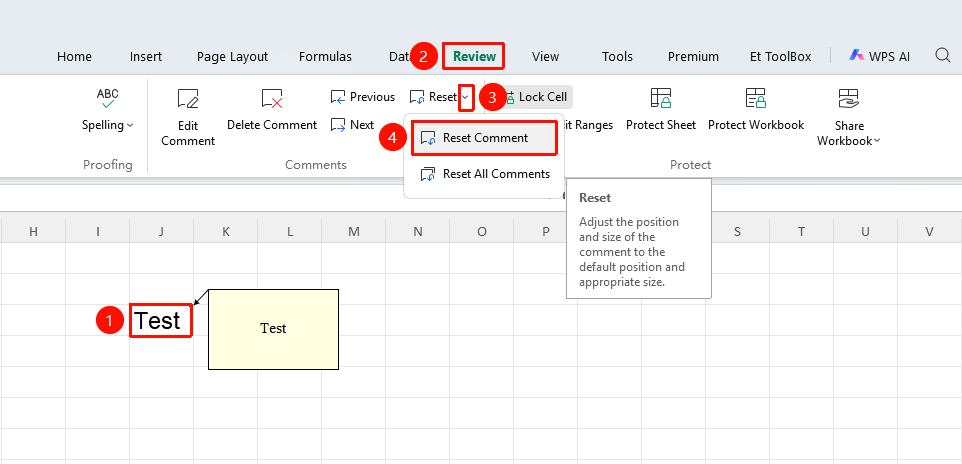
Reset Current Annotation
Function Access
"Review" tab → "Reset Current Annotation" button
- Select the cell containing an annotation.
- Click the Review tab.
- Click the "Reset Current Annotation" button.
- The format, size, and position of the selected annotation will be restored to their default states.
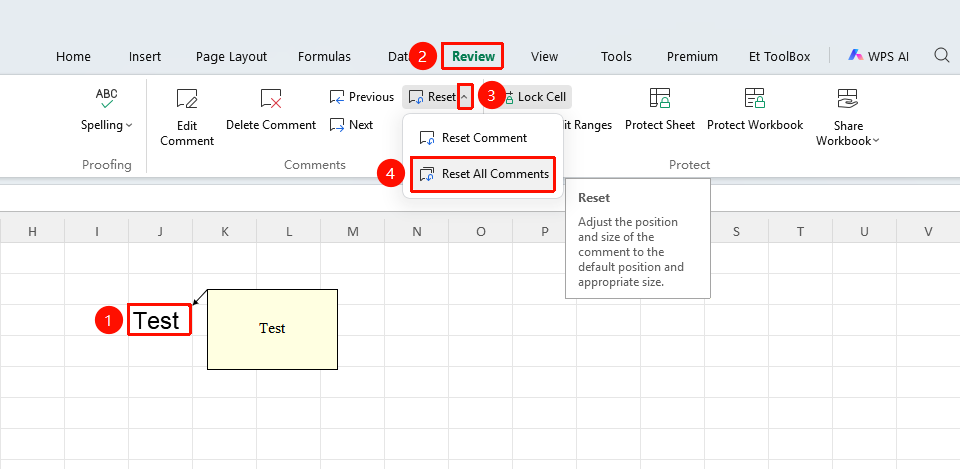
Reset All Annotations
Function Access
"Review" tab → "Reset All Annotations" button
- Click the Review tab.
- Click the "Reset All Annotations" button.
- The format, size, and position of all annotations in the worksheet will be restored to their default states.
Set Annotation Format
Function Access
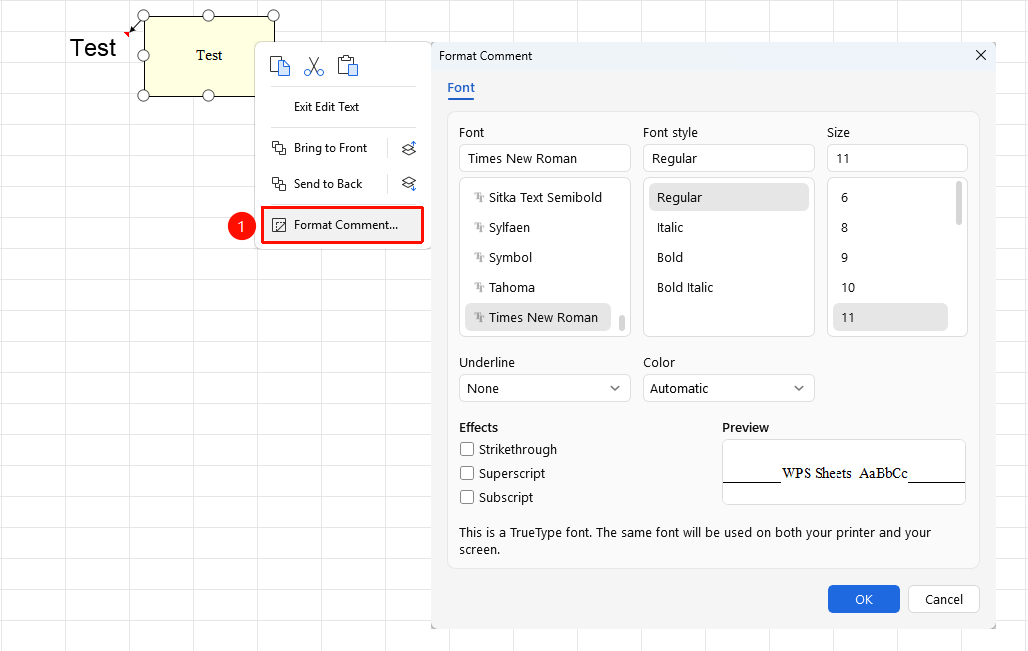
Right-click menu → "Set Annotation Format" button
- Select the annotation box.
- Right-click the annotation box and select the "Set Annotation Format" button.
- Adjust the annotation's font, size, color, etc., in the dialog box that appears.
Important Notes
- The annotation feature is used to add explanatory text within a cell; it does not modify the cell's content.
- After inserting an annotation, a small red triangle indicator will appear in the upper-right corner of the cell.
- Hovering the mouse over a cell with an annotation will display the annotation content.
- Annotations support multi-user collaboration and discussion; replies can be added.
- You can batch display or hide all annotations using the Review tab.