Feature Summary
The zoom feature allows you to adjust the spreadsheet's magnification level, making it easier to view the overall table layout or zoom in to check detailed data.
Feature Description
| Feature Dimension | Description |
|---|---|
| Membership Restriction | No membership restriction |
| Version Restriction | No version restriction |
Operation Steps
Adjusting the Zoom Level
Feature Entry
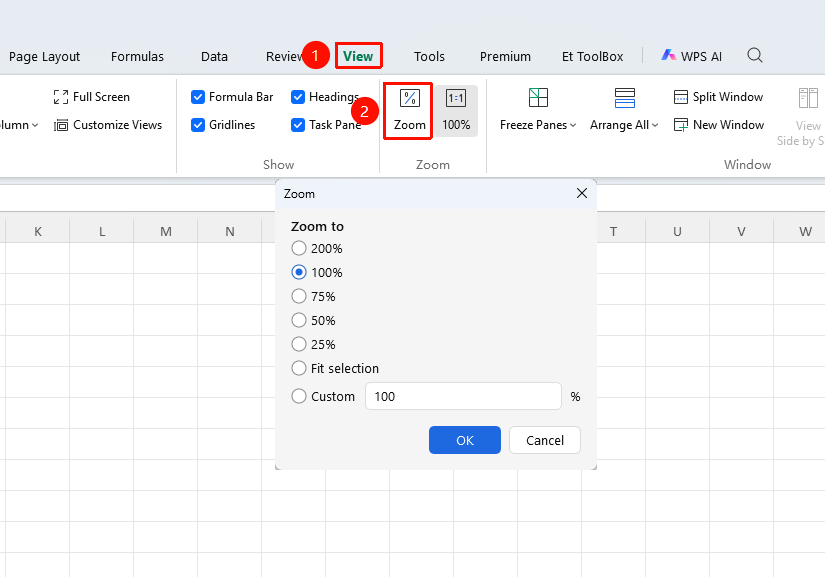
"View" tab → "Zoom"
- Click the "Zoom" button in the View tab
- Select a preset ratio or enter a custom ratio in the pop-up dialog box
- For the "Fit Selection" option, you need to select a table range in advance. After clicking, the page will automatically zoom to exactly fit the selected range
- Click "OK" to apply the settings
Adjusting via the Status Bar
Feature Entry
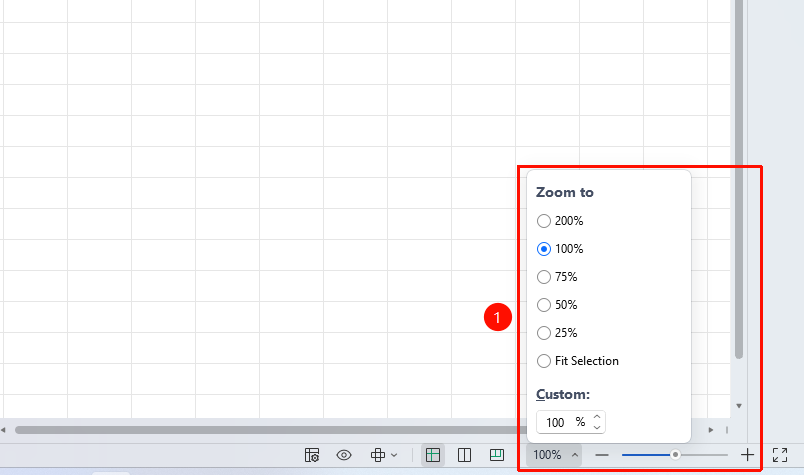
Zoom slider at the bottom-right corner of the status bar
- Drag the zoom slider at the bottom-right corner of the status bar
- Drag right to zoom in, drag left to zoom out
- You can also click the + or - buttons next to the slider for fine-tuning
Adjusting via Shortcut Keys
Feature Entry
Ctrl + Mouse wheel
- Press and hold the Ctrl key
- Scroll the mouse wheel up to zoom in, down to zoom out
- The spreadsheet will adjust the zoom level in fixed increments
Frequently Asked Questions
Q1: The printout looks different after adjusting the zoom level
- Solution: The zoom level only affects the screen display and does not affect the printout. If you need to adjust the print scaling, please configure it in the Page Setup.
Q2: The zoom level cannot be adjusted to the desired value
- Solution: The zoom level range is from 10% to 400%. Please enter a value within this range.
Notes
- The zoom level only affects the on-screen display of the current document
- The zoom level setting is saved with the document and will remain at the last used zoom ratio the next time it is opened
- An excessively small zoom level may make text difficult to read
- An excessively large zoom level may require frequent scrolling to view data