Feature Summary
The conditional formatting feature is used to automatically apply formatting (such as colors, icons, etc.) based on cell content, helping to quickly identify patterns, outliers, and trends in data.
Feature Description
| Feature Dimension | Description |
|---|---|
| Membership Restriction | No membership restriction |
| Version Restriction | No version restriction |
Operation Steps
Highlight Cells Rules
Feature Entry
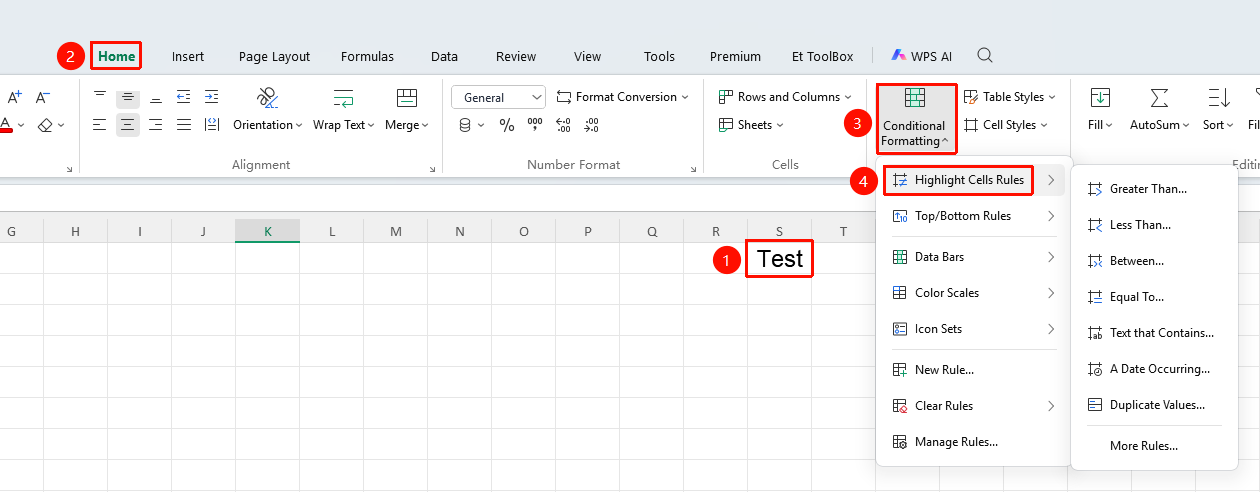
"Home" tab → "Conditional Formatting" dropdown menu → "Highlight Cells Rules" option
- Select the cell range to which you want to apply conditional formatting
- Select the Home tab
- Click the "Highlight Cells Rules" option in the Conditional Formatting dropdown menu
- Automatically highlight cells that meet conditions based on values, text, dates, etc., to quickly identify key data
Top/Bottom Rules
Feature Entry
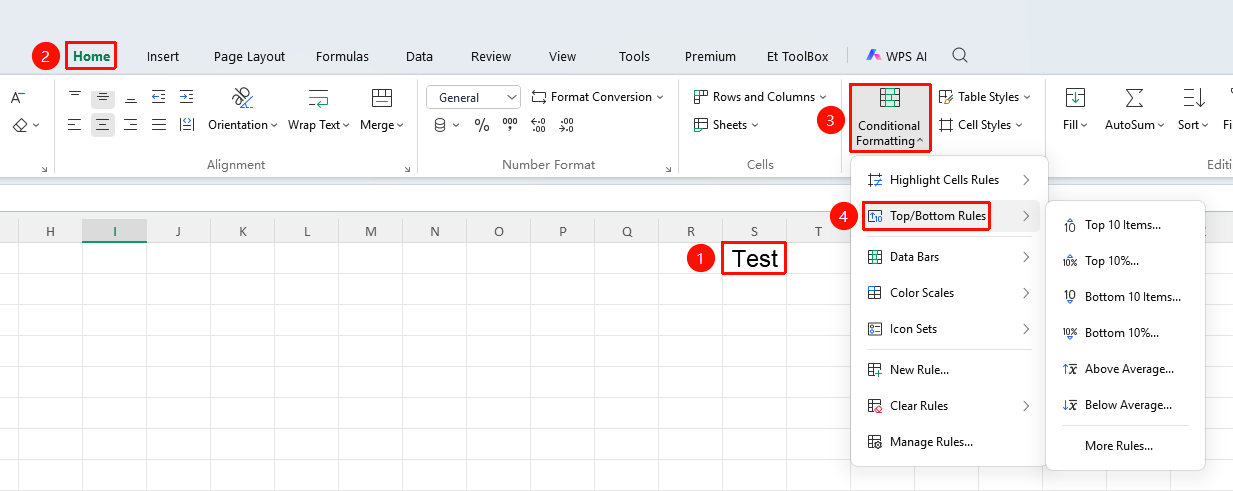
"Home" tab → "Conditional Formatting" dropdown menu → "Top/Bottom Rules" option
- Select the cell range to which you want to apply conditional formatting
- Select the Home tab
- Click the "Top/Bottom Rules" option in the Conditional Formatting dropdown menu
- Quickly mark the top N items, bottom N items, or items above/below average in the data, making it easy to filter outstanding data
Data Bars
Feature Entry
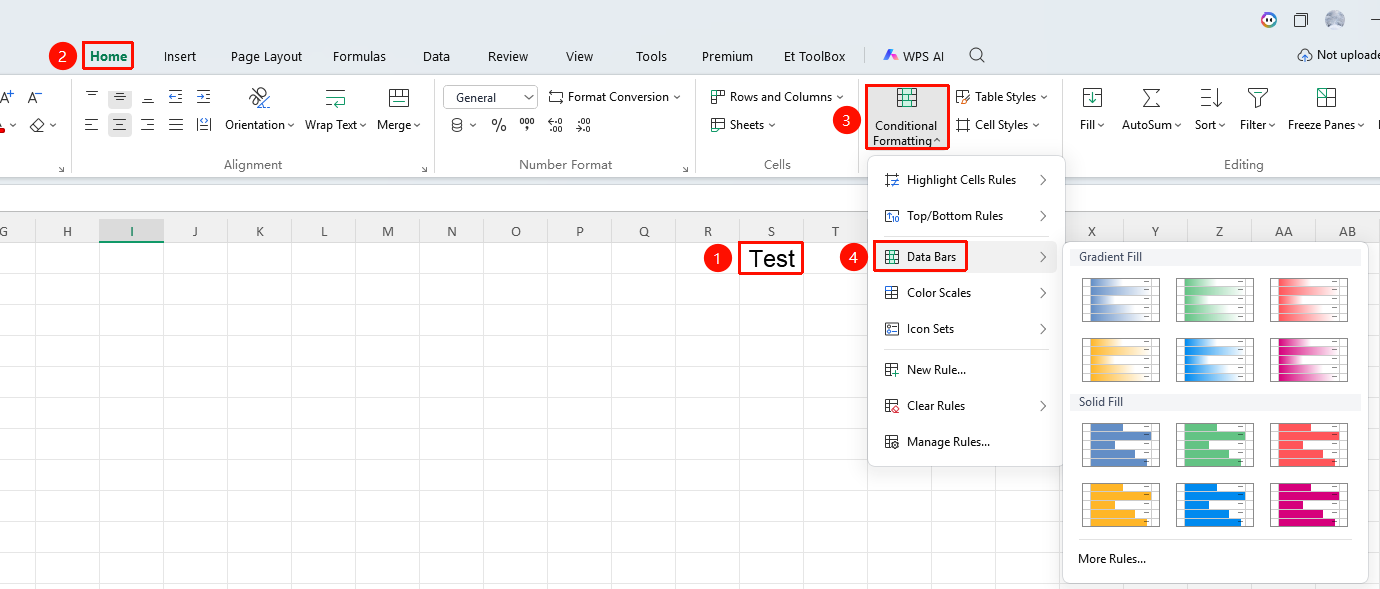
"Home" tab → "Conditional Formatting" dropdown menu → "Data Bars" option
- Select the cell range to which you want to apply conditional formatting
- Select the Home tab
- Click the "Data Bars" option in the Conditional Formatting dropdown menu
- Display a horizontal bar chart within the cell, where the bar length corresponds to the value size, allowing for intuitive visual comparison of data differences
Color Scales
Feature Entry
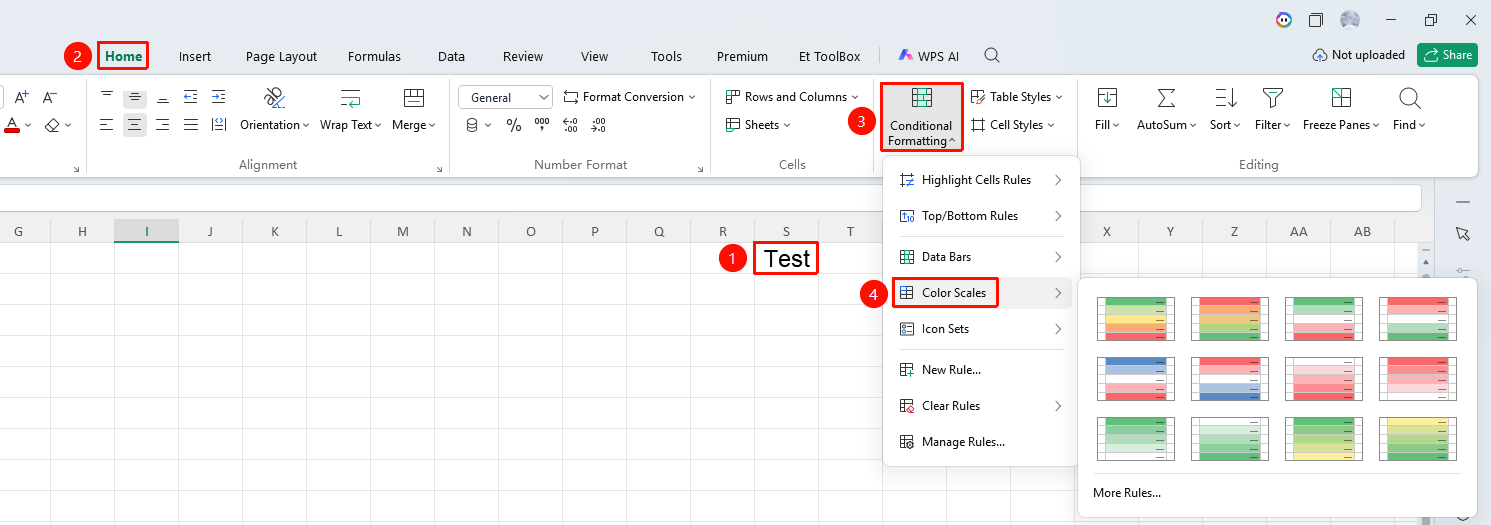
"Home" tab → "Conditional Formatting" dropdown menu → "Color Scales" option
- Select the cell range to which you want to apply conditional formatting
- Select the Home tab
- Click the "Color Scales" option in the Conditional Formatting dropdown menu
- Represent value levels through color gradients (e.g., red-yellow-green), visually displaying data distribution and trends
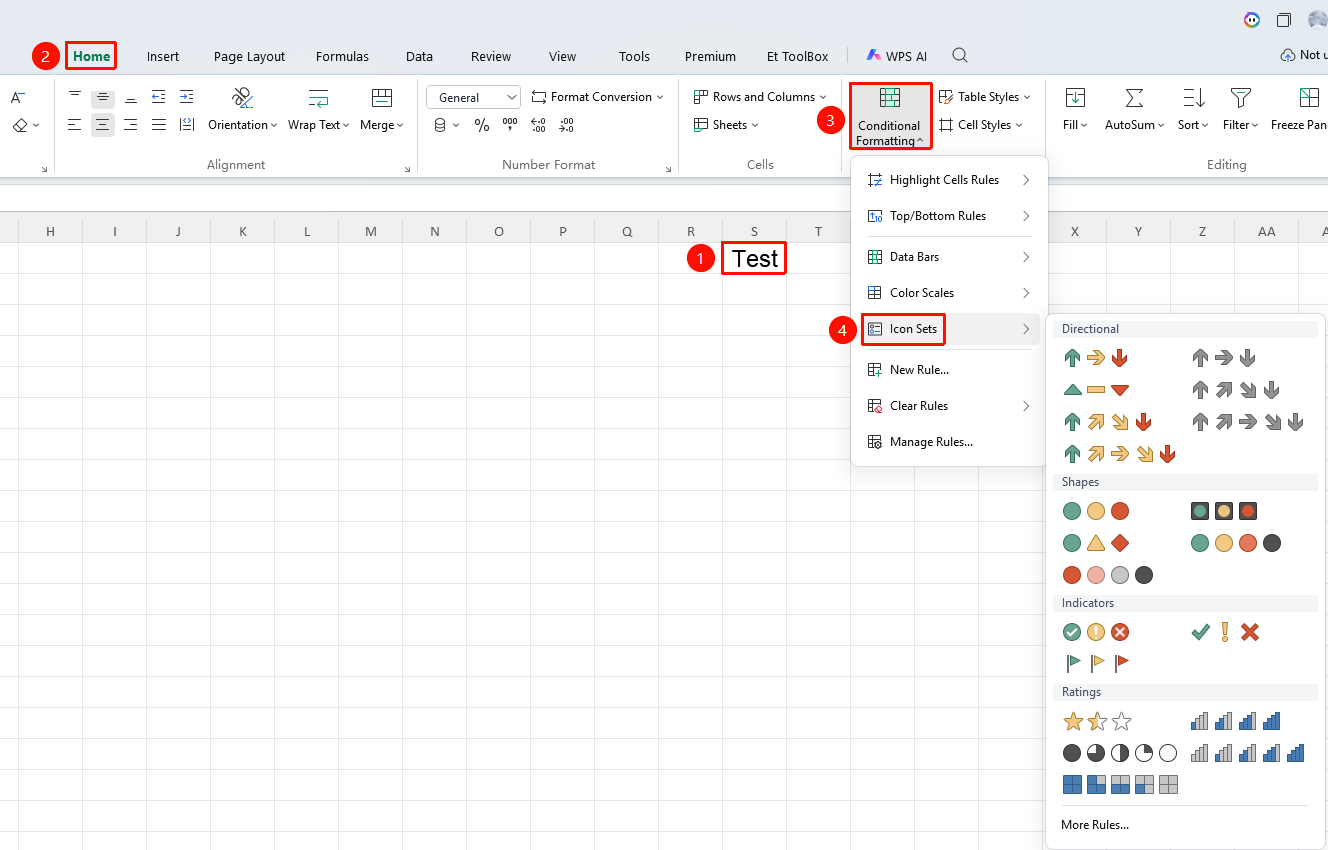
Icon Sets
Feature Entry
"Home" tab → "Conditional Formatting" dropdown menu → "Icon Sets" option
- Select the cell range to which you want to apply conditional formatting
- Select the Home tab
- Click the "Icon Sets" option in the Conditional Formatting dropdown menu
- Classify data using icons such as arrows, flags, and traffic lights to intuitively distinguish data levels or change trends
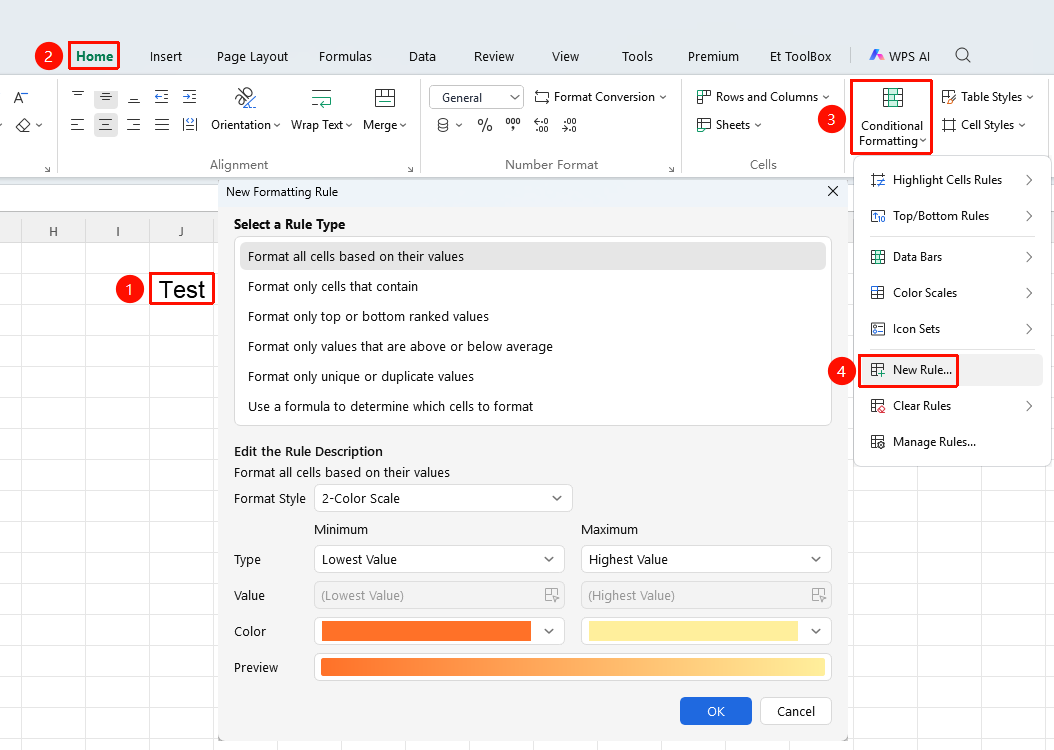
New Rule
Feature Entry
"Home" tab → "Conditional Formatting" dropdown menu → "New Rule" option
- Select the cell range to which you want to apply conditional formatting
- Select the Home tab
- Click the "New Rule" option in the Conditional Formatting dropdown menu
- Customize conditional formatting rules, supporting various condition types such as formulas, rankings, and duplicate values to meet complex needs
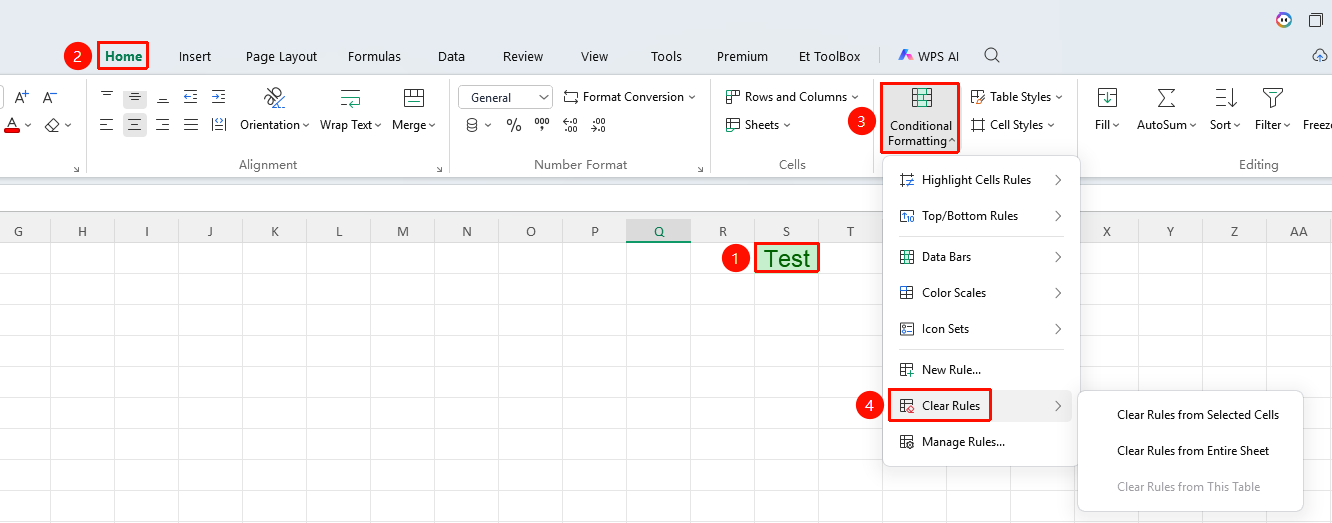
Clear Rules
Feature Entry
"Home" tab → "Conditional Formatting" dropdown menu → "Clear Rules" option
- Select the cell range from which you want to clear conditional formatting
- Select the Home tab
- Click the "Clear Rules" option in the Conditional Formatting dropdown menu
- Delete conditional formatting rules from the selected cells or the entire worksheet, removing only the formatting without affecting the original data
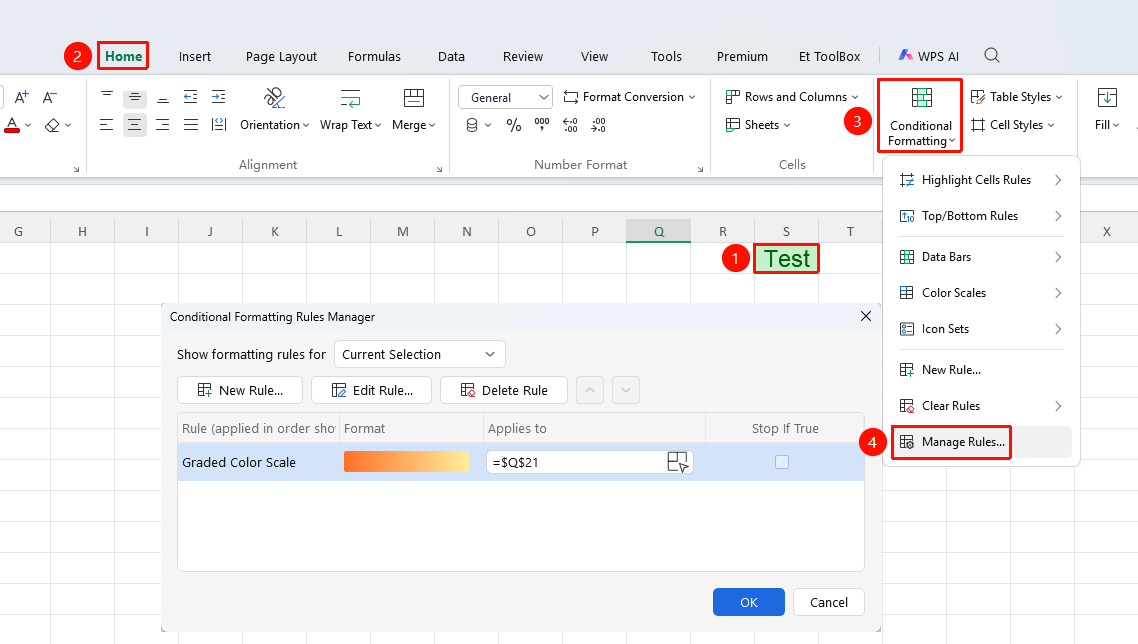
Manage Conditional Formatting Rules
Feature Entry
"Home" tab → "Conditional Formatting" dropdown menu → "Manage Rules" option
- Select the cell range to which you want to apply conditional formatting
- Select the Home tab
- Click the "Manage Rules" option in the Conditional Formatting dropdown menu4. You can view, edit, and delete existing rules
- You can adjust the priority order of rules
FAQ
Question 1: Can I set multiple rules for conditional formatting?
- Solution: You can set multiple conditional formatting rules for the same range, and they will be applied in order of priority.
Question 2: How do I clear conditional formatting?
- Solution: Click "Conditional Formatting" → "Clear Rules" and choose to clear rules from the selected cells or from the entire sheet.
Notes
- Conditional formatting updates automatically when data changes
- Rule priority affects the final display result
- Data bars, color scales, and icon sets are common visualization methods