Feature Summary
The Find and Replace feature is used to quickly locate cells containing specified content within a worksheet. It supports exact match, fuzzy match, and advanced search options, and can replace specified content.
Feature Description
| Feature Dimension | Description |
|---|---|
| Membership Restriction | No membership restriction |
| Version Restriction | No version restriction |
| Find Shortcut | Ctrl+F |
| Replace Shortcut | Ctrl+H |
| Go To Shortcut | Ctrl+G |
Operation Steps
Find
Feature Entry
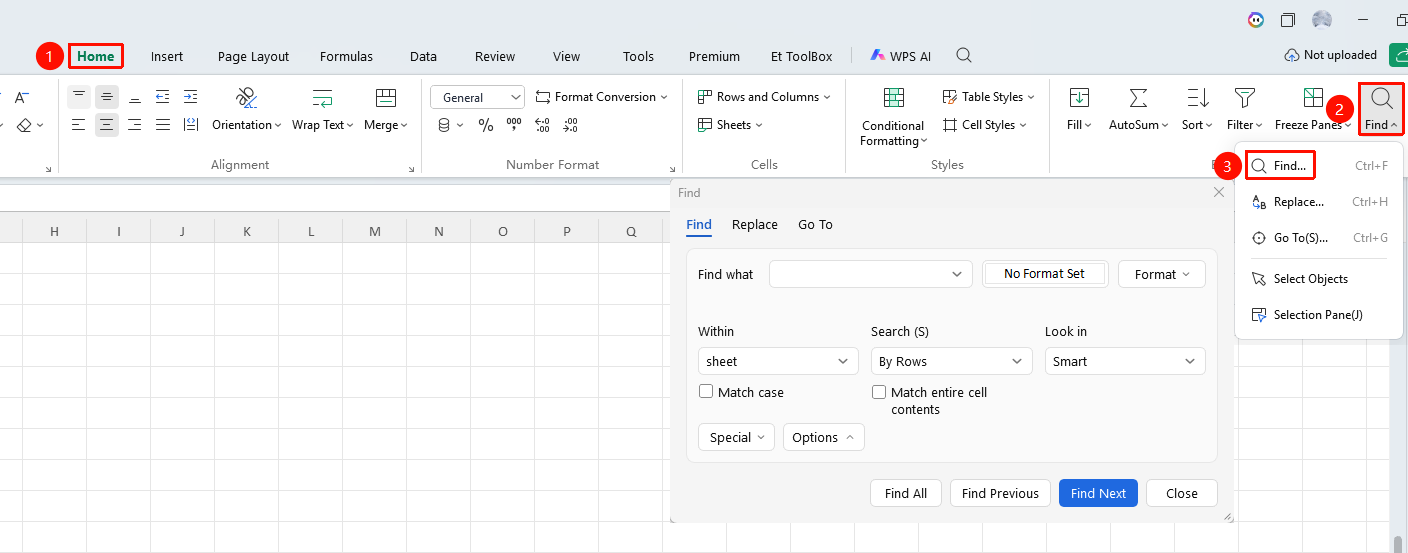
"Home" tab → "Find" dropdown menu → "Find" button
- Click the Find dropdown menu in the Home tab
- Select the "Find" button
- Perform a search in the pop-up dialog box
- You can click Options to expand advanced find settings
- Configurable settings:
- Within: Sheet/Workbook
- Search: By Rows/By Columns
- Look in: Formulas/Values/Comments
- Match case: Whether to match case
- Match entire cell contents: Whether to match exactly
- Click the Find All button, Find Previous button, or Find Next button to search
Replace
Feature Entry
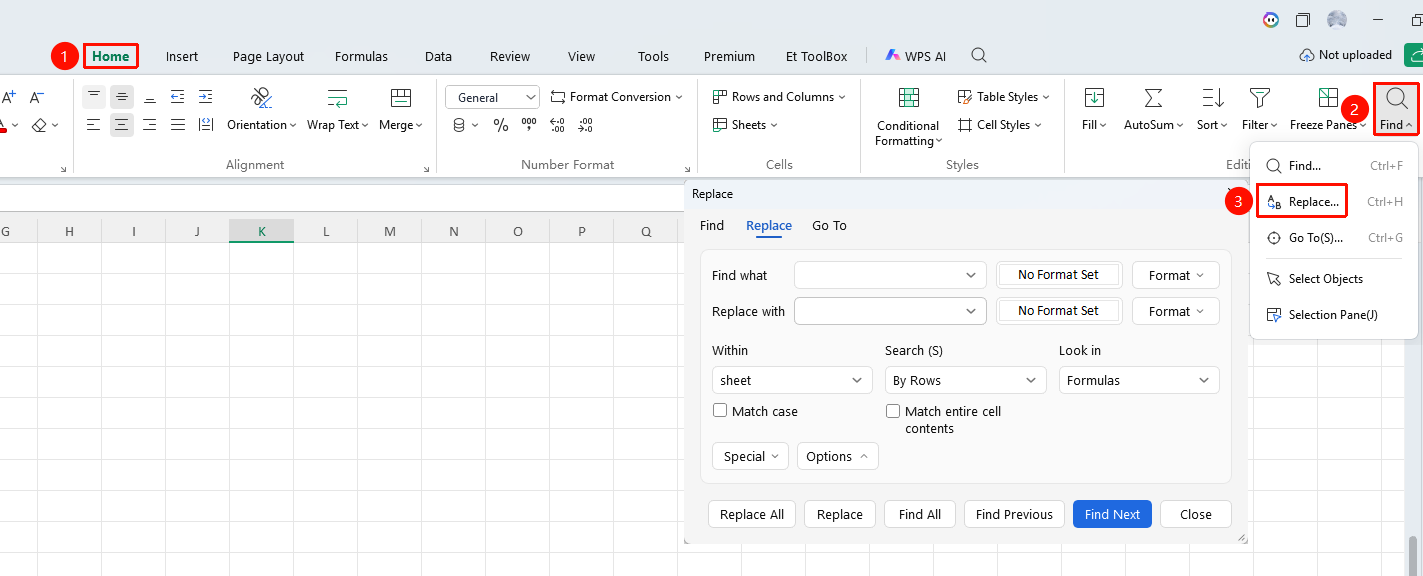
"Home" tab → "Find" dropdown menu → "Replace" button
- Click the Find dropdown menu in the Home tab
- Select the "Replace" button to open the Replace dialog box
- Enter the original text you want to modify in the Find what input box
- Enter the target new text in the Replace with input box
- Click Replace to confirm one by one, or click Replace All to batch modify
Go To
Feature Entry
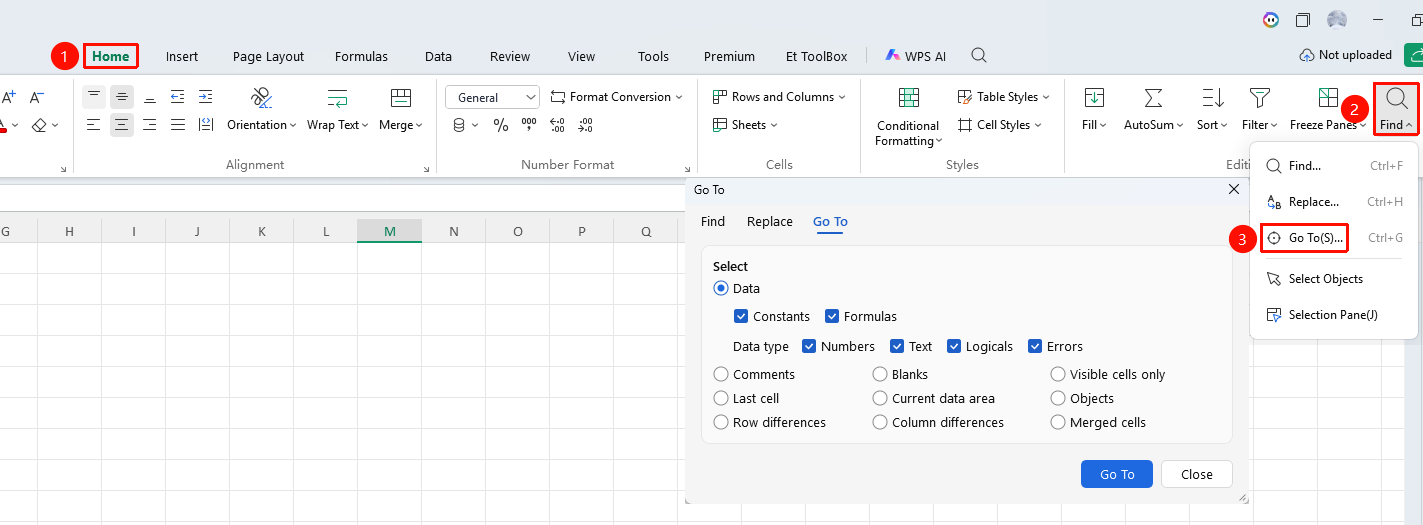
"Home" tab → "Find" dropdown menu → "Go To" button
- Click the Find dropdown menu in the Home tab
- Select the "Go To" button to open the Go To dialog box
- Select the target type in the Go To options: Data, Constants, Formulas, Comments, Blanks, Errors, etc.
- Click Go To
FAQ
Q1: What should I do if the find feature cannot locate the content?
- Solution: Check whether "Match case" or "Match entire cell contents" is checked, and try unchecking these options.
Q2: How to find content within formulas?
- Solution: Select "Formulas" in the "Look in" dropdown to find text within formulas.
Notes
- Find supports wildcards (* and ?)
- You can search within the entire workbook
- Find results can be batch selected