Feature Summary
Format Painter is a tool in WPS Sheets used to quickly copy and paste formatting. It allows you to rapidly apply the formatting (font, fill, borders, and so on) of one cell to other cells, greatly improving the efficiency of format unification.
Feature Description
| Feature Dimension | Description |
|---|---|
| Membership Restriction | No membership restriction |
| Version Restriction | No version restriction |
Operation Steps
Single Use of Format Painter
Feature Entry
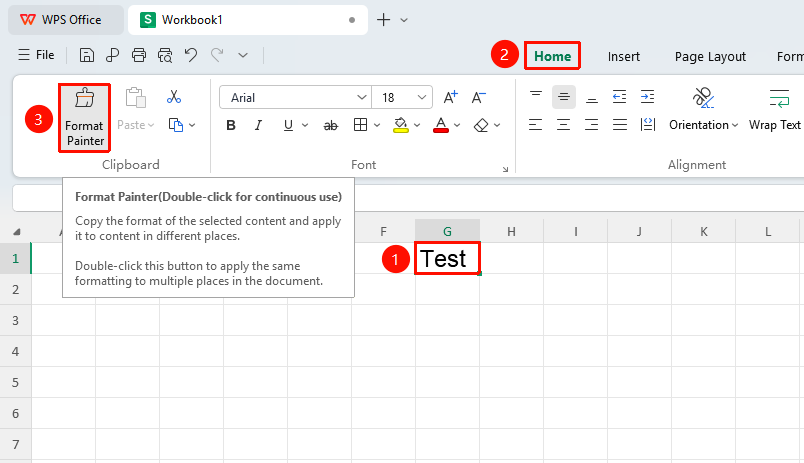
"Home" tab → "Format Painter" button
- Select a cell or text within a cell
- Click the "Format Painter" button in the Home tab; the cursor changes to a brush shape
- Click or drag to select the target area where you want to apply the formatting
- After the format copying is complete, Format Painter automatically exits
Continuous Use of Format Painter
Feature Entry
"Home" tab → "Format Painter" button
- Select a cell or text within a cell
- Double-click the "Format Painter" button in the Home tab
- Continuously apply formatting to multiple non-contiguous target areas
- Press the Esc key or click the "Format Painter" button again to exit
Using Format Painter from the Right-Click Context Menu
Feature Entry
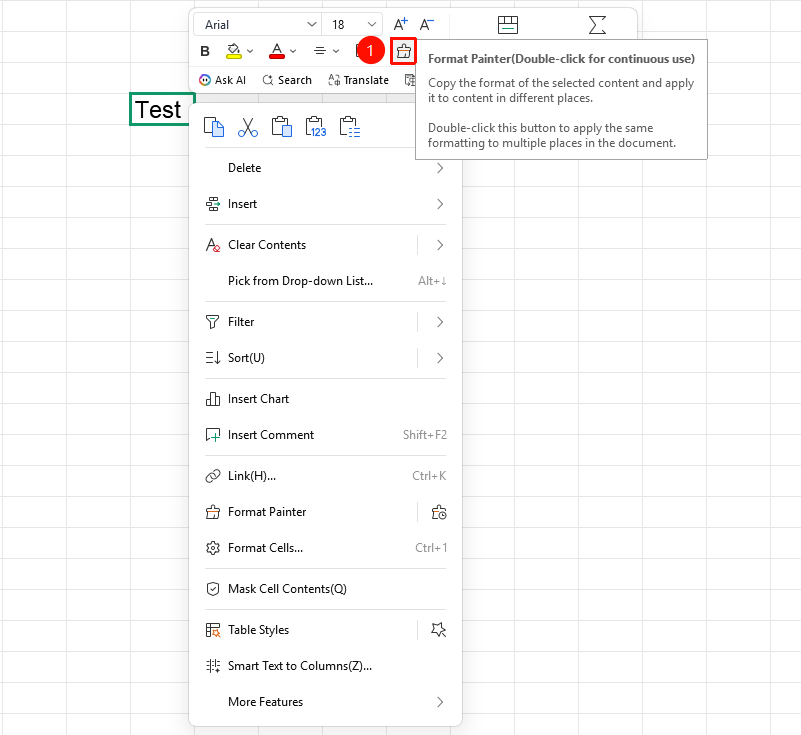
Right-click menu → Floating toolbar → "Format Painter" button
- Select a cell or text within a cell
- Right-click to bring up the context menu
- Click the "Format Painter" icon in the floating toolbar
- Click or drag to select the target area where you want to apply the formatting
Frequently Asked Questions
Q1: Format Painter only works once. How can I use it continuously?
- Solution: Double-click the "Format Painter" button to lock the Format Painter state, allowing you to apply formatting to multiple areas continuously. After finishing, press the Esc key or click the "Format Painter" button again to exit.
Q2: What formatting can Format Painter copy?
- Solution: Format Painter can copy font formatting (font type, size, color, bold, italic, and so on), cell formatting (fill color, borders), number formatting, etc., but it does not copy cell content or formulas.
Q3: How do I use Format Painter across worksheets?
- Solution: Select the cell range in the source worksheet, click Format Painter, then switch to the target worksheet and click or drag to select the target area to complete the format copying.
Notes
- Clicking Format Painter allows single use only; double-clicking enables continuous use
- When using Format Painter, the cursor changes to a brush shape
- Press the Esc key at any time to exit the Format Painter state
- Format Painter does not copy cell content; it only copies formatting attributes