Feature Summary
The format clearing feature can quickly remove formatting settings such as fonts, colors, borders, and backgrounds from cells while preserving the cell contents, helping users quickly restore cells to their default state.
Feature Description
| Feature Dimension | Description |
|---|---|
| Membership Restriction | Some features have membership restrictions |
| Version Restriction | No version restrictions |
Operation Steps
Clear Formatting via the Ribbon
Feature Entry
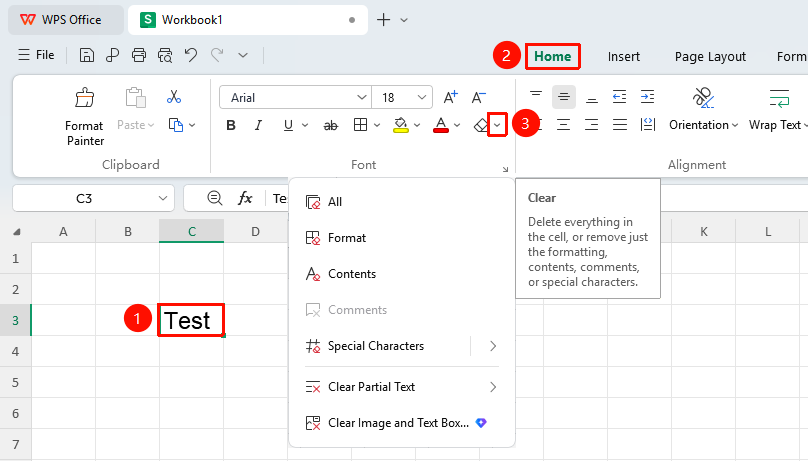
"Home" → "Clear" dropdown menu
- Select the cells or the text within cells from which you want to clear formatting
- Click the "Clear" dropdown button in the Home tab
- Select "Clear Formats" to remove all formatting
- In addition to clearing formats, you can also choose other options
- Clear All
- Clear Contents
- Clear Comments
- Clear Special Characters
- Clear Partial Text
- Delete Pictures and Text Boxes (membership required)
Clear via Right-Click Menu
Feature Entry
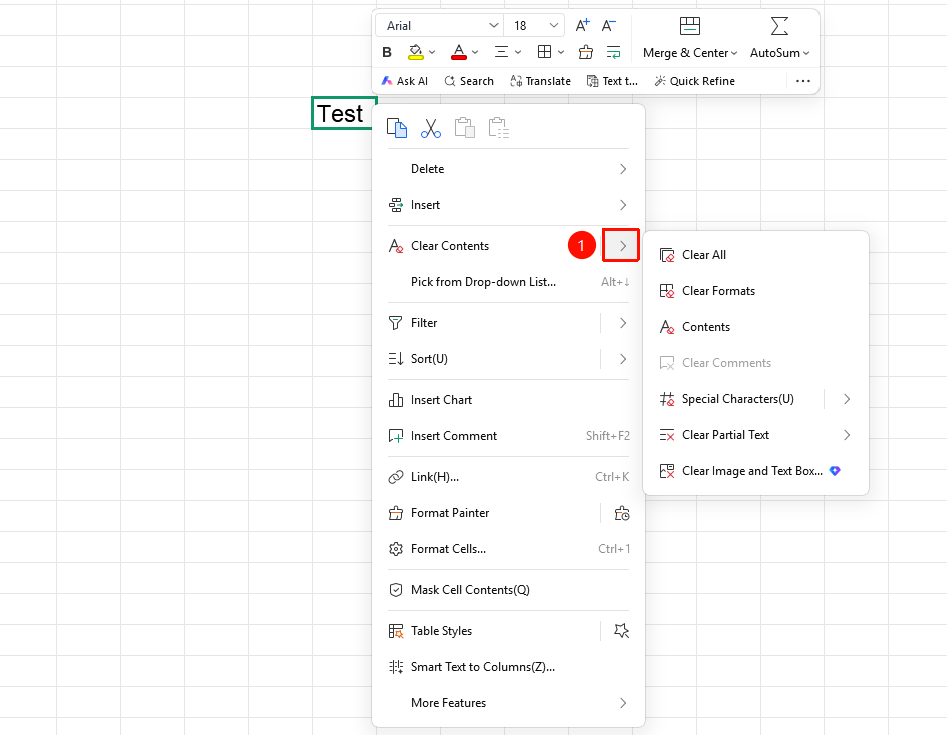
Right-click menu → Dropdown arrow next to the "Clear Contents" button
- Select the cells or cell text from which you want to clear formatting
- Right-click the selected area
- In the pop-up right-click menu, click the dropdown arrow next to the "Clear Contents" button
- Select the content you want to clear from the list
- Clear All
- Clear Contents
- Clear Comments
- Clear Special Characters
- Clear Partial Text
- Delete Pictures and Text Boxes (membership required)
Frequently Asked Questions
Q1: Will clearing formats delete cell contents?
- Solution: No. Clearing formats only removes formatting settings such as fonts, colors, borders, and backgrounds, while preserving the contents within the cells. If you need to delete both content and formatting, select "Clear All".
Q2: How do I clear specific types of formatting?
- Solution: Click the "Clear" dropdown button in the "Home" tab to see various clearing options: Clear Formats, Clear Contents, Clear All, etc. You can choose according to your needs.
Q3: How can I recover formatting after clearing it?
- Solution: You can use the shortcut Ctrl + Z to undo the operation, or click the Undo button on the Quick Access Toolbar to restore the formatting.
Notes
- Clearing formats only removes formatting and will not delete cell contents
- It is recommended to back up important formatting settings before batch clearing formats
- After clearing formats, you can use the Format Painter to reapply formatting