Feature Summary
Gridlines are the gray dividing lines between cells. By default, they are displayed in all worksheets. You can control whether to show or hide them, and you can also customize the gridline color.
Feature Description
| Feature Dimension | Description |
|---|---|
| Membership Restriction | No membership restriction |
| Version Restriction | No version restriction |
Operation Steps
Quickly Show/Hide Gridlines (View Tab)
Feature Entry
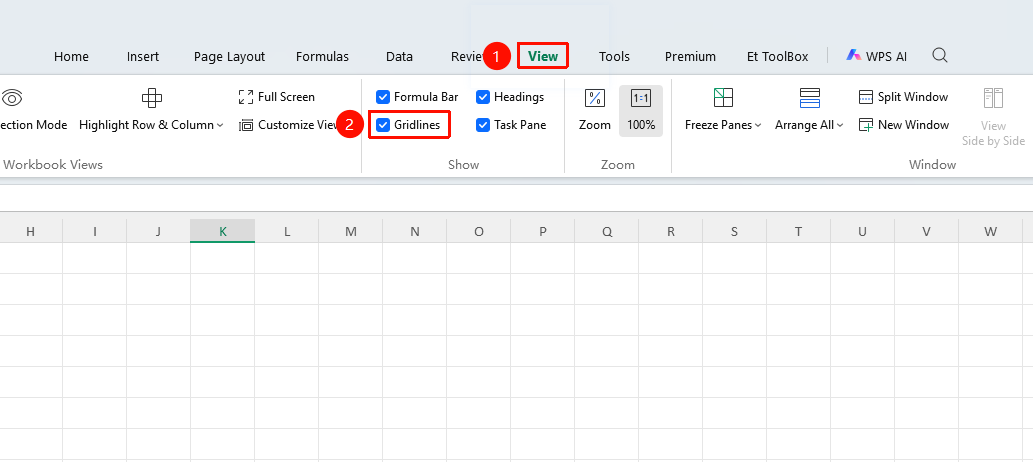
"View" tab → "Show Gridlines" checkbox
- Switch to the "View" tab
- In the "Show" group, check "Show Gridlines"
- Checked = Show gridlines, Unchecked = Hide gridlines
Show/Hide Gridlines (File Menu)
Feature Entry
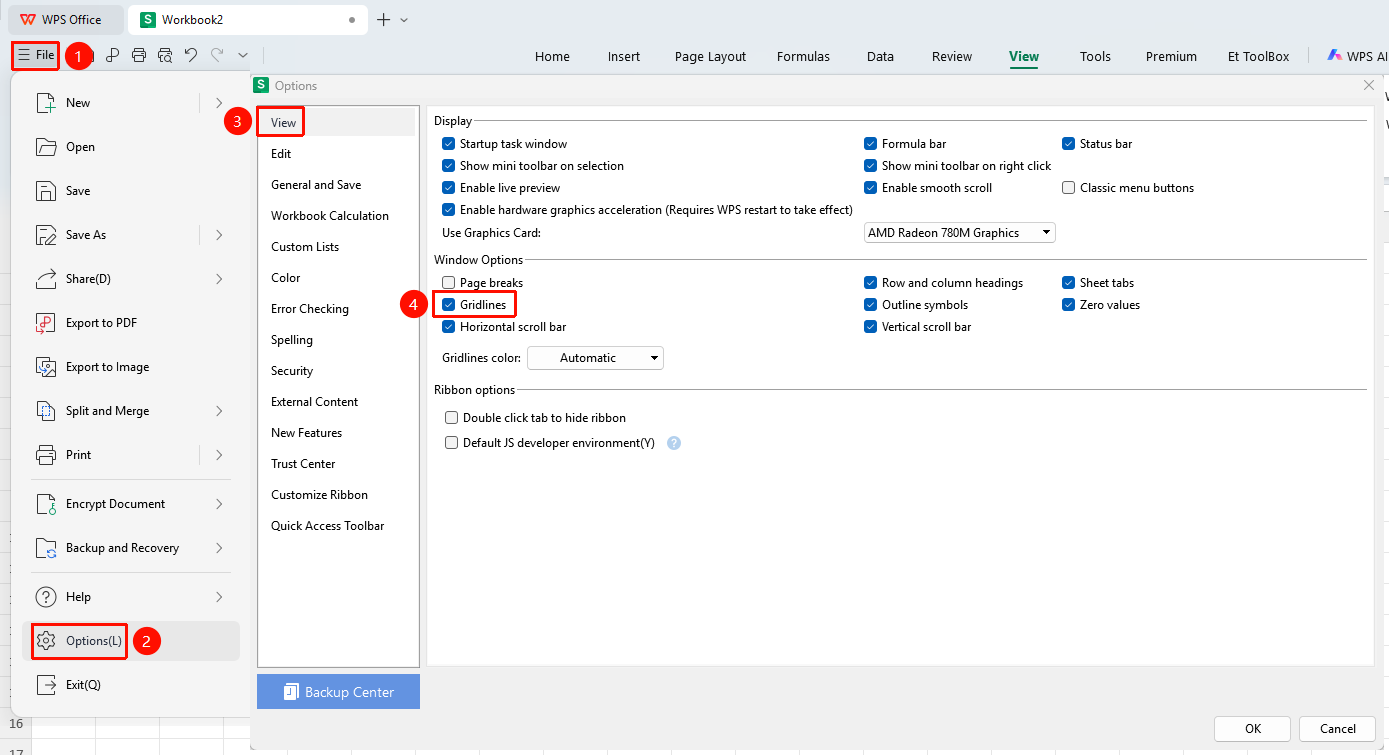
"File" menu → "Options" → "View" panel → "Gridlines" checkbox
- Click the "File" menu in the upper left corner
- Click "Options"
- Switch to the "View" tab
- In the "Show" group, check "Gridlines"
Checked = Show gridlines, Unchecked = Hide gridlines
Modify Gridline Color (Options Settings)
Feature Entry
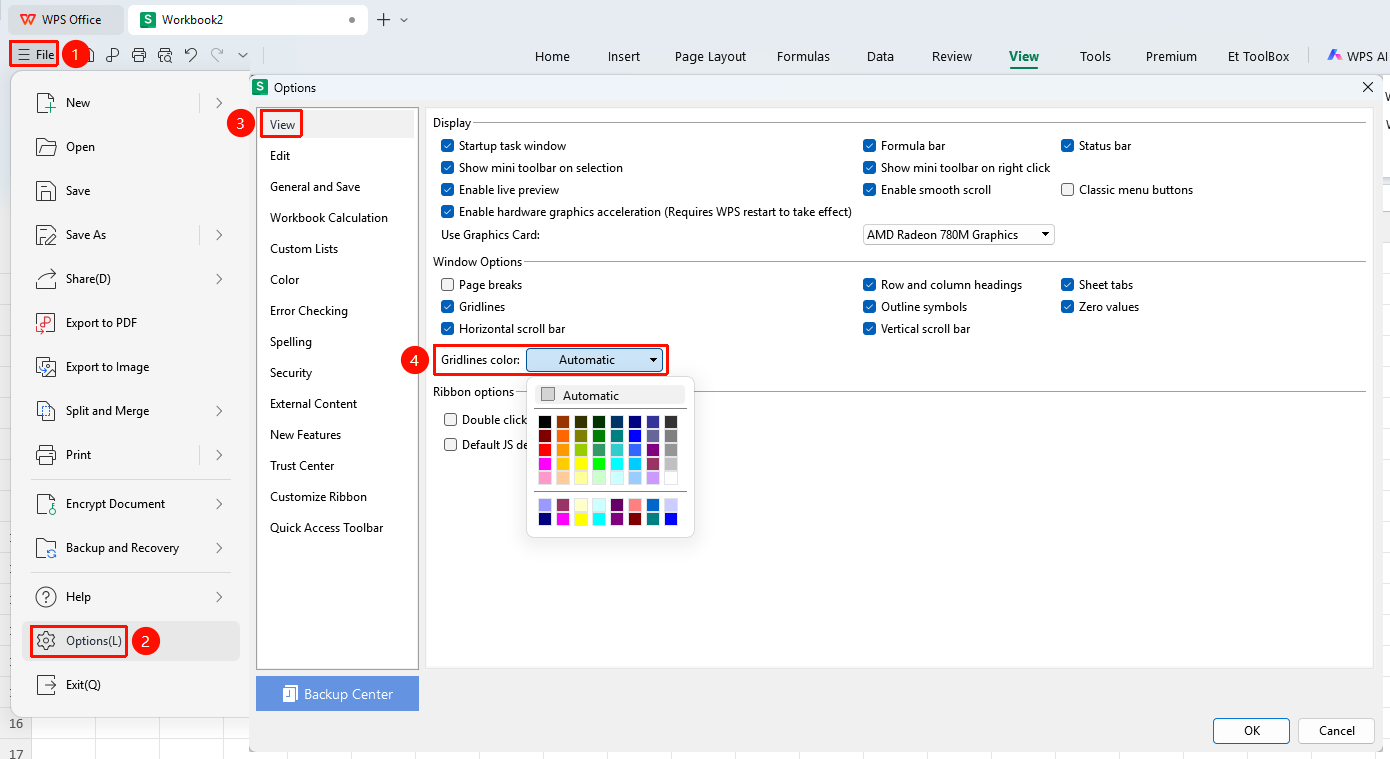
"File" menu → "Options" → "View" panel → "Window Options" → "Gridline Color"
- Click the "File" menu in the upper left corner
- Click "Options"
- In the Options dialog box, switch to the "View" panel
- In the "Window Options" area, click the "Gridline Color" dropdown box
- Select the desired color and click "OK" to save
- The gridline color in the worksheet will be updated to the selected color
Show Gridlines When Printing
Feature Entry
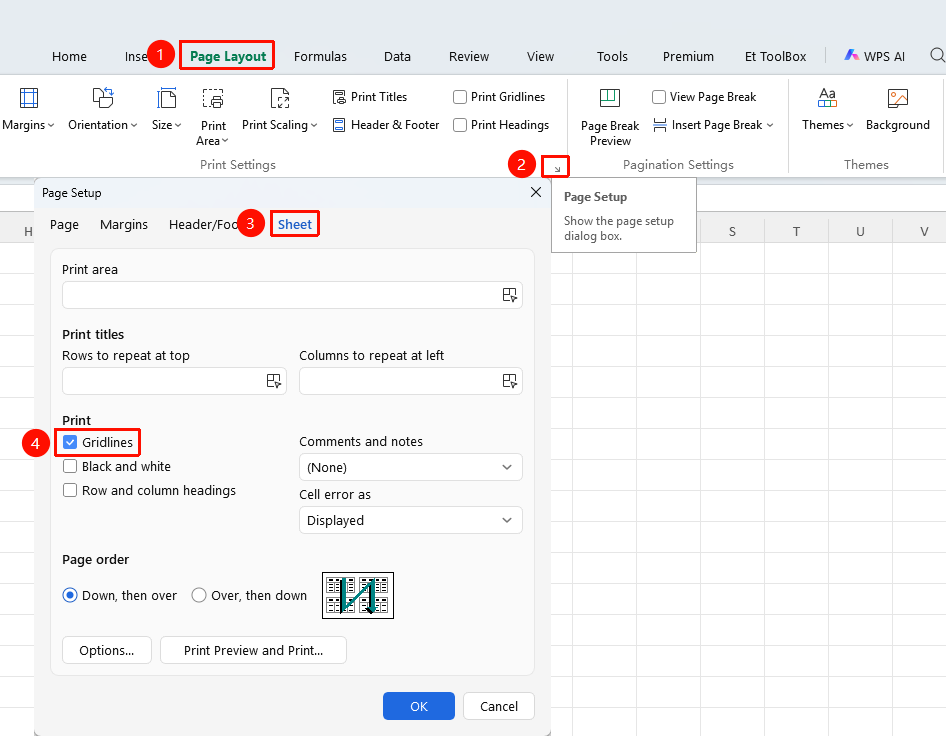
"Page Layout" tab → "Page Setup" → "Sheet" tab → "Gridlines" checkbox
- Switch to the "Page Layout" tab
- Click the dialog launcher in the lower right corner of "Page Setup"
- In the pop-up Page Setup dialog box, switch to the "Sheet" tab
- Check "Gridlines", click "OK"
- Gridlines will be displayed when printing or in print preview
FAQ
Q1: After hiding gridlines, will they still appear when printing?
- Solution: By default, no. The gridline display on screen and in print output are independently controlled. Whether gridlines appear when printing is determined by the gridline setting in the "Page Layout" → "Page Setup" → "Sheet" tab.
Q2: Can I still see cell data clearly after hiding gridlines?
- Solution: Yes, it displays normally. Hiding gridlines only removes the gray dividing lines and does not affect any data content or formula calculations. If you need to distinguish cell areas, you can add borders manually.
Q3: What is the difference between gridlines and cell borders?
- Solution: Gridlines are gray auxiliary lines displayed on screen, not printed (unless set separately), and their thickness/style cannot be modified; Cell borders are set through the "Home" tab, can have customized color, thickness, and style, and are the actual borders printed in the table.
Q4: Why do the gridlines in some cells appear very faint?
- Solution: If cell borders have been set for that area, the borders will override the visual effect of the gridlines. You can also check whether "File" → "Options" → "View" → "Gridline Color" has been changed to a light color.