Feature Summary
The background image feature allows you to add an image background to a worksheet, enhancing the visual effect of the spreadsheet. It is suitable for creating posters, certificates, flyers, and other scenarios that require an aesthetically pleasing background.
Feature Description
| Feature Dimension | Description |
|---|---|
| Membership Restriction | No membership restriction |
| Version Restriction | No version restriction |
Operation Steps
Insert Background Image
Feature Entry
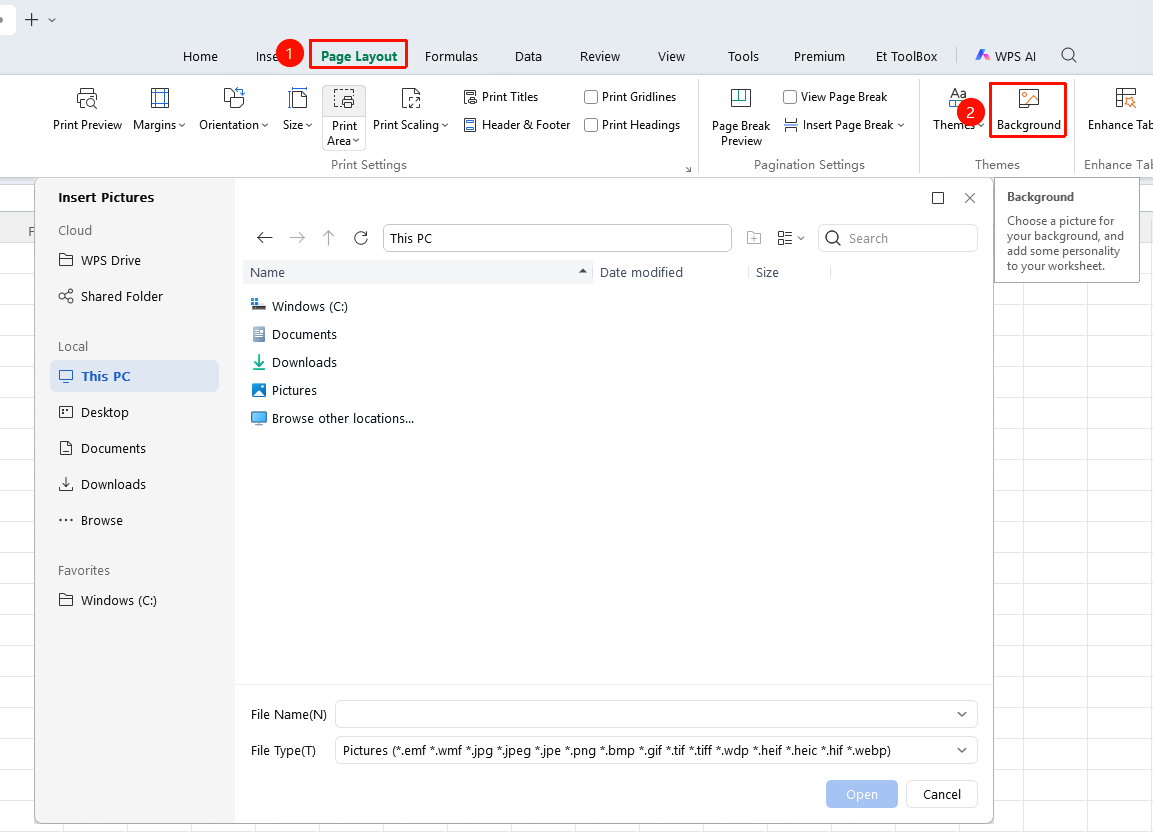
"Page" tab → "Background Image"
- Click the "Background Image" button in the Page tab
- In the pop-up file selection dialog, choose the image to use as the background
- Click "Open" to confirm the selection
- The image will be tiled and displayed as the worksheet background
Delete Background Image
Feature Entry
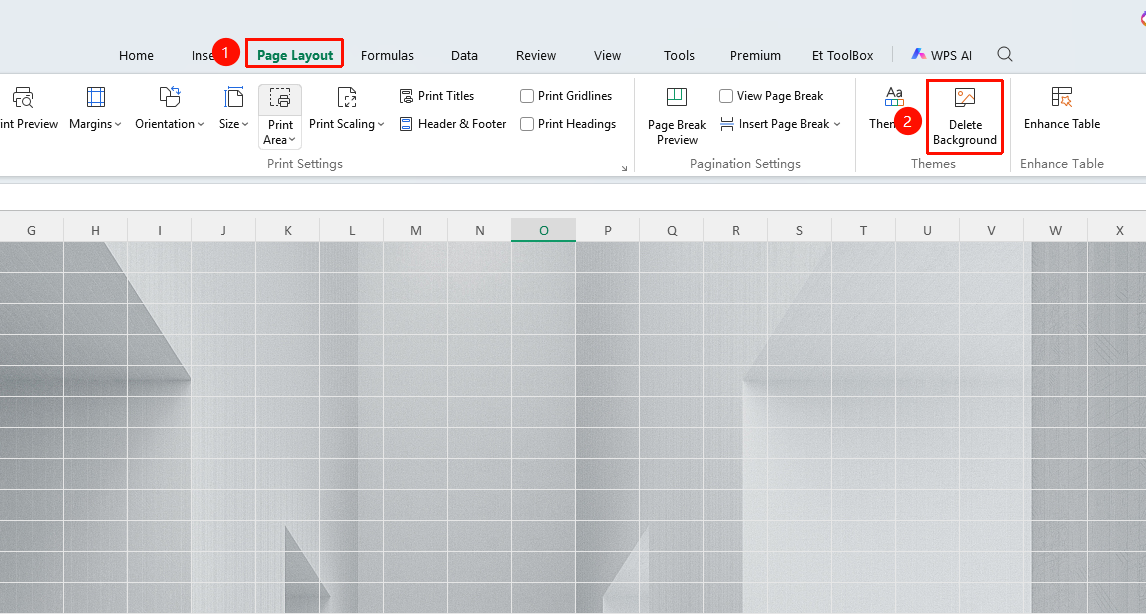
"Page" tab → "Delete Background"
- Click the Page tab
- Click the "Delete Background" button
- The worksheet background image will be removed
Frequently Asked Questions
Question 1: Background image does not display
- Solution: Check whether the image format is supported (common formats such as JPG, PNG, BMP are supported) and whether the image file is corrupted.
Question 2: Background image displays incompletely or is distorted
- Solution: The background image will automatically tile to fill the entire worksheet. It is recommended to use an image with proportions similar to the worksheet, or adjust the image dimensions before inserting.
Notes
- The background image is only used for display and printing; it does not affect the storage and calculation of cell data
- The background image will be displayed in a tiled manner; it is recommended to use seamlessly tiled images for the best effect
- The background image may affect the readability of cell content; it is recommended to choose light-colored or semi-transparent images