Feature Summary
The Row Height feature is used to adjust the height of rows in a worksheet. It supports manual dragging, precise setting, and automatic adjustment to make content display more appropriate.
Feature Description
| Feature Dimension | Description |
|---|---|
| Membership Restrictions | No membership restrictions |
| Version Restrictions | No version restrictions |
Operation Steps
Set Row Height via the Ribbon
Feature Entry
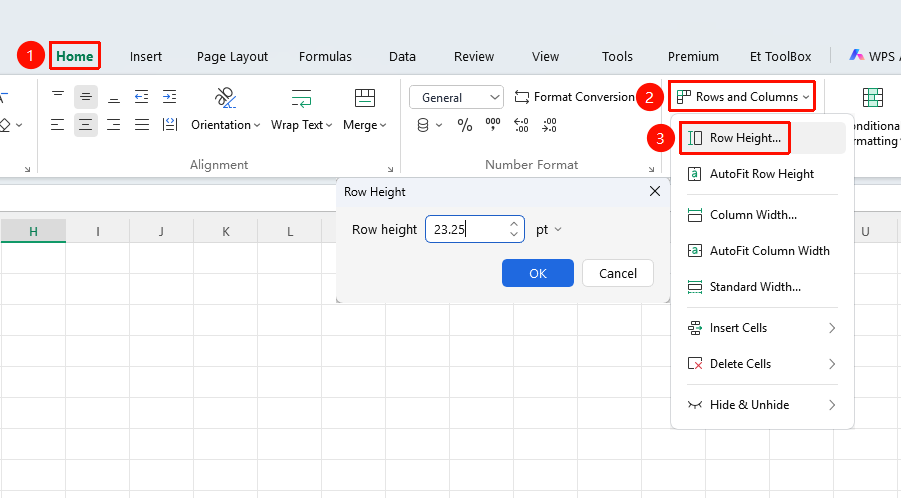
"Home" tab → "Rows and Columns" dropdown menu → "Row Height" option
- Click the Home tab
- Select the Rows and Columns dropdown menu
- Click the "Row Height" option
- Enter the precise row height value (unit: points)
- Click OK
Set Row Height via the Right-Click Menu
Feature Entry
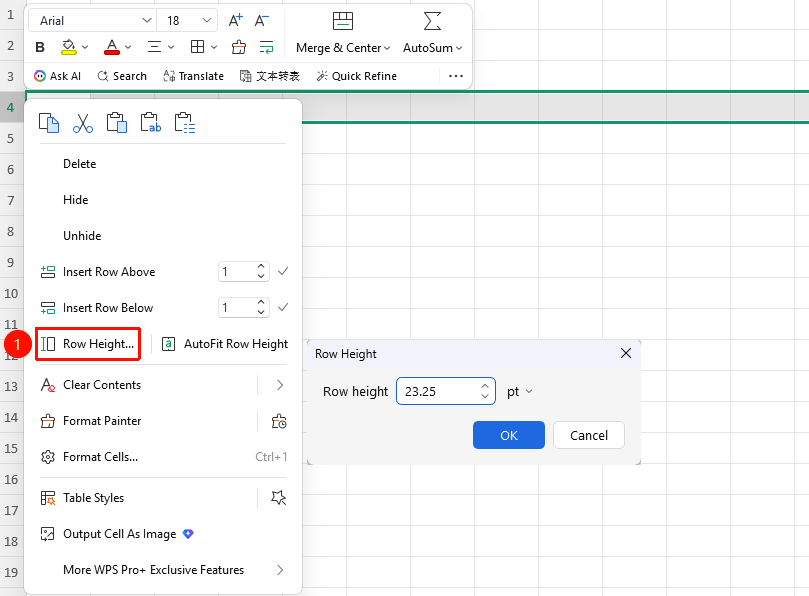
Right-click the row(s) to be adjusted → "Row Height" option
- Select the row(s) to be adjusted (multiple selection allowed)
- Right-click the row number and select the "Row Height" option
- Enter the precise row height value (unit: points)
- Click OK
Auto-Fit Row Height via the Ribbon
Feature Entry
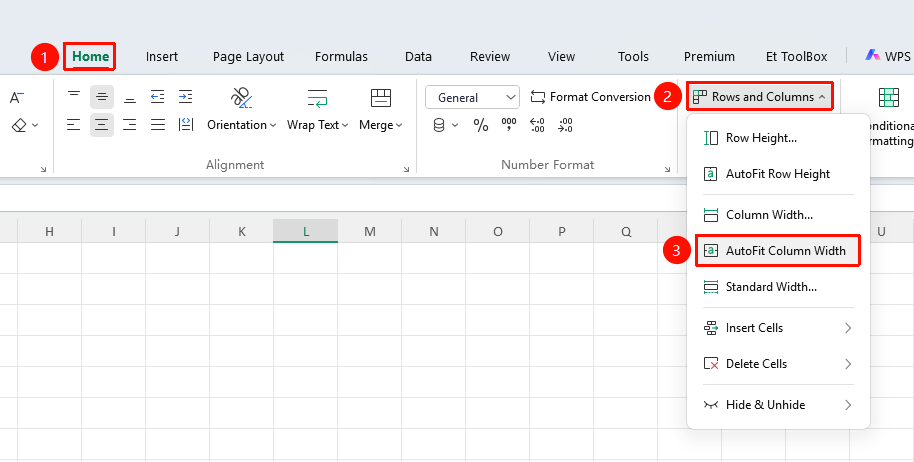
"Home" tab → "Rows and Columns" dropdown menu → "AutoFit Row Height" option
- Click the Home tab
- Select the Rows and Columns dropdown menu
- Click the "AutoFit Row Height" option
- WPS will automatically set the most suitable row height based on the current cell content
Auto-Fit Row Height via the Right-Click Menu
Feature Entry
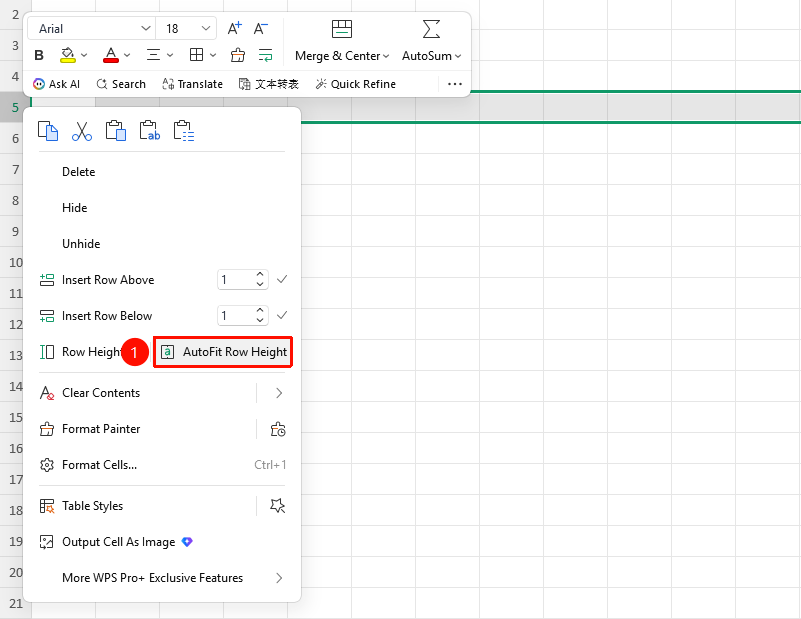
Right-click the row(s) to be adjusted → "AutoFit Row Height" option
- Select the row(s) to be adjusted (multiple selection allowed)
- Right-click the row number and select the "AutoFit Row Height" option
- WPS will automatically set the most suitable row height based on the current cell content
Frequently Asked Questions
Q1: How to batch adjust the height of multiple rows?
- Solution: After selecting multiple rows, right-click to set the row height or drag to adjust. All selected rows will be adjusted simultaneously.
Notes
- Auto-fit can adapt to the content height
- Row height settings will affect the printing result