Feature Summary
The Table Style feature provides a variety of preset table beautification schemes, allowing you to quickly apply professional color schemes and formatting to tables, making them more attractive and easier to read.
Feature Description
| Feature Dimension | Description |
|---|---|
| Membership Restriction | Some preset styles require a membership subscription to use |
| Version Restriction | No version restrictions |
Operation Steps
Table Styles (Some styles require a membership subscription)
Feature Entry
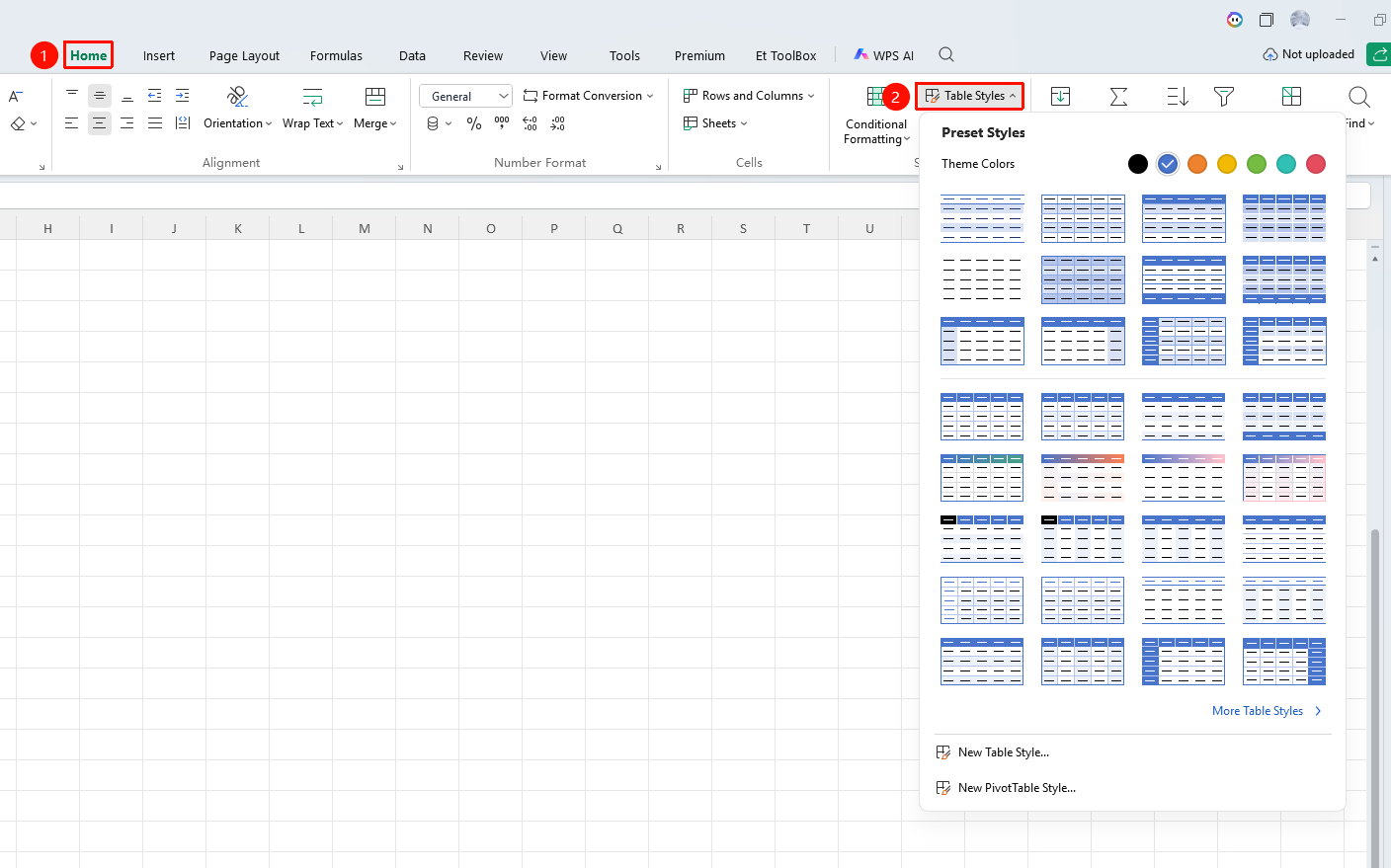
"Home" tab → "Table Styles" dropdown menu
- Click the Home tab
- Select your preferred style from the "Table Styles" dropdown menu
- The table will immediately apply the selected style
Create New Table Style
Feature Entry
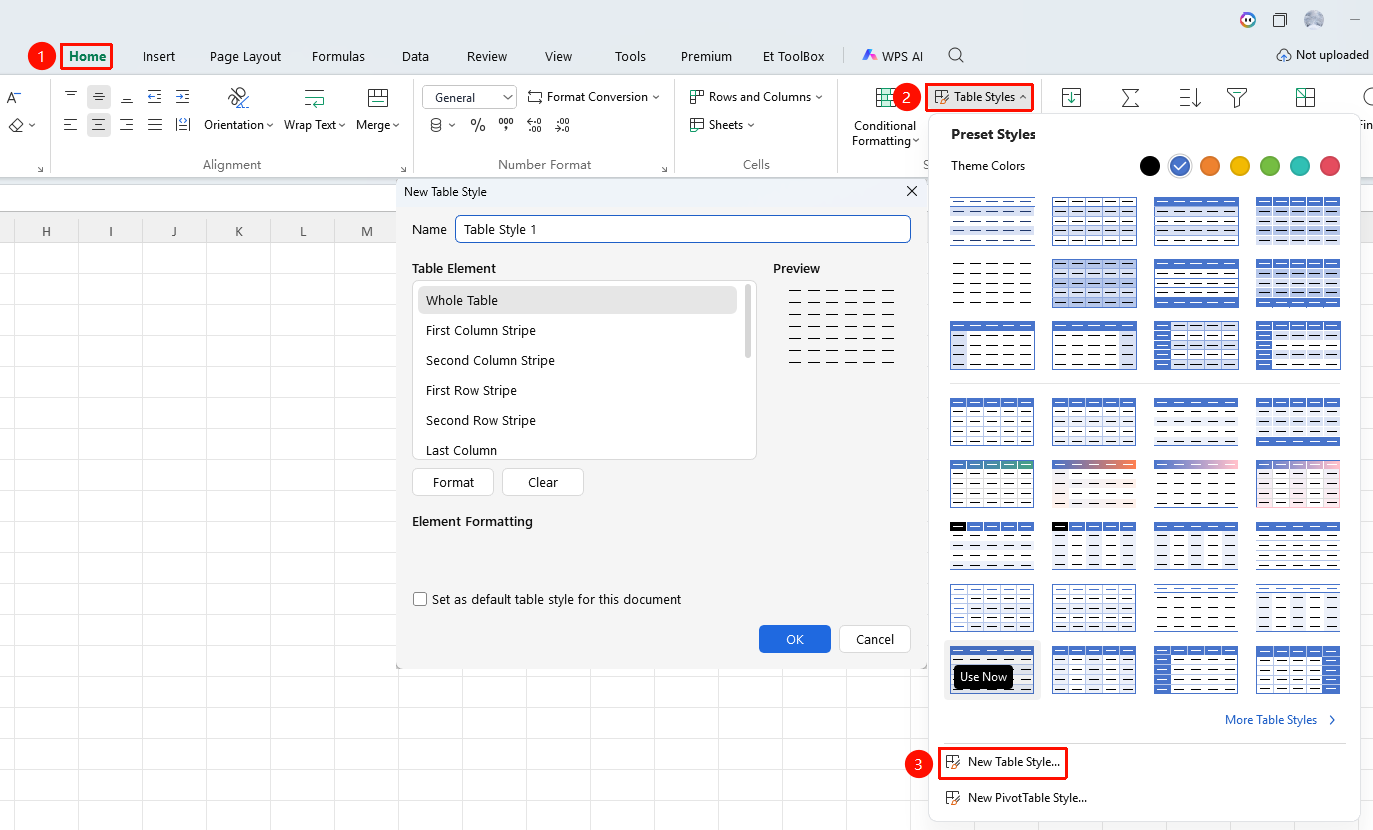
"Home" tab → "Table Styles" dropdown menu → "New Table Style" button
- Click the Home tab
- Click the "New Table Style" button in the Table Styles dropdown menu
- Set the formatting for each element in the dialog box
- Enter a style name and click OK to complete creation
Create New PivotTable Style
Feature Entry
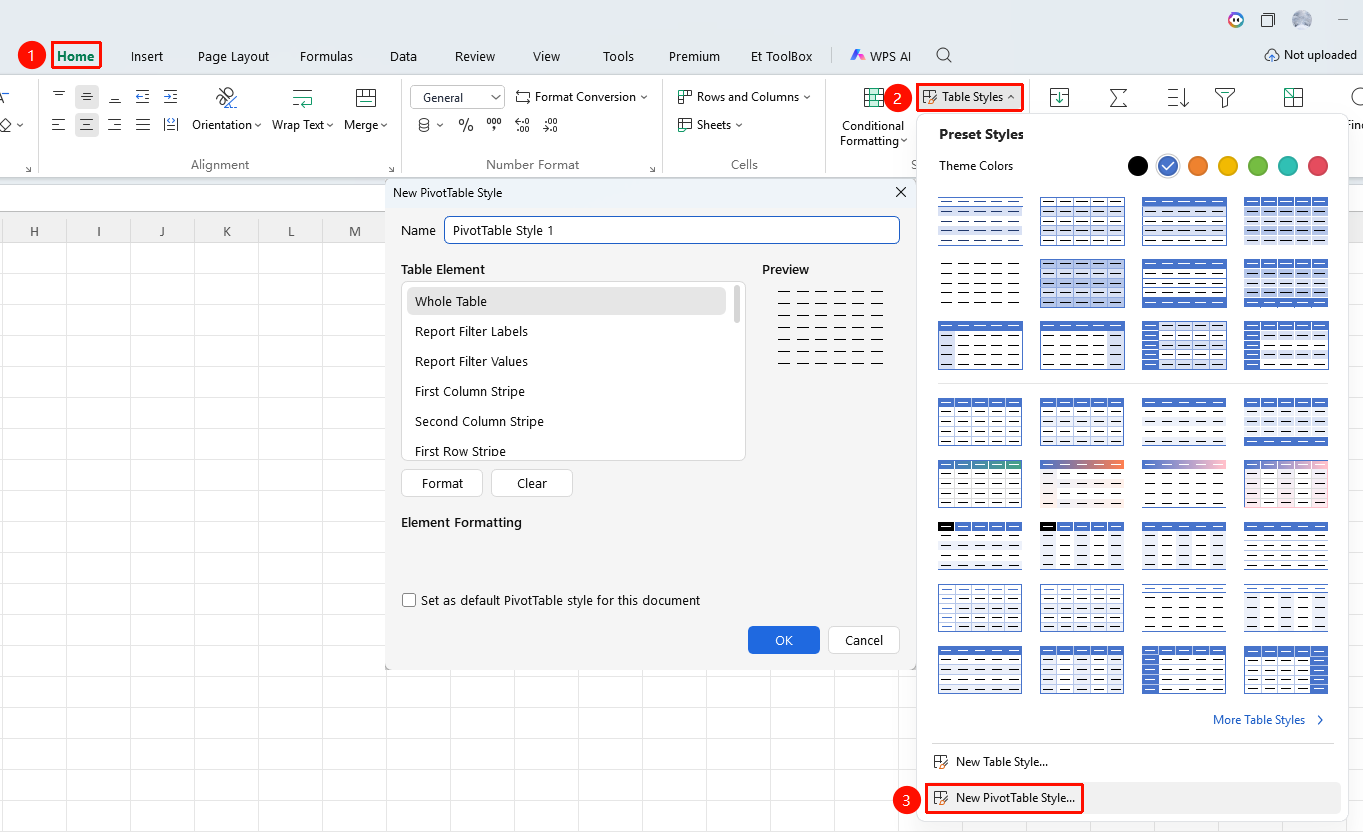
"Home" tab → "Table Styles" dropdown menu → "New PivotTable Style" button
- Click the Home tab
- Click the "New PivotTable Style" button in the Table Styles dropdown menu
- Set the formatting for each element in the dialog box
- Enter a style name and click OK to complete creation. The newly created style can then be selected in the PivotTable.
Clear Table Style
Feature Entry
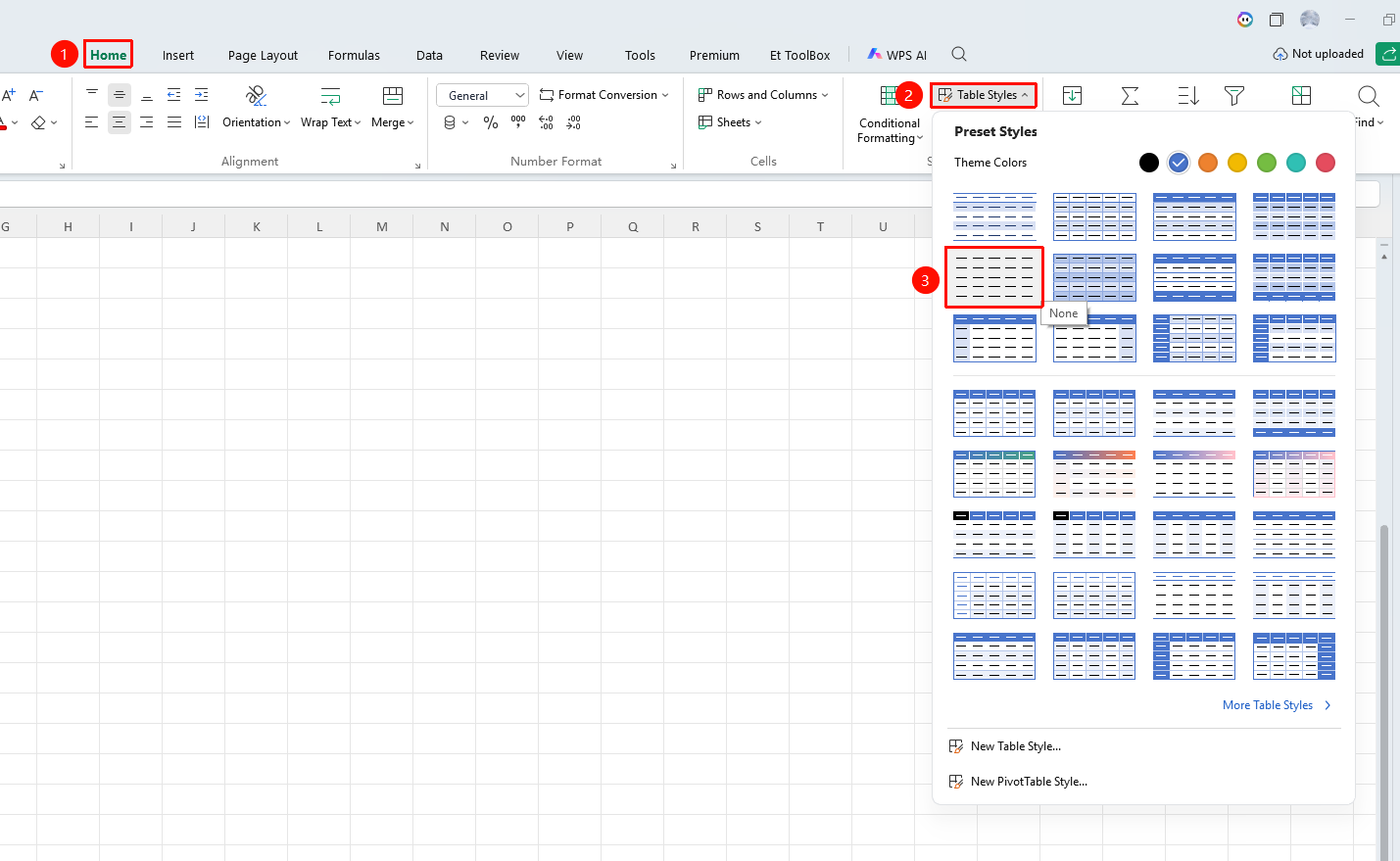
"Home" tab → "Table Styles" dropdown menu
- Click the Home tab, then click the Table Styles dropdown menu
- Select "None" from the style gallery
- The table will revert to having no style applied
Modify Existing Style
Feature Entry
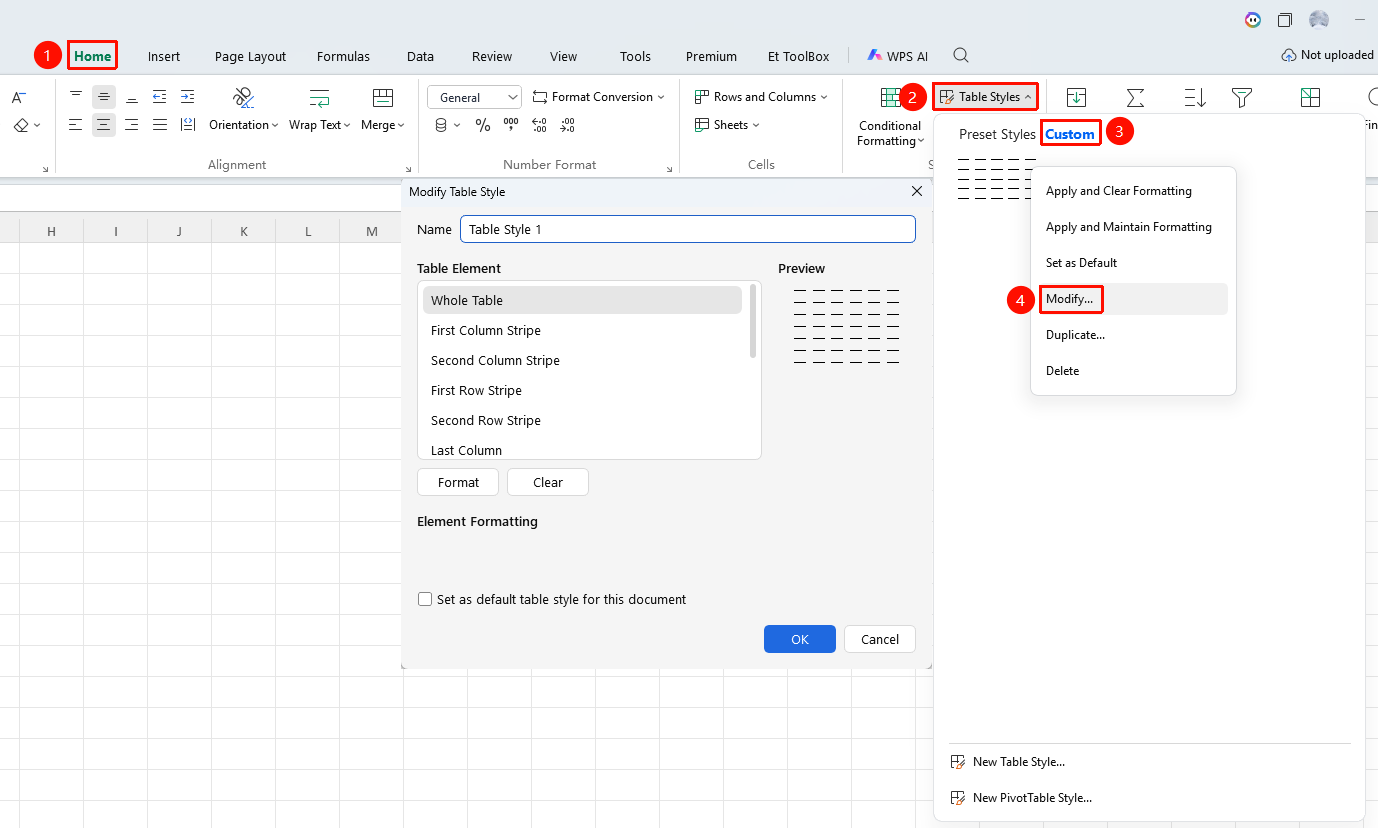
"Home" tab → "Table Styles" dropdown menu → "Custom" tab → Right-click a style → "Modify" option
- Click the Home tab, then click the Table Styles dropdown menu
- Click the Custom tab, then right-click the style you want to modify
- Select the "Modify" option
- Modify the formatting settings
- Click OK to save the changes
Only table styles you have created yourself can be modified
Set Table Style in Table Tools (Some styles require a membership subscription)
Feature Entry
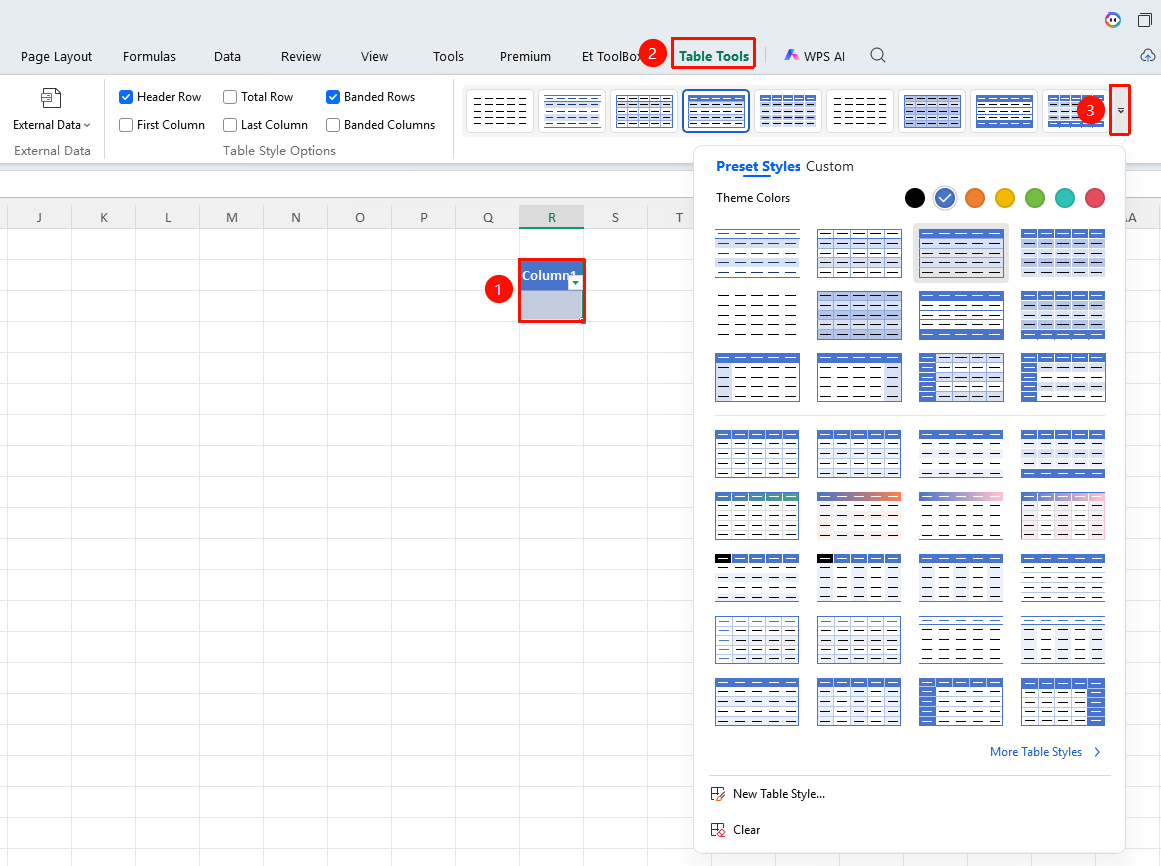
"Table Tools" tab → "Table Styles" dropdown menu
- Select any cell within the inserted table
- Click the Table Tools tab
- Click the "Table Styles" dropdown menu to set the table style
- The table will apply the selected style
Frequently Asked Questions
Q1: How to make table rows alternate in color?
- Solution: After applying a table style, check "Banded Rows" in the "Table Style Options" to achieve alternating row colors.
Q2: Can table styles be saved?
- Solution: Yes. Newly created table styles are saved in the style gallery and can be reused in the current document.
Q3: How to delete a custom table style?
- Solution: Right-click the custom style in the table style gallery and select "Delete".
Notes
- Table styles can quickly beautify tables
- Banded rows/columns can make data easier to read
- Custom styles can improve work efficiency