Feature Summary
The Table Beautification feature offers a variety of preset table styles, allowing you to beautify the appearance of your tables with one click and make your data presentation more professional and visually appealing.
Feature Description
| Feature Dimension | Description |
|---|---|
| Membership Restriction | Some advanced styles require a membership subscription |
| Version Restriction | No version restriction |
Operation Steps
Applying Table Styles and Auto-Beautification
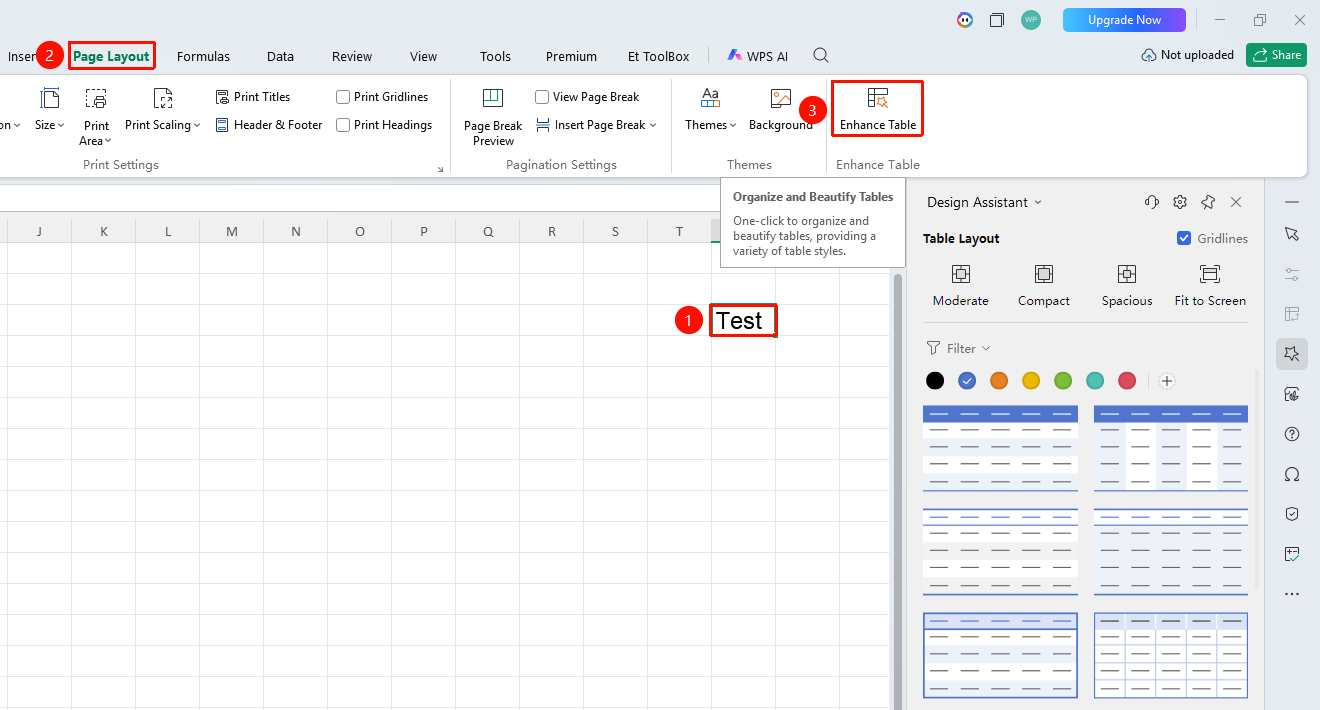
Function Entry ①
"Page" tab → "Table Beautification"
- Select the table area you want to beautify
- Click the "Table Beautification" button in the "Page" tab
- The selected table content will be beautified with one click
- Choose your preferred table style from the pop-up style gallery
- Click the style to apply it with one click
Function Entry ②
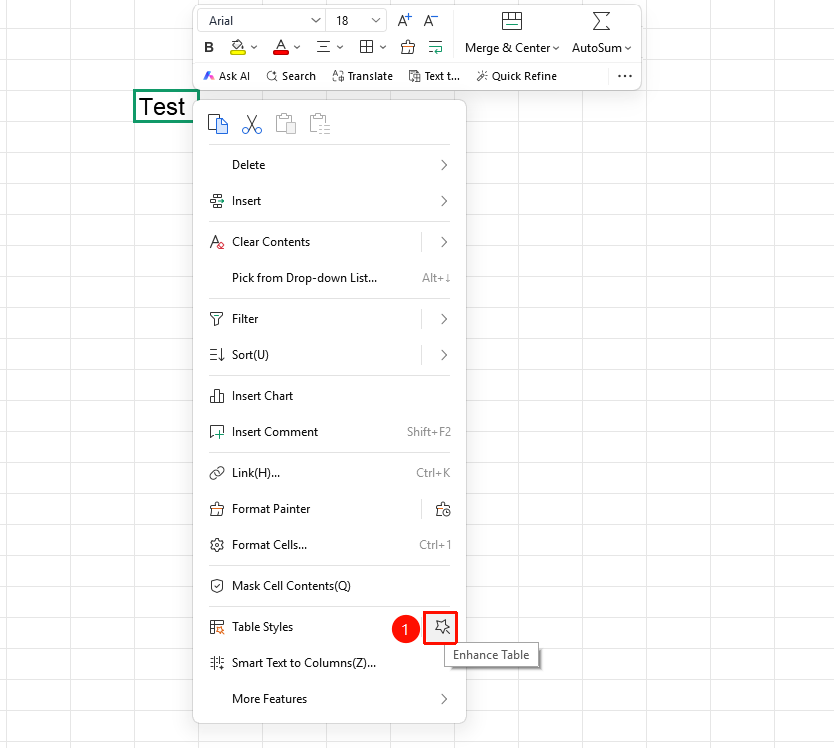
Right-click menu → "Beautify"
- Select the table area you want to beautify
- Right-click and find the "Beautify" button in the context menu
- Choose your preferred table style from the pop-up style gallery
- Click the style to apply it with one click
Function Entry ③
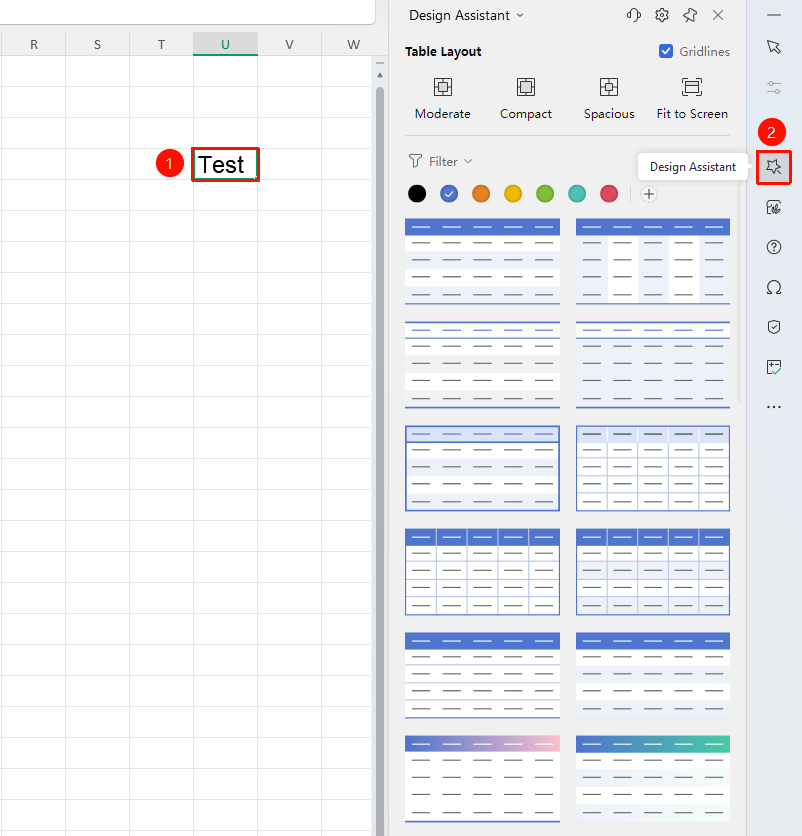
"Task Pane" → "One-Click Beautify"
- Select the table area you want to beautify
- Find and click "One-Click Beautify" in the "Task Pane" on the right
- Choose your preferred table style from the pop-up style gallery
- Click the style to apply it with one click
FAQ
Question 1: Auto-beautification failed
- Solution: Ensure that the table area is correctly selected and that the table area contains data.
Notes
- Table styles will overwrite existing cell formatting. Please confirm before applying.
- After applying a table style, you can still adjust the formatting of individual cells separately.