Feature Summary
The record form provides a form-based way to view and manage data, making it ideal for quickly browsing, reviewing, adding, or deleting data in large spreadsheets row by row.
Feature Description
| Feature Dimension | Description |
|---|---|
| Membership Restriction | No membership restriction |
| Version Restriction | No version restriction |
Steps
Opening the Record Form
Feature Entry
"Tools" tab → "Record Form" button
- Open the spreadsheet you want to work with
- Select any cell within the data range (generally, selecting a header cell is sufficient)
- Click the "Record Form" button in the Data tab
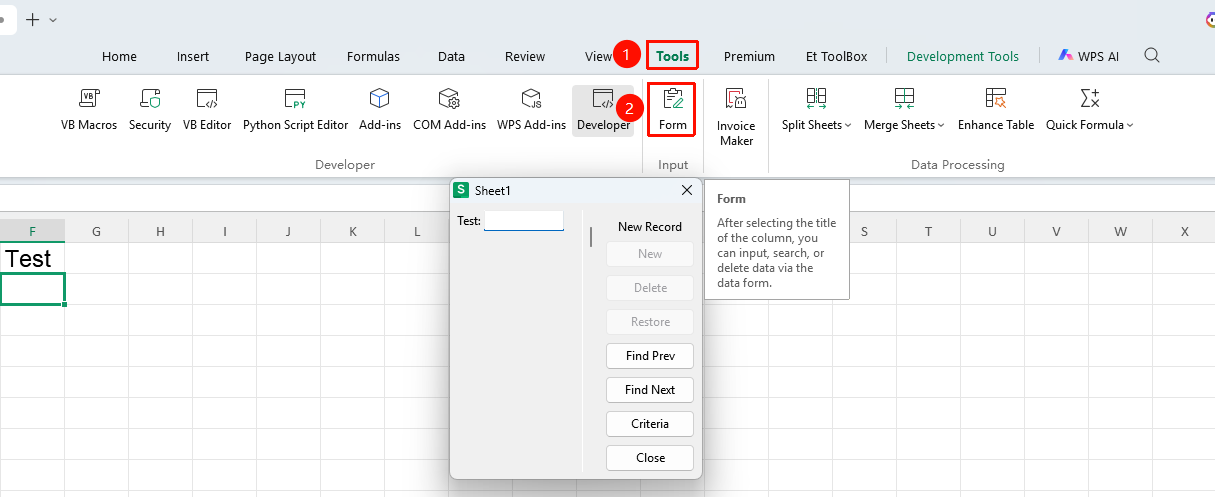
Record Form Operation Instructions
| Operation | Description |
|---|---|
| Previous/Next | Browse and view spreadsheet data row by row |
| New | Add a new row of data to the end of the spreadsheet |
| Delete | Delete the currently viewed row of data |
| Criteria | Enter filter keywords to quickly locate data matching the conditions |
| Restore | After modifying data, restore to the original content before changes |
- In the record form window, click "Previous"/"Next" to browse data
- Click "New" to add a new record, fill in the content for each field, and press Enter to confirm
- Click "Delete" to remove the current record
- Click "Criteria" to enter filter conditions and quickly locate target data
FAQ
Q1: What should I do if I cannot find the Record Form button?
- Solution: Ensure that a cell range containing data is selected. If the data range is not recognized as a list, you may need to format the data range as a table first.
Q2: What is the maximum number of columns supported by the record form?
- Solution: The record form displays all columns in the data range by default. If there are too many columns, you may need to scroll within the window to view the full content.
Q3: Can the record form delete data in batches?
- Solution: The record form only supports operations on a record-by-record basis. For batch deletion of data, it is recommended to use the spreadsheet's filter and delete functions.
Notes
- Ensure that the data has a header row before using the record form
- Changes made in the record form are directly reflected in the spreadsheet; it is recommended to back up data before making changes