Feature Summary
The border function is used to add line borders to cells, making the spreadsheet more visually appealing.
Feature Description
| Feature Dimension | Description |
|---|---|
| Membership Restriction | Some features require membership |
| Version Restriction | No version restrictions |
Operation Steps
Adding Cell Borders
Feature Entry
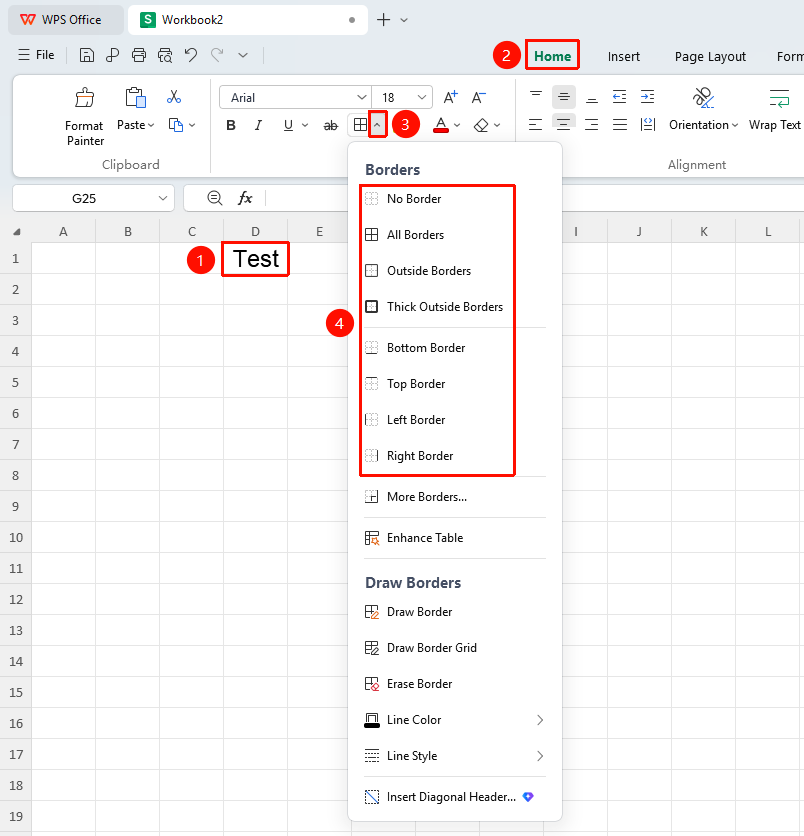
"Home" tab → "All Borders" dropdown menu
- Select the cell or cell range where you want to add borders
- Click the "All Borders" dropdown menu in the Home tab
- Choose a preset border style (All Borders, Outside Borders, and so on.)
- The selected borders will be added to the cells
Customizing Border Styles
Feature Entry
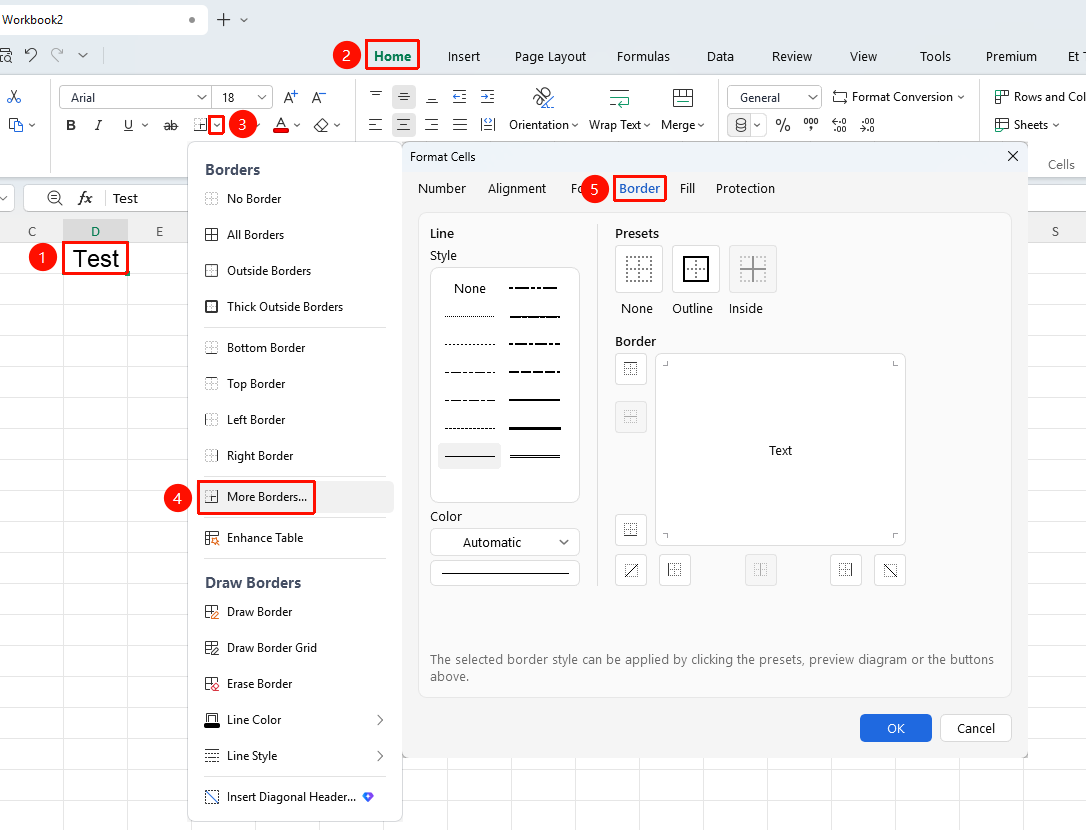
"Home" tab → "All Borders" dropdown menu → "More Borders" option
- Select the cell or cell range where you want to add borders
- Click the Home tab and select the "All Borders" dropdown menu
- Select the "More Borders" option
- In the border dialog, set:
- Line style (solid, dashed, dotted, and so on.)
- Line color
- Border position (outside border, inside border, diagonal, and so on.)
- Click OK to apply the settings
Drawing Borders
Feature Entry
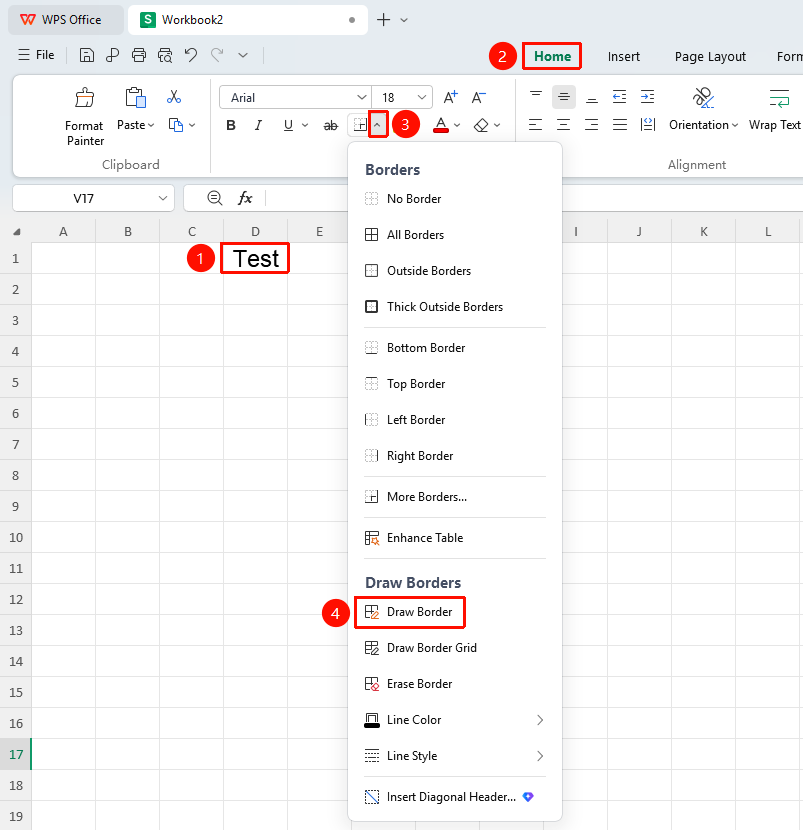
"Home" tab → "All Borders" dropdown menu → "Draw Border" button
- Click the Home tab and select the "All Borders" dropdown button
- Click the "Draw Border" button
- The mouse cursor changes to a pencil shape
- Drag in the spreadsheet to draw border lines
- Press Esc to exit drawing mode
FAQ
Q1: How to remove cell borders?
- Solution: Select the cells, click the border dropdown button, and choose "No Border" to remove them.
Q2: What should I do if borders do not print?
- Solution: Check if "Print Gridlines" is enabled. In Page Layout, enable "Print Gridlines" or ensure borders are set correctly.