Feature Summary
Run Macro can automatically execute recorded macro operations, enabling batch processing of repetitive tasks and significantly improving spreadsheet editing efficiency.
Feature Description
| Feature Dimension | Description |
|---|---|
| Membership Restriction | No membership restriction |
| Version Restriction | No version restriction; VBA plugin installation required |
Operation Steps
Run an Existing Macro
Feature Entry
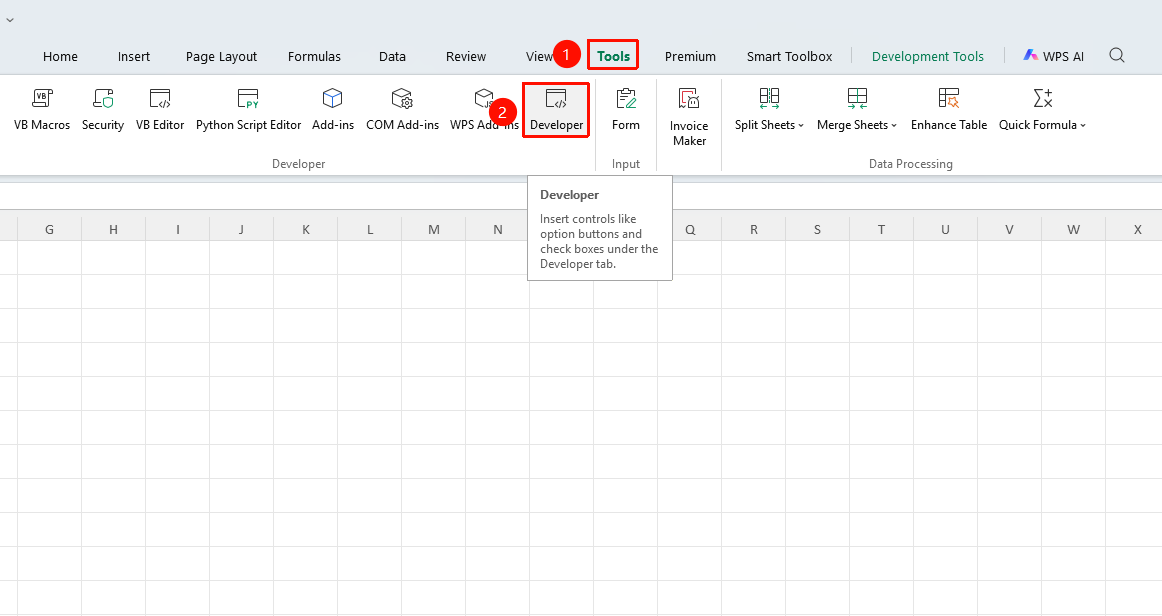
"Tools" tab → "Developer Tools" button → "Developer Tools" tab → "Run Macro" button
- Click the "Tools" tab at the top, locate and click the "Developer Tools" button to bring up the "Developer Tools" tab at the top
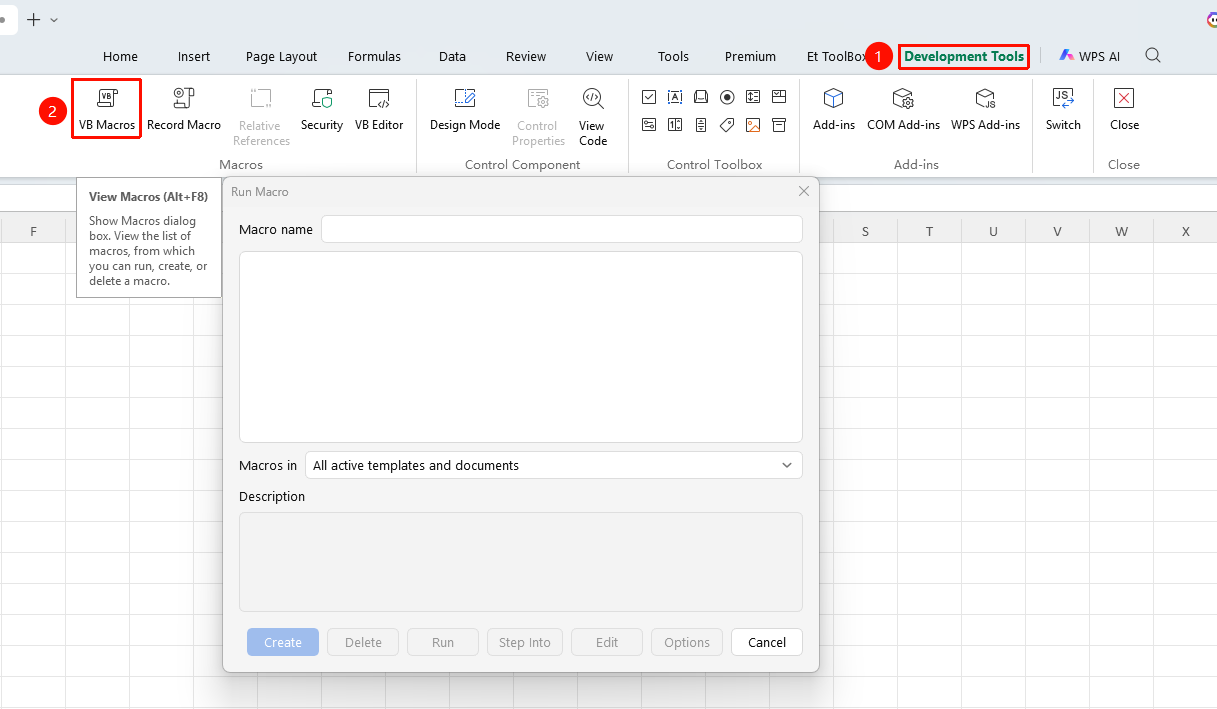
- Click the "Run Macro" button in the "Developer Tools" tab
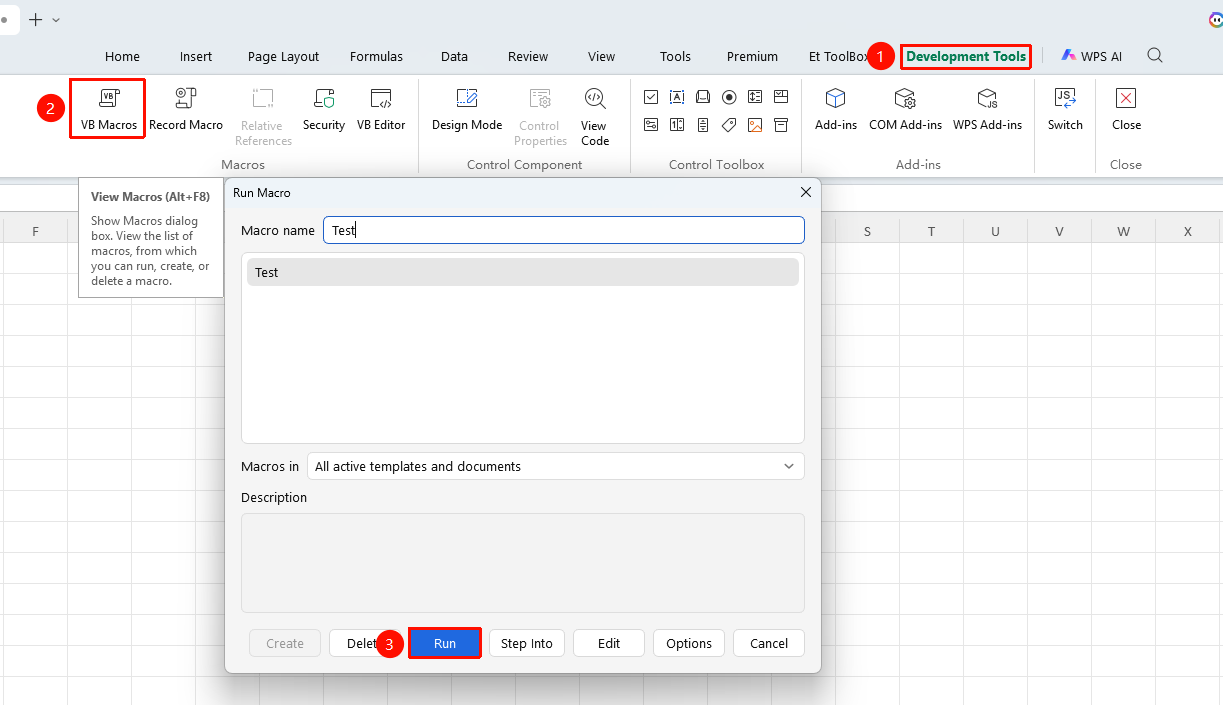
- Select the macro name you want to run from the pop-up macro list
- Click "Run" to automatically execute all operations contained in the macro
Create a Macro
Feature Entry
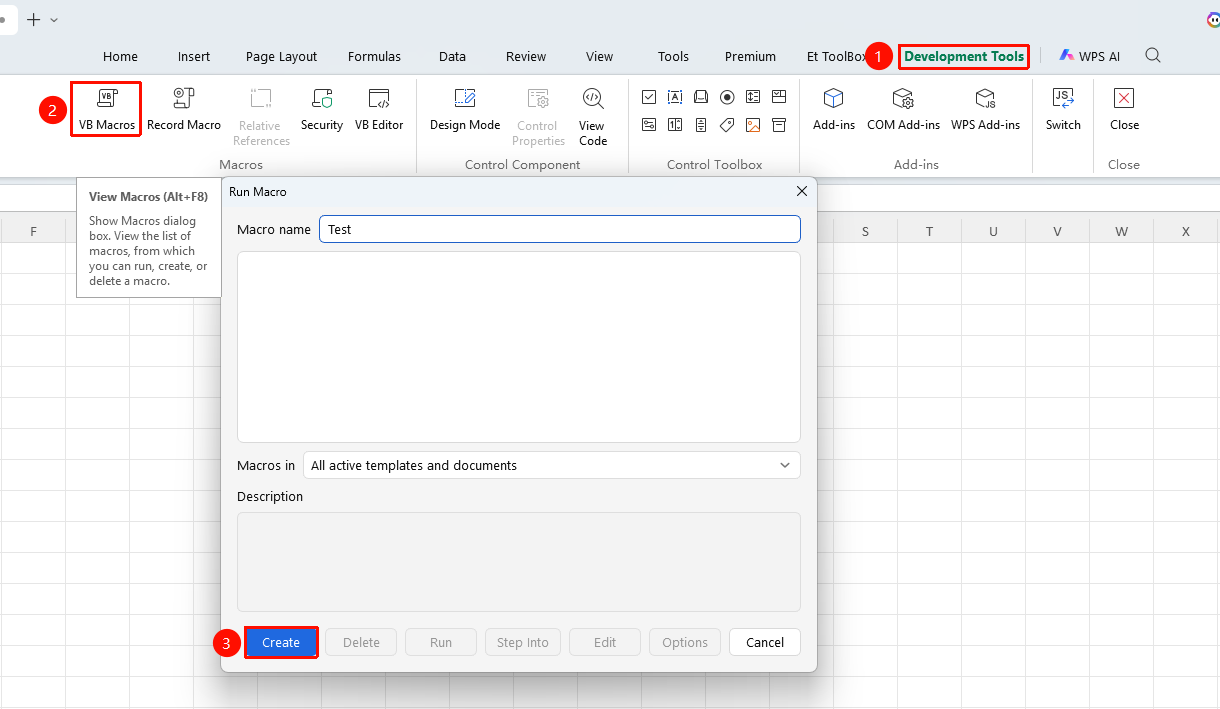
"Developer Tools" tab → "Run Macro" button → "Create" button
- Click the "Developer Tools" tab
- Click the "Run Macro" button
- Enter a macro name and click "Create" to finish creation
Delete a Macro
Feature Entry
"Developer Tools" tab → "Run Macro" button → "Delete" button
- Click the "Developer Tools" tab
- Click the "Run Macro" button
- Select the macro you want to delete and click the "Delete" button
Record a New Macro
Feature Entry
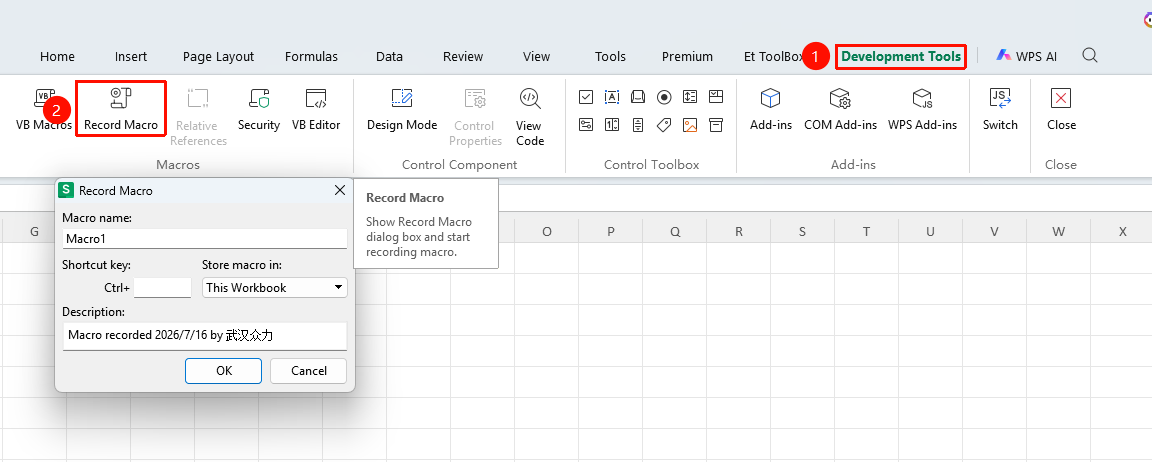
"Developer Tools" tab → "Record New Macro" button
- Click the Record New Macro button in the Developer Tools tab
- Enter a macro name (only English letters, numbers, and underscores are supported); you can set a shortcut key
- Start performing the repetitive operations you want to automate
- After completing the operations, click Stop Recording to save the macro
FAQ
Q1: Why can't I find the "Developer Tools" tab?
- Solution: Click "File" → "Options" → "Customize Ribbon", check "Developer Tools" in the main tabs list on the right, and then click OK.
Q2: What should I do if the macro code is lost when saving the file?
- Solution: Files containing macros need to be saved in the "Macro-Enabled Workbook (*.xlsm)" format; the regular xlsx format will cause macro code to be lost.
Q3: Can I run macros from unknown sources?
- Solution: It is not recommended. Macros from unknown sources may carry virus code. Confirm that the file source is trustworthy before running.
Notes
- Mac/Linux systems have limited support for WPS macros; using Windows is preferentially recommended.