Feature Summary
The Rename Worksheet feature is used to modify the name of a worksheet tab, making it easier to identify and manage multiple worksheets.
Feature Description
| Feature Dimension | Description |
|---|---|
| Membership Restriction | No membership restriction |
| Version Restriction | No version restriction |
Operation Steps
Rename by Double-clicking
Feature Entry
Double-click the worksheet tab
- Double-click the worksheet tab you want to rename
- Enter the new worksheet name
- Press Enter or click another area to confirm
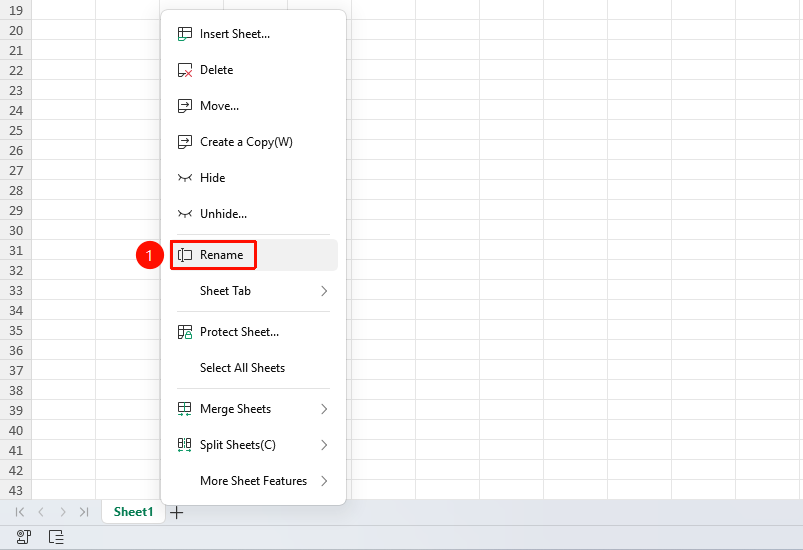
Rename via Right-click Menu
Feature Entry
Right-click the worksheet tab → "Rename" button
- Right-click the worksheet tab you want to rename
- Select the "Rename" button
- Enter the new worksheet name
- Press Enter to confirm
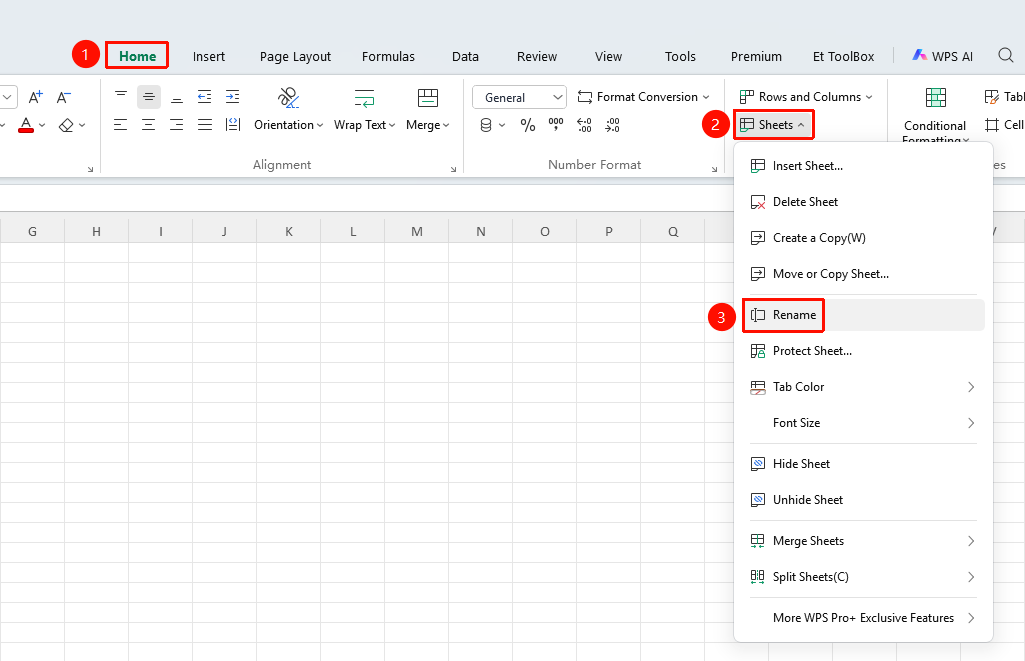
Rename via Ribbon
Feature Entry
"Home" tab → "Worksheet" dropdown menu → "Rename" button
- Click the Home tab
- Select the Worksheet dropdown menu
- Click the "Rename" button
- Enter the new worksheet name
- Press Enter to confirm
Frequently Asked Questions
Question 1: What are the restrictions on worksheet names?
- Solution: Worksheet names cannot exceed 31 characters and cannot contain the following characters: / \ ? * [ ] : |
Notes
- Duplicate worksheet names are not allowed within the same workbook