Feature Summary
The Duplicates feature is used to detect and handle duplicate data in spreadsheets, supporting operations such as highlighting, removing duplicate values, and extracting unique values.
Feature Description
| Feature Dimension | Description |
|---|---|
| Membership Restriction | No membership restriction |
| Version Restriction | No version restriction |
Operation Steps
Highlight Duplicates
Feature Entry
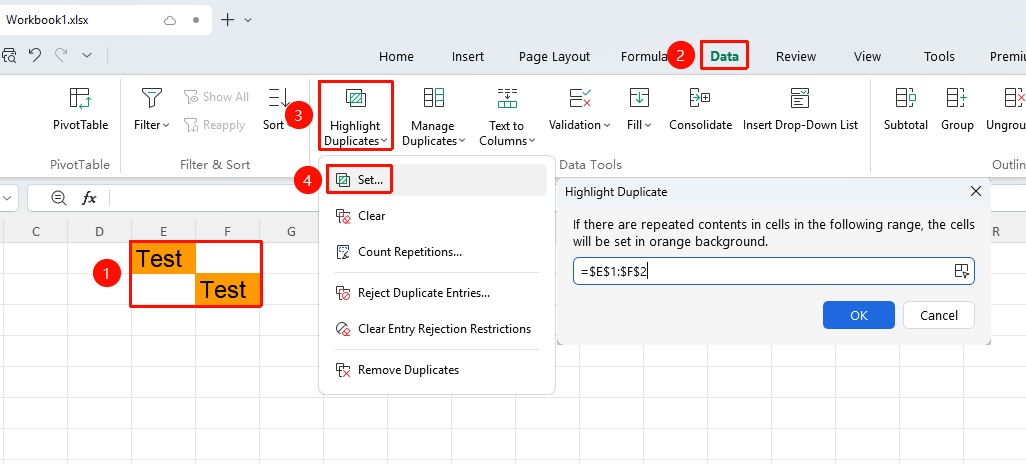
"Data" tab → "Duplicates" dropdown menu → "Set Highlight Duplicates"
- Select the cell range you want to check
- Click the Duplicates dropdown menu in the Data tab
- Select the "Set Highlight Duplicates" button
- Duplicate data will be displayed with a red background
Clear Highlight Duplicates
Feature Entry
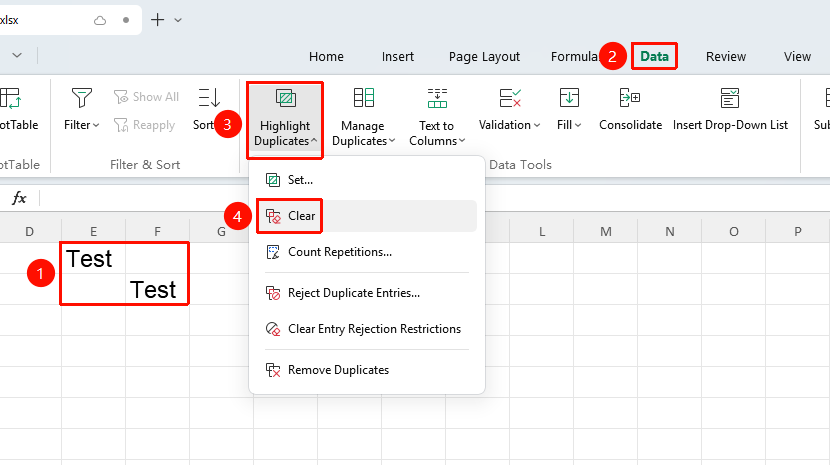
"Data" tab → "Duplicates" dropdown menu → "Clear Highlight Duplicates"
- Select the cell range you want to check
- Click the Duplicates dropdown menu in the Data tab
- Select the "Clear Highlight Duplicates" button
- The highlighted duplicates will be cleared
Count Duplicate Occurrences
Feature Entry
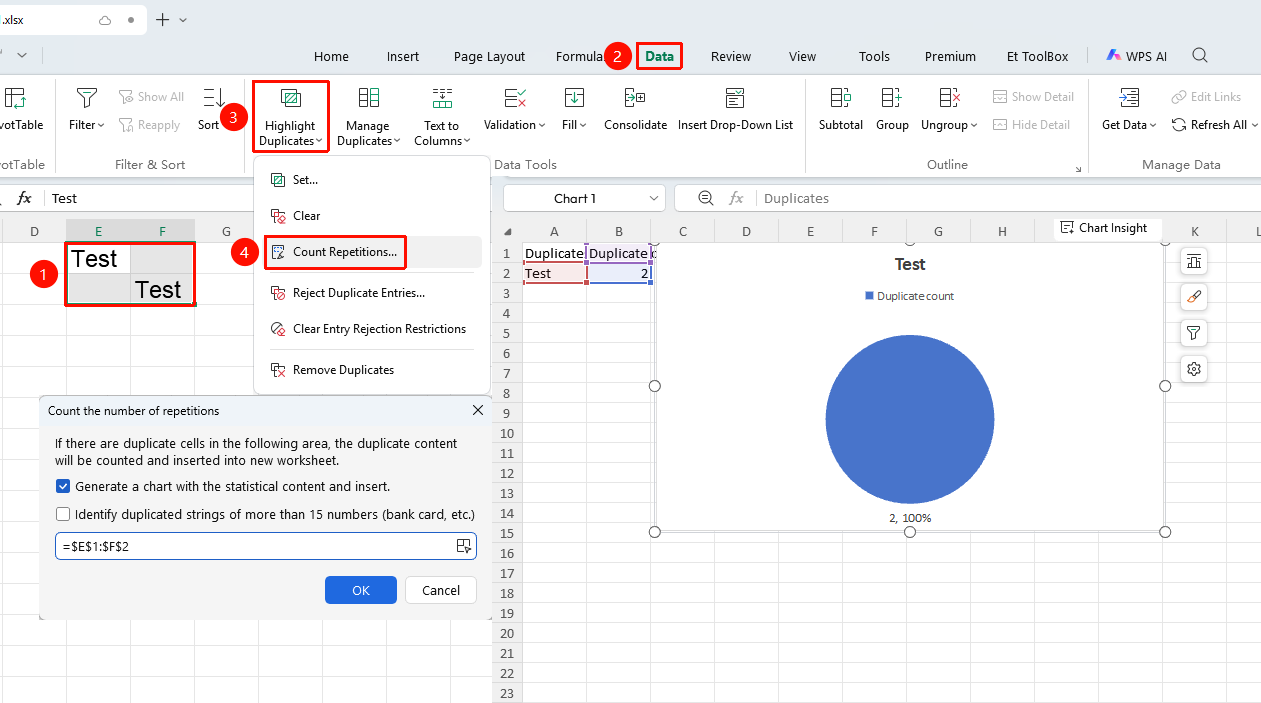
"Data" tab → "Duplicates" dropdown menu → "Count Duplicate Occurrences"
- Select the cell range you want to check
- Click the Duplicates dropdown menu in the Data tab
- Select the "Count Duplicate Occurrences" button
- A chart will be automatically generated to count the duplicate text entries in the selected area
Reject Duplicate Entry
Feature Entry
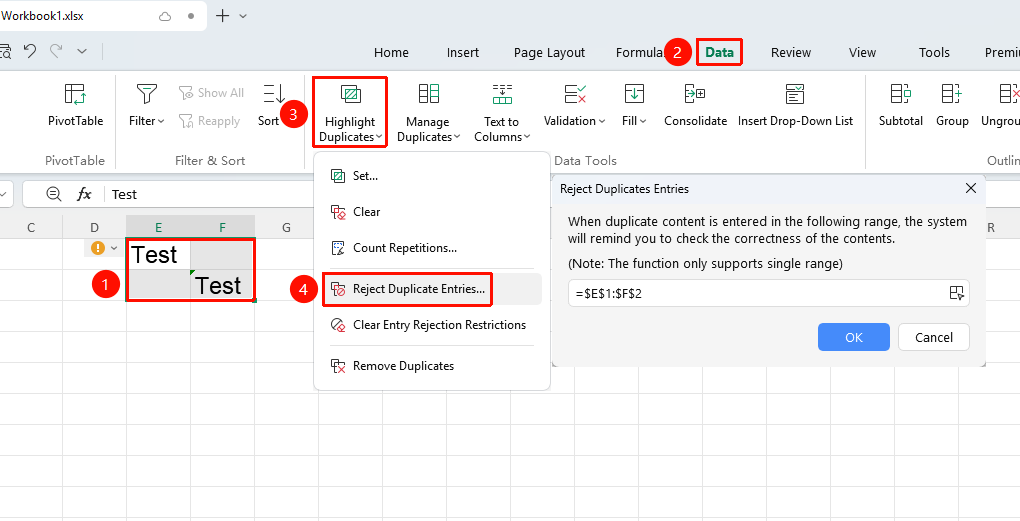
"Data" tab → "Duplicates" dropdown menu → "Reject Duplicate Entry"
- Select the cell range you want to check
- Click the Duplicates dropdown menu in the Data tab
- Select the "Reject Duplicate Entry" button
- When duplicate content is entered, a prompt will remind you to check the correctness of the input
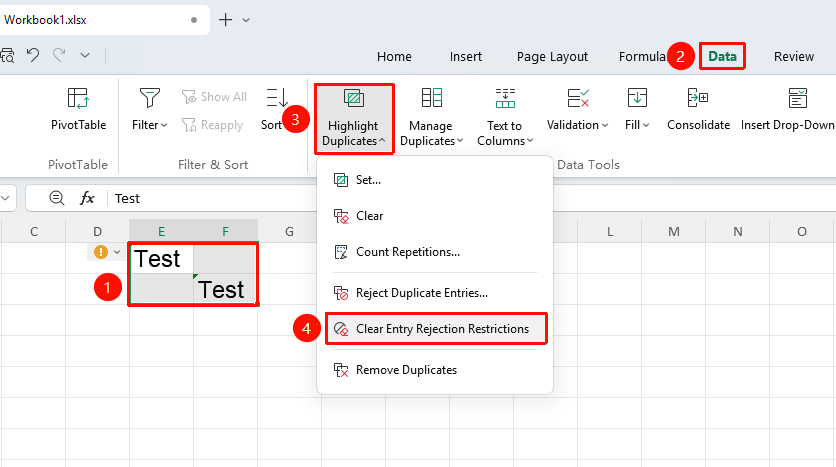
Clear Reject Entry Restriction
Feature Entry
"Data" tab → "Duplicates" dropdown menu → "Clear Reject Entry Restriction"
- Select the cell range you want to check
- Click the Duplicates dropdown menu in the Data tab
- Select the "Clear Reject Entry Restriction" button
- The check for duplicate input content will no longer be performed
Remove Duplicates
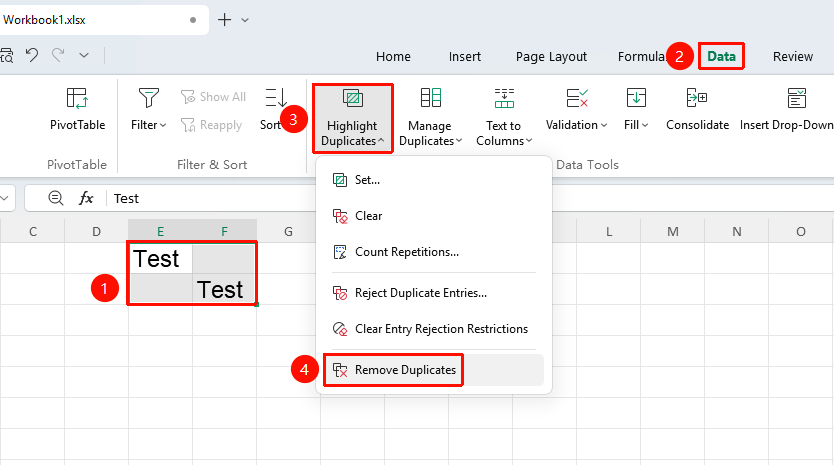
Feature Entry
"Data" → "Data Tools" → "Remove Duplicates"
- Select the cell range containing data
- Click the "Remove Duplicates" button in the "Data" tab
- Select the columns to determine duplicates
- Click Remove Duplicates to delete duplicate content and keep unique values
FAQ
Q1: Can data be recovered after removing duplicates?
- Solution: Immediately after deletion, you can undo by pressing Ctrl + Z; recovery is not possible after saving. It is recommended to back up data before operation.
Q2: How to keep only unique values?
- Solution: After using the "Remove Duplicates" feature, the remaining values are the unique ones.
Notes
- When removing duplicates, you can choose which columns to base the duplicate check on
- It is recommended to back up data before operation
- Highlighting does not delete data, it only marks it