Feature Summary
Cell locking is used to protect specified cells from being edited or modified. Combined with the sheet protection feature, it enables fine-grained data protection.
Feature Description
| Feature Dimension | Description |
|---|---|
| Membership Restrictions | No membership restrictions |
| Version Restrictions | No version restrictions |
Steps
Setting Cell Locking
Feature Entry
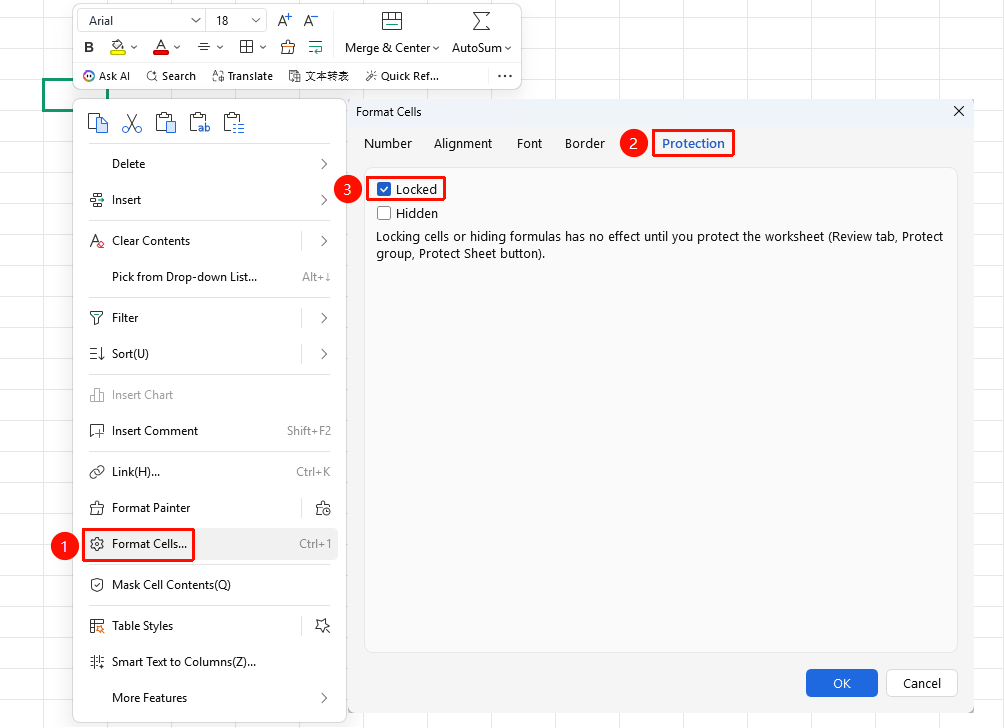
Right-click menu → "Format Cells" option → "Protection" tab
- Select the cell range you want to protect
- Right-click the selected area and choose "Format Cells"
- Switch to the "Protection" tab
- Check "Locked" and click OK
Enabling Protection to Activate Locking
Feature Entry
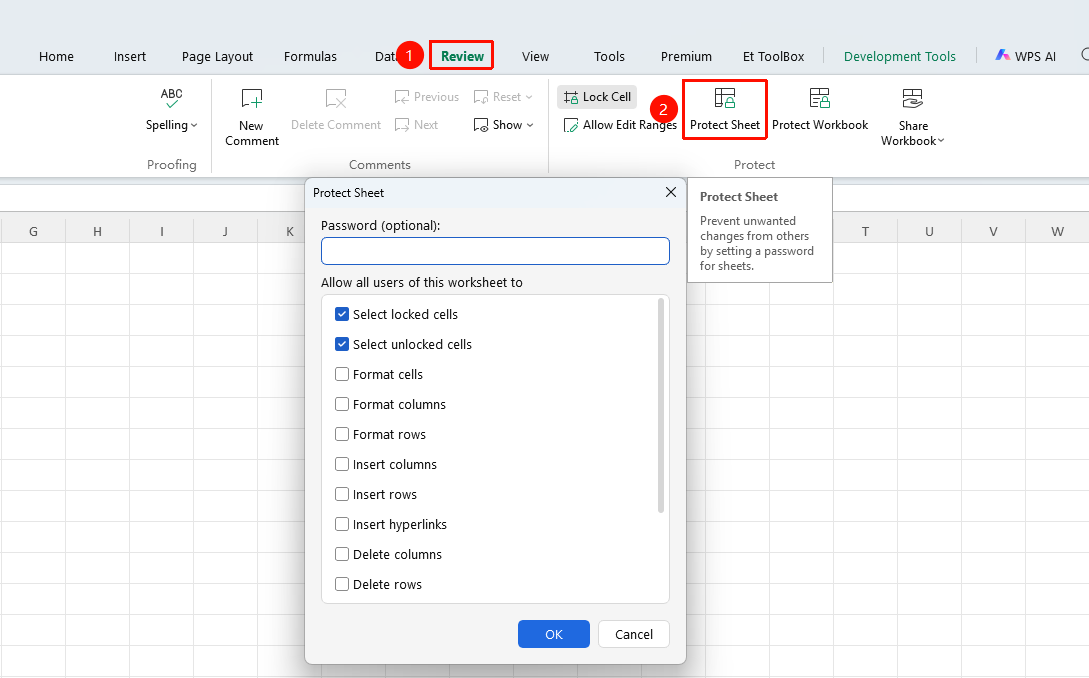
"Review" tab → "Protect Sheet" button
- After setting the lock status, click "Protect Sheet" in the Review tab
- Set a protection password in the pop-up window
- In the "Allow all users of this worksheet to" list, check the required permissions
- Confirm the password and click OK. The lock takes effect immediately
FAQ
Q1: Why can the cell still be edited after setting the lock?
- Solution: The "Locked" property of a cell is a preset. It only takes effect after sheet protection is enabled. You need to perform the "Review" → "Protect Sheet" operation first.
Q2: How to remove cell locking?
- Solution: First unprotect the sheet ("Review" → "Unprotect Sheet", enter the password), then select the cell, right-click → "Format Cells" → "Protection" → uncheck "Locked".
Q3: Can I still edit other cells normally after locking cells?
- Solution: Yes. When protecting the sheet, it is recommended to check the "Select unlocked cells" permission, so that users can only select and edit unlocked cells.
Notes
- By default, all cells in WPS Sheets are in the "Locked" state. You need to unlock the areas that do not require protection first.
- Operation logic: First set the lock status → then protect the sheet. Both steps are indispensable.