Feature Summary
The hide and unhide worksheet feature is used to temporarily hide worksheets that do not need to be displayed, keeping the workbook interface tidy while protecting sensitive data.
Feature Description
| Feature Dimension | Description |
|---|---|
| Membership Restriction | No membership restriction |
| Version Restriction | No version restriction |
Operation Steps
Hide Worksheet via Right-Click Menu
Feature Entry
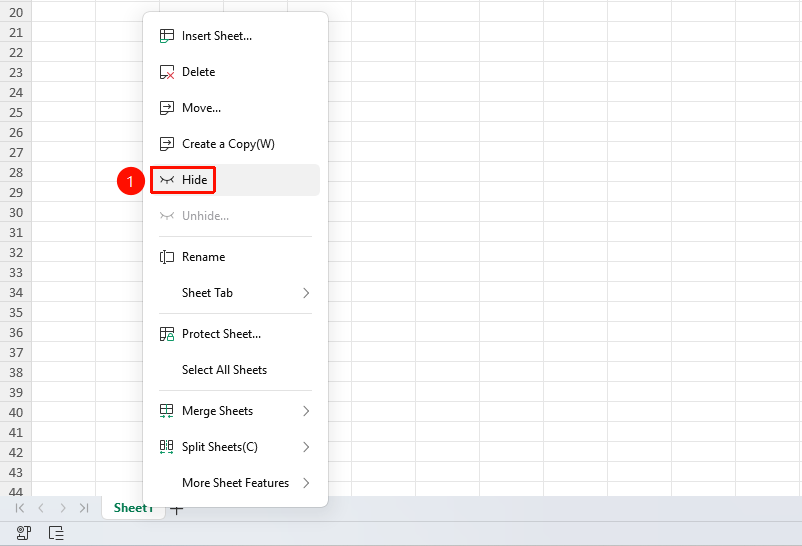
Right-click worksheet tab → "Hide" button
- In the worksheet tab bar, right-click the worksheet tab you want to hide
- Select the "Hide" button
- The worksheet will disappear from the tab bar
Hide Worksheet via Ribbon
Feature Entry
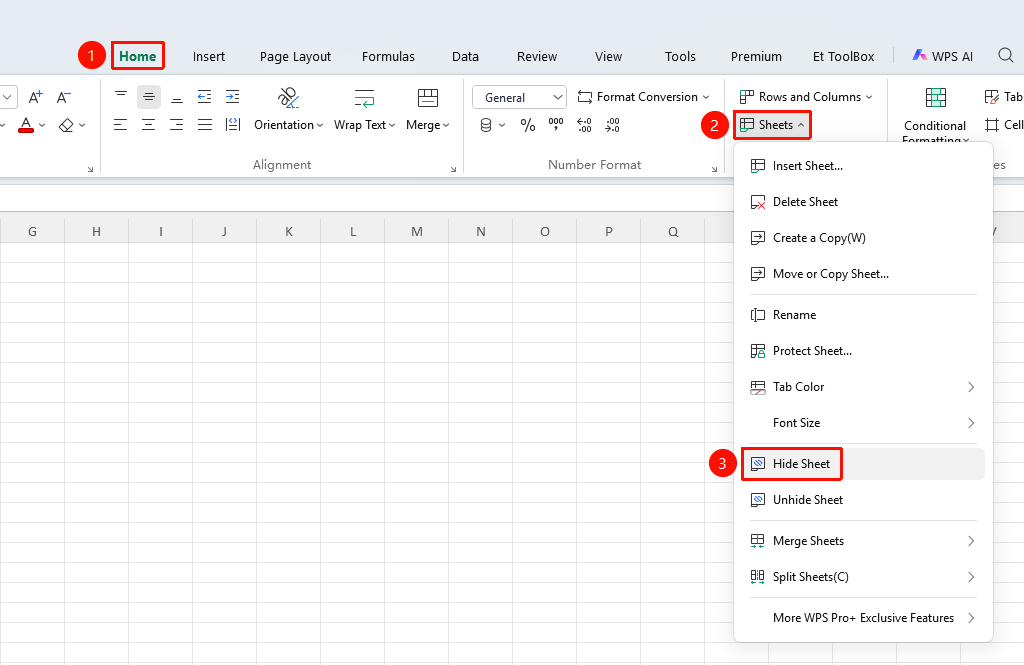
"Home" tab → "Worksheet" dropdown menu → "Hide Worksheet" button
- Click the Home tab
- Select the Worksheet dropdown menu
- Click the "Hide Worksheet" button
Unhide Worksheet via Right-Click Menu
Feature Entry
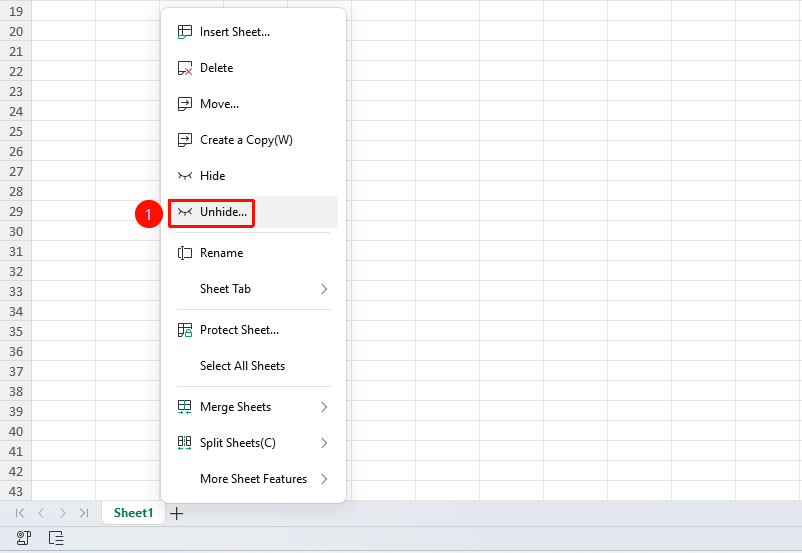
Right-click worksheet tab → "Unhide" button
- In the worksheet tab bar, right-click any worksheet tab
- Select the "Unhide" button
- In the pop-up dialog, select the worksheet you want to display
- Click OK
Unhide Worksheet via Ribbon
Feature Entry
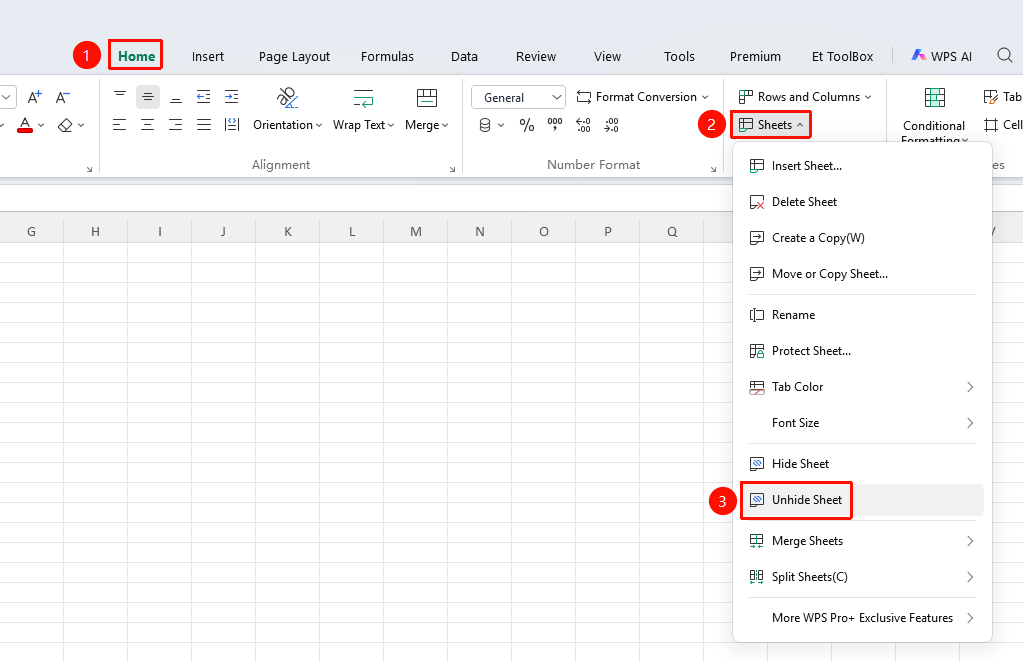
"Home" tab → "Worksheet" dropdown menu → "Unhide Worksheet" button
- Click the Home tab
- Select the Worksheet dropdown menu
- Click the "Unhide Worksheet" button
- In the pop-up dialog, select the worksheet you want to display
- Click OK
FAQ
Q1: Is the data in a hidden worksheet still there?
- Solution: Hiding only means it is not displayed; the data is fully retained. After unhiding, it can be viewed and edited normally.
Notes
- The workbook must retain at least one visible worksheet
- Data in hidden worksheets can still be referenced by formulas
- Hiding is not the same as protecting; data can still be accessed