Feature Summary
The Hide Rows/Columns feature allows you to hide rows or columns you don't need to display, making your spreadsheet cleaner. It is suitable for presentations, projections, printing, and other scenarios. Hidden data is retained and calculations remain unaffected.
Feature Description
| Feature Dimension | Description |
|---|---|
| Membership Restriction | No membership restriction |
| Version Restriction | No version restriction |
Operation Steps
Hide Rows
Feature Entry
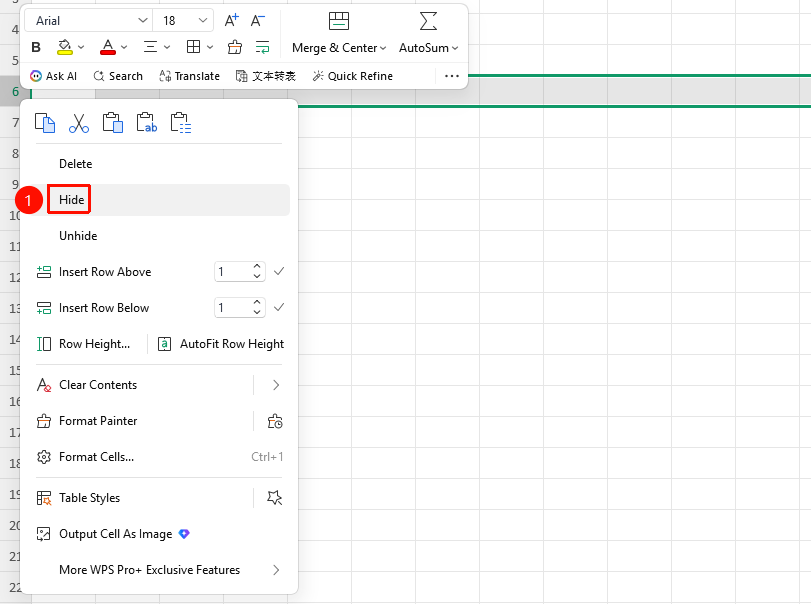
Select row number(s) → Right-click menu → Hide button
- Click the row number you want to hide to select the entire row (hold
Ctrl(mac:Cmd) to select multiple rows) - Right-click on the selected row number(s)
- Select the Hide button from the pop-up menu
- The selected rows are now hidden, and a double-line indicator appears between the row numbers
Hide Columns
Feature Entry
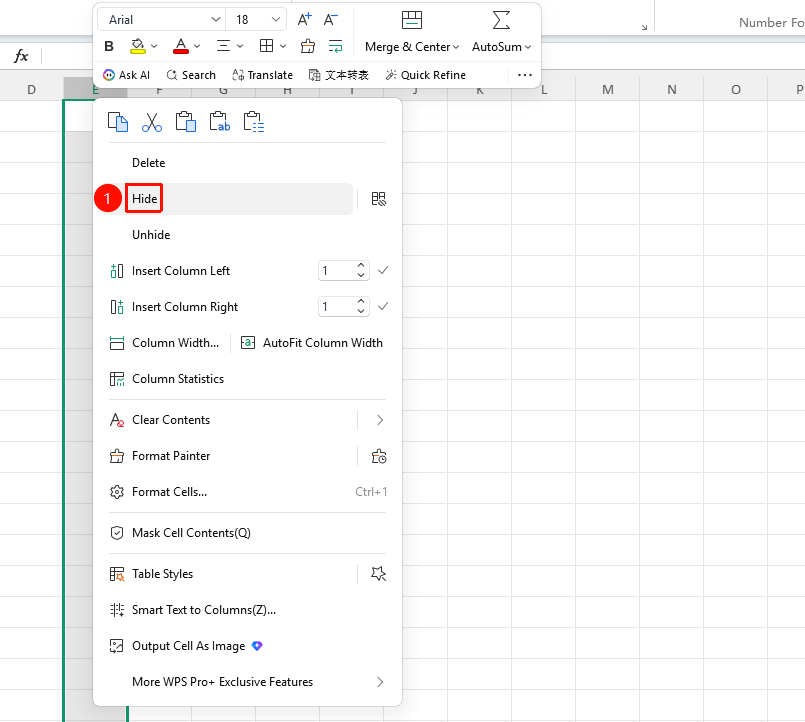
Select column letter(s) → Right-click menu → Hide button
- Click the column letter you want to hide to select the entire column (hold
Ctrl(mac:Cmd) to select multiple columns) - Right-click on the selected column letter(s)
- Select the Hide button from the pop-up menu
- The selected columns are now hidden, and a double-line indicator appears between the column letters
Unhide
Feature Entry
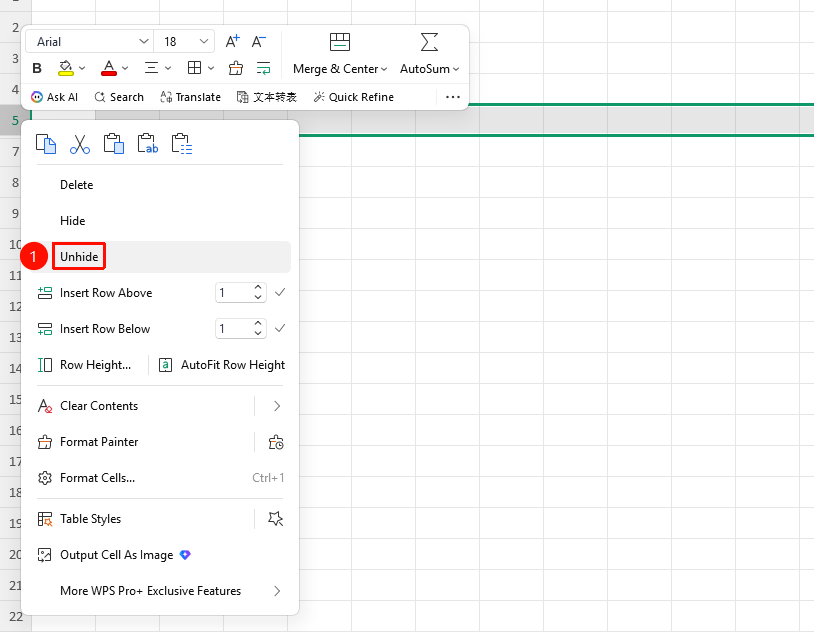
Select adjacent rows/columns on both sides of the hidden row/column → Right-click menu → Unhide button
- Select the adjacent rows on both sides of the hidden row (e.g., if row 3 is hidden, you need to select both row 2 and row 4 simultaneously)
- Right-click on the selected row numbers
- Select the Unhide button from the pop-up menu
- The hidden rows/columns are restored and displayed
FAQ
Q1: Will the sum formula result change after hiding rows/columns?
- Solution: No. Hiding is only a visual concealment; the data in the rows/columns is still retained, and formula calculations are not affected. If you need to exclude certain data from calculations, please use conditional functions like
SUMIF.
Q2: What should I do if the shortcut keys for hiding rows/columns don't work?
- Solution: Check if any other software is occupying the shortcut keys. The shortcut for hiding rows is:
Ctrl+9(mac:Cmd+9), and the shortcut for hiding columns is:Ctrl+0(mac:Cmd+0).
Q3: Why can't I see where the hidden rows are?
- Solution: A double-line indicator appears between the hidden rows/columns (e.g., if there is a double line between row numbers
2and5, it means rows 3 and 4 are hidden in between).
Q4: Will hidden rows/columns appear when printing?
- Solution: No, they will not appear. Hidden rows/columns are not printed by default. Hiding unnecessary content before printing is a common practice.