Feature Summary
The highlight row and column feature automatically highlights the row and column of the selected cell, making it easier to locate the current operating position in large spreadsheets.
Feature Description
| Feature Dimension | Description |
|---|---|
| Membership Restriction | No membership restriction |
| Version Restriction | No version restriction |
Operation Steps
Enabling Highlight Row and Column
Feature Entry ①
"View" tab → "Highlight Row and Column"
- Click the View tab
- Click the Highlight Row and Column button
- The row and column will be automatically highlighted when a cell is selected
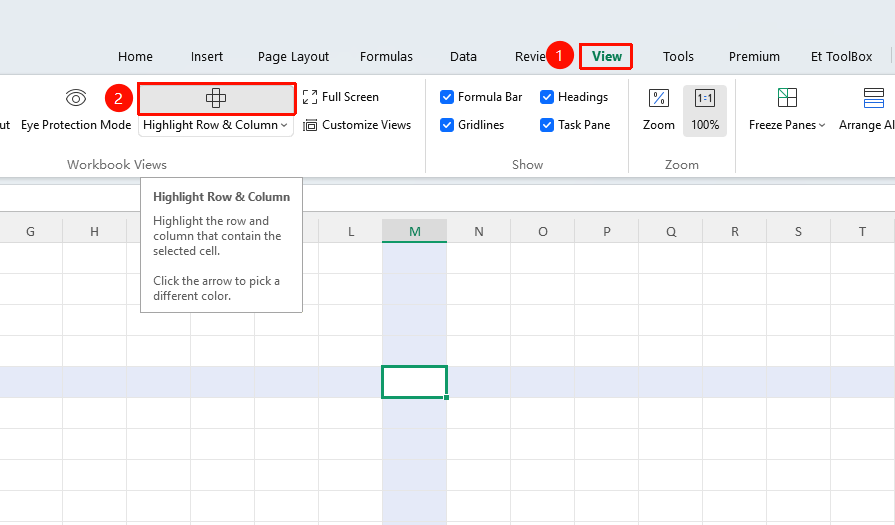
Feature Entry ①
Bottom status bar
- Find and click the Highlight Row and Column button in the bottom status bar
- Change the highlight color in the dropdown menu
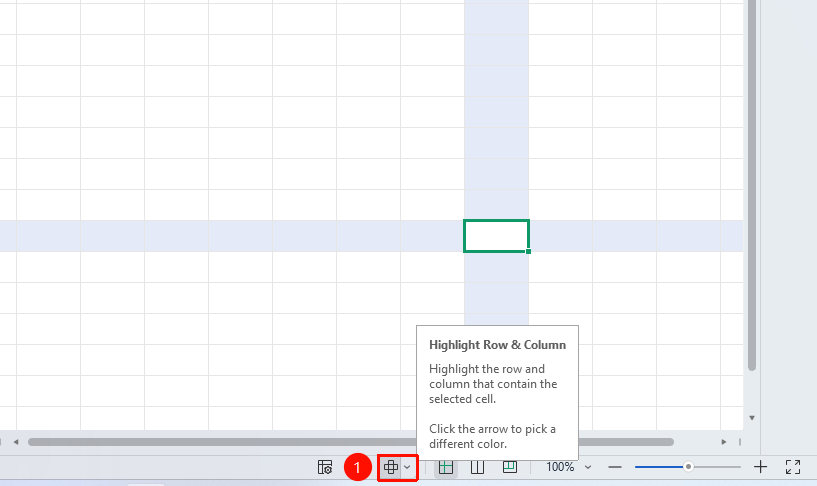
Setting Highlight Color
Feature Entry
"View" → "Highlight Row and Column" dropdown arrow
- Click the Highlight Row and Column dropdown arrow
- Select a preset highlight color
- Click "Other Colors" to adjust more colors via the color palette or RGB color system
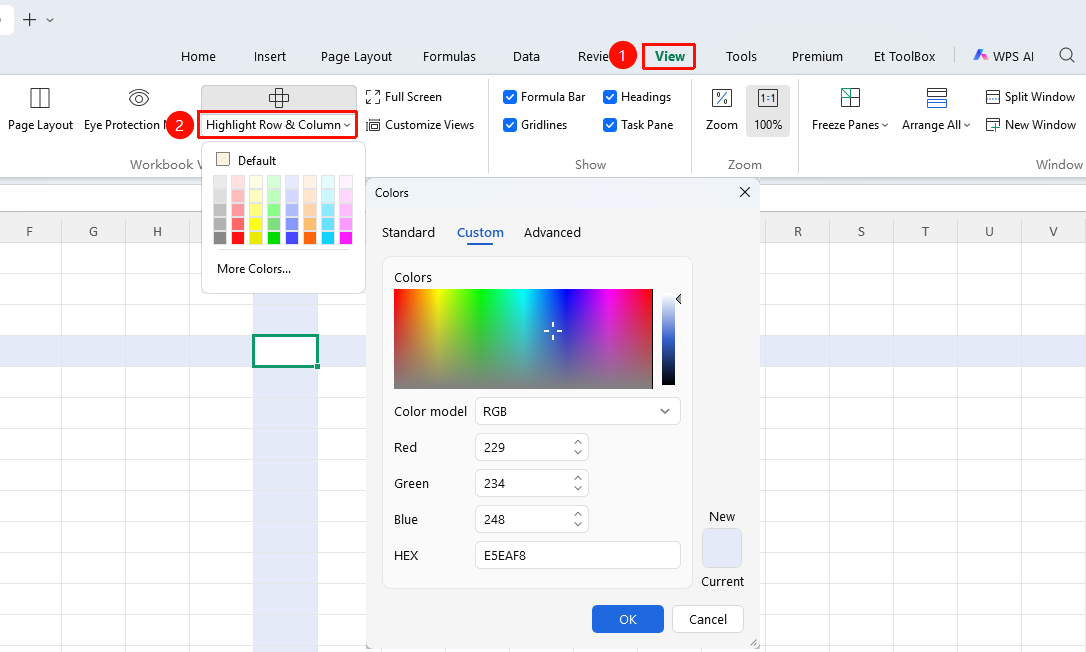
FAQ
Q1: What should I do if the highlight color is too light to see clearly?
- Solution: Select a darker color from Highlight Row and Column dropdown arrow .
Q2: Does highlighting rows and columns affect the display of the selected area?
- Solution: No, highlighting rows and columns is only an aid for positioning and does not affect the normal display of the selected area.
Notes
- Highlighting rows and columns is only displayed during editing and does not affect printing
- Suitable for quickly locating positions in large spreadsheets
- Highlight color is customizable