Feature Summary
The strikethrough feature allows you to add a strikethrough effect to text, suitable for revision marks, deleted content, comparison displays, and other scenarios, helping users clearly identify the modification status of text.
Feature Description
| Feature Dimension | Description |
|---|---|
| Membership Restriction | No membership restriction, available to all users |
| Version Restriction | No version restriction, ensure sufficient cloud space capacity |
Operation Steps
Adding Strikethrough
Feature Entry
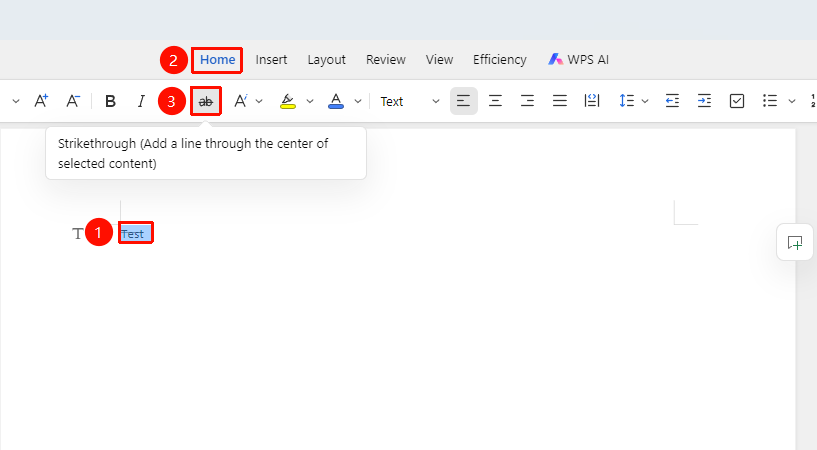
"Home" Tab → "Strikethrough" Button
- Select the text to which you want to add strikethrough
- Click the Home tab
- Click the "Strikethrough" button
- A horizontal line will be added through the middle of the selected text
Adding Strikethrough via Text Properties
Feature Entry
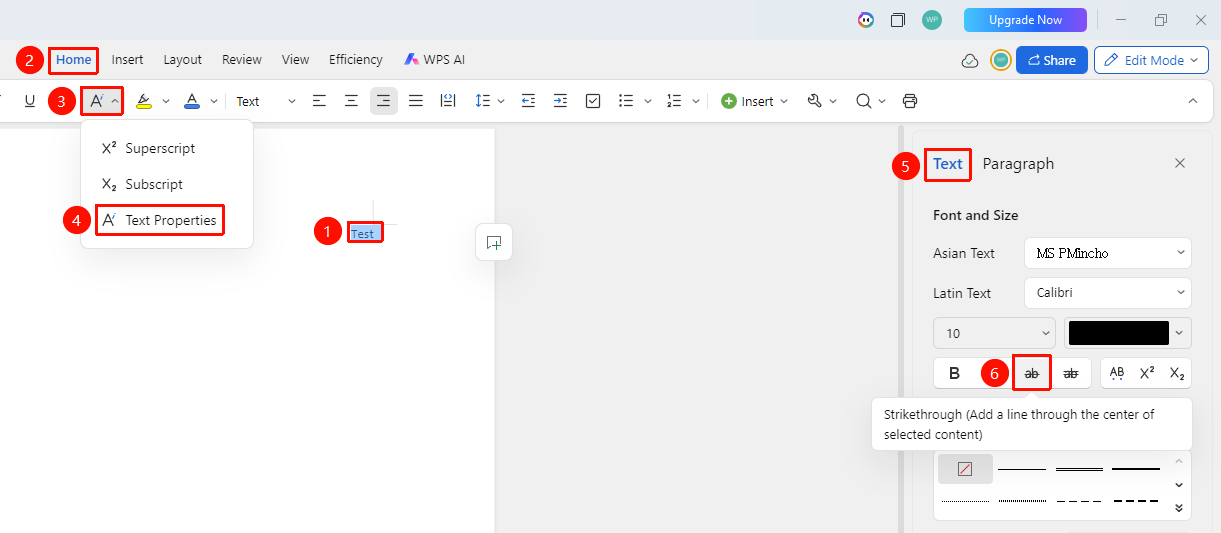
"Home" Tab → "Text Properties" Dropdown Menu → "Text Properties" Option → "Text" Tab → "Strikethrough" Button
- Select the text to which you want to add strikethrough
- Click the Home tab
- Click the Text Properties dropdown menu and select the Text Properties option
- In the task pane on the right, select the Text tab, then click the "Strikethrough" button
- A horizontal line will be added through the middle of the selected text
Removing Strikethrough
Feature Entry
"Home" Tab → "Strikethrough" Button
- Select the text from which you want to remove strikethrough
- Click the Home tab
- Click the "Strikethrough" button again
- The strikethrough will be removed
Adding Double Strikethrough
Feature Entry
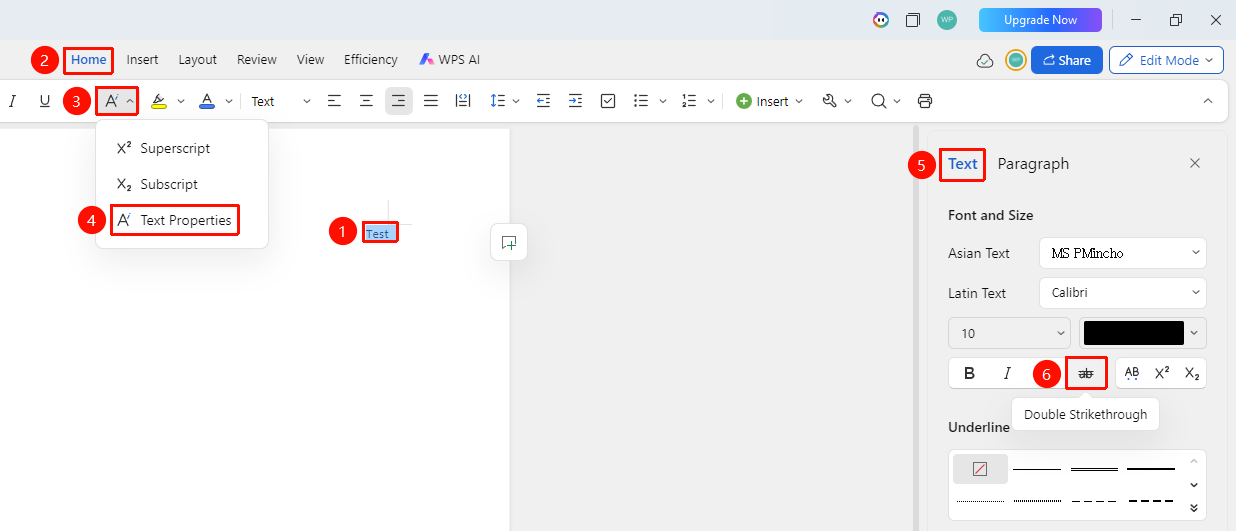
"Home" Tab → "Text Properties" Dropdown Menu → "Text Properties" Option → "Text" Tab → "Double Strikethrough" Button
- Select the text to which you want to add double strikethrough
- Click the Home tab
- Click the Text Properties dropdown menu and select the Text Properties option
- In the task pane on the right, select the Text tab, then click the "Double Strikethrough" button
- Two horizontal lines will be added through the middle of the selected text
Removing Double Strikethrough
Feature Entry
"Home" Tab → "Text Properties" Dropdown Menu → "Text Properties" Option → "Text" Tab → "Double Strikethrough" Button
- Select the text from which you want to remove strikethrough
- Click the Home tab
- Click the Text Properties dropdown menu and select the Text Properties option
- In the task pane on the right, select the Text tab, then click the "Double Strikethrough" button again
- The double strikethrough will be removed
Frequently Asked Questions
Question 1: Can the strikethrough color be customized?
- Solution: The strikethrough color matches the text color. You can change the strikethrough color by modifying the text color.
Notes
- The strikethrough feature is applicable to all fonts
- The strikethrough format will be copied and pasted along with the text
- Strikethrough does not actually delete the text, it only serves as a visual marker