Feature Summary
The font color feature is used to set the color of cell text, making important content more prominent, facilitating the differentiation of various data types, and enhancing the readability and aesthetics of the spreadsheet.
Feature Description
| Feature Dimension | Description |
|---|---|
| Membership Restriction | No membership restriction |
| Version Restriction | No version restriction |
Operation Steps
Setting Font Color via the Ribbon
Feature Entry
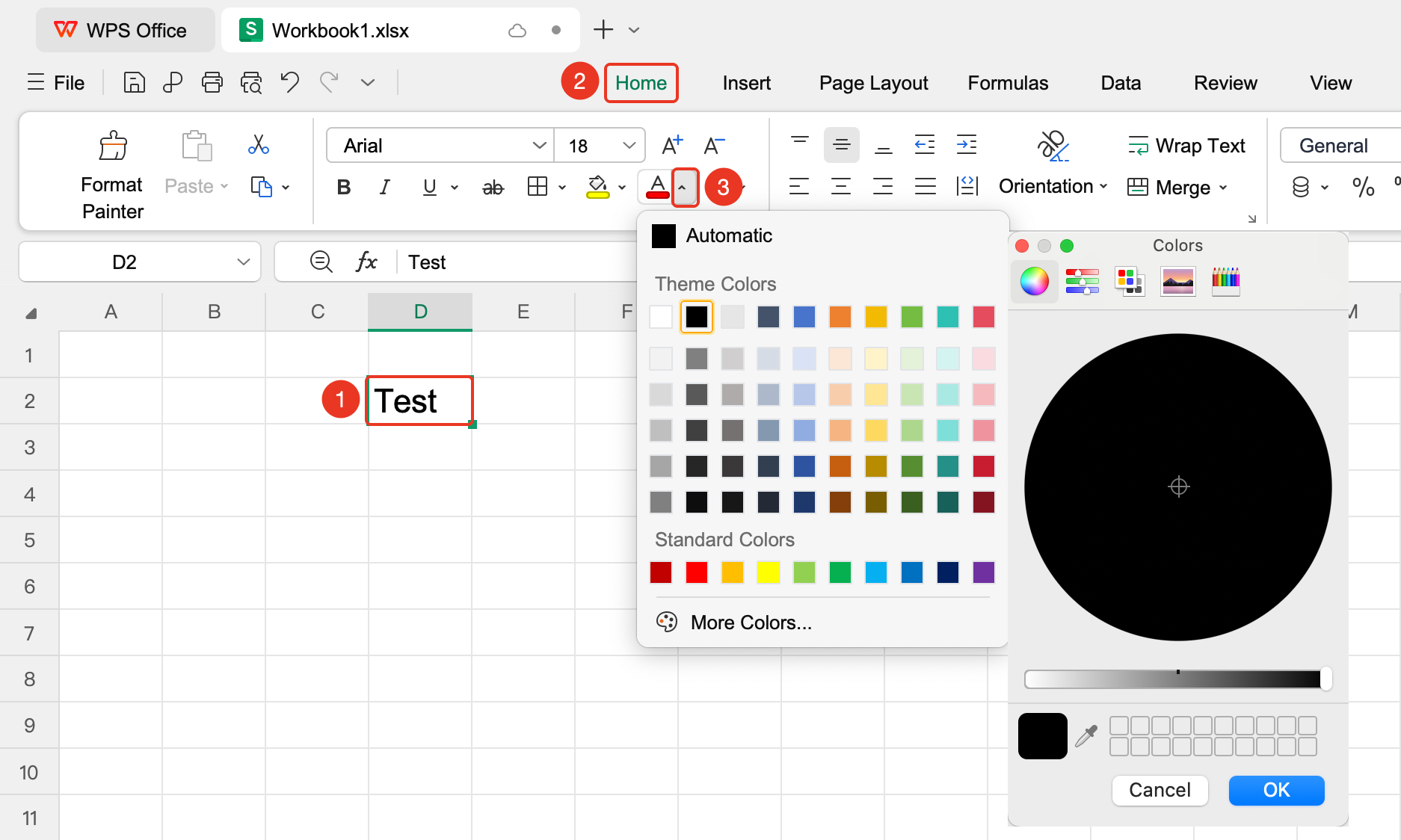
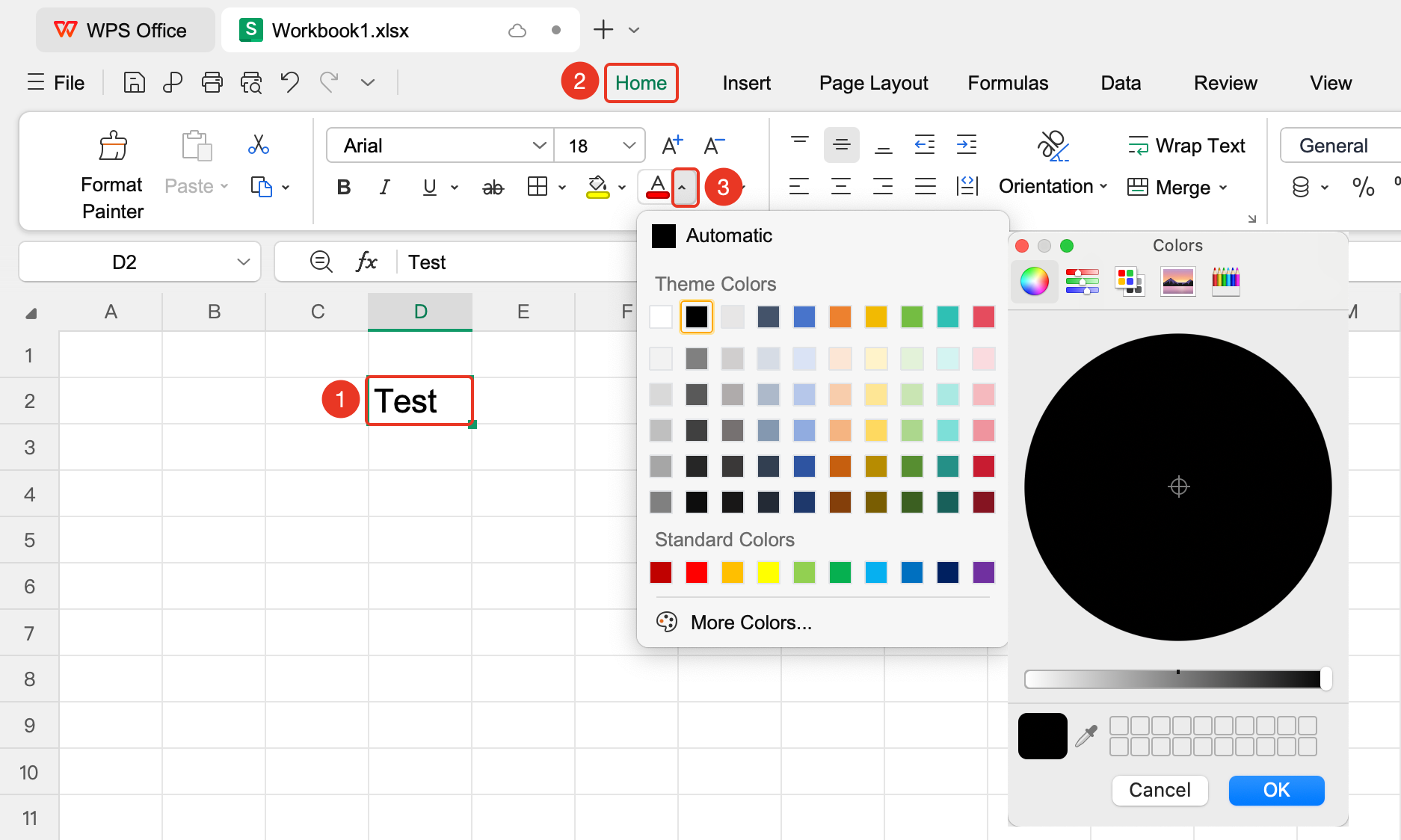
"Home" tab → Drop-down arrow next to "Font Color"
- Select the cell or partial text within a cell for which you want to modify the font color
- Click the Font Color button (capital letter icon with a color underline) in the Home tab
- Click the icon to directly apply the most recently used color
- Click the drop-down arrow next to the icon to open the color panel and select a color
Click "More Colors" to customize a color code
Setting via Right-Click Menu
Feature Entry
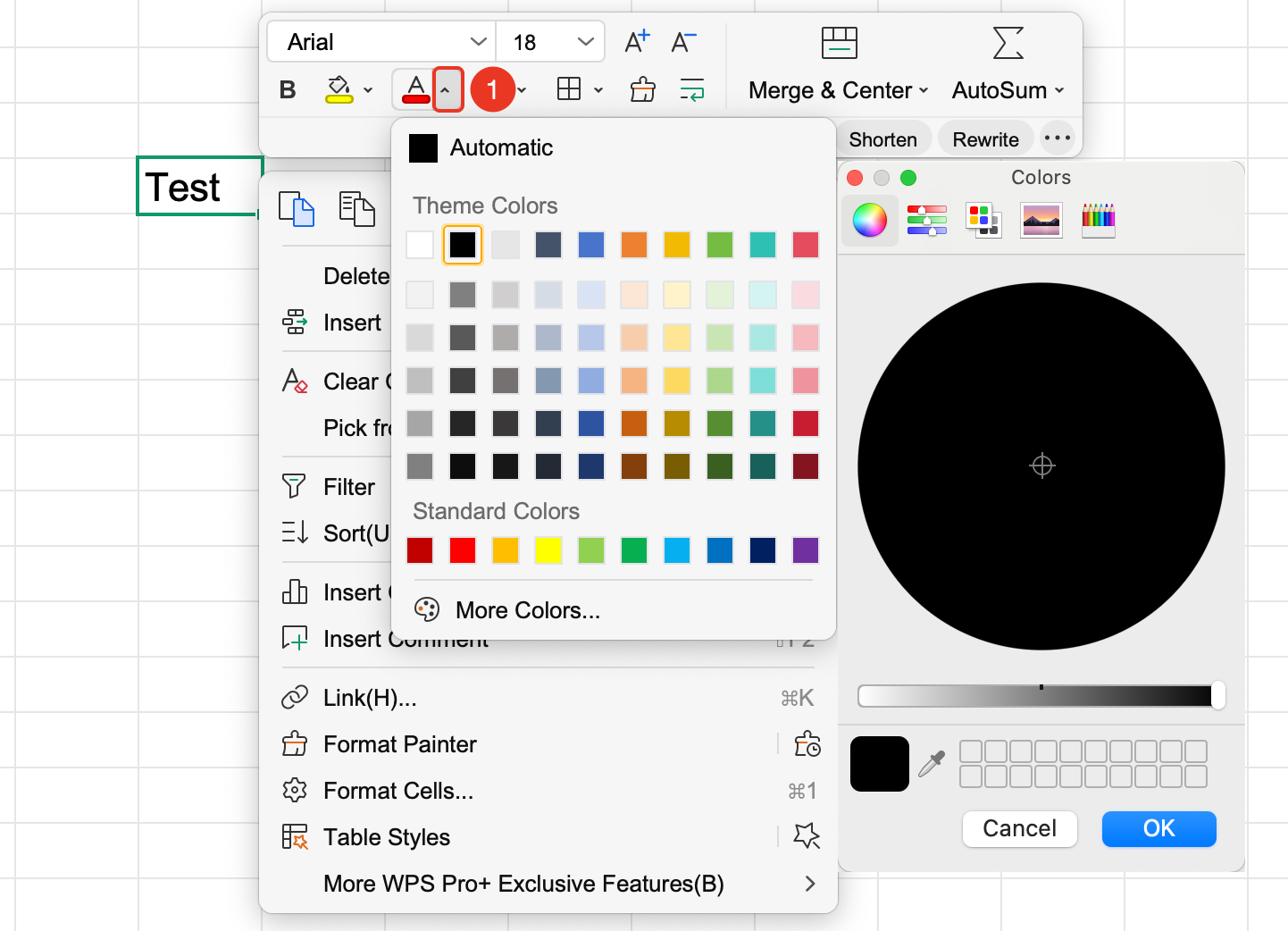
Right-click menu → "Color" drop-down menu
Select the cell or partial text within a cell for which you want to modify the font color, and right-click to bring up the floating toolbar
In the pop-up window, click the Font Color drop-down button
Select a font color
Click "More Colors" to customize a color code
Click OK
Frequently Asked Questions
Q1: How to customize the font color?
- Solution: Click the "Font Color" drop-down arrow, select "More Colors", and in the pop-up dialog, you can customize the color.
Q2: What is the difference between font color and cell fill color?
- Solution: Font color is the color of the text itself, while cell fill color is the color of the cell background. Both can be set simultaneously.
Notes
- Font color should contrast with the cell background color to ensure text is clearly legible
- It is recommended to use light-colored fonts on dark backgrounds and dark-colored fonts on light backgrounds
- You can set a different color for partial text within a cell