Feature Summary
The Merge Sheets feature is used to combine data from multiple worksheets or workbooks into a single worksheet, facilitating data consolidation and analysis.
Feature Description
| Feature Dimension | Description |
|---|---|
| Membership Restriction | Membership subscription required |
| Version Restriction | No version restriction |
Operation Steps
Using Smart Toolbox to Merge Sheets
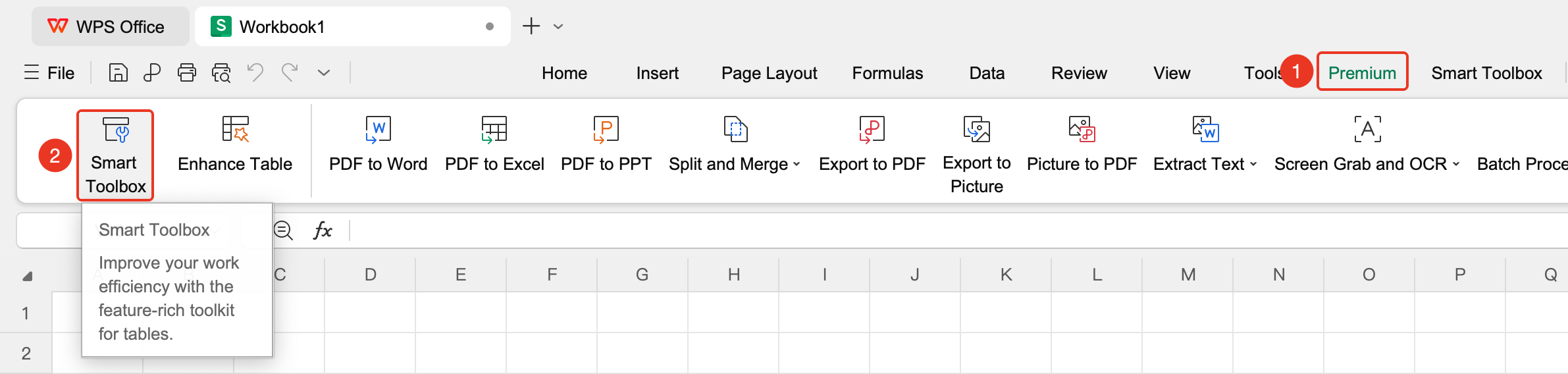
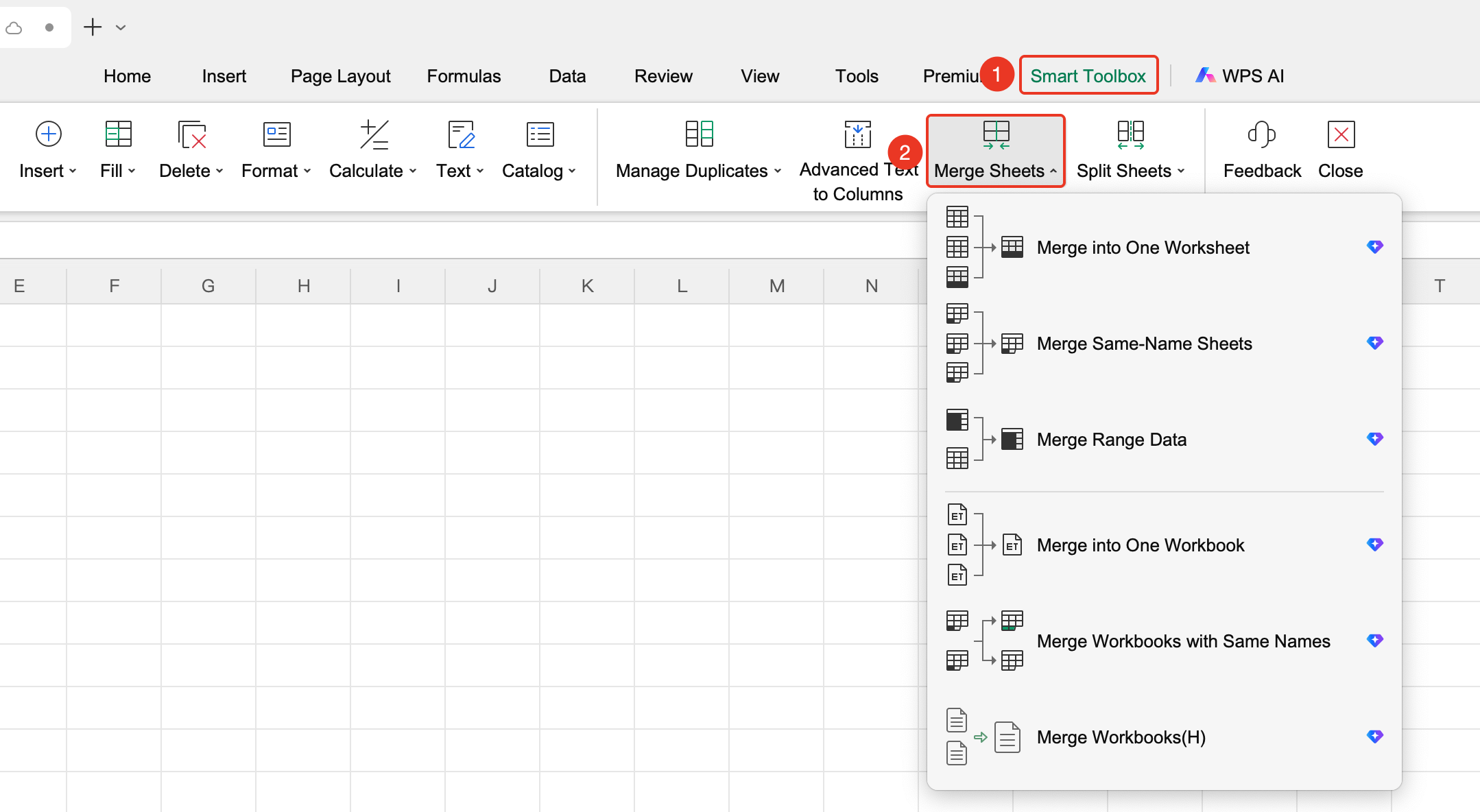
Feature Entry "Member Exclusive" tab → "Smart Toolbox" option → "Smart Toolbox" tab → "Merge Sheets" drop-down menu
- Click the Member Exclusive tab
- Select the Smart Toolbox button to open the Smart Toolbox tab
- In the Smart Toolbox tab, click the "Merge Sheets" drop-down menu
- Select a merge method
- Merge into a single worksheet (Membership subscription required)
- Merge worksheets by the same sheet name (Membership subscription required)
- Match and merge data from multiple sheets by the same column content (Membership subscription required)
- Consolidate into a single workbook (Membership subscription required)
- Consolidate workbooks by the same sheet name (Membership subscription required)
- Merge workbooks (Membership subscription required)
- Set merge parameters
- Click OK to start merging
Merging Sheets from the Home Tab on the Ribbon
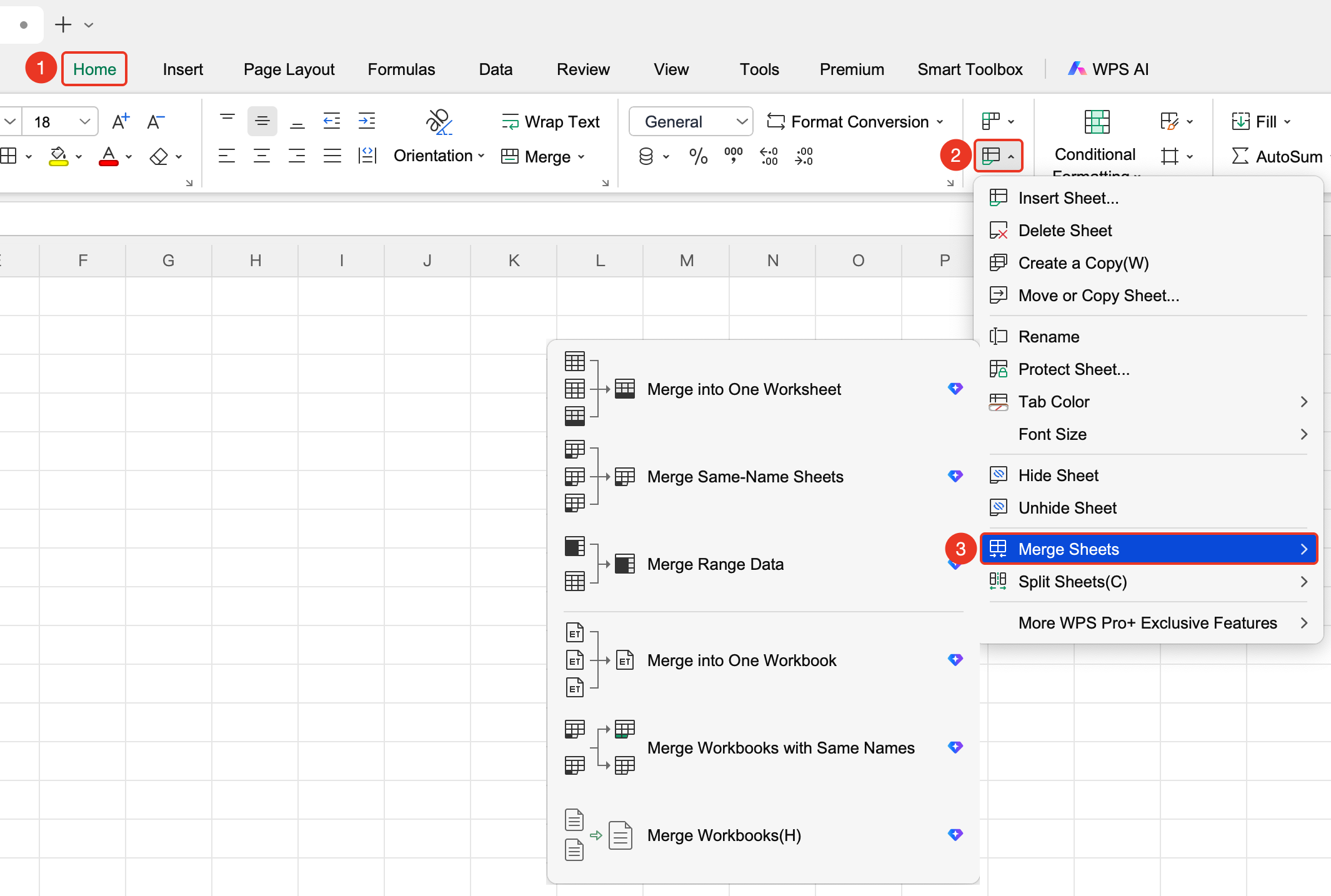
Feature Entry "Home" tab → "Worksheet" drop-down menu → "Merge Sheets" drop-down menu
- Click the Home tab
- Select the Worksheet drop-down menu
- Click the "Merge Sheets" drop-down menu
- Select a merge method
- Merge into a single worksheet (Membership subscription required)
- Merge worksheets by the same sheet name (Membership subscription required)
- Match and merge data from multiple sheets by the same column content (Membership subscription required)
- Consolidate into a single workbook (Membership subscription required)
- Consolidate workbooks by the same sheet name (Membership subscription required)
- Merge workbooks (Membership subscription required)
- Set merge parameters
- Click OK to start merging
Merging Sheets from the Right-Click Context Menu
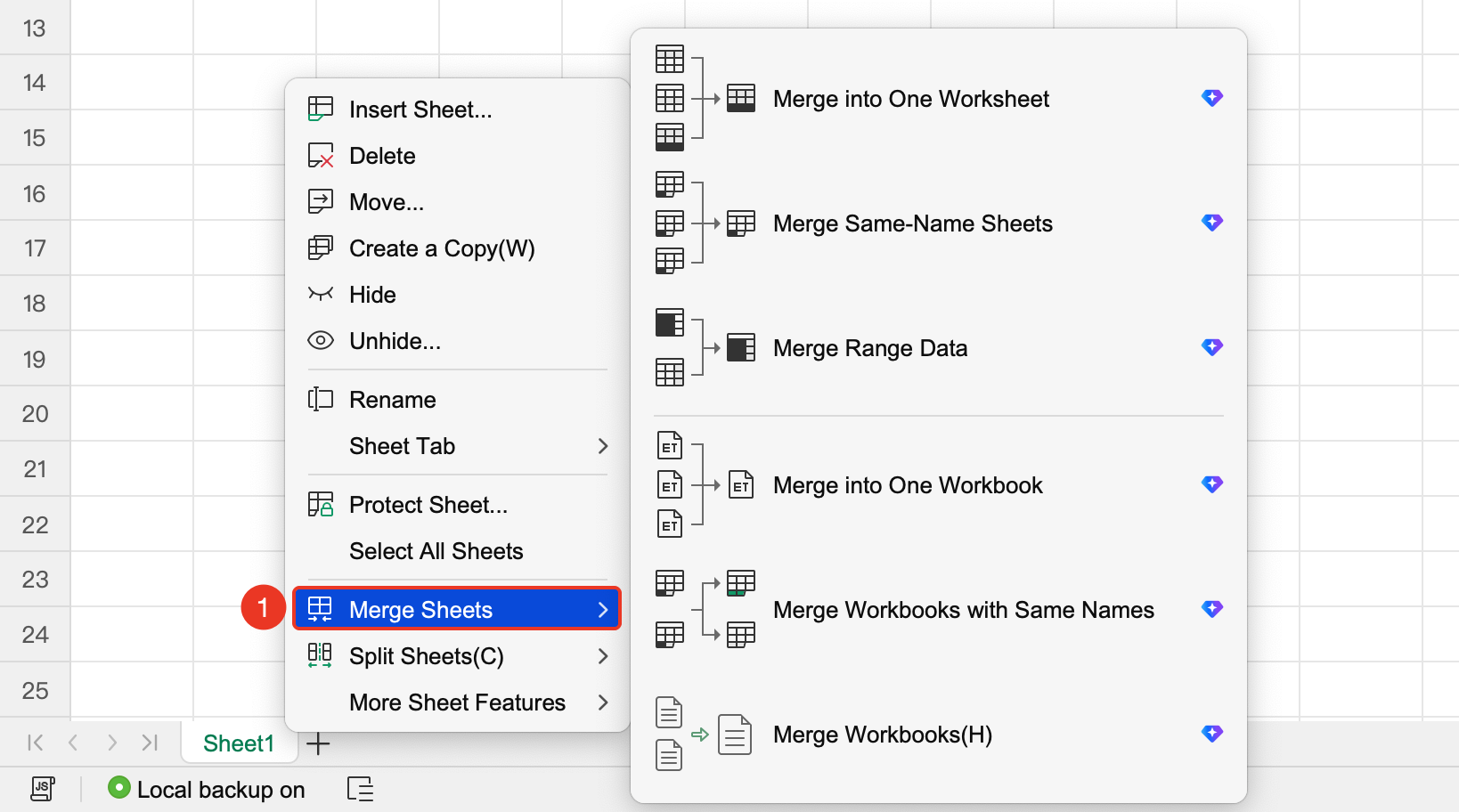
Feature Entry Sheet tab bar → Right-click an existing sheet tab → "Merge Sheets" drop-down menu
- Right-click an existing sheet tab
- Click the "Merge Sheets" drop-down menu
- Select a merge method
- Merge into a single worksheet (Membership subscription required)
- Merge worksheets by the same sheet name (Membership subscription required)
- Match and merge data from multiple sheets by the same column content (Membership subscription required)
- Consolidate into a single workbook (Membership subscription required)
- Consolidate workbooks by the same sheet name (Membership subscription required)
- Merge workbooks (Membership subscription required)
- Set merge parameters
- Click OK to start merging
Notes
- Ensure that the structure of each sheet is consistent before merging
- Merging large amounts of data may take a long time