Feature Summary
The Smart Fill feature uses AI technology to automatically identify data patterns and quickly fill adjacent cells based on existing data patterns, improving data entry efficiency.
Feature Description
| Feature Dimension | Description |
|---|---|
| Membership Restrictions | No membership restrictions |
| Version Restrictions | No version restrictions |
| Shortcut Key | Ctrl + E |
Operation Steps
Using Smart Fill
Feature Entry
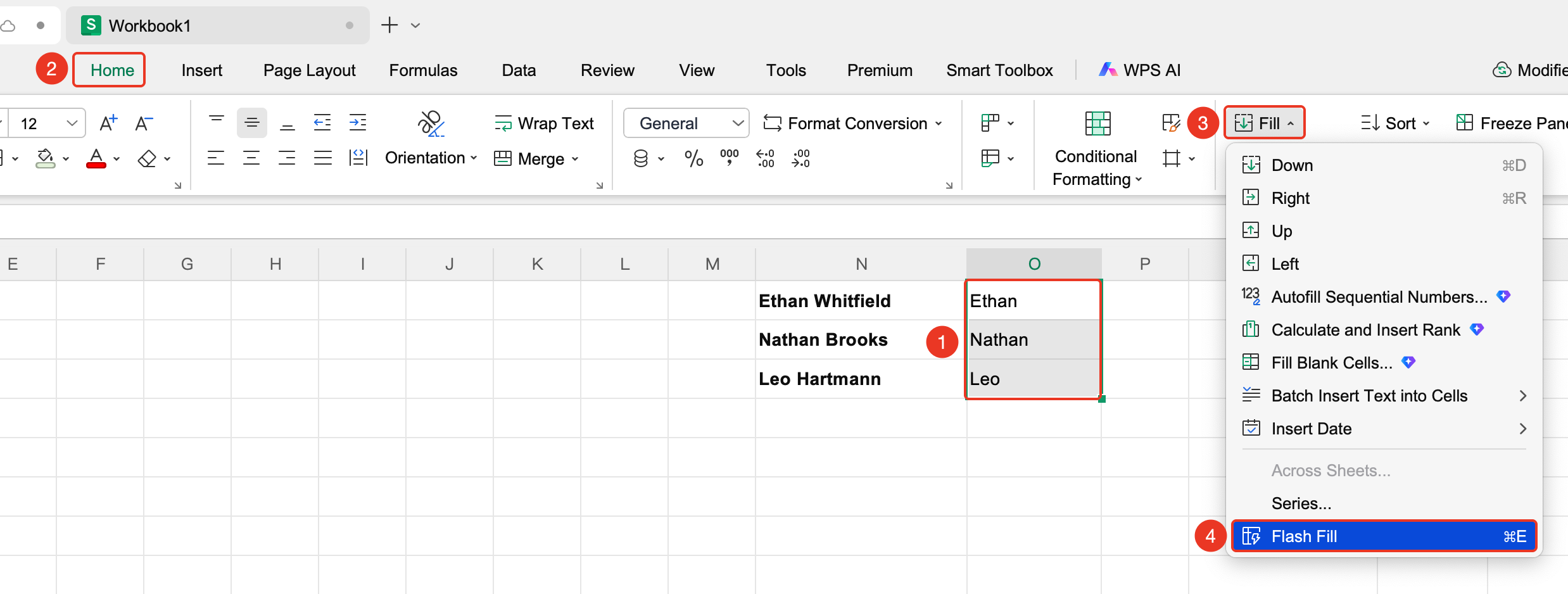
"Home" tab → "Fill" dropdown menu → "Smart Fill" option
- Enter sample data in the first few cells
- Select the cells containing the samples
- Click the Home tab
- Select the Fill dropdown menu
- Click the "Smart Fill" button
- WPS will automatically recognize the pattern and fill the remaining cells
Frequently Asked Questions
Q1: What patterns does Smart Fill support?
- Solution: Supports various modes such as text splitting and merging, date format conversion, number patterns, and text extraction.
Notes
- Smart Fill requires at least 1-2 sample data entries
- Filled results may require manual verification