Feature Summary
The Batch Insert Text into Cells feature allows you to uniformly add prefixes, suffixes, or insert text at specified positions across multiple cells, improving data editing efficiency.
Feature Description
| Feature Dimension | Description |
|---|---|
| Membership Restriction | Requires a membership subscription |
| Version Restriction | No version restriction |
Steps
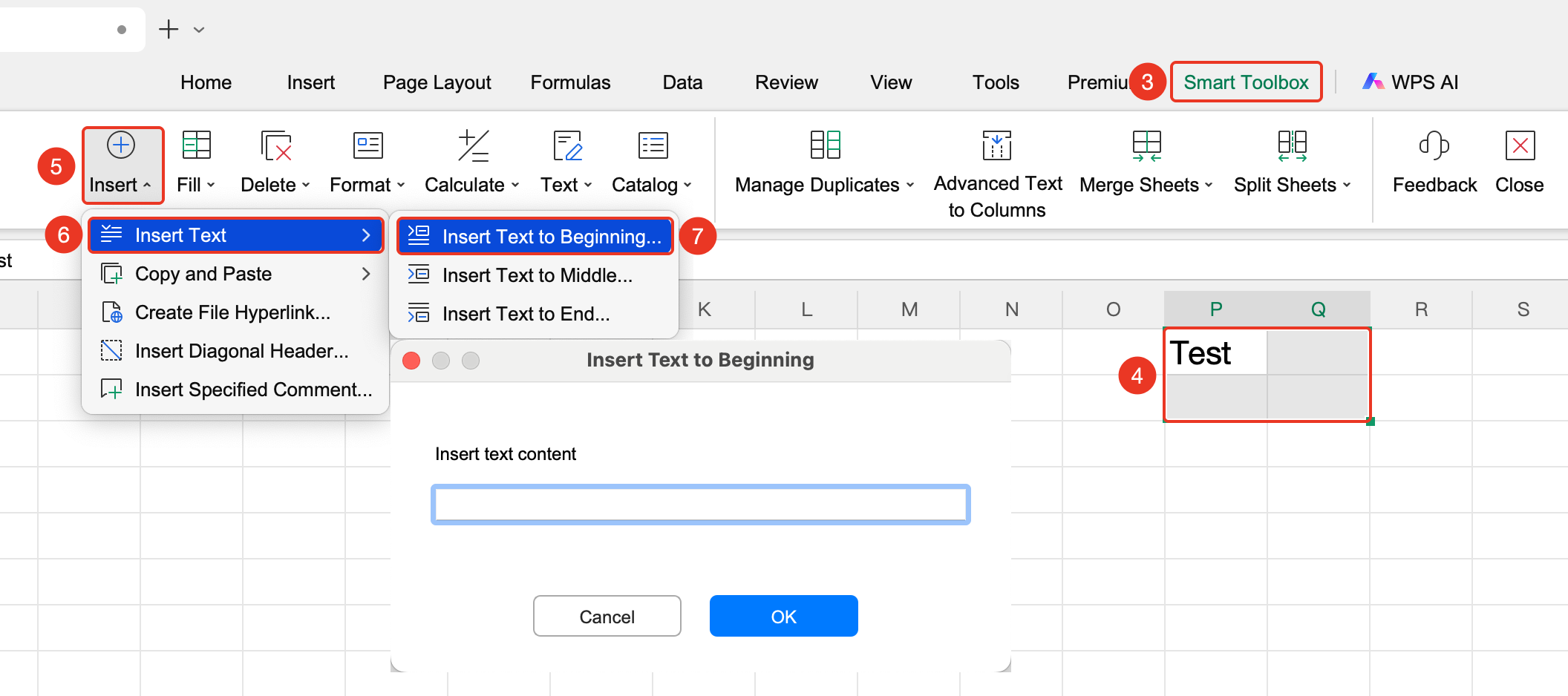
Insert Text at Beginning
Feature Entry
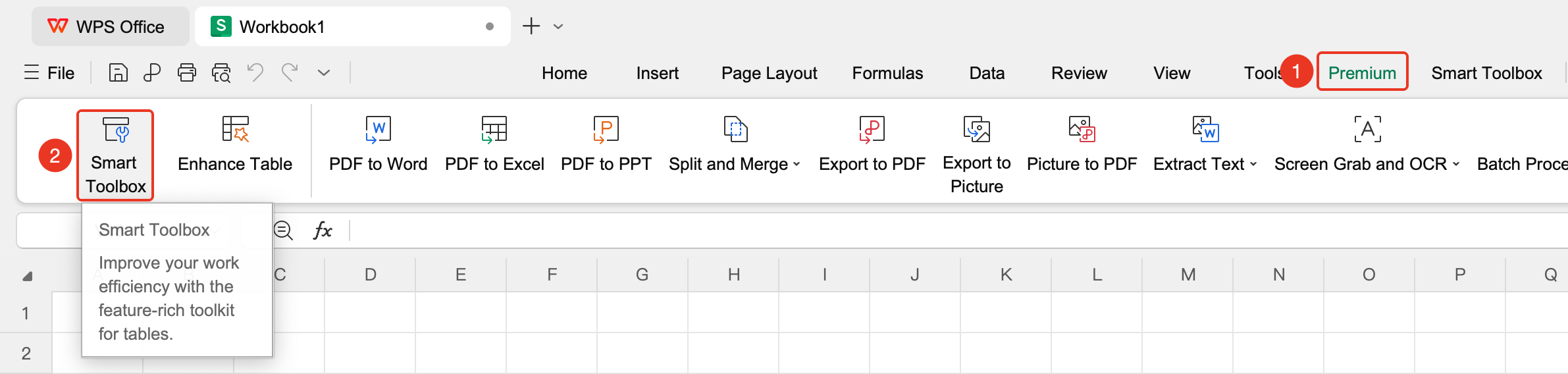
"Member Exclusive" tab → "Smart Toolbox" option → "Smart Toolbox" tab → "Insert" drop-down menu → "Insert Text" drop-down menu → "Insert Text at Beginning" option
- Select the cell range where you want to insert text
- Click the Member Exclusive tab
- Select the Smart Toolbox option to open the Smart Toolbox tab
- Click the Insert drop-down menu and select the Insert Text drop-down menu
- Click the "Insert Text at Beginning" option
- Batch add specified text to the very beginning of the selected cell contents
- Click OK
Insert Text in the Middle
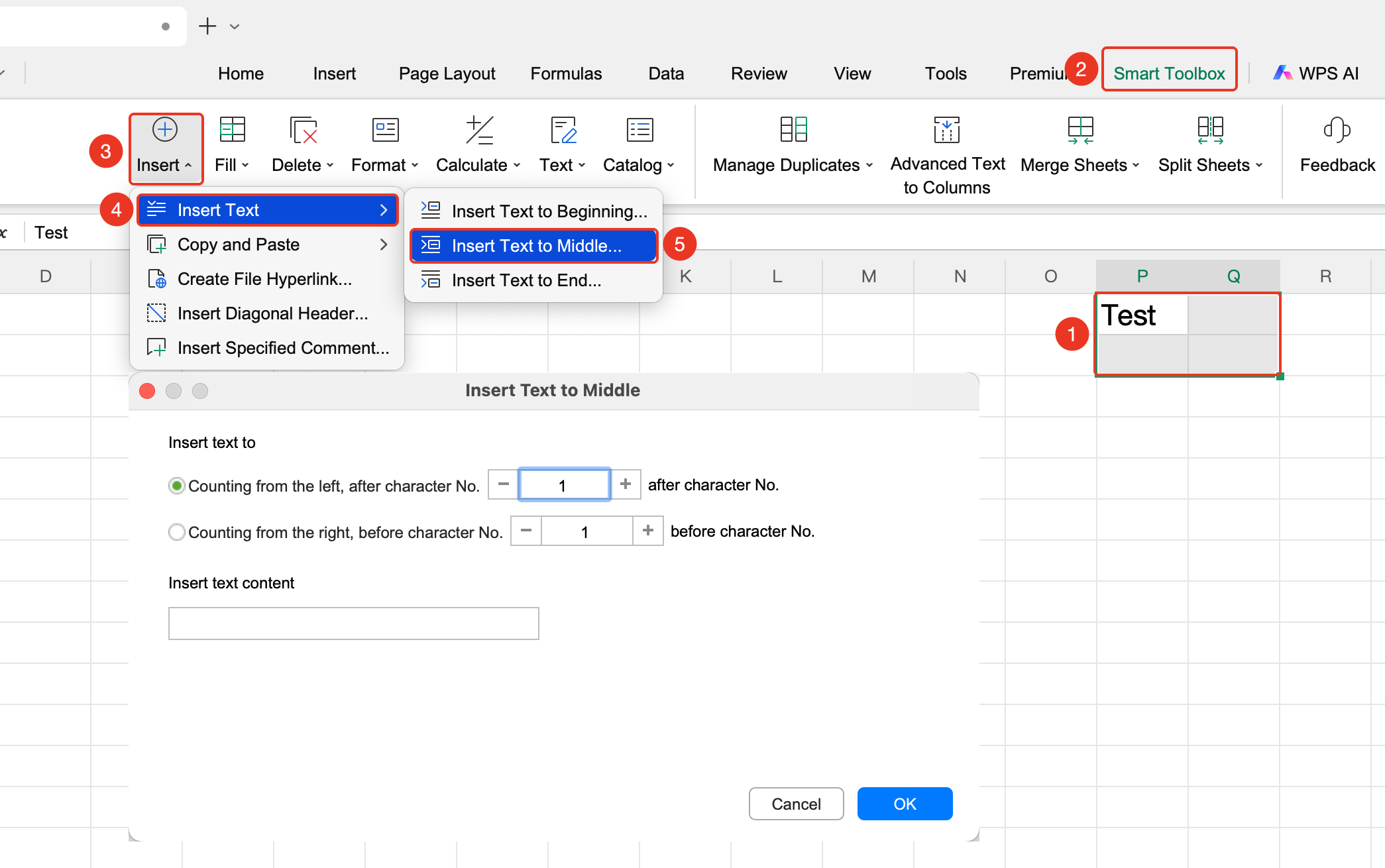
Feature Entry
"Member Exclusive" tab → "Smart Toolbox" option → "Smart Toolbox" tab → "Insert" drop-down menu → "Insert Text" drop-down menu → "Insert Text in the Middle" option
- Select the cell range where you want to insert text
- Click the Member Exclusive tab
- Select the Smart Toolbox option to open the Smart Toolbox tab
- Click the Insert drop-down menu and select the Insert Text drop-down menu
- Click the "Insert Text in the Middle" option
- Batch insert text at a specified position (after the Nth character from the left or right) within the selected cell contents
- Click OK
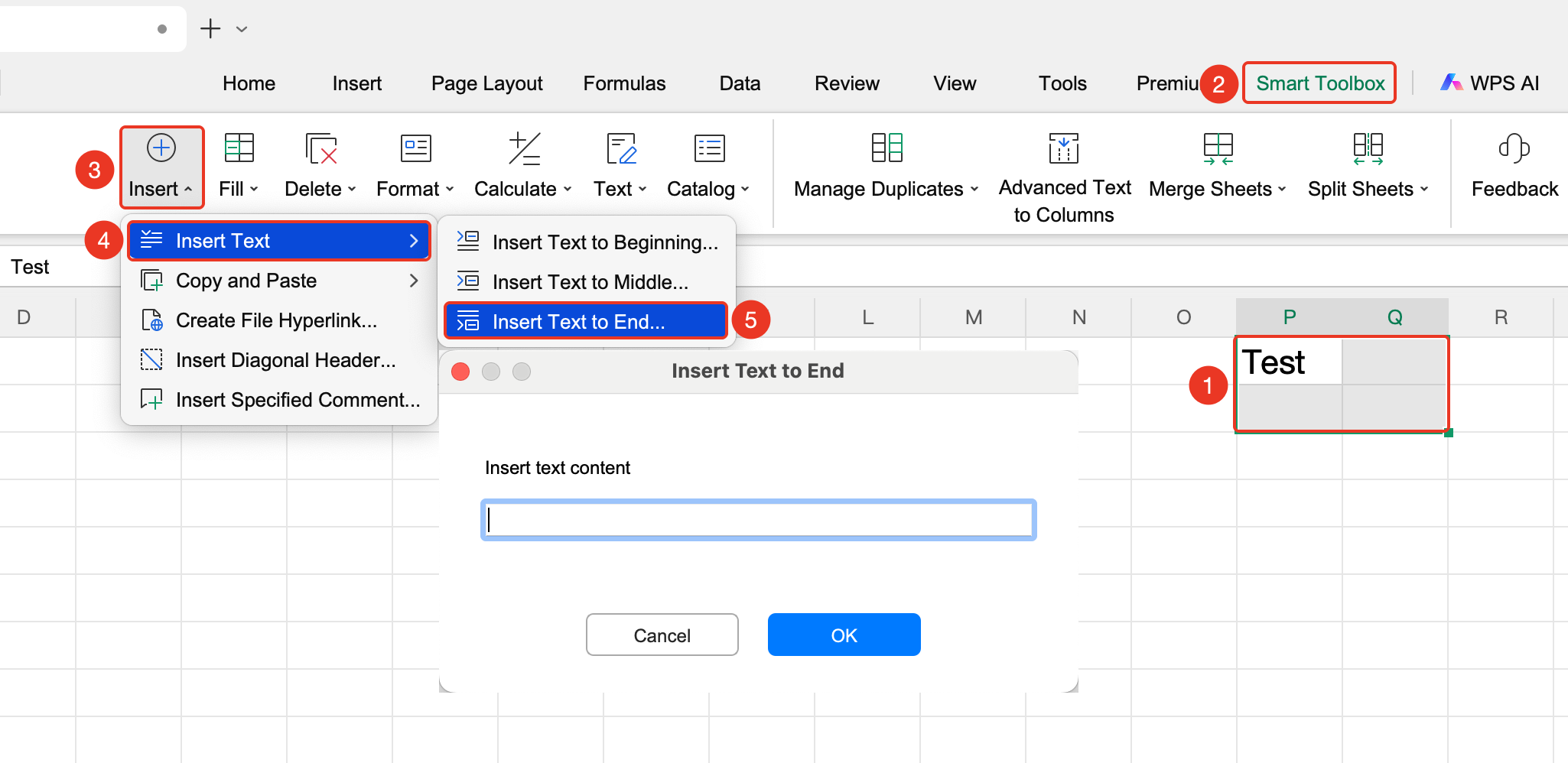
Insert Text at End
Feature Entry
"Member Exclusive" tab → "Smart Toolbox" option → "Smart Toolbox" tab → "Insert" drop-down menu → "Insert Text" drop-down menu → "Insert Text at End" option
- Select the cell range where you want to insert text
- Click the Member Exclusive tab
- Select the Smart Toolbox option to open the Smart Toolbox tab
- Click the Insert drop-down menu and select the Insert Text drop-down menu
- Click the "Insert Text at End" option
- Batch add specified text to the very end of the selected cell contents
- Click OK