Feature Summary
The filter feature is used to quickly display records that meet specific criteria in large datasets and hide rows that do not, making data viewing and analysis easier.
Feature Description
| Feature Dimension | Description |
|---|---|
| Membership Restrictions | No membership restrictions |
| Version Restrictions | No version restrictions |
Steps
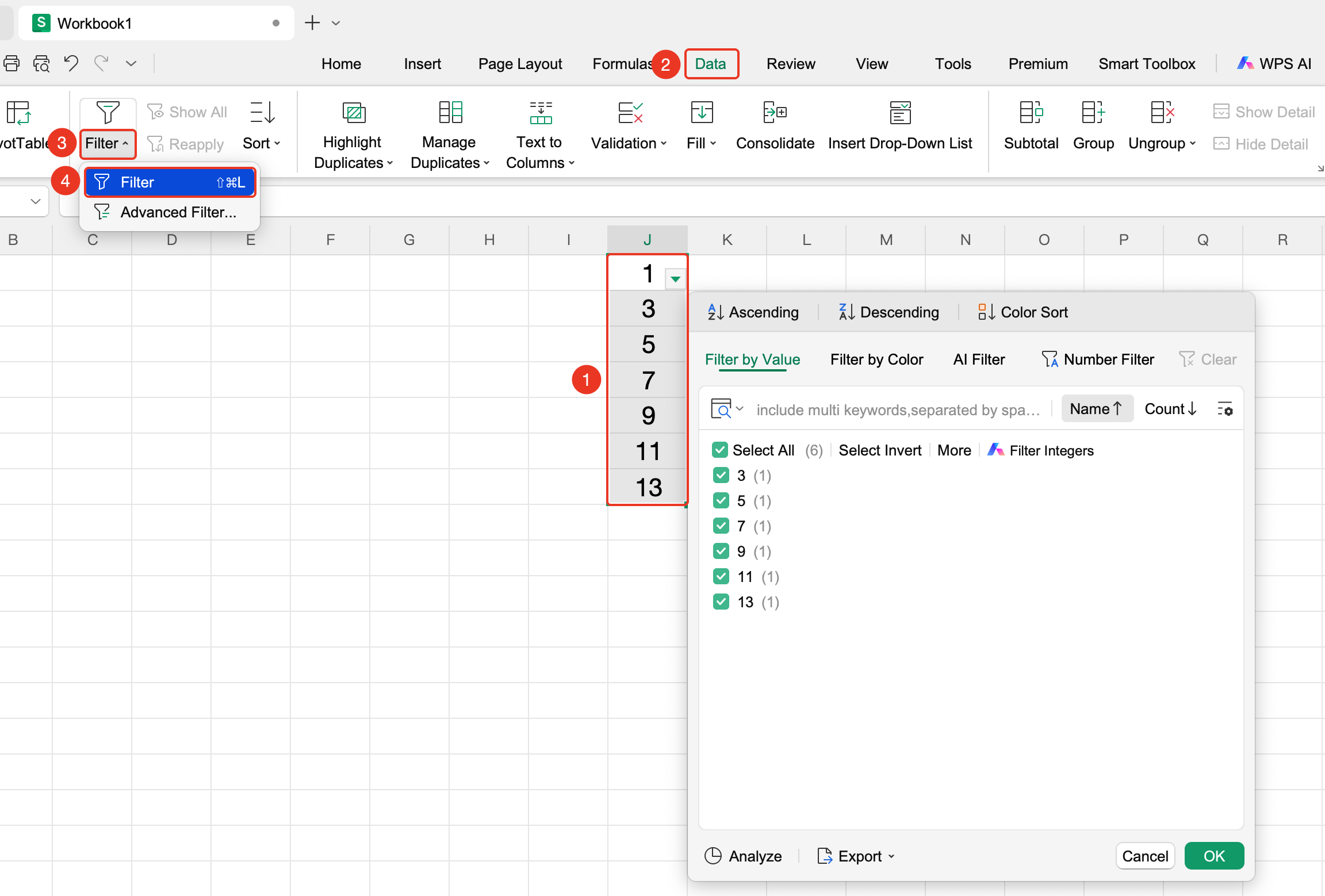
Enable Filter from the Ribbon
Feature Entry
"Data" tab → "Filter" dropdown menu → "Filter" button
- Select any cell within the data range
- Click the "Filter" button in the Data tab
- Dropdown arrows will appear in the header row
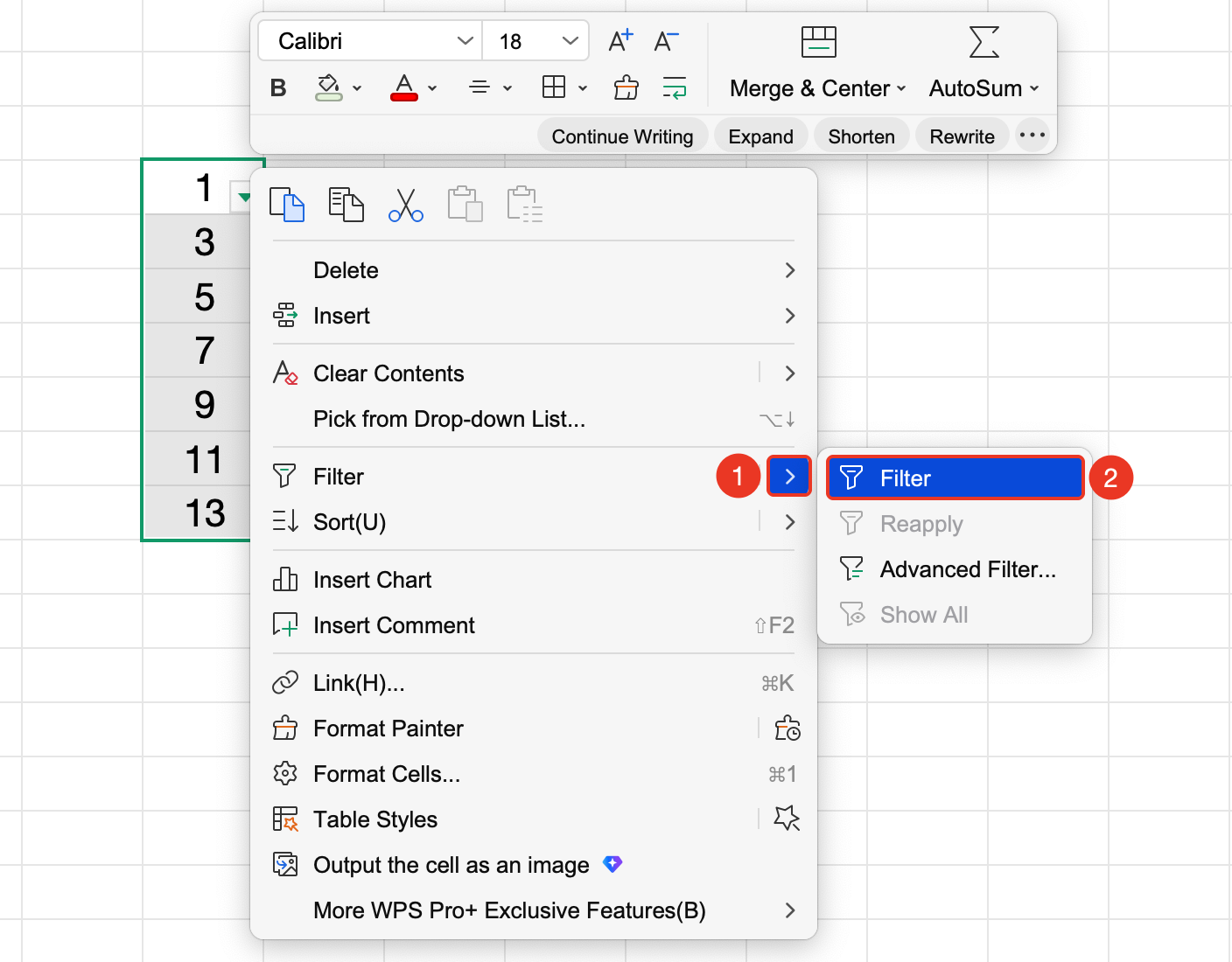
Enable Filter from the Right-Click Menu
Feature Entry
Right-click any cell → "Filter" dropdown menu → "Filter" button
- Select any cell within the data range
- Right-click the selected cell and choose the Filter dropdown menu
- Click the "Filter" option
- Dropdown arrows will appear in the header row
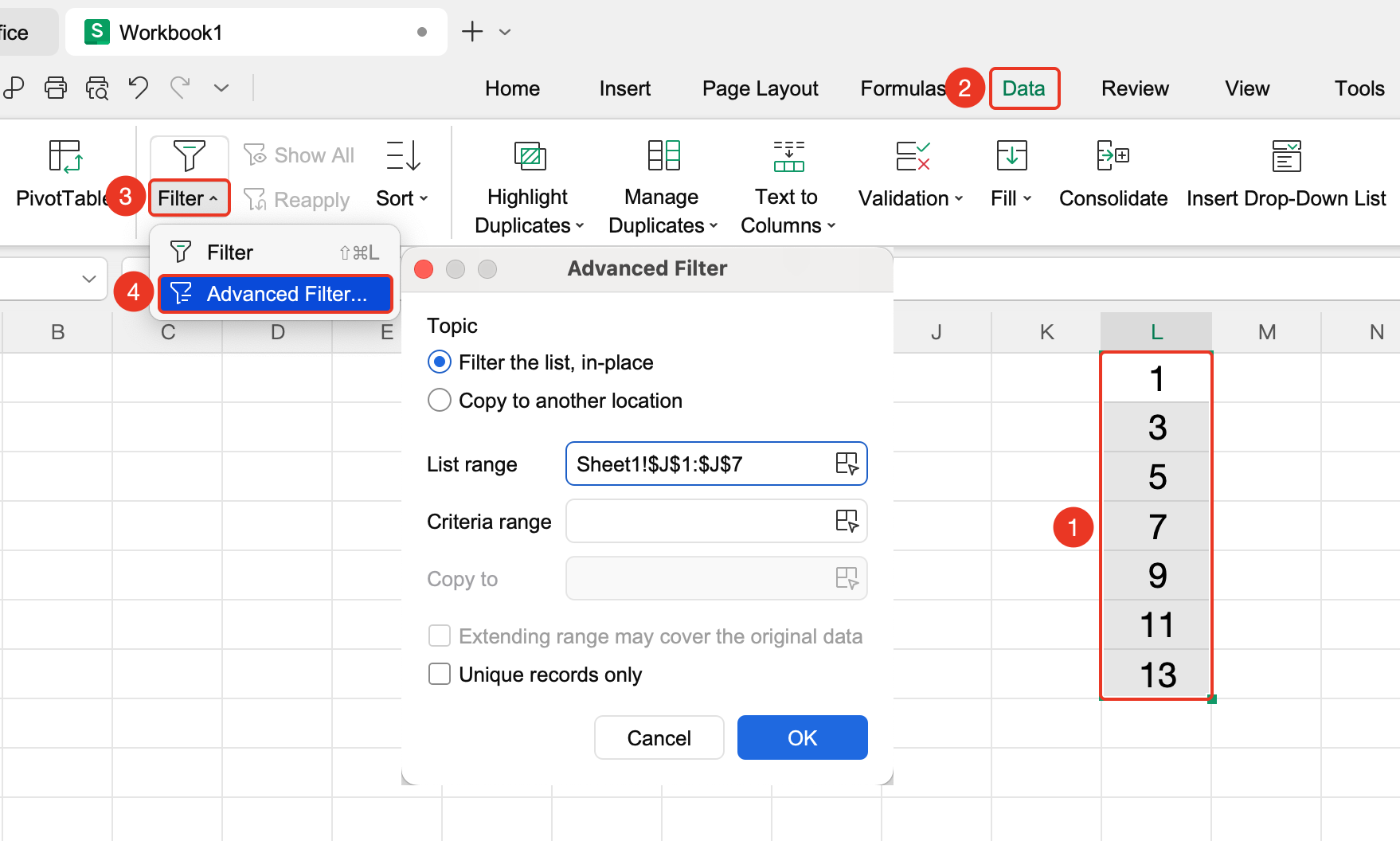
Enable Advanced Filter from the Ribbon
Feature Entry
"Data" tab → "Filter" dropdown menu → "Advanced Filter" button
- Select any cell within the data range
- Click the "Advanced Filter" button in the Data tab
- Set filter criteria in the pop-up dialog box
- Click OK
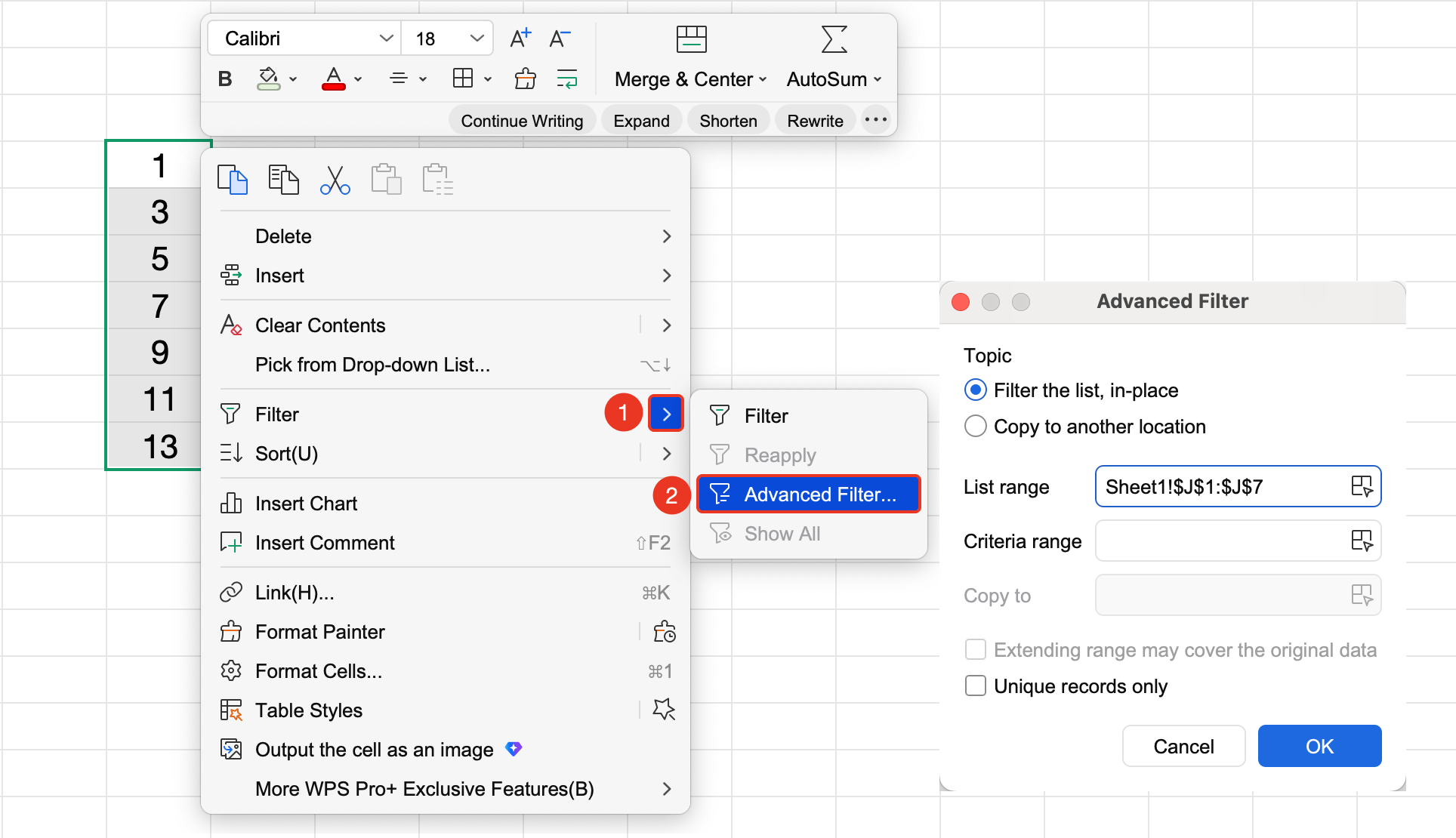
Enable Advanced Filter from the Right-Click Menu
Feature Entry
Right-click any cell → "Filter" dropdown menu → "Advanced Filter" button
- Select any cell within the data range
- Right-click the selected cell and choose the Advanced Filter dropdown menu
- Click the "Advanced Filter" option
- Set filter criteria in the pop-up dialog box
- Click OK
Enable Filter from the Home Tab
Feature Entry
"Home" tab → "Data Processing" dropdown menu → "Filter" dropdown menu → "Filter" button
- Select any cell within the data range
- Click the Data Processing dropdown menu in the Home tab
- Click the Filter dropdown menu
- Click the "Filter" button
- Dropdown arrows will appear in the header row
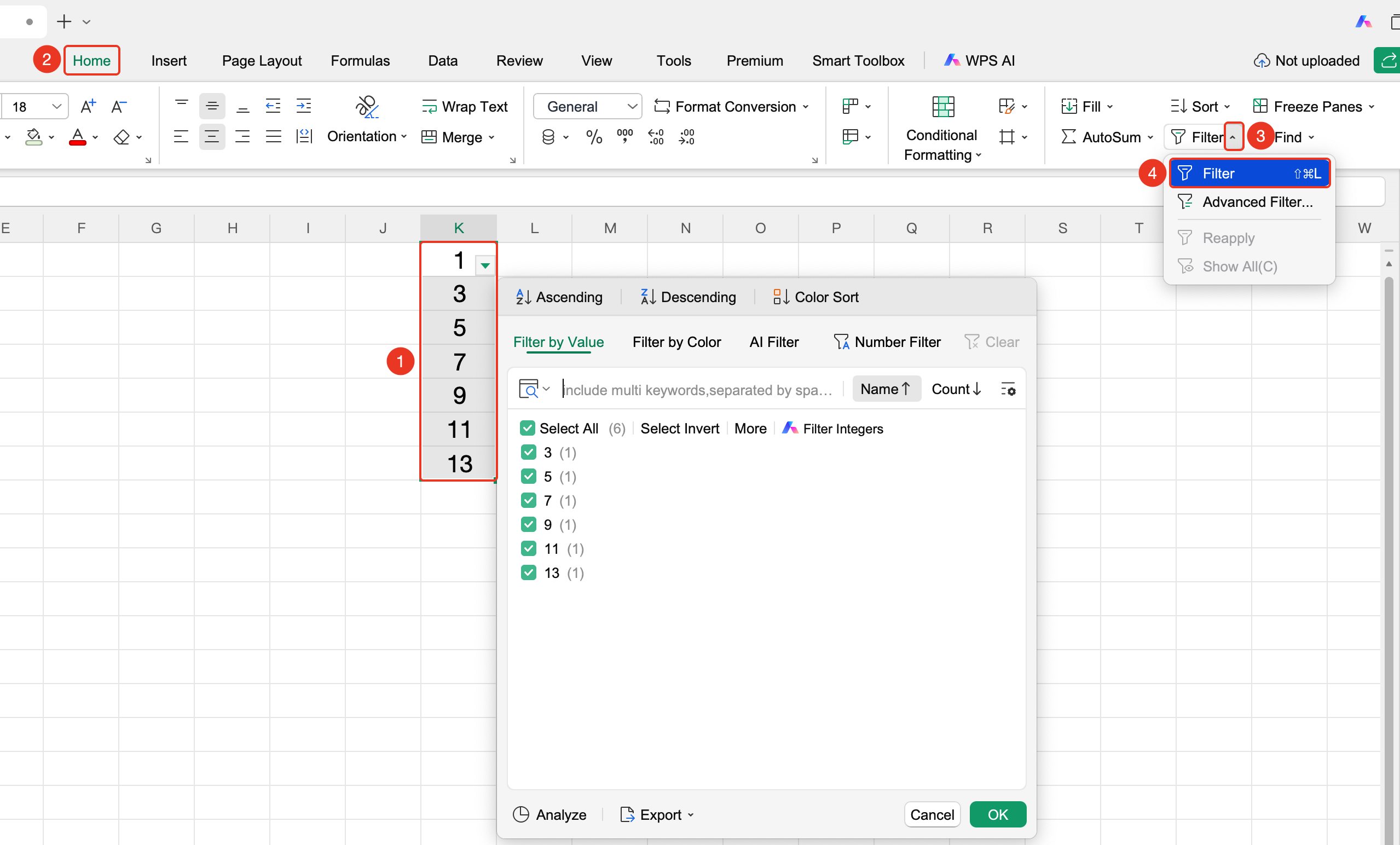
Enable Advanced Filter from the Home Tab
Feature Entry
"Home" tab → "Data Processing" dropdown menu → "Filter" dropdown menu → "Advanced Filter" button
- Select any cell within the data range
- Click the Data Processing dropdown menu in the Home tab
- Click the Filter dropdown menu
- Click the "Advanced Filter" button
- Set filter criteria in the pop-up dialog box
- Click OK
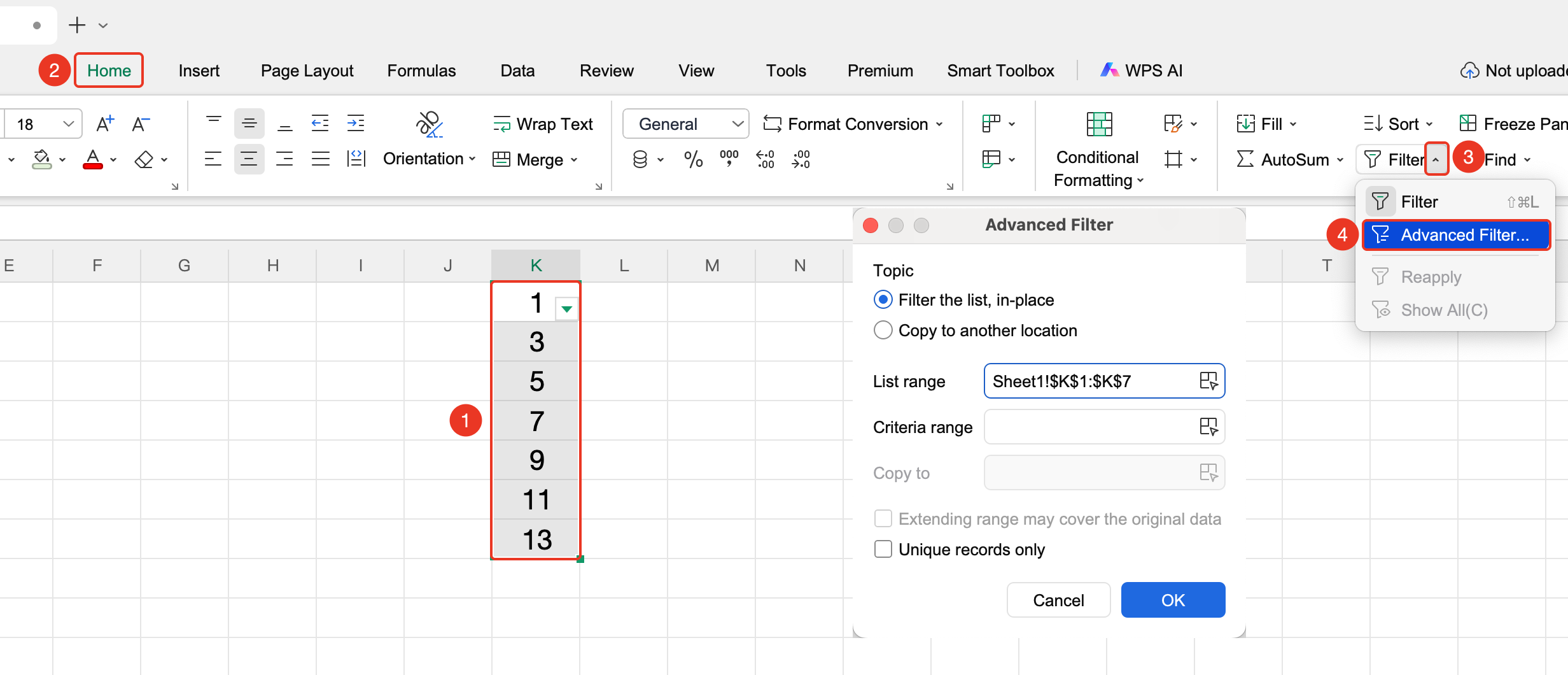
FAQ
Q1: How to copy visible cells after filtering?
- Solution: When copying filtered results, only visible cells are copied; hidden rows will not be copied.
Q2: How to cancel filtering?
- Solution: Click the "Filter" button again or click the "Clear" button to cancel filtering.
Notes
- Filtering does not delete data; it only hides rows that do not meet the criteria
- Filter criteria can be set for multiple columns simultaneously
- Copying while in a filtered state only copies visible data