Feature Summary
The image feature is used to insert and edit pictures in a worksheet, supporting local images and online images, with the ability to adjust size, position, and add effects.
Feature Description
| Feature Dimension | Description |
|---|---|
| Membership Restriction | Some features require a membership |
| Version Restriction | No version restriction |
Operation Steps
Insert Local Image
Feature Entry
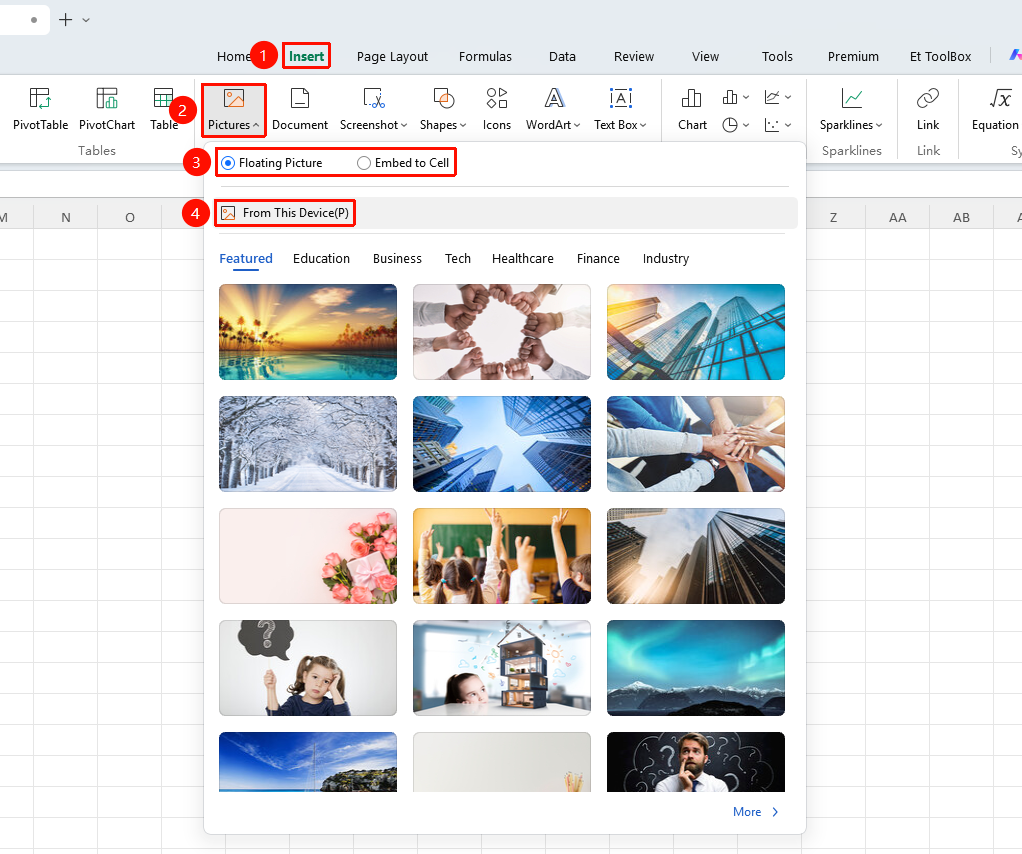
"Insert" tab → "Picture" button
- Click the "Picture" button in the Insert tab
- Select Floating Picture or Embed in Cell Picture
- Click Local Picture
- Browse and select the image file to insert
- Click Open to complete the insertion
Insert Online Image (Membership required)
Feature Entry
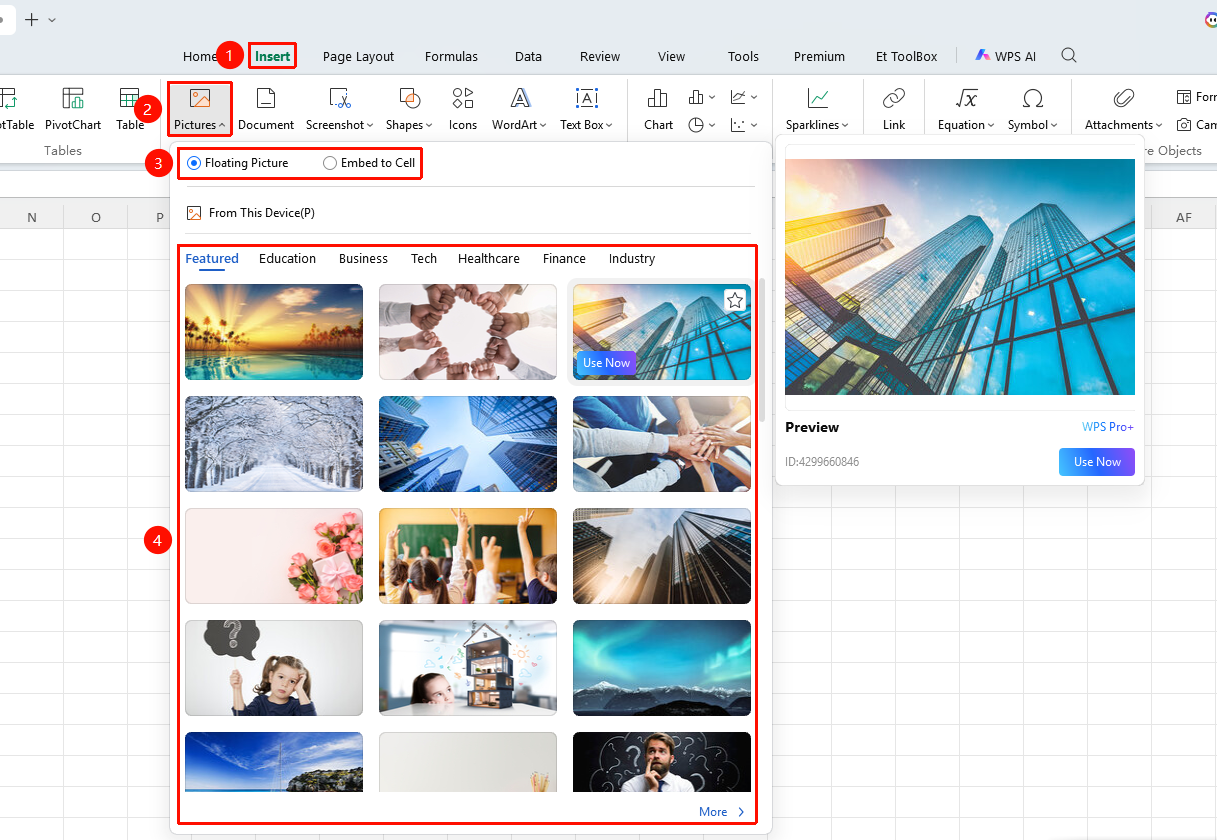
"Insert" tab → "Picture" button → "More Pictures" option
- Click the "Picture" button in the Insert tab
- Select Floating Picture or Embed in Cell Picture
- Click the "More Pictures" option
- Select an image from the pop-up Daoku gallery
- Click Insert
Edit Image
Feature Entry
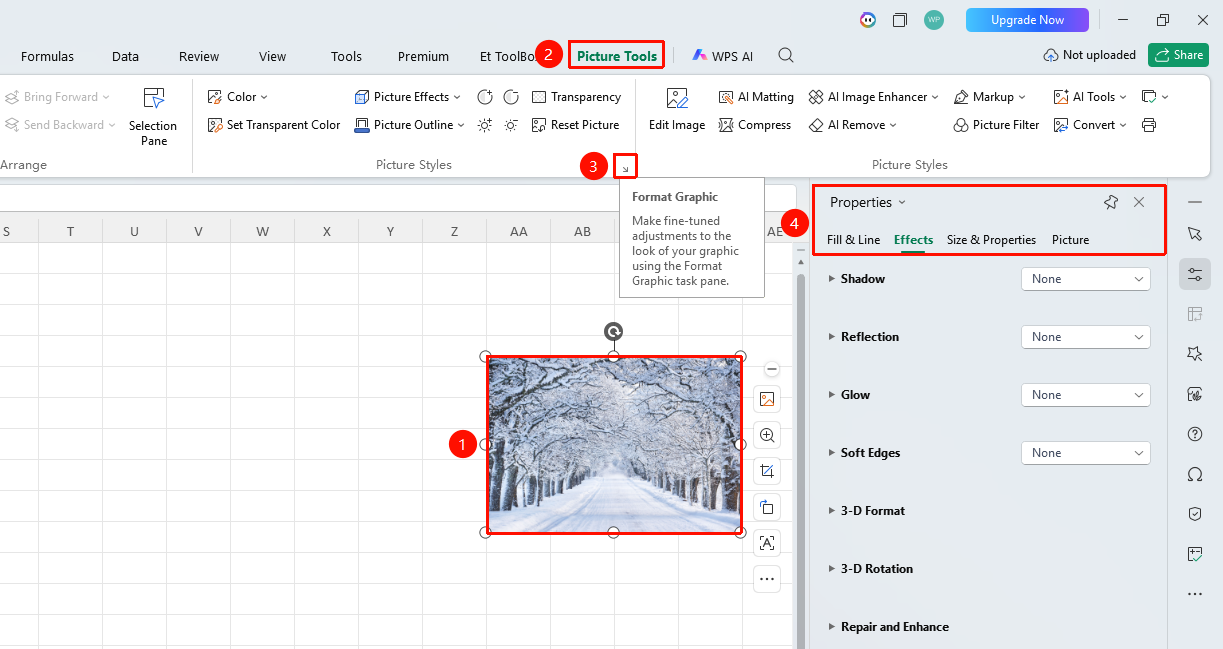
"Picture Tools" tab → "Format Shape" arrow
- Select the image
- In the Picture Tools tab, click the "Format Shape" arrow
- Adjust in the task pane that pops up on the right:
- Fill & Line
- Effects
- Size & Properties
- Picture
Convert Floating Picture to Embed in Cell Picture
Feature Entry
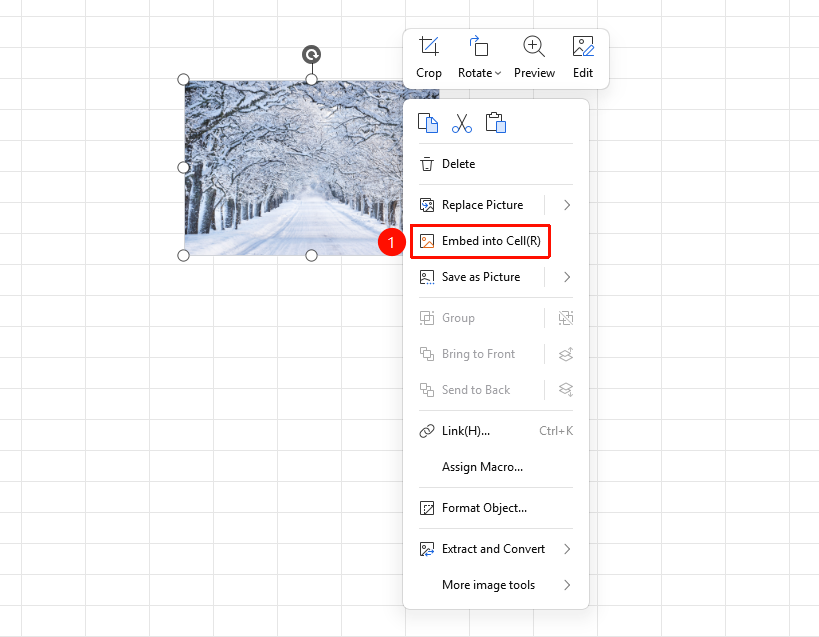
Right-click image → "Embed Picture in Cell" option
- Select the image
- Right-click the image and select the "Embed Picture in Cell" option
- The image will be embedded into the cell in the upper-left area of the image
Notes
- Images can be freely moved and resized
- Multiple image formats are supported (JPG, PNG, GIF, and so on.)
- Images can be placed above or below text