Feature Summary
The Symbol feature is used to insert special characters, mathematical symbols, currency symbols, etc., in WPS Sheets, meeting the editing needs of various professional documents.
Feature Description
| Feature Dimension | Description |
|---|---|
| Membership Restriction | No membership restriction |
| Version Restriction | No version restriction |
Operation Steps
Insert Symbol
Feature Entry
"Insert" tab → "Symbol"
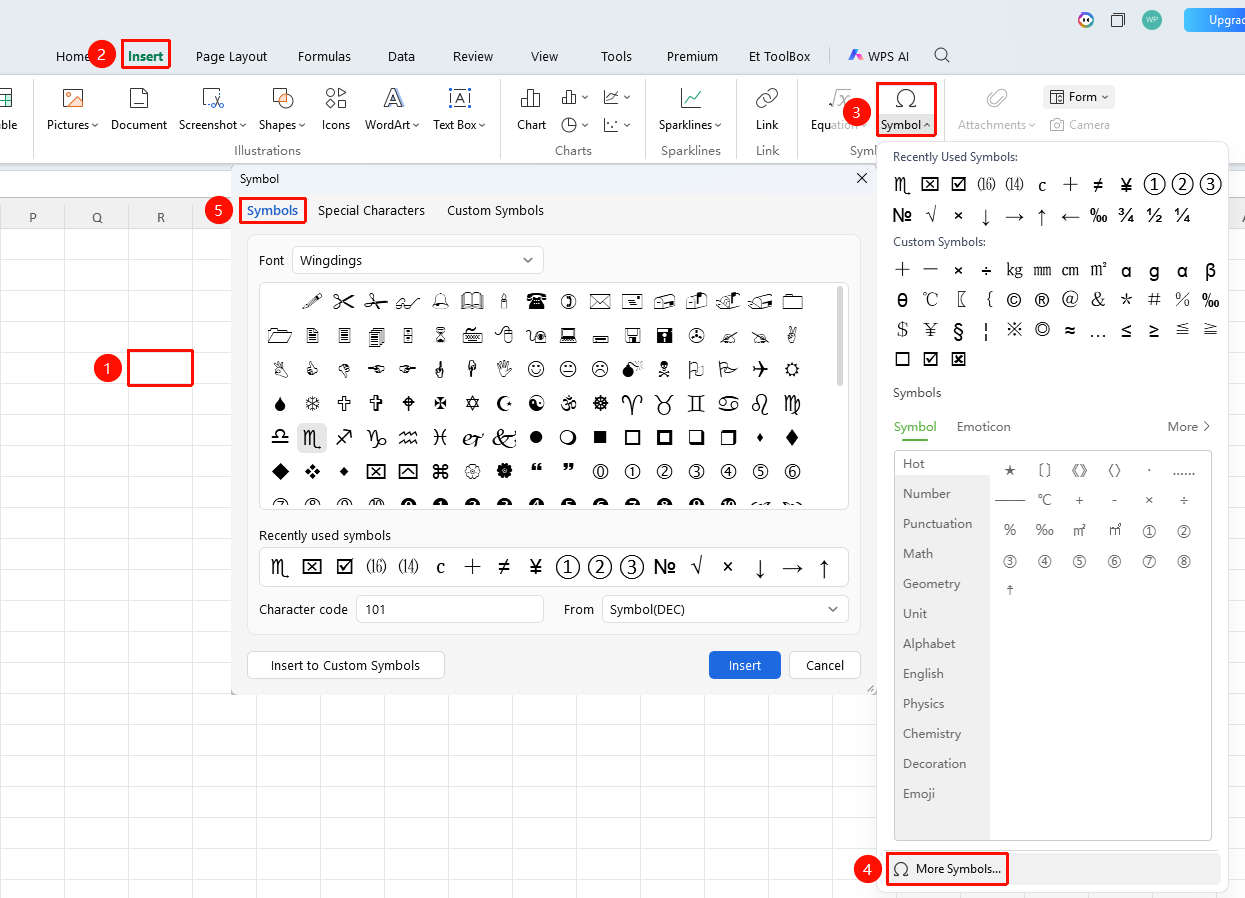
- Select the cell where you want to insert the symbol
- Click the Insert tab
- Click the Symbol button
- In the symbol panel, select the desired symbol, choose a font, and select Symbol (Hex) or Symbol (Decimal)
- Click Insert
Quick Insert
Feature Entry
"Insert" tab → "Symbol" drop-down menu
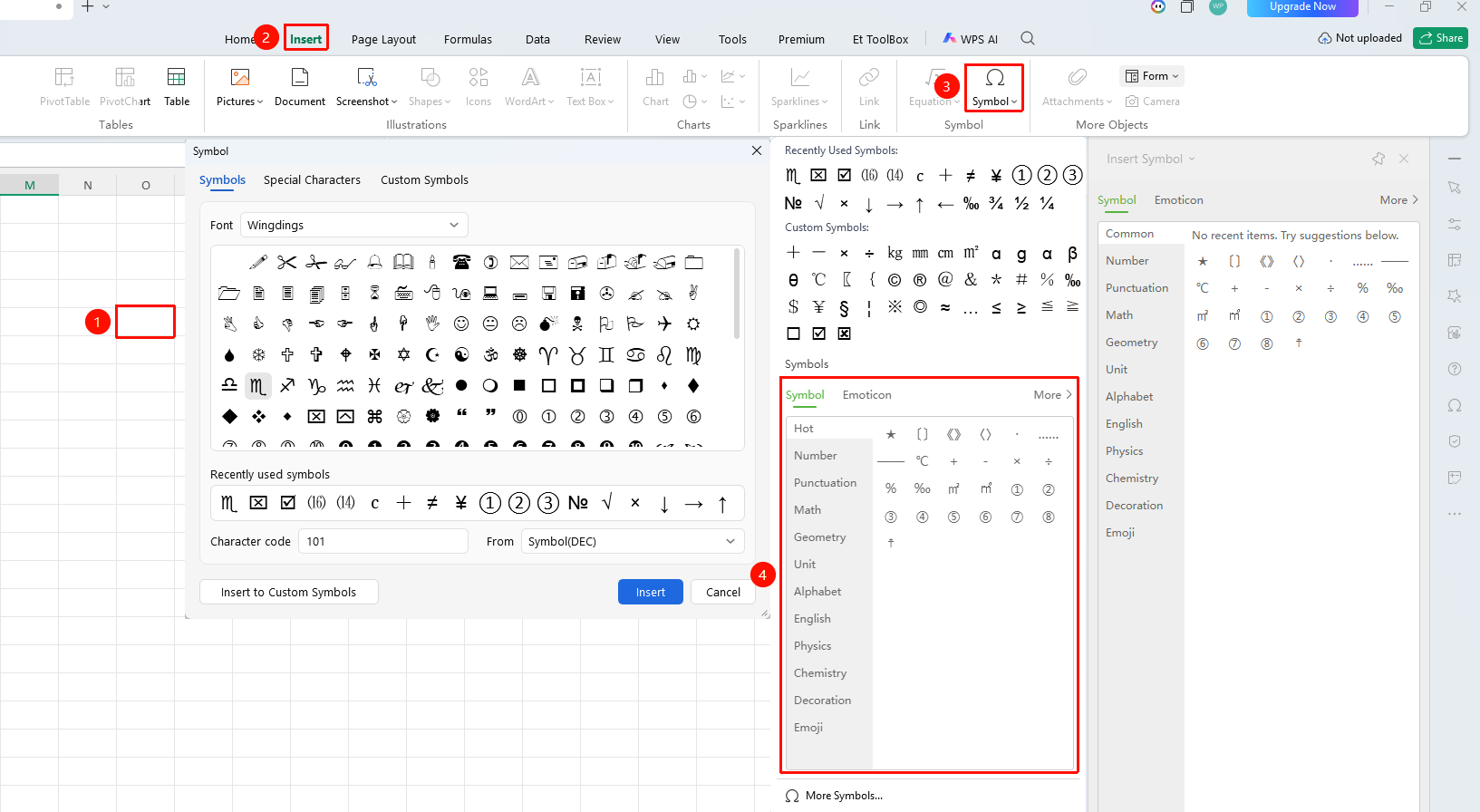
- Select the cell where you want to insert the symbol
- Click the Insert tab → Symbol button drop-down menu in sequence
- Click on a symbol under "Recently Used Symbols" or "Custom Symbols" to quickly insert it
- Browse categorized symbols under "Symbol Collection" or click "More" to open the Symbol Collection
- Click "Other Symbols" to browse more symbol content
Using Special Characters
Feature Entry
"Insert" tab → "Symbol" → "Special Characters"
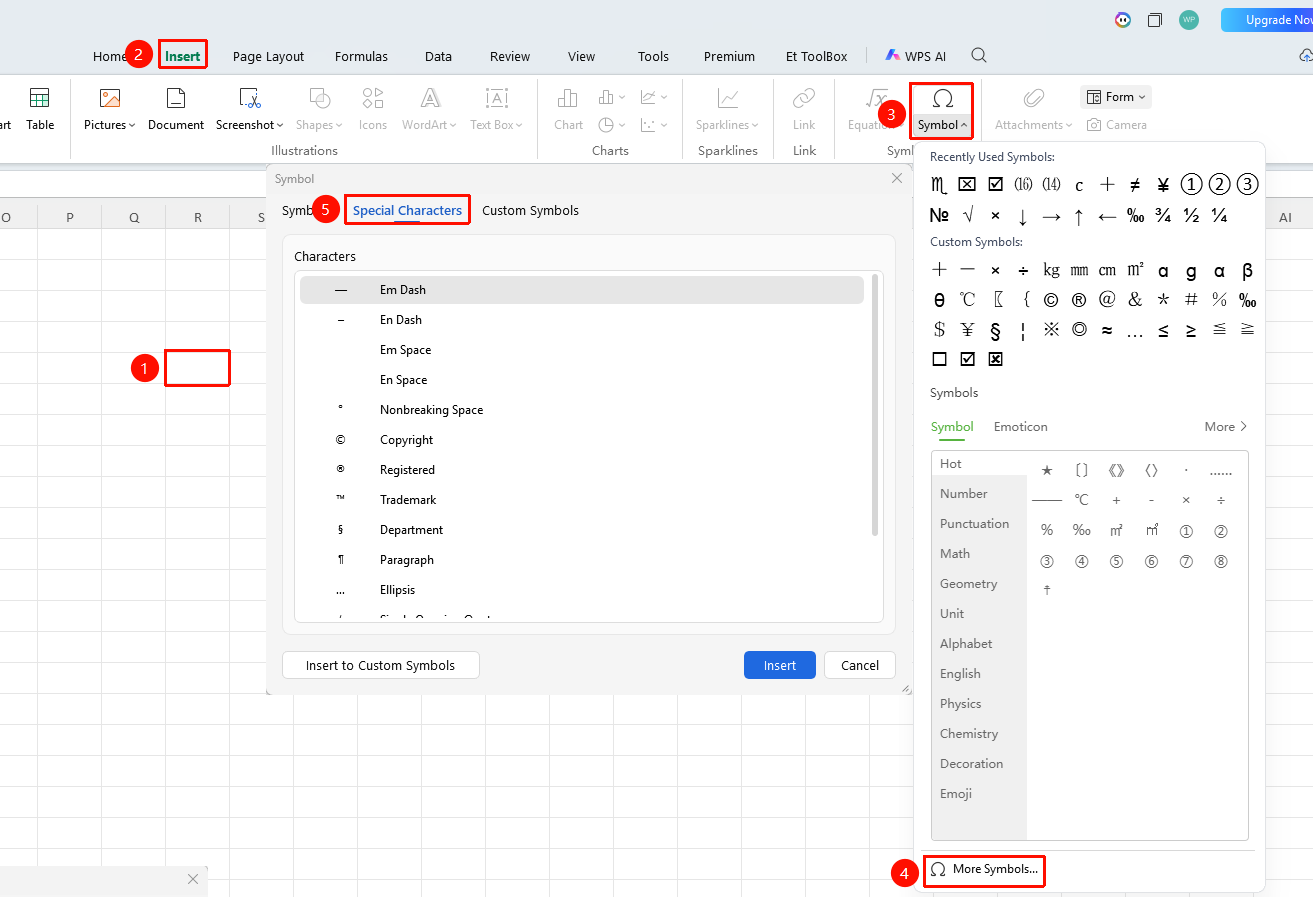
- Click the Symbol button
- Switch to the Special Characters tab
- Select copyright symbol ©, registered trademark ®, etc.
- Click Insert
Custom Symbol Bar
Feature Entry
"Insert" tab → "Symbol" → "Symbol Bar"
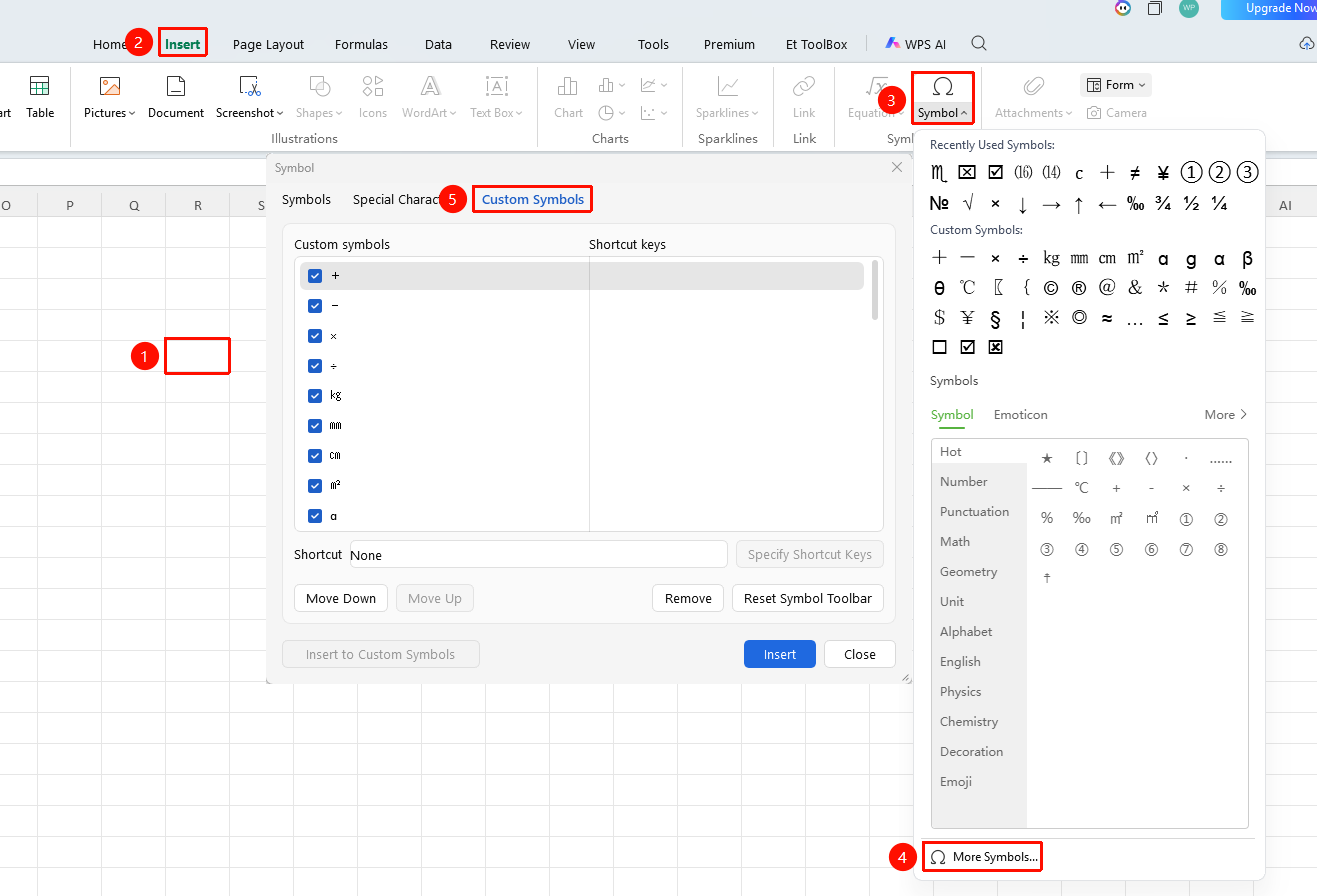
- Click "Insert" tab → "Symbol" in sequence
- Under "Symbols" and "Special Characters", select the desired symbol and click "Insert to Symbol Bar"
- In the "Symbol Bar", select the relevant symbol to "Assign Shortcut Key", "Move Up/Down", or "Delete"
- Click "Reset Symbol Bar" to restore the symbol bar to default options
FAQ
Q1: What should I do if I cannot find the symbol I need?
- Solution: Enter the symbol code, or switch to a different font to view.
Q2: What should I do if the symbol displays as a box?
- Solution: Change to a font that supports the symbol, such as Wingdings, etc.
Q3: How to quickly insert a symbol?
- Solution: Insert the desired symbol into the symbol bar for quick typing via custom symbols, or assign a shortcut key to the symbol in the symbol bar and use the shortcut key for quick typing.
Q4: What should I do if the set shortcut key becomes invalid?
- Solution:
- Check if the assigned symbol shortcut key conflicts with WPS software's own shortcut keys, such as Ctrl+S (Save);
- Check if there is a hotkey conflict with other currently running software;
- Reassign a shortcut key for the symbol in the "Symbol Bar".
Notes
- Different fonts may support different symbol sets
- Frequently used symbols can be added to the symbol bar for quick access
- Some symbols may display differently across different operating systems
- The Symbol Collection can be quickly opened in the right-side task pane