Feature Summary
The WordArt feature is used to create text with special effects, supporting a variety of styles, colors, and effects. It is commonly used for creating titles, posters, or decorative text.
Feature Description
| Feature Dimension | Description |
|---|---|
| Membership Restriction | Some features require a membership subscription |
| Version Restriction | No version restrictions |
Operation Steps
Insert WordArt via the Ribbon
Feature Entry
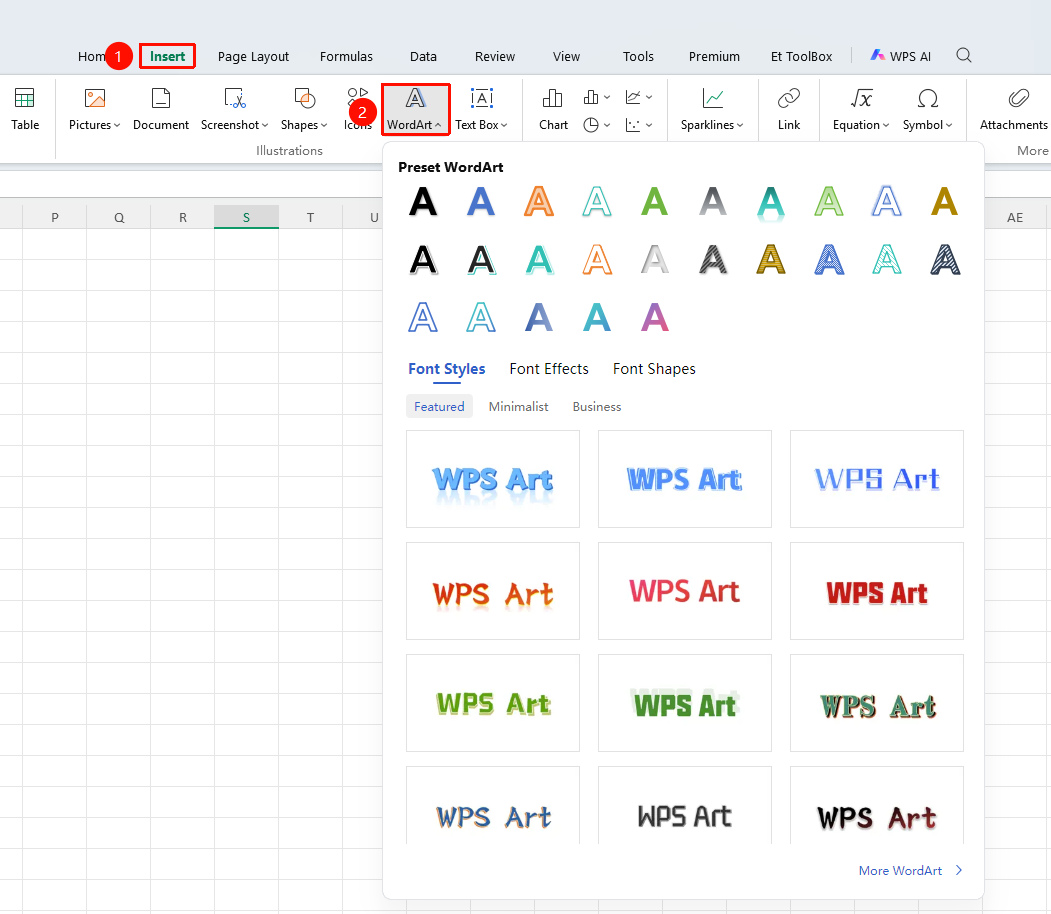
"Insert" tab → "WordArt" button
- Click the Insert tab on the ribbon
- Click the "WordArt" button
- Select a WordArt style in the WordArt Presets area
- Enter the text content in the pop-up text box
The following WordArt template content requires membership:
- Preset template content in the "WordArt" tab
- Preset template content in the "Font Effects" tab
- Preset template content in the "Font Shape" tab
Modify an Existing WordArt Style
Feature Entry
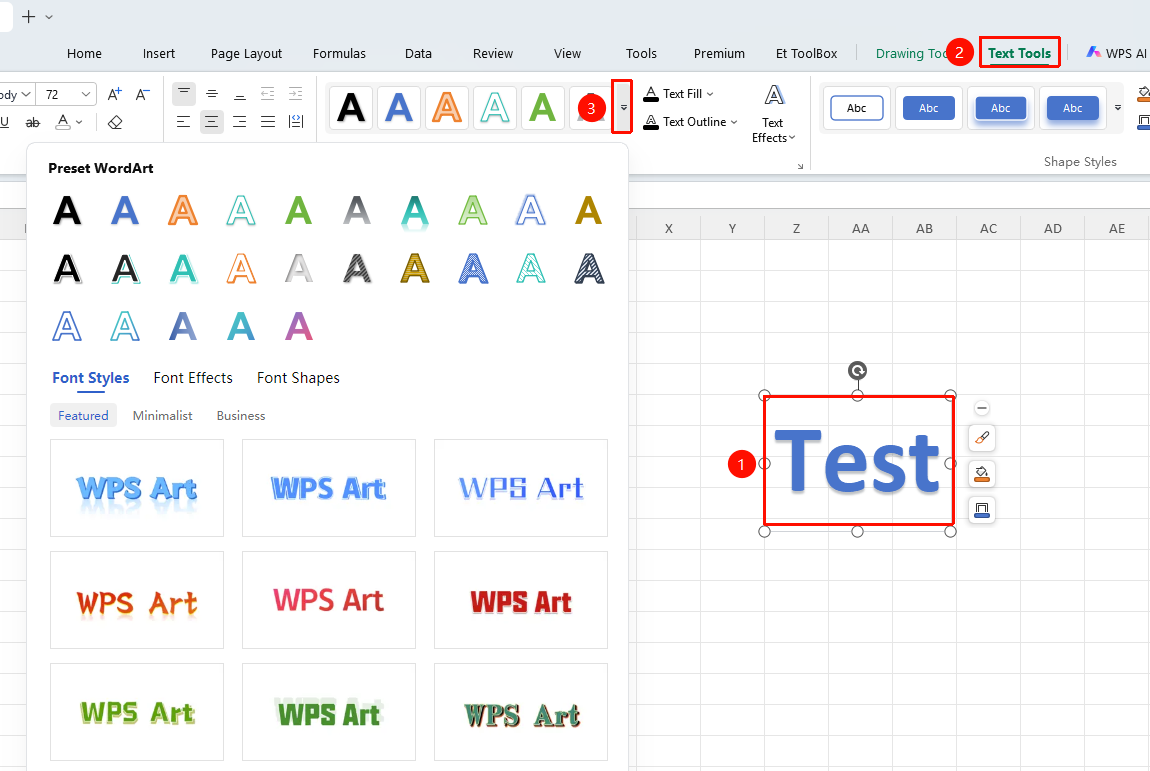
Select the inserted WordArt text box, "Text Tools" tab → "Dropdown arrow on the right side of the WordArt Styles area"
- Select the inserted WordArt text box
- Click the Text Tools tab on the ribbon
- Click the "Dropdown arrow" option on the right side of the WordArt Styles area
- Select a WordArt style from the list
Frequently Asked Questions
Question 1: How to modify the WordArt content?
- Solution: Double-click the WordArt to enter editing mode and modify the text content directly.
Notes
- WordArt is a graphic object that can be freely moved and adjusted
- WordArt supports multiple text effects
- WordArt can be combined with other graphics