Feature Summary
The hyperlink feature supports inserting web links, file jumps, in-document navigation, and email links into cells, enabling one-click access.
Feature Description
| Feature Dimension | Description |
|---|---|
| Membership Restriction | No membership restriction |
| Version Restriction | No version restriction |
Steps
Insert Hyperlink
Feature Entry
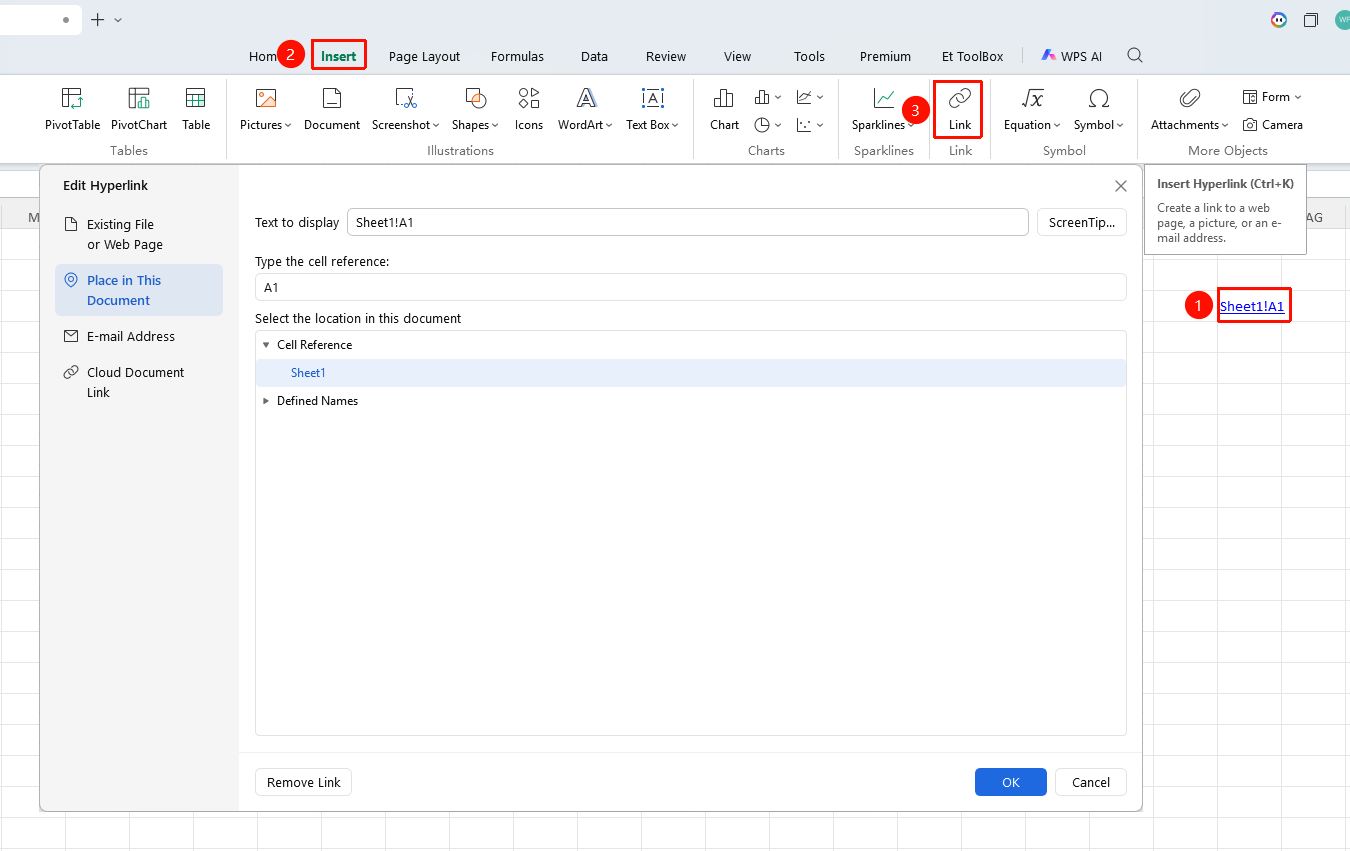
"Insert" tab → "Hyperlink" button
- Select the cell where you want to add a hyperlink
- Click the Hyperlink button in the Insert tab (or press
Ctrl+K(mac:Cmd+K)) - Choose the link type according to your needs:
| Link Type | Description |
|---|---|
| Existing File or Web Page | Enter a web URL or file path; click to open directly |
| Place in This Document | Enter a cell reference; click to jump to the corresponding location |
| Email Address | Enter an email address; click to launch the mail program |
| Cloud Document Link | Select a cloud space file; click to open |
| 4. ClickOK to finish adding |
Edit/Delete Hyperlink
- Right-click the hyperlink cell
- Select Edit Hyperlink to modify the link target
- Select Remove Link to delete the hyperlink (display text is retained)
- Select Edit Hyperlink → Remove Link to completely remove it
FAQ
Q1: What should I do if nothing happens after clicking the hyperlink?
- Solution: Check if the link address is correct. Hold down the
Ctrl(mac:Cmd) key and click the hyperlink to jump (in some settings, holding Ctrl is required).
Q2: How to add hyperlinks in batch?
- Solution: You can use the formula
=HYPERLINK("url", "display text")to generate them in batch, or use the fill function to quickly copy the same link format.
Q3: Can the hyperlink text color be changed to another color?
- Solution: Yes. After selecting the cell, modify the text color via "Home" → "Font Color". Hyperlinks are blue with an underline by default.
Notes
- After adding, hyperlinks are displayed in blue with an underline by default
- You can use the
Ctrl+K(mac:⌘+K) shortcut to quickly open the hyperlink window