Feature Summary
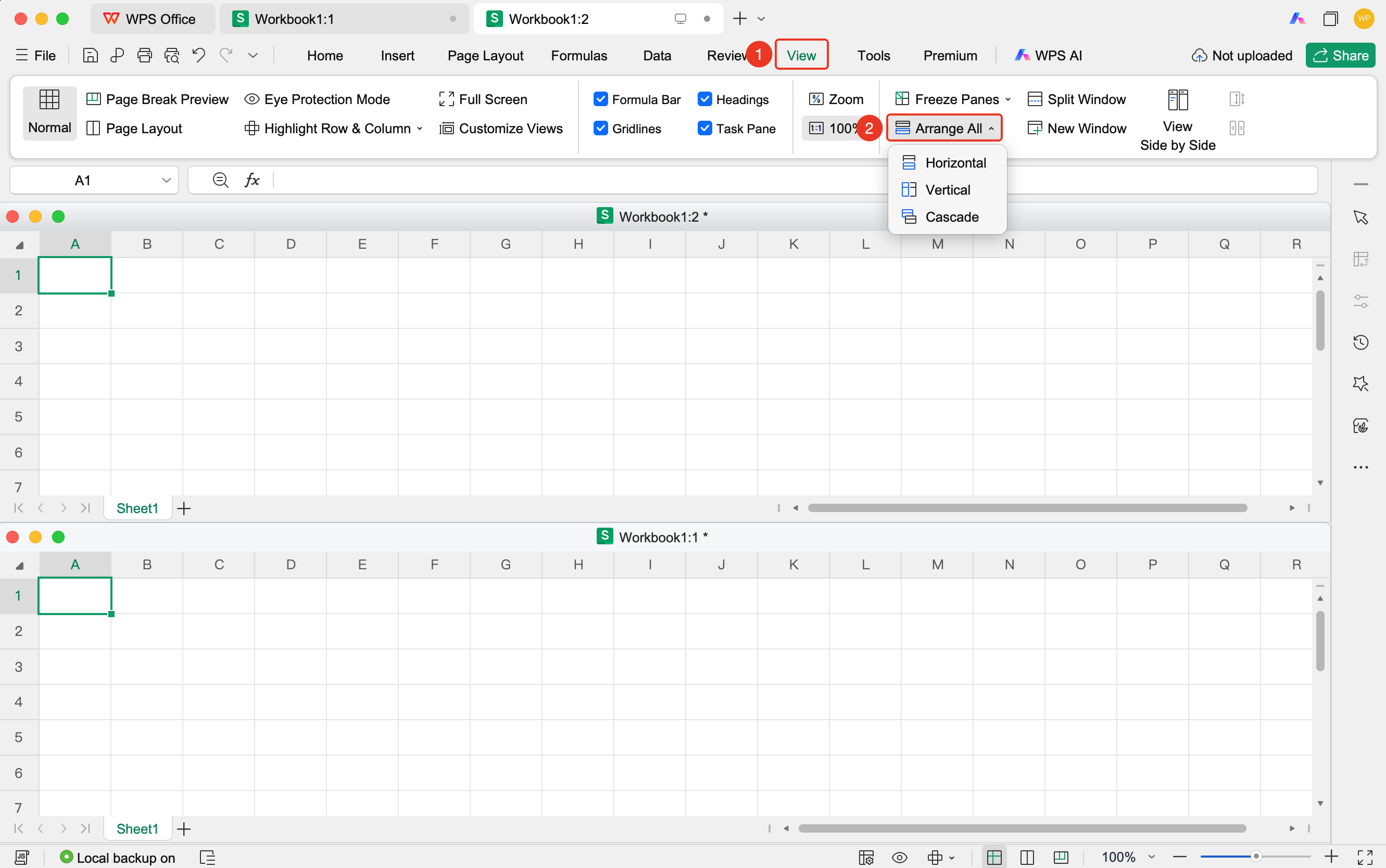
The Arrange Windows feature is used to arrange multiple open workbook windows in tiled, horizontal, vertical, or cascaded layouts.
Feature Description
| Feature Dimension | Description |
|---|---|
| Membership Restriction | No membership restriction |
| Version Restriction | No version restriction |
Operation Steps
Arrange All Windows
Feature Entry
"View" tab → "Arrange Windows"
- Click the View tab
- Click the Arrange Windows button
- Select an arrangement method:
- Tiled Horizontally: Arrange top and bottom
- Tiled Vertically: Arrange left and right
- Cascaded: Windows overlap
4.Click to apply the arrangement
Frequently Asked Questions
Question 1: What should I do if the window sizes are inconsistent after arranging windows?
- Solution: Perform the arrange windows operation again, and the system will automatically adjust the window sizes.
Question 2: How do I cancel the window arrangement?
- Solution: Maximize one of the windows, or close the extra windows.
Notes
- Arranging windows only affects currently open workbooks
- Multiple workbooks can be opened simultaneously for arrangement
- Window sizes can be manually adjusted after arrangement