Feature Summary
The Protect Sheet feature is used to prevent others from modifying data and formatting in a worksheet. You can set a password to ensure data security.
Feature Description
| Feature Dimension | Description |
|---|---|
| Membership Restriction | No membership restriction |
| Version Restriction | No version restriction |
Operation Steps
Protecting a Sheet via the Ribbon
Feature Entry
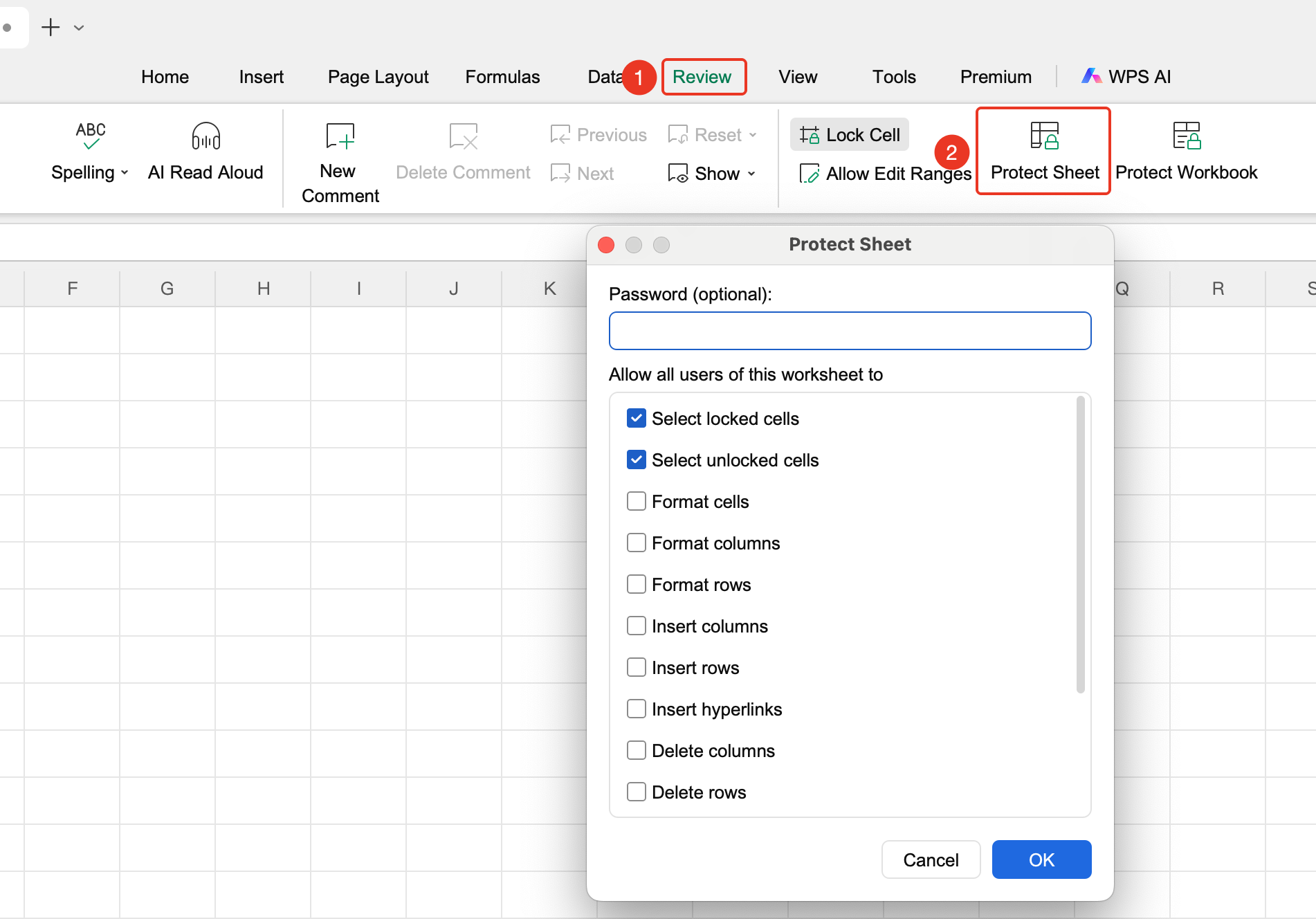
"Review" tab → "Protect Sheet" button
- Click the "Protect Sheet" button in the Review tab
- Enter a protection password (optional)
- Select the operations you want to allow users to perform
- Click OK to complete the protection
Protecting a Sheet by Right-Clicking the Sheet Tab
Feature Entry
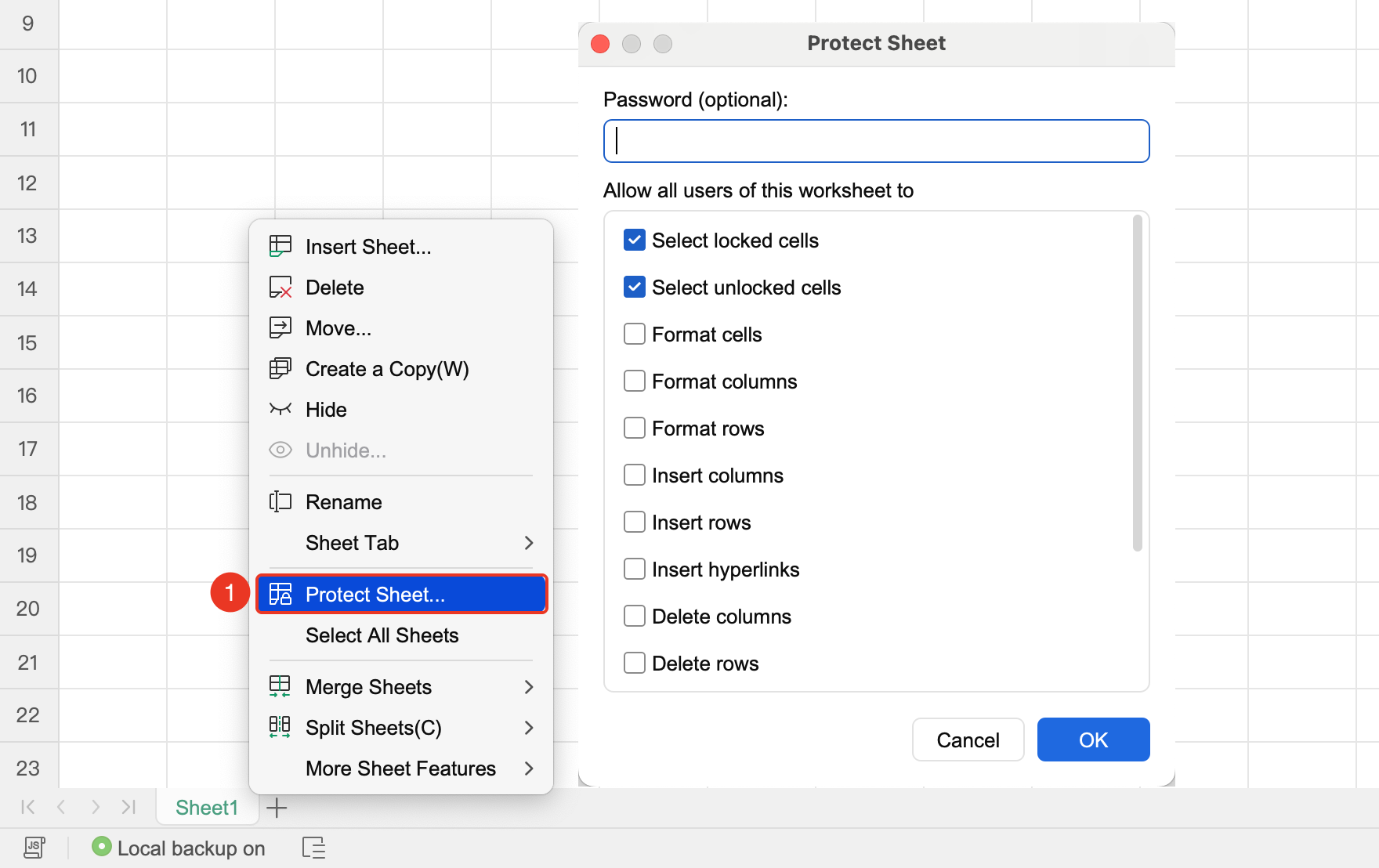
Right-click the sheet tab → "Protect Sheet" button
- Right-click the sheet tab you want to protect
- Select the "Protect Sheet" button
- Enter a protection password (optional)
- Select the operations you want to allow users to perform
- Click OK to complete the protection
Unprotecting a Sheet
Feature Entry
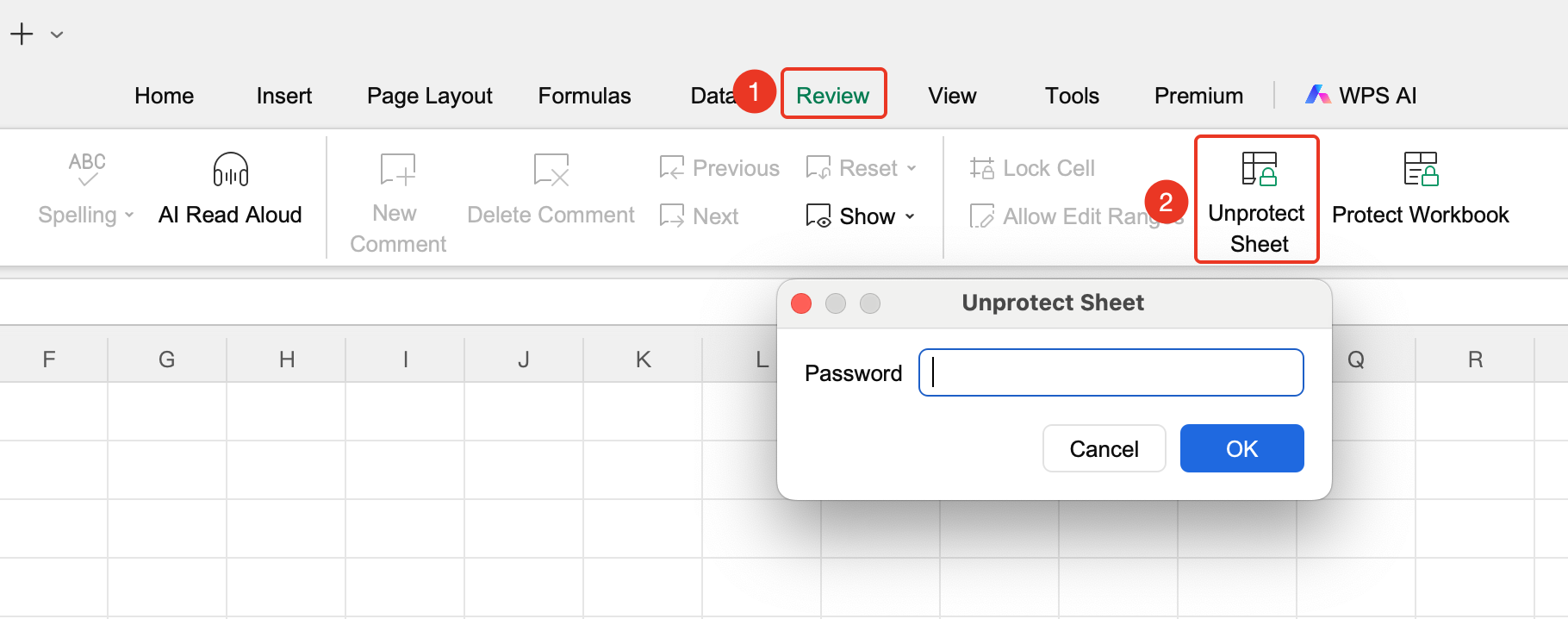
"Review" tab → "Unprotect Sheet" button
- Select the protected worksheet
- Click the "Unprotect Sheet" button in the Review tab
- If a password was set, enter the password
- Click OK to remove the protection
Unprotecting a Sheet by Right-Clicking the Sheet Tab
Feature Entry
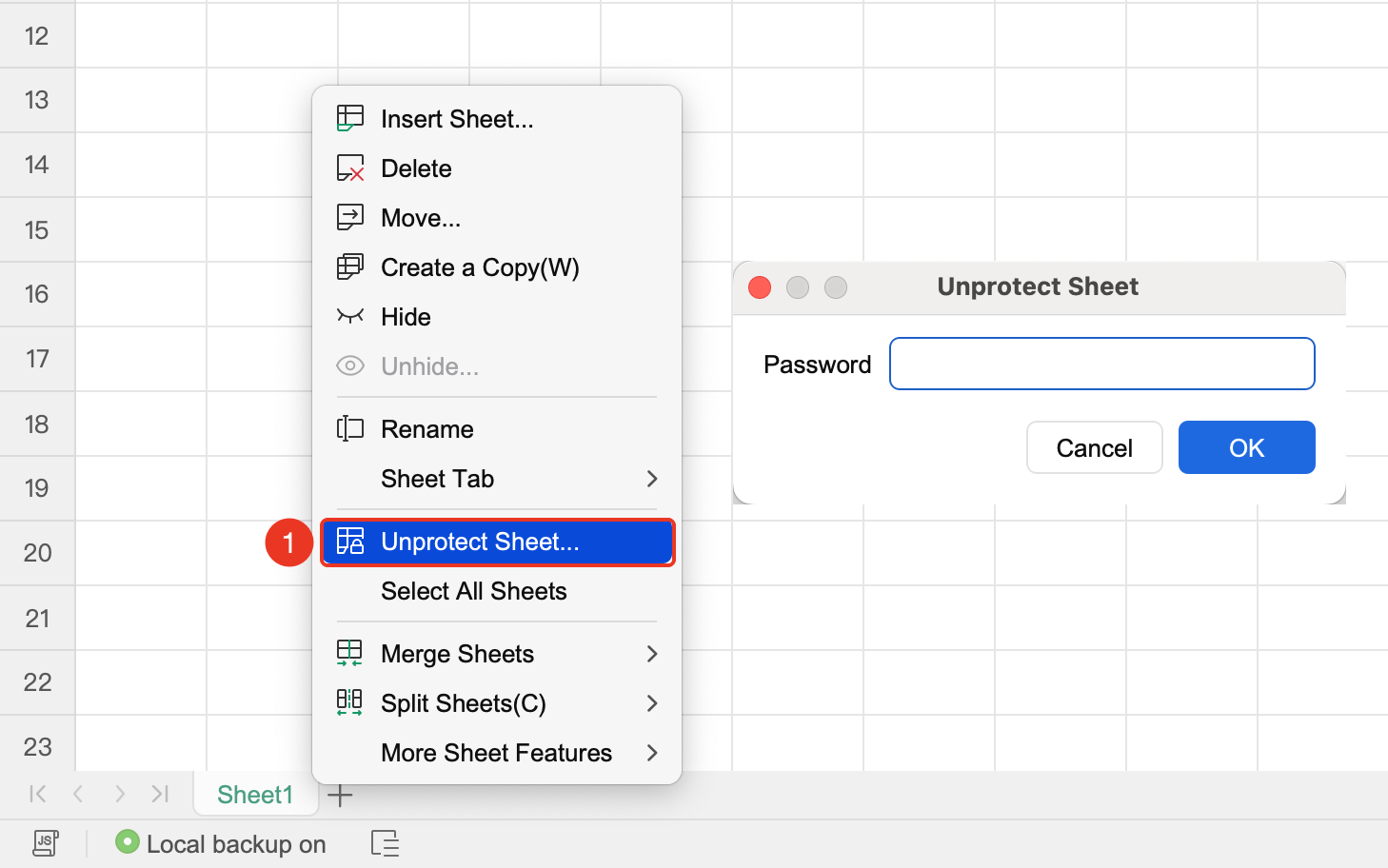
Right-click the sheet tab → "Unprotect Sheet" button
- Right-click the sheet tab you want to protect
- Select the "Unprotect Sheet" button
- If a password was set, enter the password
- Click OK to remove the protection
FAQ
Q1: What should I do if I forget the protection password?
- Solution: The protection password for the spreadsheet cannot be recovered. It is recommended to keep the password safe.
Q2: How can I allow some cells to be editable after protection?
- Solution: Before protecting the sheet, select the cells you want to allow editing, right-click → Format Cells → Protection, uncheck "Locked", and then protect the worksheet.
Notes
- Remember the password before protecting the worksheet
- Most editing operations will be prohibited after protection
- You can customize the operations that users are allowed to perform