WPS Sheets Document Encryption Feature Guide for Mac
Feature Summary
Document encryption is used to set an open password or edit permission password for WPS Sheets files, preventing unauthorized users from viewing or modifying the content.
Feature Description
| Feature Dimension | Description |
|---|---|
| Membership Restriction | No membership restriction |
| Version Restriction | No version restriction |
Operation Steps
Open Permission Encryption
Feature Entry
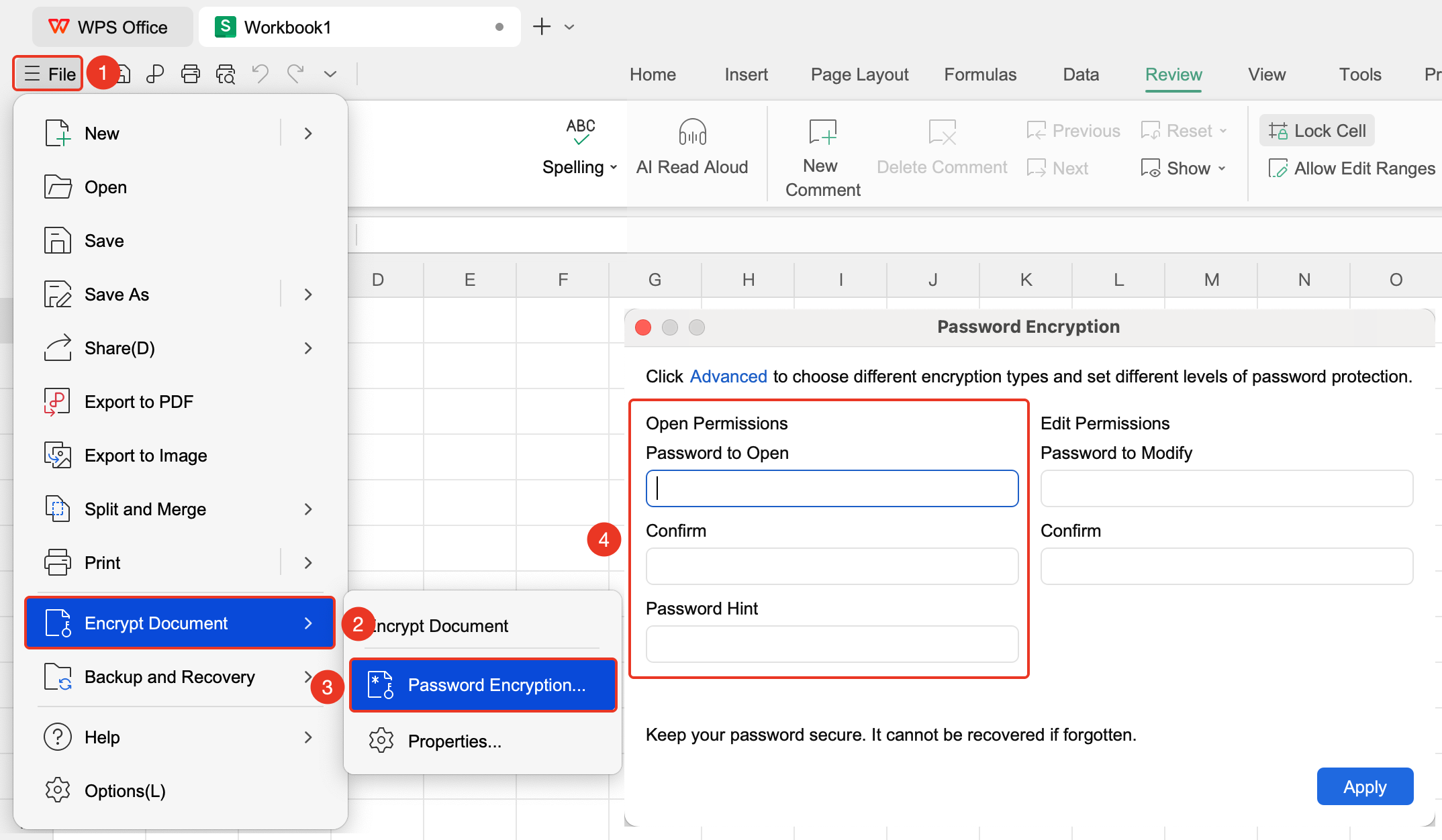
"File" tab → "Document Encryption" button → "Password Encryption" button
- Click the "File" tab in the upper left corner
- Select "Document Encryption" → "Password Encryption"
- Check "Open Permission Password", enter a password and confirm it again (case-sensitive)
- Click OK and press
Cmd+Son Mac to save the document; the password will then take effect
Edit Permission Encryption (Allow Viewing, Prohibit Modification)
Feature Entry
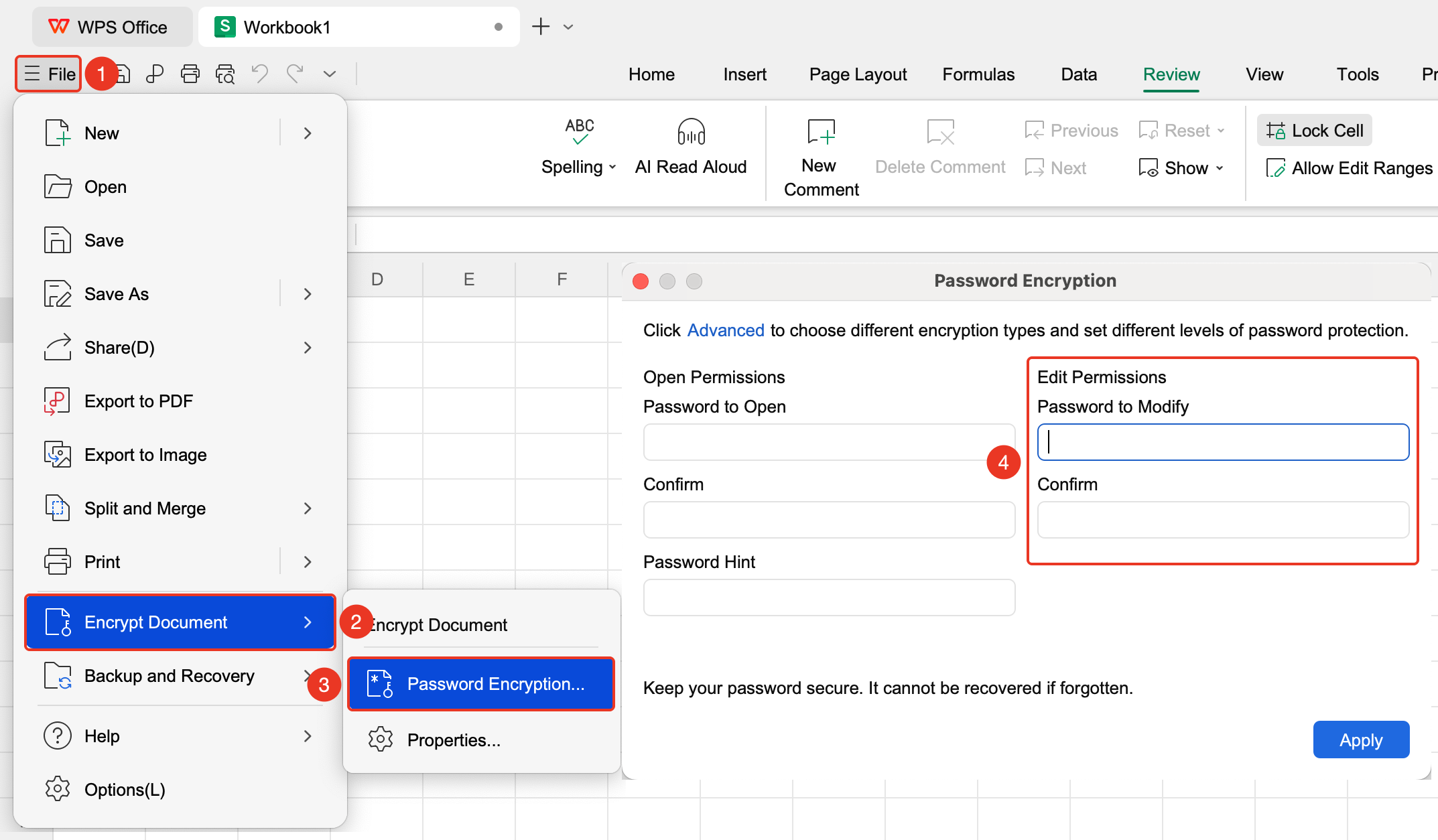
"File" tab → "Document Encryption" button → "Password Encryption" button
- Open the "Document Encryption" → "Password Encryption" window
- Check "Edit Permission Password", enter the password and confirm
- After saving the document, others can open and view it without a password
- Modifying the content requires entering the edit password; changes cannot be saved directly to the original file and can only be saved as a copy
Save As Encryption Method
Feature Entry
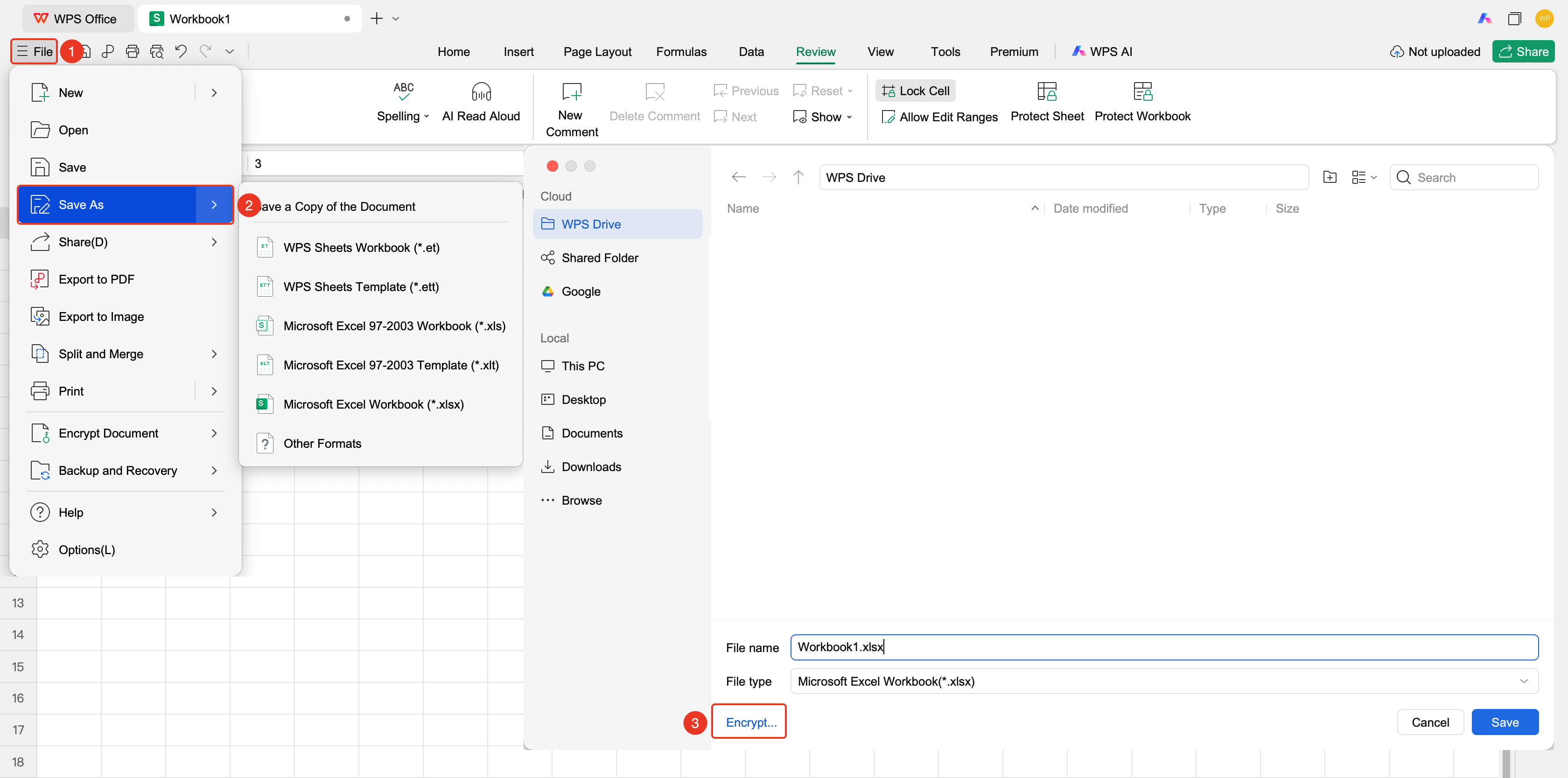
"File" tab → "Save As" button → "Encryption" button
- Click "File" → "Save As"
- Click "Encryption" at the bottom left of the pop-up window
- Set the open password / modify permission password
- Click "Save" after confirmation
Frequently Asked Questions
Q1: What should I do if I forget the password?
- Solution: WPS uses an irreversible encryption algorithm. If the password is forgotten, it cannot be recovered officially. Please keep your password safe.
Q2: How do I remove a password that has already been set?
- Solution: After opening the document with the password, go to "File" → "Document Encryption" → "Password Encryption", clear the content in the password box, click OK and save.
Notes
- Encrypted files require the correct password to open or edit
- The encryption method for cloud documents may differ from that for local files