Feature Summary
The Name Manager allows you to assign custom names to objects such as cells, cell ranges, formulas, and values, making formulas more intuitive and readable, and improving spreadsheet editing efficiency.
Feature Description
| Feature Dimension | Description |
|---|---|
| Membership Restrictions | No membership restrictions |
| Version Restrictions | No version restrictions |
Operation Steps
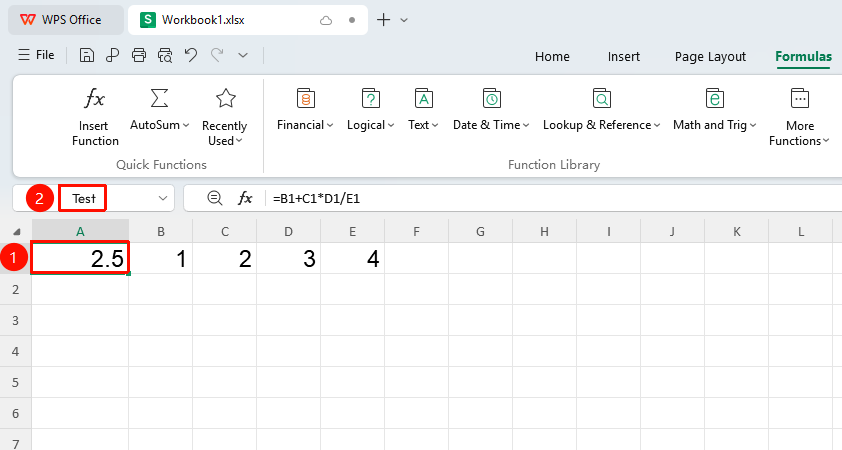
Quick Naming via Name Box
Feature Entry
"Formulas" → "Name Box"
- Select the cell, cell range, picture, or other object you want to name
- Enter a custom name in the Name Box at the top-left corner of the spreadsheet
- Press Enter to complete the naming
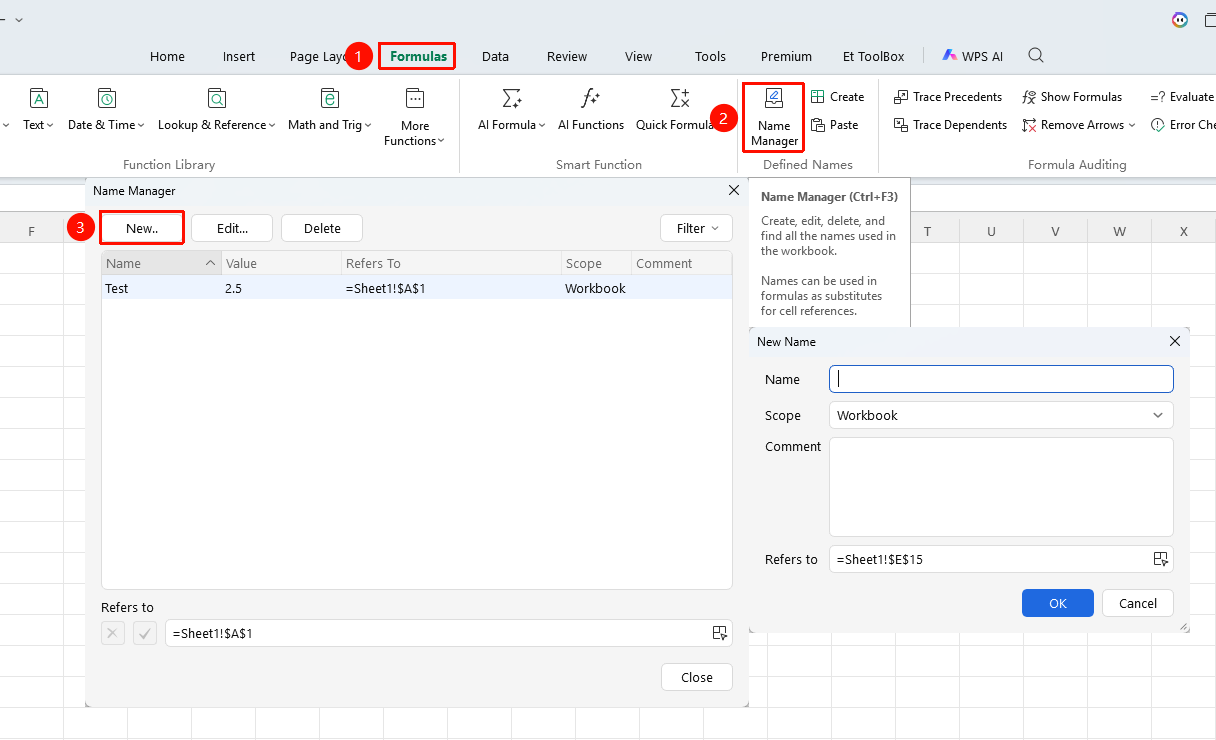
Creating via Name Manager
Feature Entry
"Formulas" tab → "Name Manager" option → "New" button
- Click the "Name Manager" button in the Formulas tab (or press the
Ctrl+F3shortcut key) - In the pop-up Name Manager window, click "New" in the upper-left corner
- Enter a custom name and select the scope of the name (default is Workbook)
- Fill in the reference location (which can be a cell, cell range, constant value, or formula), and add comments as needed
- Click OK to complete the creation
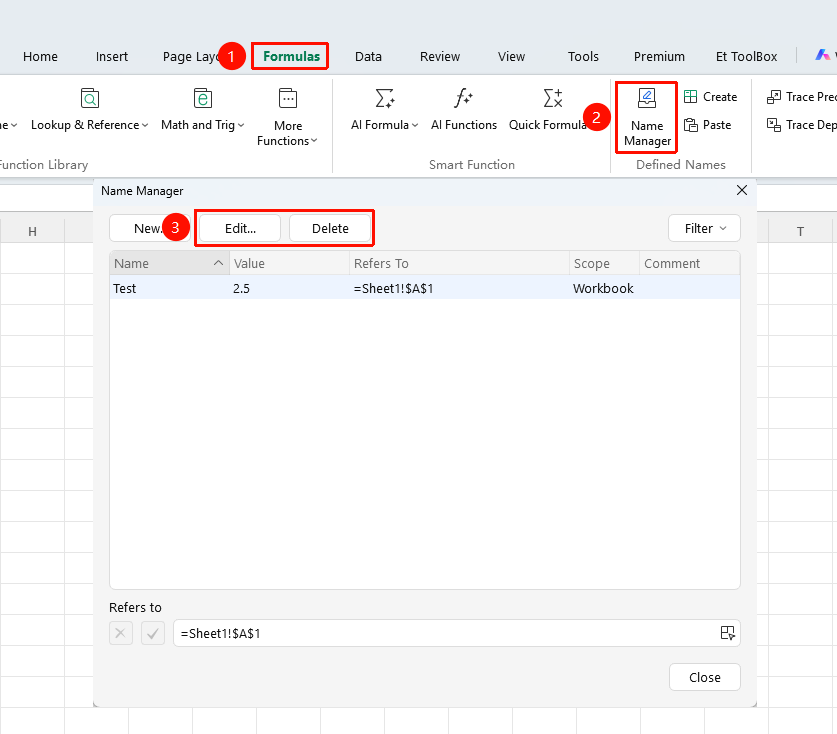
Editing and Deleting Names
Feature Entry
"Formulas" tab → "Name Manager" option
- Open the Name Manager and select an existing name
- You can directly modify the name and reference location, then click OK to save
- Select the unwanted name and click the "Delete" button to delete it
Referencing Names in Formulas
- After defining a name, type the name directly into the formula
- When the name suggestion appears, press
Tabto insert it - For example:
=SUM(January_Sales, February_Sales)
Frequently Asked Questions
Question 1: Why do I get a "Name is invalid" prompt after entering my name?
- Solution: When naming, avoid using special characters (such as spaces, @, #, etc.). The name cannot start with a number, nor can it duplicate a cell address (such as A1, B2, etc.).
Question 2: Why can't I modify the reference location for some names in the Name Manager?
- Solution: The spreadsheet only supports modifying the name text, and the reference location cannot be modified directly. If you need to modify the reference location, you can delete the name and create a new one.
Question 3: Where can I view the names of shapes and picture objects?
- Solution: The names of shapes, pictures, and other objects need to be viewed in "Home" → "Find" → "Selection Pane"; for table/pivot table names, select the object and modify it in the toolbar.
Notes
- When defining a name, if you do not want the reference location to shift with the cell, you need to use
F4(Mac:Fn+F4) to change the reference to an absolute reference (e.g.,$A$1) - It is recommended to save the file in XLSX format to ensure that name definitions are saved properly