Feature Summary
Display Equation on Chart displays the formula content instead of calculated results for all cells containing formulas, making it easy to quickly check and review formula logic.
Feature Description
| Feature Dimension | Description |
|---|---|
| Membership Restrictions | No membership restrictions |
| Version Restrictions | No version restrictions |
Steps
Ribbon Toggle
Feature Entry
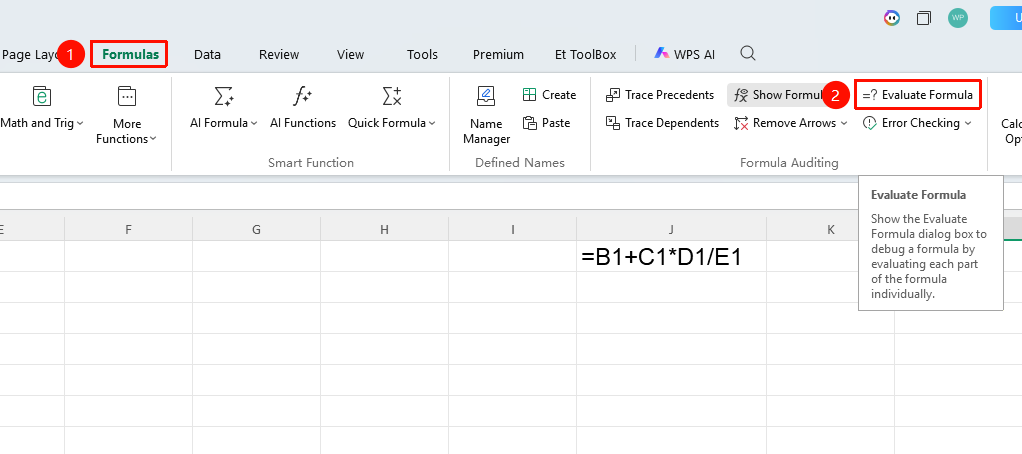
"Formulas" tab → "Show Formulas" button
- Click the Show Formulas button in the Formulas tab
- When the button has a gray background, it is enabled, and all formula cells display the formula content
- Click again to disable and restore the display of calculated results
Shortcut Key Toggle
- Press
Ctrl+~(tilde key, located below the ESC key) - Toggle between showing all formulas and calculated results with one key
- Press again to restore the original display state
FAQ
Q1: After enabling Show Formulas, what should I do if the column width is insufficient to display the full formula?
- Solution: You can drag the column boundary to adjust the column width, or use "Home" → "Wrap Text" to display the formula across multiple lines.
Q2: Why do some cells display results instead of formulas?
- Solution: The cell content may not be a formula but a fixed value, or the formula may be preceded by an apostrophe (
') as a text prefix.
Q3: Does Show Formulas affect formula calculation results?
- Solution: No. Show Formulas only changes the display mode; the formulas themselves continue to calculate normally.
Notes
- After enabling Show Formulas, column widths will automatically increase to accommodate the formula content
- The shortcut key
Ctrl+~is the most efficient way to toggle