Feature Summary
Calculation options are used to set the automatic/manual calculation mode for formulas, solving issues where formulas do not update automatically or large spreadsheets experience calculation lag.
Feature Description
| Feature Dimension | Description |
|---|---|
| Membership Restrictions | No membership restrictions |
| Version Restrictions | No version restrictions |
Operation Steps
Set Automatic Calculation
Feature Entry
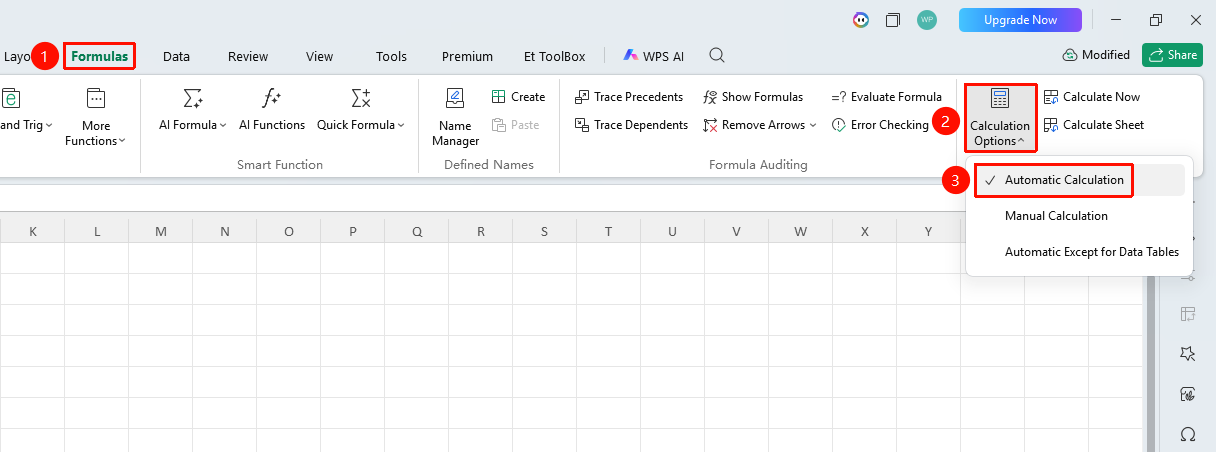
"Formulas" tab → "Calculation Options" dropdown menu → "Automatic" option
- Click the "Calculation Options" dropdown menu in the Formulas tab
- Select "Automatic" (default mode)
- When data is modified, formulas automatically recalculate and update results
Set Manual Calculation
Feature Entry
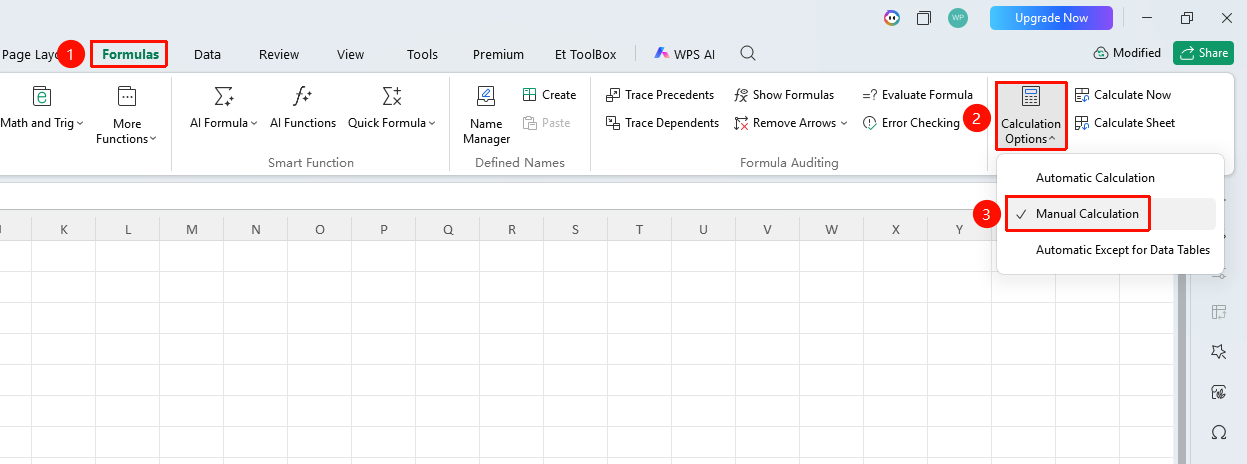
"Formulas" tab → "Calculation Options" dropdown menu → "Manual" option
- Click the "Calculation Options" dropdown menu in the Formulas tab
- Select "Manual"
- Formulas will not update automatically after data is modified
- Press
F9(Mac:Fn+F9) to manually trigger recalculation of all formulas - Press
Shift+F9(Mac:Shift+Fn+F9) to recalculate only the formulas on the current worksheet
Automatic Except for Data Tables
Feature Entry
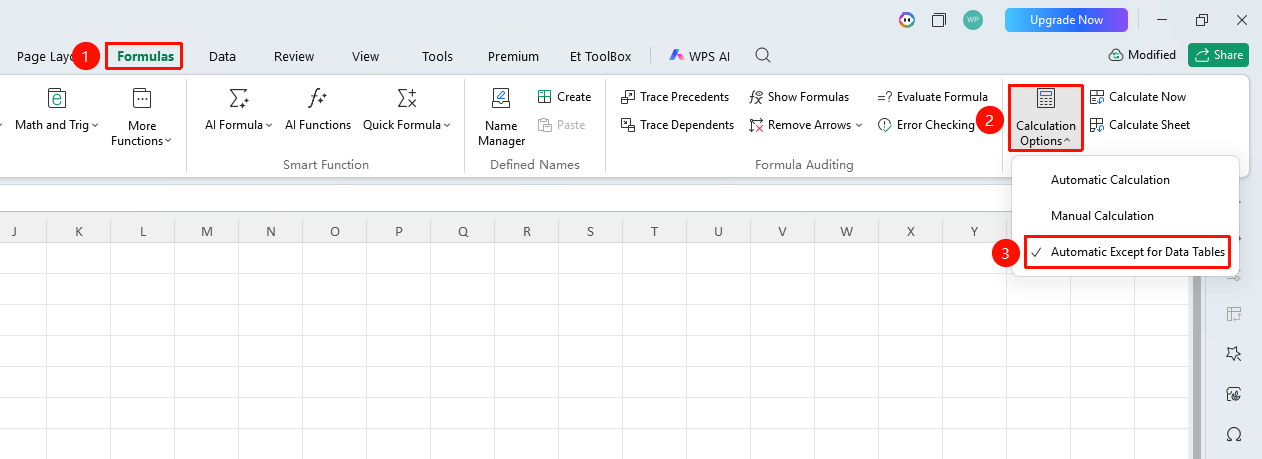
"Formulas" tab → "Calculation Options" dropdown menu → "Automatic Except for Data Tables" option
- Click the "Calculation Options" dropdown menu in the Formulas tab
- Select "Automatic Except for Data Tables"
- Formulas update automatically after data modification, but formulas in data tables will not calculate automatically
Frequently Asked Questions
Q1: What should I do if formula results do not update automatically after modifying data?
- Solution: Check if "Formulas" → "Calculation Options" is set to "Manual", and change it to "Automatic". Alternatively, press
F9(Mac:Fn+F9) to force a manual calculation once.
Q2: What should I do if formula calculation is too slow in a large spreadsheet?
- Solution: Set the calculation option to "Manual", and press
F9(Mac:Fn+F9) to perform a unified calculation after editing is complete. You can also useShift+F9(Mac:Shift+Fn+F9) to calculate only the current worksheet for a specific area.
Q3: How do I update only a specific cell in manual calculation mode?
- Solution: Copy an empty value and then paste special as "Values" to trigger recalculation of that area; or double-click the cell containing the formula and press Enter to trigger an update of that single formula.
Notes
- In manual calculation mode, saving the file will not automatically trigger recalculation of all formulas
- Manual mode is suitable for large spreadsheets with over 100,000 rows of data