Feature Summary
Trace Dependents is used to see which other cells' formulas reference the data in the current cell, helping you understand data dependency relationships.
Feature Description
| Feature Dimension | Description |
|---|---|
| Membership Restrictions | No membership restrictions |
| Version Restrictions | No version restrictions |
Operation Steps
Trace Dependents
Feature Entry
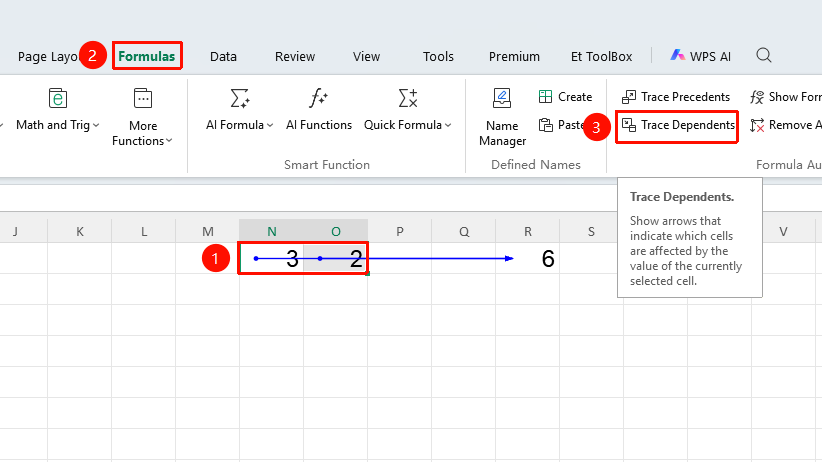
"Formulas" tab → "Trace Dependents" button
- Select the cell you want to inspect
- Click the Trace Dependents button in the Formulas tab
- Arrow indicators are automatically generated; the direction of the arrows points to the dependent cells that reference the current cell
- You can click multiple times to display more levels of dependency relationships
Remove Trace Arrows
Feature Entry
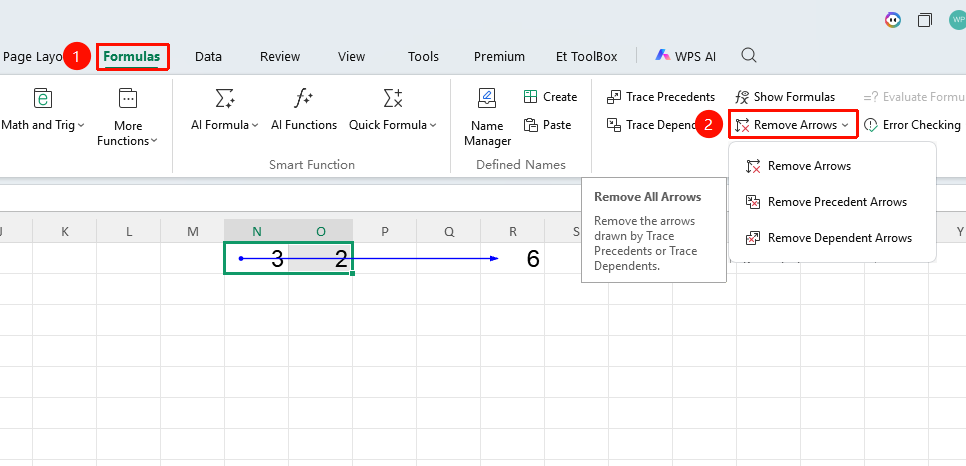
"Formulas" tab → Drop-down arrow next to the "Remove Arrows" button
- Click the drop-down arrow next to the Remove Arrows button in the Formulas tab
- Select Remove Dependent Trace Arrows to clear only dependent traces
- Select Remove Precedent Trace Arrows to clear only precedent traces
- Select Remove Arrows to clear all trace markers at once
Frequently Asked Questions
Q1: What prompt appears if the cell is not referenced when tracing dependents?
- Solution: If the current cell is not referenced by any formula, the system will prompt "No formulas reference this cell."
Q2: Can I trace both precedents and dependents at the same time?
- Solution: Yes. First click "Trace Precedents," then click "Trace Dependents"; both can be displayed on the same sheet simultaneously.
Q3: Can trace arrows be saved to the file?
- Solution: Trace arrows are temporary visual markers. They will automatically disappear when the file is closed and will not be saved to the file.
Notes
- Trace arrows are only visual aids for inspection and do not affect data calculation or storage
- Use "Remove All Arrows" to quickly clear all markers and keep the spreadsheet tidy