Feature Summary
Trace Precedents uses arrows to indicate which cells are referenced in the current cell's formula, helping users quickly trace data sources.
Feature Description
| Feature Dimension | Description |
|---|---|
| Membership Restriction | No membership restriction |
| Version Restriction | No version restriction |
Steps
Trace Precedents
Feature Entry
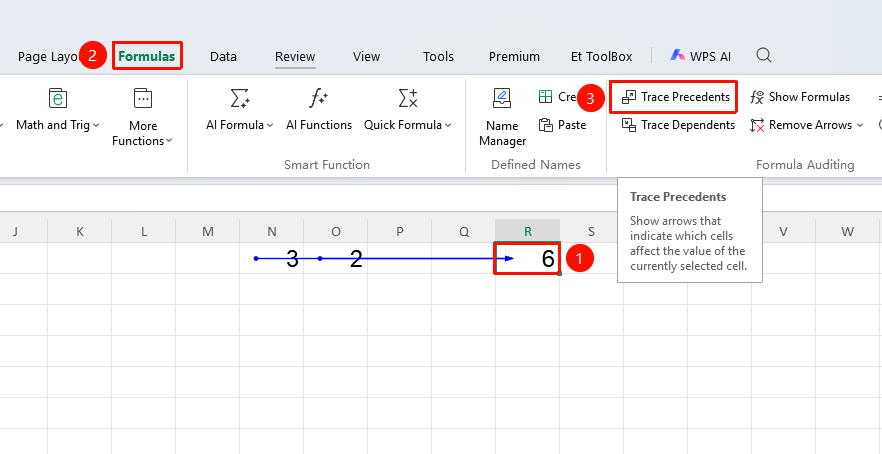
"Formulas" tab → "Trace Precedents" button
- Select a cell that contains a formula
- Click the "Trace Precedents" button in the Formulas tab
- Arrows are automatically generated to indicate reference relationships:
- Blue solid arrow: Indicates a reference source within the current sheet
- Black dashed arrow: Indicates a cross-sheet reference; click the dashed arrow to jump to the location
- You can click multiple times to display multi-level reference relationships
Remove Trace Arrows
Feature Entry
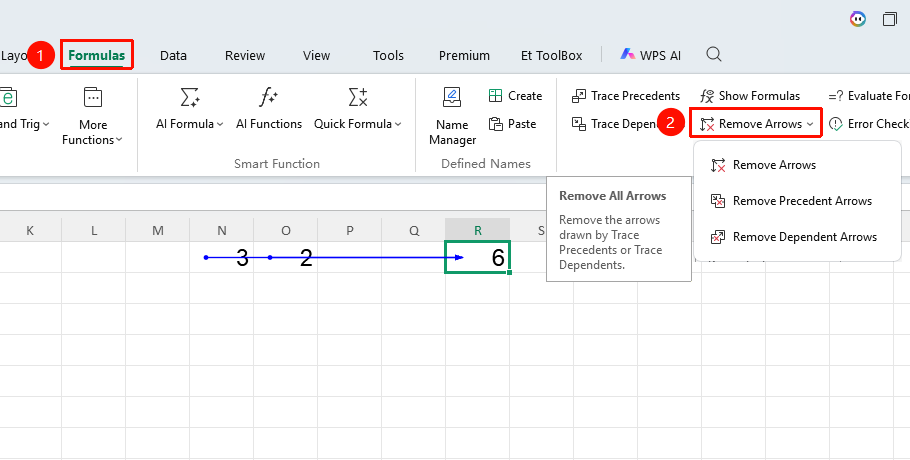
Drop-down arrow next to the "Remove Arrows" button in the "Formulas" tab
- Click the "Remove Arrows" drop-down button in the Formulas tab
- Select "Remove Precedent Arrows" to remove precedent traces
- Select "Remove Dependent Arrows" to remove dependent traces
- Select "Remove All Arrows" to clear all trace marks at once
FAQ
Q1: Why is the Trace Precedents button grayed out and unavailable?
- Solution: This feature is only effective for cells containing formulas. Please select a cell with a formula first and then try again.
Q2: What should I do if there are too many arrows and it's hard to see clearly?
- Solution: You can click "Formulas" → "Remove Arrows" → "Remove All Arrows" to clear them and then trace again to avoid overlapping arrows.
Q3: How do I return after a dashed arrow jumps to another worksheet?
- Solution: Click the back arrow in the upper-left corner of the window, or press
Ctrl+Zto undo the jump and return to the original worksheet.
Notes
- Trace arrows are only a visual aid and will not modify cell content
- When referencing across worksheets, the target worksheet indicated by the dashed arrow must exist and not be hidden