Feature Summary
Formula Evaluation allows you to view the calculation process of a formula step by step, helping you locate errors in complex formulas and analyze the calculation logic progressively.
Feature Description
| Feature Dimension | Description |
|---|---|
| Membership Restrictions | No membership restrictions |
| Version Restrictions | No version restrictions |
Steps
Using Formula Evaluation
Feature Entry
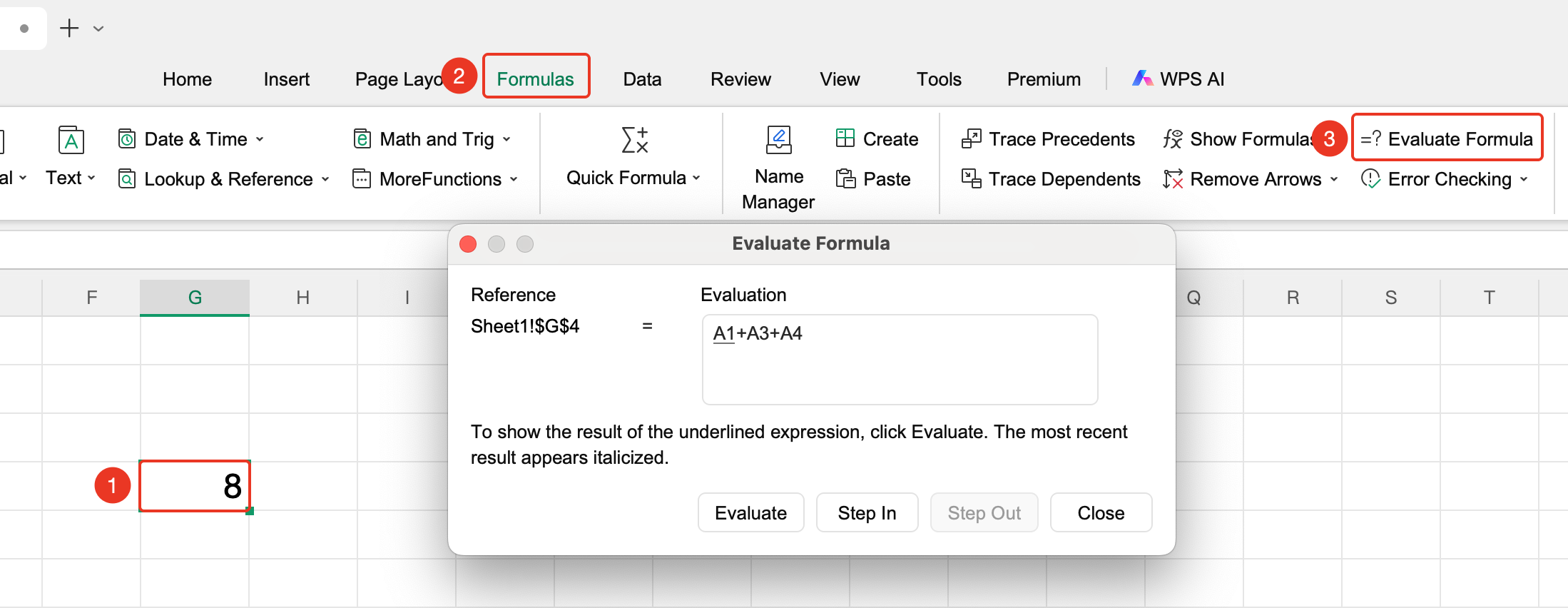
"Formulas" tab → "Formula Evaluation" button
- Select the cell containing the formula
- Click the "Formula Evaluation" button in the Formulas tab
- In the pop-up window, view the current formula content. The underlined part is the parameter currently pending evaluation.
- Click "Step In" : View the content of the referenced cell corresponding to the underlined parameter
- Click "Evaluate" : Calculate the formula step by step. Each click performs one step of the calculation.
- Click "Step Out" : Return from the internal reference of a nested formula to the outer formula, making it easier to view the overall calculation flow of the current formula.
- Repeat clicking until the final result is obtained. After locating the error, close the window and modify the formula.
FAQ
Q1: What is the difference between "Step In" and "Evaluate"?
- Solution: "Step In" is used to view the actual value of the referenced cell, while "Evaluate" is used to execute the calculation for the current step. Generally, it is recommended to step in first to confirm the reference is correct, then evaluate to proceed to the next step.
Q2: What should I do if the content in the Formula Evaluation window is truncated?
- Solution: You can drag the border of the pop-up window to enlarge it and view the complete formula content.
Q3: Does Formula Evaluation support nested functions?
- Solution: Yes. Complex nested formulas are expanded and calculated layer by layer from the inside out, displaying the current calculation progress at each step.
Notes
- You must select a cell containing a formula before use; otherwise, the button will be grayed out and unavailable.
- This applies only to regular formulas. The handling of array formulas is slightly different.