Feature Summary
Formula Check can batch-detect errors in all formulas within a spreadsheet, indicate the cause of the error, and help you quickly locate and fix formula issues.
Feature Description
| Feature Dimension | Description |
|---|---|
| Membership Restriction | No membership restriction |
| Version Restriction | No version restriction |
Operation Steps
Performing Error Checking
Feature Entry
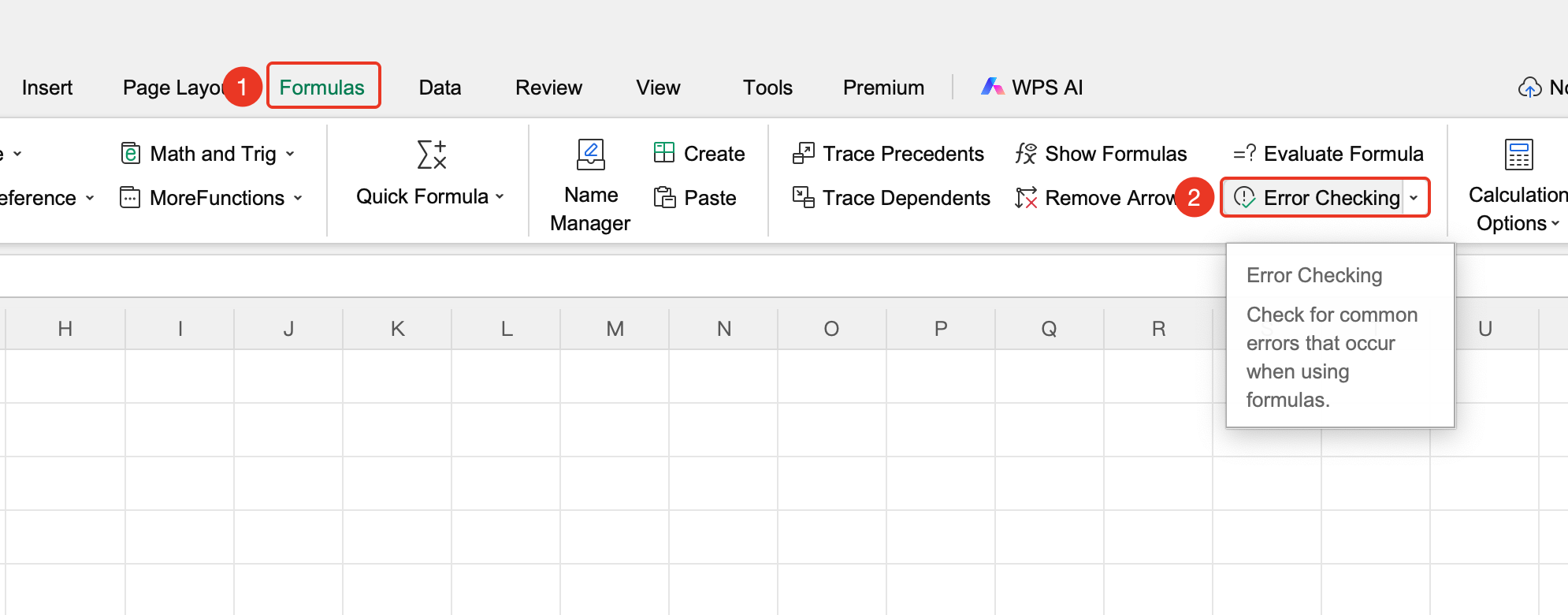
"Formulas" tab → "Error Checking" button
- Click the "Error Checking" button in the Formulas tab
- The software automatically scans formulas across the entire spreadsheet
- After the scan is complete, a dialog box will appear indicating the cause of the error
Customizing Check Rules
Feature Entry
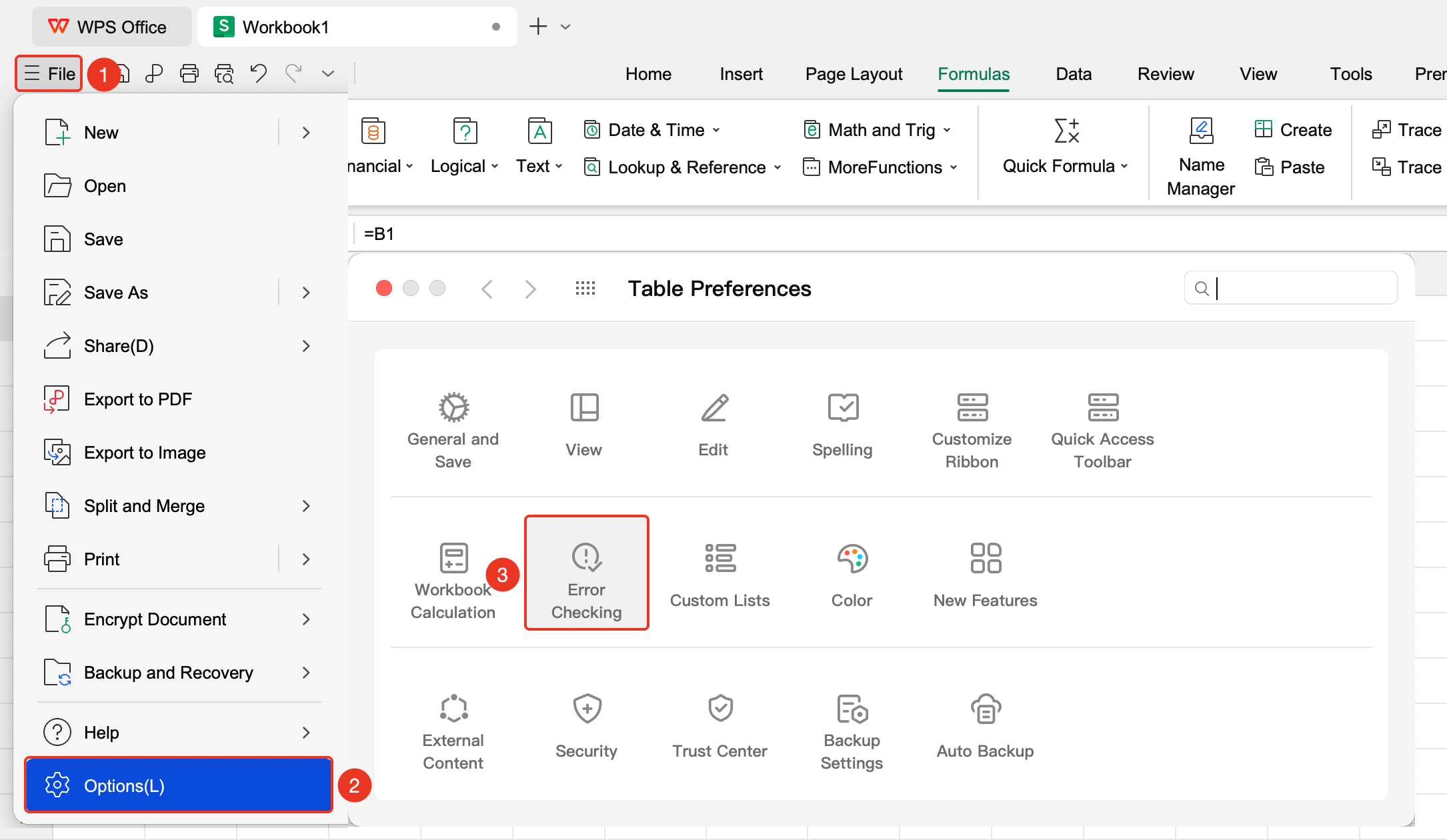
"File" menu → "Options" button → "Error Checking" tab
- Click the File menu in the upper-left corner of the file
- Select Options
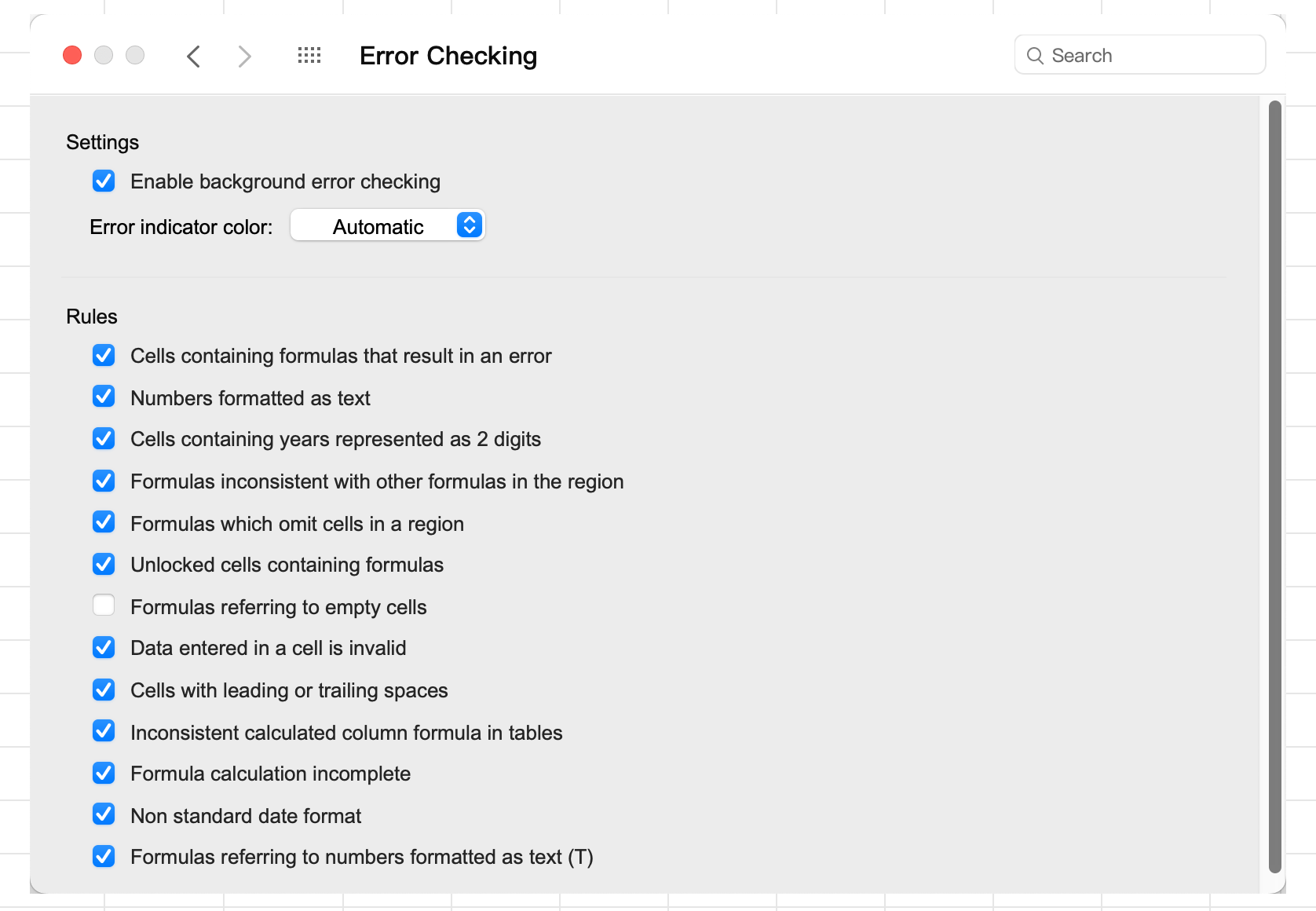
- Click the "Error Checking" tab
- You can set the display color for error prompts
- Check/uncheck the error rules you want to inspect
- Click OK to save the settings
Detecting Circular References
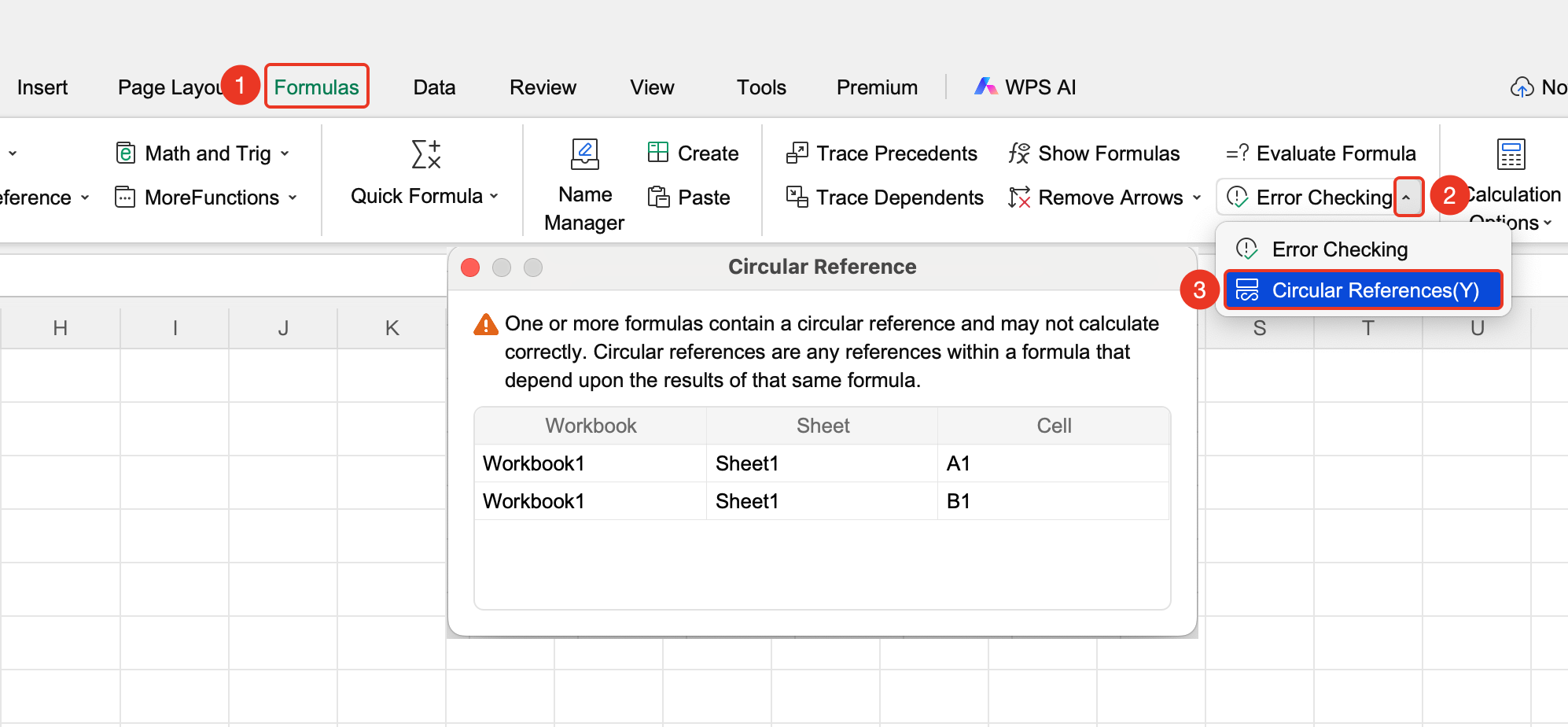
Feature Entry "Formulas" tab → Drop-down arrow next to the "Error Checking" button → "Circular References" option
- If a circular reference exists when entering a formula, WPS will automatically pop up a warning prompt
- After closing the pop-up, click the Formulas tab → the drop-down arrow next to the "Error Checking" button
- If the "Circular References" option is selectable, it indicates that circular references exist in the spreadsheet
- If it is grayed out and unselectable, no circular references exist
- Click "Circular References" to navigate to the specific cell containing the circular reference
Frequently Asked Questions
Q1: Why did the green triangle marker disappear?
- Solution: Background error checking may have been turned off. Go to "File" → "Spreadsheet Preferences" → "Error Checking", and ensure that "Enable background error checking" is checked.
Q2: Do detected errors always need to be corrected?
- Solution: Not necessarily. Some prompts are false positives (e.g., numbers stored as text) and can be ignored based on the actual situation. Click the drop-down arrow next to the error and select "Ignore Error".
Q3: Can I view the history of error checks?
- Solution: Error checking does not retain a history log.
Notes
- Error checking is performed item by item; large spreadsheets may take some time
- Check results update in real time after modifying formulas